Перейти к основному содержанию
Присоединяйся к сообществу ремонтников - Создай аккаунт

Acer Aspire 5100 LCD Monitor Replacement

Просмотров: 16 тыс.

Просмотр статистики:

За последние 24 часа:
2
За последние 7 дней:
11
За последние 30 дней:
96
За все время:
16 412
Комментарии: 5

4 комментариев к шагам, 1 комментарий к инструкции.

Перейти к комментариям инструкции
Завершено: 8

8 пользователей отметили эту инстркукцию как "завершенное". Вы будете следующим?

Избранные: 11

11 эта инструкция понравилась многим пользователям (и они подписались на нее). Вы будете следующим?

Необходимое время: 20 - 30 минут
Сложность: Сложно
Acer Aspire 5100 LCD Monitor Replacement

If your Acer Aspire screen (model 5100) isn’t producing a clear picture and instead outputs distorted images or intermittent/dead pixels, use this guide to replace the monitor.

The monitor transmits visual data to users through thousands of small pixels. A faulty monitor will transmit distorted or unclear images or no images at all.

Before using this guide, inspect the monitor for any debris that may be interfering with screen quality. Typically, any minute pieces of dust can be removed using an ESD-safe brush or small, damp towel. Be sure to completely shut down your laptop on and off at least two times to confirm that the faulty hardware is the monitor itself.

Before beginning, be sure to turn off your laptop completely and disconnect it from any external power source(s) or monitors if possible.

Выберете то, что Вам нужно

Запчасти

Инструменты

    1. Acer Aspire 5100 LCD Monitor Replacement, Keyboard: шаг 1, изображение 1 из 2 Acer Aspire 5100 LCD Monitor Replacement, Keyboard: шаг 1, изображение 2 из 2
      • Open and push the screen back all the way until it is horizontal with the rest of the laptop.

      • Use an opening tool to remove the panel above the keyboard that has the power button on it.

      • After you have released the tabs, lift up the panel.

      Спросите у FixBot

      Добавить комментарий

    2. Acer Aspire 5100 LCD Monitor Replacement: шаг 2, изображение 1 из 3 Acer Aspire 5100 LCD Monitor Replacement: шаг 2, изображение 2 из 3 Acer Aspire 5100 LCD Monitor Replacement: шаг 2, изображение 3 из 3
      • Under the panel, remove the two screws that connect the keyboard to the laptop.

      • One screw is located above the F5 button, and the other one is located above the F10 button.

      • Potential for device damage: Lift up the keyboard CAREFULLY because there is a ribbon that connects the keyboard to the motherboard.

      Спросите у FixBot

      Добавить комментарий

    3. Acer Aspire 5100 LCD Monitor Replacement: шаг 3, изображение 1 из 1
      • Release the catch on the ribbon socket by sliding the two tabs toward the ribbon.

      • Pull the ribbon under the keyboard to detach it from the motherboard.

      • Remove the keyboard.

      Спросите у FixBot

      Добавить комментарий

    1. Acer Aspire 5100 LCD Monitor Replacement, LCD Monitor: шаг 4, изображение 1 из 1
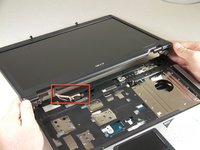
      • Remove the two screws from each corner beneath the LCD screen.

      Спросите у FixBot

      Добавить комментарий

    2. Acer Aspire 5100 LCD Monitor Replacement: шаг 5, изображение 1 из 2 Acer Aspire 5100 LCD Monitor Replacement: шаг 5, изображение 2 из 2
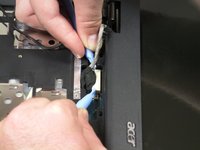
      • Detach the white rectangle located on the motherboard at the end of the wire connected to the LCD screen.

      Спросите у FixBot

      Добавить комментарий

    3. Acer Aspire 5100 LCD Monitor Replacement: шаг 6, изображение 1 из 2 Acer Aspire 5100 LCD Monitor Replacement: шаг 6, изображение 2 из 2
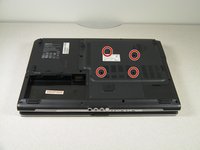
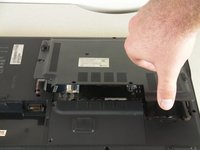
      • Flip the laptop upside down.

      • Remove the four screws from the back panel of the laptop.

      • Lift the panel up and set it aside.

      Спросите у FixBot

      Добавить комментарий

    4. Acer Aspire 5100 LCD Monitor Replacement: шаг 7, изображение 1 из 1
      • Detach the black and white wire.

      • You do not need to remove the cooling fan.

      Спросите у FixBot

      Добавить комментарий

    5. Acer Aspire 5100 LCD Monitor Replacement: шаг 8, изображение 1 из 1
      • Lift up the monitor to detach it.

      Спросите у FixBot

      Добавить комментарий

Заключение

To reassemble your device, follow these instructions in reverse order.

Отменить: Я не выполнил это руководство.

8 человек успешно провели ремонт по этому руководству.

Brad Rollinson

Участник с: 09/29/10

1 113 Репутация

Автор 7 руководств

Команду

Cal Poly, Team 14-39, Forte Fall 2010 Участник Cal Poly, Team 14-39, Forte Fall 2010

CPSU-FORTE-F10S14G39

5 членов

Автор 96 руководств

1 Комментарий к руководству

There are 2 screws at the back corners on the bottom cover that are holding the screen down. They need to be removed in order for the screen to be lifted.

Kar Wong - Ответить Поделиться

Добавить комментарий

Статистика просмотров:

За последние 24 часов: 2

За последние 7 дней: 11

За последние 30 дней: 96

За все время: 16,412