Перейти к основному содержанию
Присоединяйся к сообществу ремонтников - Создай аккаунт

Asus Eee PC 1005HA Trackpad buttons Replacement

Просмотров: 10 тыс.

Просмотр статистики:

За последние 24 часа:
2
За последние 7 дней:
17
За последние 30 дней:
99
За все время:
10 071
Комментарии: 3

2 комментариев к шагам, 1 комментарий к инструкции.

Перейти к комментариям инструкции
Завершено: 2

2 пользователей отметили эту инстркукцию как "завершенное". Вы будете следующим?

Избранные: 8

8 эта инструкция понравилась многим пользователям (и они подписались на нее). Вы будете следующим?

Необходимое время: Нет оценки
Сложность: Умеренно
Asus Eee PC 1005HA Trackpad buttons Replacement

Use this guide to replace the trackpad buttons in the Asus Eee PC 1005HA.

Выберете то, что Вам нужно

Инструменты

    1. Asus Eee PC 1005HA Trackpad buttons Replacement, Battery: шаг 1, изображение 1 из 1
      • Lay the laptop upside down.

      • Locate the two battery lock tabs.

      Спросите у FixBot

      Добавить комментарий

    2. Asus Eee PC 1005HA Trackpad buttons Replacement: шаг 2, изображение 1 из 3 Asus Eee PC 1005HA Trackpad buttons Replacement: шаг 2, изображение 2 из 3 Asus Eee PC 1005HA Trackpad buttons Replacement: шаг 2, изображение 3 из 3
      • Slide the tabs outward to unlock the battery.

      • The left tab will remain unlocked, while the right tab must be held.

      • Holding the right tab open, slide the battery out of the laptop.

      Спросите у FixBot

      Добавить комментарий

    1. Asus Eee PC 1005HA Trackpad buttons Replacement, Keyboard: шаг 3, изображение 1 из 2 Asus Eee PC 1005HA Trackpad buttons Replacement, Keyboard: шаг 3, изображение 2 из 2
      • Use a plastic opening tool to pull up the four metal latches in the battery cavity that is located on the bottom of the laptop.

      • Do not apply too much pressure. The latches can not be removed and will bend if forced.

      Спросите у FixBot

      Добавить комментарий

    2. Asus Eee PC 1005HA Trackpad buttons Replacement: шаг 4, изображение 1 из 3 Asus Eee PC 1005HA Trackpad buttons Replacement: шаг 4, изображение 2 из 3 Asus Eee PC 1005HA Trackpad buttons Replacement: шаг 4, изображение 3 из 3
      • Flip the laptop over, and open the display.

      • Use a plastic opening tool to lift the edge of the keyboard that is nearest to the screen.

      • Gently lift the keyboard and slide it toward the screen.

      • Do not remove the keyboard completely. This can damage the ribbon cable connecting the underside of the keyboard to the laptop.

      Спросите у FixBot

      Добавить комментарий

    3. Asus Eee PC 1005HA Trackpad buttons Replacement: шаг 5, изображение 1 из 1
      • Use a spudger tool to release the tabs on the ribbon cable ZIF connector that is attached to the underside of the keyboard.

      • Depending on the model, the tabs on this ZIF connector will either flip up toward the display or push out toward the display.

      • Once the ZIF connector tabs have been released, remove the keyboard.

      Спросите у FixBot

      Добавить комментарий

    1. Asus Eee PC 1005HA Trackpad buttons Replacement, Trackpad buttons: шаг 6, изображение 1 из 1
      • Close the display and flip the laptop over.

      • Remove the five screws on bottom of the case.

      Спросите у FixBot

      Добавить комментарий

    2. Asus Eee PC 1005HA Trackpad buttons Replacement: шаг 7, изображение 1 из 3 Asus Eee PC 1005HA Trackpad buttons Replacement: шаг 7, изображение 2 из 3 Asus Eee PC 1005HA Trackpad buttons Replacement: шаг 7, изображение 3 из 3
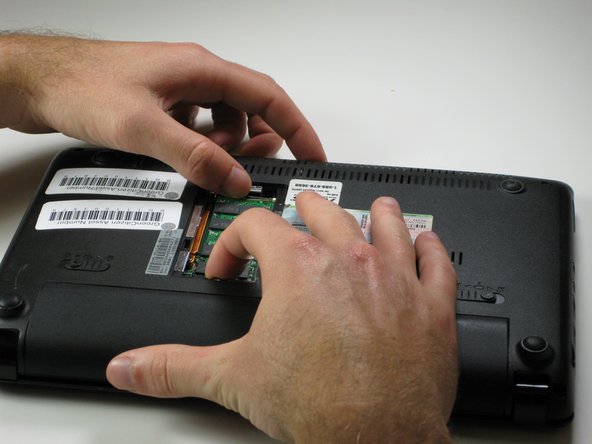
      • Remove the panel covering the RAM.

      • Pull the two RAM retaining arms away from the center of the RAM chip.

      • Gently pull the RAM chip out of its socket.

      • This photo shows the battery still attached, but it should be removed prior to removing or replacing the RAM.

      Спросите у FixBot

      Добавить комментарий

    3. Asus Eee PC 1005HA Trackpad buttons Replacement: шаг 8, изображение 1 из 1
      • Remove the single 6.65 mm screw next to the RAM socket.

      Спросите у FixBot

      Добавить комментарий

    4. Asus Eee PC 1005HA Trackpad buttons Replacement: шаг 9, изображение 1 из 2 Asus Eee PC 1005HA Trackpad buttons Replacement: шаг 9, изображение 2 из 2
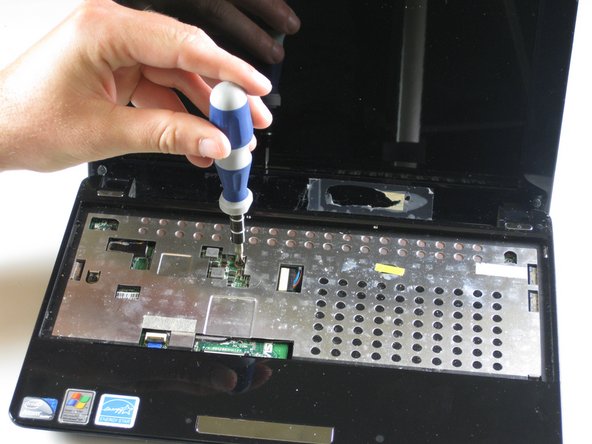
      • Flip the laptop back over and open the display.

      • Remove the six 5.5 mm screws from the metal plate beneath the keyboard.

      Спросите у FixBot

      Добавить комментарий

    5. Asus Eee PC 1005HA Trackpad buttons Replacement: шаг 10, изображение 1 из 2 Asus Eee PC 1005HA Trackpad buttons Replacement: шаг 10, изображение 2 из 2
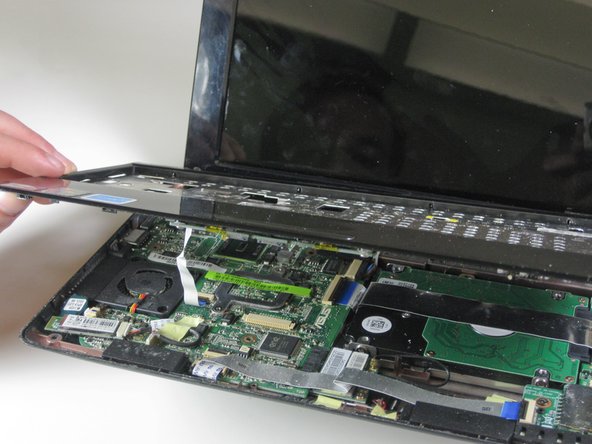
      • Using a plastic opening tool, detach the five plastic clips securing the upper case.

      • There are two small LEDs in the top edge of the lower casing, near the bottom right of the laptop. Be careful not to damage them as you pry open the plastic clips.

      • Carefully lift the upper case and flip it towards the front of the laptop.

      Спросите у FixBot

      Добавить комментарий

    6. Asus Eee PC 1005HA Trackpad buttons Replacement: шаг 11, изображение 1 из 1
      • Flip up the retaining flap on the trackpad ribbon cable ZIF connector.

      • Slide the trackpad ribbon cable from its socket.

      Спросите у FixBot

      Добавить комментарий

    7. Asus Eee PC 1005HA Trackpad buttons Replacement: шаг 12, изображение 1 из 3 Asus Eee PC 1005HA Trackpad buttons Replacement: шаг 12, изображение 2 из 3 Asus Eee PC 1005HA Trackpad buttons Replacement: шаг 12, изображение 3 из 3
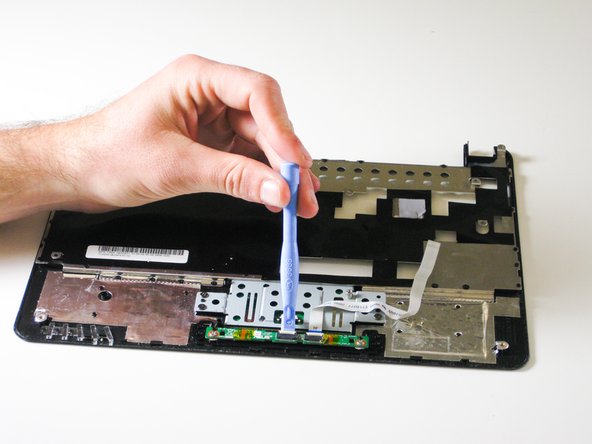
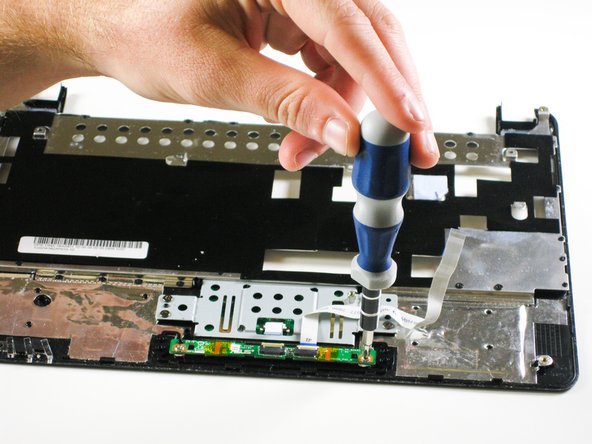
      • Flip up the retaining flap on the button ribbon cable ZIF connector.

      • Pull the button ribbon cable out of its socket.

      • Remove the two 3.6 mm screws from the button assembly.

      Спросите у FixBot

      Добавить комментарий

    8. Asus Eee PC 1005HA Trackpad buttons Replacement: шаг 13, изображение 1 из 1
      • Remove the trackpad buttons.

      Спросите у FixBot

      Добавить комментарий

Заключение

To reassemble your device, follow these instructions in reverse order.

Отменить: Я не выполнил это руководство.

2 человек успешно провели ремонт по этому руководству.

Mitchell Cesare

Участник с: 01/31/12

811 Репутация

Автор 4 руководств

Команду

Cal Poly, Team 11-22, Maness Winter 2012 Участник Cal Poly, Team 11-22, Maness Winter 2012

CPSU-MANESS-W12S11G22

3 членов

Автор 72 руководств

1 Комментарий к руководству

About removing the touchpad ribbon:

- My mistake was to try to slide out the little comb black piece that holds the ribbon in position. Instead you should just lift it up gently - it rotates up to free the ribbon - and leave it in place. To insert back the cable you will only need to push the black piece back down.

- Trying to put back the black piece without a clue about what I was doing it started to break down and then simply flew away and disappeared in a creak of the floor. That wasn't much fun.

- Then I noticed an unused connector of the same size about 1 inch to the right and down of the touchpad connector on the MoBo and figured out that it was rotating when I - very gently this time - tried to remove it from its support. I was then successful in putting it into the touchpad slot the way the original was and it now can rotate and seal the ribbon in place.

dduck - Ответить Поделиться

Добавить комментарий

Статистика просмотров:

За последние 24 часов: 2

За последние 7 дней: 17

За последние 30 дней: 99

За все время: 10,071