Перейти к основному содержанию
Присоединяйся к сообществу ремонтников - Создай аккаунт
HP Mini 210 Fan Replacement

Просмотров: 5,8 тыс.

Просмотр статистики:

За последние 24 часа:
2
За последние 7 дней:
20
За последние 30 дней:
110
За все время:
5 795
Комментарии: 4

4 комментариев к шагам.

Завершено: 3

3 пользователей отметили эту инстркукцию как "завершенное". Вы будете следующим?

Избранные: 6

6 эта инструкция понравилась многим пользователям (и они подписались на нее). Вы будете следующим?

Необходимое время: 45 минут - 1 час
Сложность: Сложно
Пропущенные шаги

Ой! В настоящее время в этом руководстве отсутствует один или несколько важных шагов.

Ненаглядные фото

Будьте героем экшена! Изображения в этой инструкции должны более наглядно демонстрировать, как нужно выполнять то или иное действие.

Нужны более качественные фото

Более качественные фотографии улучшат это руководство. Помогайте, делая снимки, редактируя или загружая новые!

HP Mini 210 Fan Replacement

This guide will teach you how to perform a fan replacement on the HP Mini 210.

Выберете то, что Вам нужно

Инструменты

    1. HP Mini 210 Fan Replacement, Battery: шаг 1, изображение 1 из 2 HP Mini 210 Fan Replacement, Battery: шаг 1, изображение 2 из 2
      • Turn off and unplug the netbook before replacing the battery.

      • Hold the netbook top-side down with the lid closed.

      • Slide the plastic battery release latches towards the lock symbols.

      • The left tab unlocks completely, but you will need to hold the right tab towards the lock symbol as you remove the battery.

      Спросите у FixBot

      Добавить комментарий

    2. HP Mini 210 Fan Replacement: шаг 2, изображение 1 из 1
      • Slide the battery out from the netbook.

      Спросите у FixBot

      Добавить комментарий

    1. HP Mini 210 Fan Replacement, Disassembling HP Mini 210 Back Case: шаг 3, изображение 1 из 1
      • Turn the netbook to view its edge.

      • Press both orange eject buttons simultaneously, and use a spudger to pry off the back case.

      Спросите у FixBot

      Добавить комментарий

    2. HP Mini 210 Fan Replacement: шаг 4, изображение 1 из 1
      • If the back case does not separate from the netbook easily, use the spudger to pry off the back case by the edge near the battery compartment, and work your way to the sides. The case will then pivot along the front edge.

      Спросите у FixBot

      Добавить комментарий

    3. HP Mini 210 Fan Replacement: шаг 5, изображение 1 из 1
      • Pull the back case off from the front edge.

      Спросите у FixBot

      Добавить комментарий

    1. HP Mini 210 Fan Replacement, Keyboard: шаг 6, изображение 1 из 3 HP Mini 210 Fan Replacement, Keyboard: шаг 6, изображение 2 из 3 HP Mini 210 Fan Replacement, Keyboard: шаг 6, изображение 3 из 3
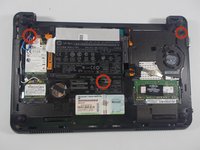
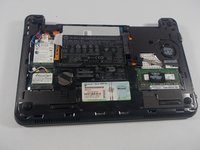
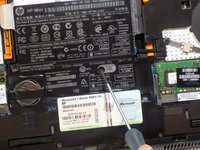
      • Using a screwdriver, remove the three 6.6 mm screws highlighted with the red circles in the first picture above.

      Спросите у FixBot

      Добавить комментарий

    2. HP Mini 210 Fan Replacement: шаг 7, изображение 1 из 2 HP Mini 210 Fan Replacement: шаг 7, изображение 2 из 2
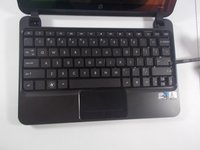
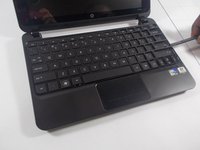
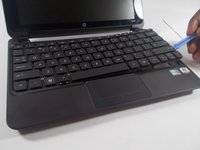
      • Once you have removed the screws, flip the netbook over so that the keyboard is now facing upwards. Open the screen as far back as the netbook allows.

      • Using a prying tool, lift upwards and remove the plastic casing that covers the spaces around the keys of the keyboard.

      • Be careful when removing the plastic casing.

      Спросите у FixBot

      Добавить комментарий

    3. HP Mini 210 Fan Replacement: шаг 8, изображение 1 из 3 HP Mini 210 Fan Replacement: шаг 8, изображение 2 из 3 HP Mini 210 Fan Replacement: шаг 8, изображение 3 из 3
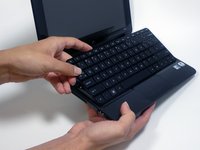
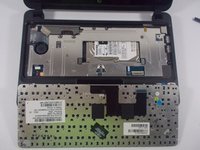
      • After removing the plastic casing surrounding the keys, carefully lift the full keyboard from the netbook using a plastic opening tool.

      • Do not yank the keyboard out. The keyboard is attached to the netbook through a ribbon cable, which needs to remain undamaged in order for the new keyboard to properly connect with the netbook.

      Спросите у FixBot

      Добавить комментарий

    4. HP Mini 210 Fan Replacement: шаг 9, изображение 1 из 3 HP Mini 210 Fan Replacement: шаг 9, изображение 2 из 3 HP Mini 210 Fan Replacement: шаг 9, изображение 3 из 3
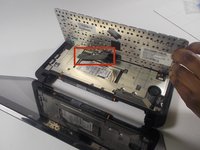
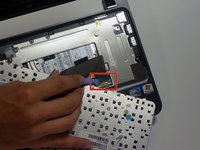
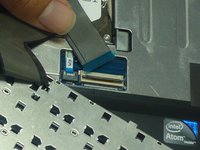
      • Be very gentle with the ZIF connector! It is designed to be locked into the motherboard, so make sure you lift the retaining latch before attempting to disconnect it.

      • Lift the latch on the ZIF (zero insertion-force) connector using a plastic opening tool. The ZIF connector is located on the motherboard and is connected to the keyboard through the ribbon cable.

      • Disconnect the ribbon cable from the ZIF connector on the motherboard by lifting it up and out; this completely removes the keyboard.

      Спросите у FixBot

      Добавить комментарий

    1. HP Mini 210 Fan Replacement, Fan: шаг 10, изображение 1 из 1
      • Use the spudger to peel the front black plastic plate from the rest of the case, starting at a corner and working your way around the entire case.

      Спросите у FixBot

      Добавить комментарий

    2. HP Mini 210 Fan Replacement: шаг 11, изображение 1 из 1
      • Locate the cable that connects the trackpad to the motherboard and carefully remove it.

      Спросите у FixBot

      Добавить комментарий

    3. HP Mini 210 Fan Replacement: шаг 12, изображение 1 из 2 HP Mini 210 Fan Replacement: шаг 12, изображение 2 из 2
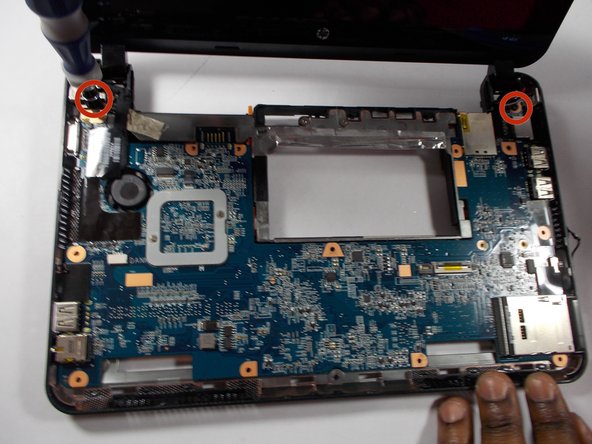
      • Use a screwdriver to remove the 9.3 mm screws on top of the motherboard.

      Спросите у FixBot

      Добавить комментарий

    4. HP Mini 210 Fan Replacement: шаг 13, изображение 1 из 1
      • Remove the gold tape that holds the motherboard.

      Спросите у FixBot

      Добавить комментарий

    5. HP Mini 210 Fan Replacement: шаг 14, изображение 1 из 1
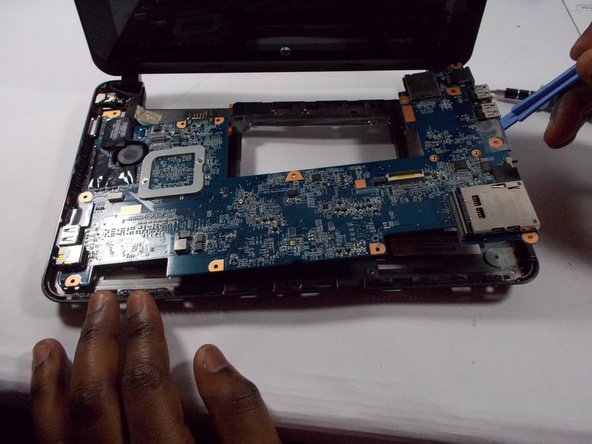
      • Use a spudger to carefully remove the motherboard.

      Спросите у FixBot

      Добавить комментарий

    6. HP Mini 210 Fan Replacement: шаг 15, изображение 1 из 2 HP Mini 210 Fan Replacement: шаг 15, изображение 2 из 2
      • Flip over the motherboard to get to the fan.

      • Carefully remove the cable that is attaches the fan to the motherboard.

      • Remove the screws that hold in the fan.

      • The fan is now able to be completely removed.

      Спросите у FixBot

      Добавить комментарий

Заключение

To reassemble your device, follow these instructions in reverse order.

Отменить: Я не выполнил это руководство.

3 человек успешно провели ремонт по этому руководству.

Irakoze Vincent

Участник с: 03/11/14

223 Репутация

1 руководство автора

Команду

UMass Dartmouth, Team 3-6, Calaway Spring 2014 Участник UMass Dartmouth, Team 3-6, Calaway Spring 2014

UMASSD-CALAWAY-S14S3G6

3 членов

Автор 24 руководств

0 Комментарии к руководству

Добавить комментарий

Статистика просмотров:

За последние 24 часов: 2

За последние 7 дней: 20

За последние 30 дней: 110

За все время: 5,795