Перейти к основному содержанию
Присоединяйся к сообществу ремонтников - Создай аккаунт

HTC Droid Eris Digitizer or LCD Screen Replacement

Просмотров: 3,4 тыс.

Просмотр статистики:

За последние 24 часа:
1
За последние 7 дней:
13
За последние 30 дней:
97
За все время:
3 389
Комментарии: 0

Никто не оставлял комментариев к этой инструкции. Будете ли Вы первым?

Перейти к комментариям инструкции
Завершено: 1

1 пользователь отметил эту инструкцию как "завершенное". Вы будете следующим?

Избранные: 4

4 эта инструкция понравилась многим пользователям (и они подписались на нее). Вы будете следующим?

Необходимое время: 15 - 30 минут
Сложность: Легко
Буллеты!

Лучшая координация с разметкой и цветом/типом буллитов поможет сделать этот гайд более понятным!

Неправильные инструменты

Помогите улучшить эту инструкцию — пусть в кадре и в тексте будут правильные инструменты.

Проблема с примечаниями

Примечания в этом руководстве должны быть более качественными. Помогите нам исправить их или написать новые аннотации.

Руководство, предоставленное сообществом

Это руководство было создано членом нашего сообщества. Сотрудники iFixit не имеют к нему отношения.

HTC Droid Eris Digitizer or LCD Screen Replacement

Replacing the Droid Eris Digitizer or LCD Screen is a straightforward process that is easy to do within a short period of time.

Created by Liam Tidwell of LiamTek

Выберете то, что Вам нужно

Запчасти

Инструменты

    1. HTC Droid Eris Digitizer or LCD Screen Replacement, Digitizer or LCD screen: шаг 1, изображение 1 из 3 HTC Droid Eris Digitizer or LCD Screen Replacement, Digitizer or LCD screen: шаг 1, изображение 2 из 3 HTC Droid Eris Digitizer or LCD Screen Replacement, Digitizer or LCD screen: шаг 1, изображение 3 из 3
      • Turn off your HTC Droid Eris.

      • Remove the back cover, battery, and memory card (if installed).

      Спросите у FixBot

      Добавить комментарий

    2. HTC Droid Eris Digitizer or LCD Screen Replacement: шаг 2, изображение 1 из 1
      • Use a T4 screwdriver to remove the T4 screws at the locations shown in red circles.

      Спросите у FixBot

      Добавить комментарий

    3. HTC Droid Eris Digitizer or LCD Screen Replacement: шаг 3, изображение 1 из 2 HTC Droid Eris Digitizer or LCD Screen Replacement: шаг 3, изображение 2 из 2
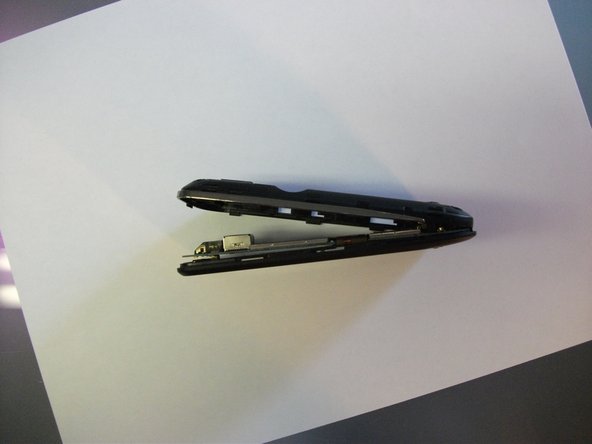
      • Insert a spudger or a pry pick between the front cover and the chrome on the sides of the device. Work the tool from the bottom on one side, to the top, and then back around to the bottom on the other side.

      • Remove the back cover by lifting from the top.

      Спросите у FixBot

      Добавить комментарий

    4. HTC Droid Eris Digitizer or LCD Screen Replacement: шаг 4, изображение 1 из 1
      • Remove the RF shield by carefully peeling off the 4 pieces of metallic tape.

      • Don't damage or discard the 4 pieces of tape and the RF shield. You will need to reuse these items in later steps.

      Спросите у FixBot

      Добавить комментарий

    5. HTC Droid Eris Digitizer or LCD Screen Replacement: шаг 5, изображение 1 из 2 HTC Droid Eris Digitizer or LCD Screen Replacement: шаг 5, изображение 2 из 2
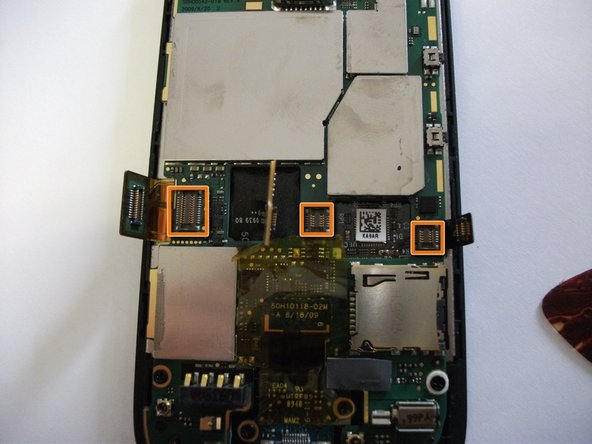
      • Use a spudger or a pry pick to release the 3 connectors marked in red in the photo. (The middle connector will be covered with a piece of tape.)

      Спросите у FixBot

      Добавить комментарий

    6. HTC Droid Eris Digitizer or LCD Screen Replacement: шаг 6, изображение 1 из 1
      • Remove the Philips screws circled in red. Be careful with the moisture indicator (indicated by the blue rectangle).

      • Be sure to move the connectors out of the way. (One connector extends across the main board, so be careful the connector does not snag.)

      • Carefully remove the mainboard and set it aside.

      Спросите у FixBot

      Добавить комментарий

    7. HTC Droid Eris Digitizer or LCD Screen Replacement: шаг 7, изображение 1 из 1
      • Remove the trackball indicated by the orange square. (It should come out easily.)

      Спросите у FixBot

      Добавить комментарий

    8. HTC Droid Eris Digitizer or LCD Screen Replacement: шаг 8, изображение 1 из 1
      • Carefully peel the cable (indicated by a large blue square) away from the back of the LCD screen.

      • There may be a piece of tape between the track ball and the back of the LCD screen (as indicated by the small blue square). Remove the tape if present.

      Спросите у FixBot

      Добавить комментарий

    9. HTC Droid Eris Digitizer or LCD Screen Replacement: шаг 9, изображение 1 из 3 HTC Droid Eris Digitizer or LCD Screen Replacement: шаг 9, изображение 2 из 3 HTC Droid Eris Digitizer or LCD Screen Replacement: шаг 9, изображение 3 из 3
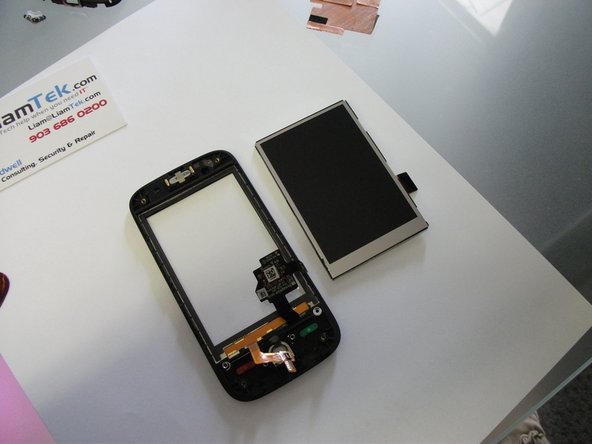
      • Carefully separate the face of the phone from the LCD screen by using a spudger or a pry pick.

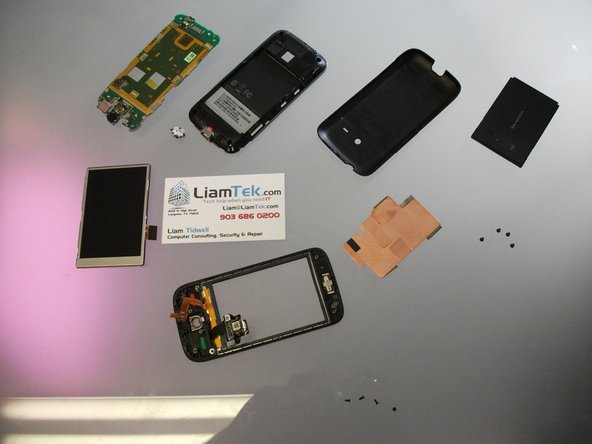
      • Replace the broken LCD or digitizer and reassemble in reverse.

      • If replacing the digitizer, you may either replace the entire front as part of an assembly or use a heat gun to separate and replace the glass only.

      Спросите у FixBot

      Добавить комментарий

Финишная прямая

Отменить: Я не выполнил это руководство.

Еще один человек закончил это руководство.

Liam

Участник с: 06/24/11

163 Репутация

1 руководство автора

0 Комментарии к руководству

Добавить комментарий

Статистика просмотров:

За последние 24 часов: 1

За последние 7 дней: 13

За последние 30 дней: 97

За все время: 3,389