Перейти к основному содержанию

Logitech G703 Battery Replacement

Выберете то, что вам нужно

  1. Logitech G703 Battery Replacement, Turn off the mouse: шаг 1, изображение 1 из 2 Logitech G703 Battery Replacement, Turn off the mouse: шаг 1, изображение 2 из 2
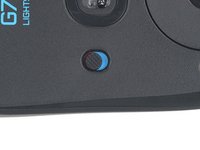
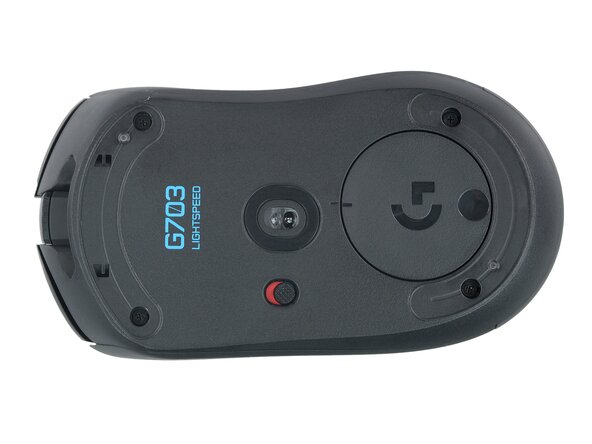
    • Slide the mouse's power switch down so it's in the OFF position.

    • A red indicator should be visible beneath the switch.

    • Unplug all cables from the mouse.

    • Throughout the repair, it may be helpful to lay the mouse on a soft cloth to stabilize it and prevent damage while you work.

  2. Logitech G703 Battery Replacement, Heat the mouse feet: шаг 2, изображение 1 из 1
    • The feet are secured to the bottom of the mouse with strong adhesive. In order to cleanly remove them, the adhesive needs to be thoroughly heated.

    • Heat an iOpener and lay it on the mouse feet for one minute to heat the adhesive.

    • Alternatively, you can use a hair dryer on the Low heat setting to soften the adhesive.

    • If you're using a hair dryer, only heat the feet a few seconds at a time or you may warp the plastic shell.

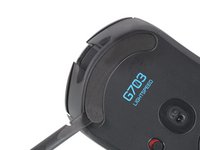
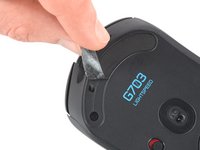
  3. Logitech G703 Battery Replacement, Remove the mouse feet: шаг 3, изображение 1 из 3 Logitech G703 Battery Replacement, Remove the mouse feet: шаг 3, изображение 2 из 3 Logitech G703 Battery Replacement, Remove the mouse feet: шаг 3, изображение 3 из 3
    • The feet have two layers—a rubberized one and an adhesive pad underneath.

    • If you're reusing the feet, be very careful not to separate the two layers or damage the feet.

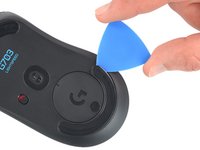
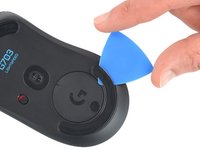
    • Slide the tip of an opening pick under an edge of the bottom mouse foot, making sure it goes under both the foot and its adhesive pad.

    • If the foot feels stuck, apply more heat and try again.

    • Gently slide the pick farther under the foot and lift until you can grip it with your fingers.

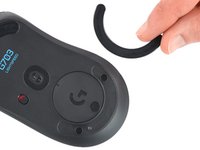
    • Use your fingers to peel up and remove the foot.

    • Repeat the procedure to remove the top mouse foot.

  4. Logitech G703 Battery Replacement, Reassembly information: шаг 4, изображение 1 из 3 Logitech G703 Battery Replacement, Reassembly information: шаг 4, изображение 2 из 3 Logitech G703 Battery Replacement, Reassembly information: шаг 4, изображение 3 из 3
    • If the rubber layer separated from its adhesive pad:

    • Slide the flat end of a spudger under an edge of the adhesive. If the adhesive seems stuck, you may need to heat it further.

    • Peel the adhesive off.

    • To install a new foot:

    • If any of the feet got damaged during removal or separated from their adhesive pads, replace them.

    • Use a spudger to carefully scrape up and remove any remaining adhesive bits.

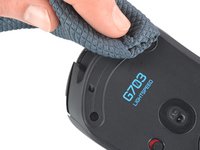
    • Use isopropyl alcohol and a microfiber cloth to thoroughly clean all adhesive residue from the foot recesses. Allow the surface to completely dry.

    • Remove the feet from their backing and firmly press them into place.

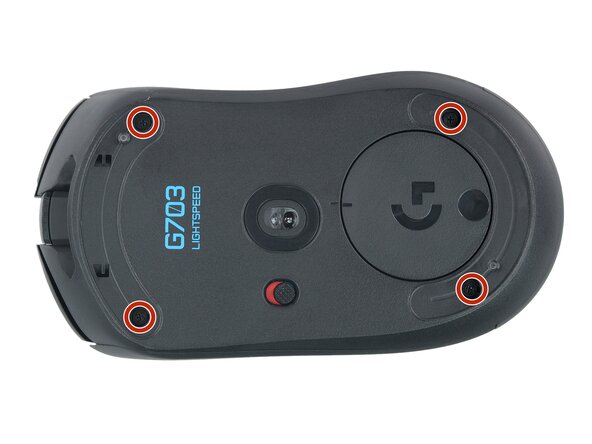
  5. Logitech G703 Battery Replacement, Remove the case screws: шаг 5, изображение 1 из 2 Logitech G703 Battery Replacement, Remove the case screws: шаг 5, изображение 2 из 2
    • Use a Phillips screwdriver to remove the four 5.4 mm‑long screws securing the two halves of the mouse together.

  6. Logitech G703 Battery Replacement, Separate the cases: шаг 6, изображение 1 из 2 Logitech G703 Battery Replacement, Separate the cases: шаг 6, изображение 2 из 2
    • Clips in front of the mouse wheel hold the two halves together. It's easiest to pull the halves apart at the back of the mouse before releasing the clips in the front.

    • Don't try to completely separate the two halves yet—they're still connected by a delicate cable.

    • Grasp the mouse cases near the back and pull the two halves apart slightly, so there's a gap at the back of the mouse.

  7. Logitech G703 Battery Replacement, Unclip the mouse case: шаг 7, изображение 1 из 2 Logitech G703 Battery Replacement, Unclip the mouse case: шаг 7, изображение 2 из 2
    • The clips in the front of the mouse can be stubborn and may require some force to release. Apply steady, slowly increasing force to separate the halves.

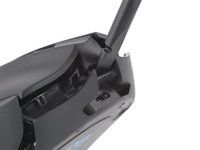
    • Insert the flat end of a spudger into the small gap between the top and bottom cases, just above the charging port.

    • Use the spudger to pry the top case up to release the clip.

    • Don't apply too much force or you may crack the case. If you're having trouble, reinsert the spudger and try again.

    • Remember, the mouse halves are still tethered together by a delicate cable.

  8. Logitech G703 Battery Replacement, Disconnect the interconnect cable: шаг 8, изображение 1 из 3 Logitech G703 Battery Replacement, Disconnect the interconnect cable: шаг 8, изображение 2 из 3 Logitech G703 Battery Replacement, Disconnect the interconnect cable: шаг 8, изображение 3 из 3
    • Set the mouse down and position the top half so you can access the interconnect cable on the right side.

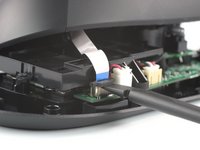
    • Use the flat end of a spudger to gently lift the black sliding tab on the interconnect cable socket until it's in the unlocked position.

    • You should feel the latch pop into the unlocked position. Don't push too far, or the latch may come completely off the connector.

    • Slide the interconnect cable straight up and out of its socket.

  9. Logitech G703 Battery Replacement, Remove the top half of the mouse: шаг 9, изображение 1 из 1
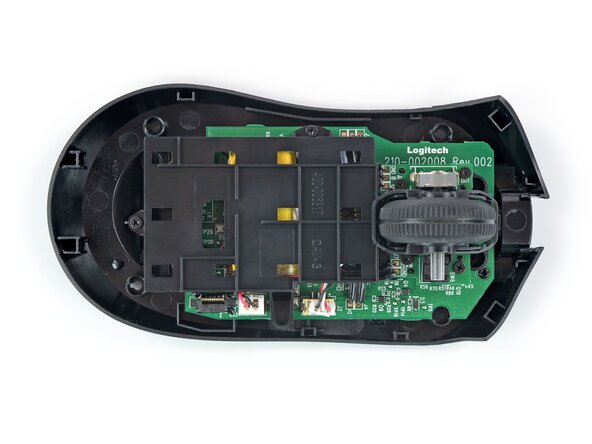
    • Remove the top half of the mouse.

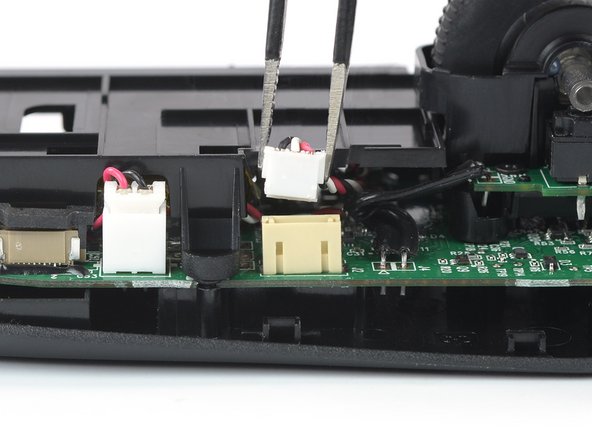
  10. Logitech G703 Battery Replacement, Disconnect the battery: шаг 10, изображение 1 из 3 Logitech G703 Battery Replacement, Disconnect the battery: шаг 10, изображение 2 из 3 Logitech G703 Battery Replacement, Disconnect the battery: шаг 10, изображение 3 из 3
    • Disconnecting the connector is tricky and may take a few tries. Don't grip the wires themselves, and try a different grip if you're having trouble.

    • Use a pair of tweezers to firmly grip the battery connector.

    • Hold the tweezers with your fingers as close to the connector as possible to get a firm grip.

    • Gently rock the connector side‑to‑side while pulling straight up to slide it out of the socket.

    • During reassembly, make sure the connector is properly oriented—it should slide into place easily.

  11. Logitech G703 Battery Replacement, Unscrew the battery housing: шаг 11, изображение 1 из 2 Logitech G703 Battery Replacement, Unscrew the battery housing: шаг 11, изображение 2 из 2
    • Use a Phillips screwdriver to remove the two 3.4 mm‑long screws securing the battery housing to the bottom half of the mouse.

  12. Logitech G703 Battery Replacement, Remove the battery housing: шаг 12, изображение 1 из 2 Logitech G703 Battery Replacement, Remove the battery housing: шаг 12, изображение 2 из 2
    • Remove the battery housing.

  13. Logitech G703 Battery Replacement, Heat the battery adhesive: шаг 13, изображение 1 из 1
    • Mild adhesive secures the battery to its housing.

    • Heat an iOpener and apply it to the back of the battery housing (not directly on the battery) for two minutes.

    • You can also use a hair dryer on the Low setting, but be careful as the battery and plastic housing are susceptible to heat damage.

  14. Logitech G703 Battery Replacement, Separate the battery adhesive: шаг 14, изображение 1 из 2 Logitech G703 Battery Replacement, Separate the battery adhesive: шаг 14, изображение 2 из 2
    • Insert an opening pick between the long edge of the battery and its housing.

    • Slide the opening pick under the battery and lift to separate the adhesive.

    • Make sure you push underneath the battery and not into it. Don't bend or deform the battery.

    • If you're having trouble, apply more heat to the housing and try again.

  15. Logitech G703 Battery Replacement, Remove the battery: шаг 15, изображение 1 из 1
    Инструмент, используемый на этом этапе:
    Tesa 61395 Tape
    $2.99
    • Remove the battery.

    • During reassembly:

    • Never install a deformed or damaged battery, as doing so is a potential safety hazard. Replace it with a new battery.

    • If the battery adhesive is still sticky, you can reuse it. Otherwise, use high-concentration (>90%) isopropyl alcohol and a microfiber or lint-free cloth to remove all the old battery adhesive.

    • If your new battery has adhesive pre-installed, remove the plastic liner to expose the adhesive. Otherwise, apply strips of thin, double-sided tape to the battery well (not directly to the battery) where the old adhesive was.

    • Firmly press the battery into place, making sure the cables are near the large tab that juts out from the housing.

Заключение

Compare your new replacement part to the original part—you may need to transfer remaining components or remove adhesive backings from the new part before you install it.

To reassemble your device, follow these instructions in reverse order.

Repair didn’t go as planned? Try some basic troubleshooting, or ask our Answers community for help.

Reuse or Recycle—Never put discarded electronic parts in household waste. Visit Logitech Recycling to find your nearest recycling points, including the option to mail back old devices to Logitech for free if there’s no convenient solution in your area. You can also take your e-waste to any R2 or e-Stewards certified recycler. And don’t let good working parts or repaired devices die a slow death in your sock drawer—pass them along to someone who can use them.

Share your experience—Leave a comment here or send your feedback directly to Logitech at repair@logitech.com to help shape future repair guides and product design.

6 человек успешно провели ремонт по этому руководству.

Dominik Schnabelrauch

Участник с: 11/23/16

246 341 Репутация

Автор 682 руководств

Команда

iFixit Участник iFixit

Staff

123 членов

Автор 23 608 руководств

3 Комментарии к руководству

What's the reason for not being able to use the old battery again? I don't understand why plugging the stock back into the mouse would be a fire hazard?

Ryan Lee - Ответить

Hi Ryan,

the warning applies more in relation to a removed battery than to one which was only disconnected. A removed one could be bent or have other damages that are not immediately visible and could cause damage to the mouse, fire or a thermal event or may leak dangerous chemicals. However, this is not necessarily the case, but there is always the possibility. That is why we warn and point this out within the repair guide.

Dominik Schnabelrauch -
Good day,

This is a brilliant tutorial thank you! Where would you recommend buying a new battery?

Mari - Ответить

Добавить комментарий

Статистика просмотров:

За последние 24 часов: 5

За последние 7 дней: 57

За последние 30 дней: 257

За всё время: 14,126