Введение
Useful for rearranging the layout, or cleaning a key if it doesn't move right.
Выберете то, что вам нужно
-
-
Insert something thin under the top of the key.
-
Apply a little force. It comes out easily.
-
-
-
-
Slide in bottom first
-
Gently push the top part in. It clips easily.
-


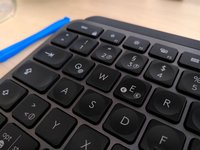

You've successfully removed and replaced a keycap on your Logitech MX Keys keyboard.
Отменить: Я не выполнил это руководство.
25 человек успешно провели ремонт по этому руководству.


24 Комментарии к руководству
Where can I find the keys for the replacement? I can only find keys for like $15 per key...
I need to know this too!
ikomrad -
If you are having sticky key issues, take the key out, clean out the area beneath the key, and underneath the key, and reinsert the same key. In most cases, this will fix your issue. This may happen if debree/dust gets in-between the keys.
