Введение
This guide will show will allow you to see step by step how to take apart your UE Boom in order to get inside and change your speakers.
Выберете то, что вам нужно
-
-
-
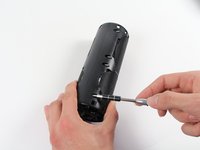
Turn the device over. The D-ring will be on the left face of the speaker when viewing the device from this orientation.
 Спросите у FixBot
-
-
-
Lift the handle on the D-ring and unscrew it.
-
Remove the D-ring.
-
-
-
-
-
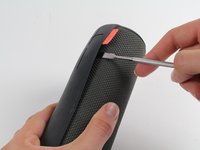
Holding the speaker upright, wedge the metal spudger in between the casing and the speaker. Gently pry open the tabs as they are easily broken.
-
-
-
Find the part of the casing that covers the volume controls. Wedge the metal spudger under this and pry open all of the tabs as in the previous step.
-
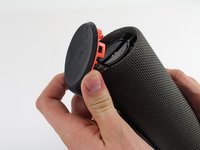
Repeat for the bottom of the speaker and pry the casing open with your fingers.
-
-
-
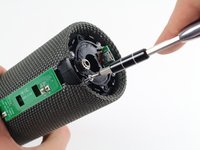
Using the Phillips J0 head screwdriver, unscrew the four silver 9 mm screws.
-
Do the same for the two black 7 mm screws.
-
-
-
Using a soldering iron, de-solder the two ends of the switch plate. Desolder the two terminals on headphone jack side first, as the middle connection is notched and should be slid out when molten.
-
-
-
With the switch plate disconnected, remove it and your device should now look like this.
-
-
-
-
-
With a metal spudger, pry open the tabs on the speaker sleeve along the length of the speaker.
-
-
-
-
Use a plastic opening tool to pry the sleeve off from the bottom of the speaker.
-
-
-
Use a Phillips 1 screwdriver to unscrew the eight black 14 mm screws along the length of the casing.
-
-
-
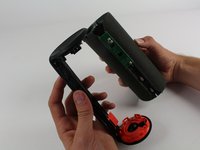
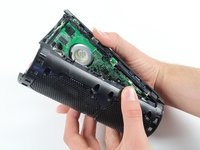
With the screws removed, pry open the casing to be able to get to the components inside.
-
-
-
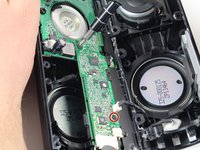
With a Phillips #00 screwdriver, unscrew two 5.6 mm screws from the rectangular shaped circuit board.
-
-
-
With the Phillips #2 screwdriver, unscrew the 9.9 mm screw from the larger circuit board surrounding the speaker.
-
-
-
Once all of the screws are gone, you should be able to remove the circuit boards and find the battery.
-
-
-
Remove the battery by pulling it from the terminal as marked in the picture.
-
-
-
-
-
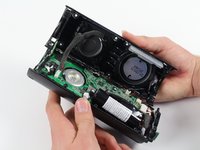
At this point, you should have the case completely open and removed the battery from the motherboard.
-
-
-
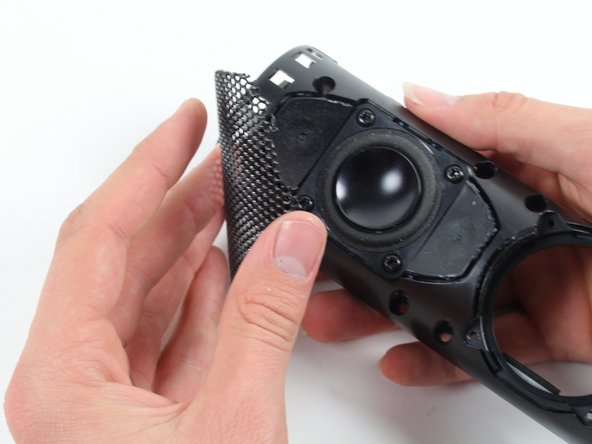
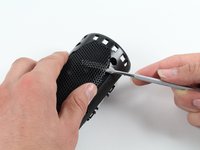
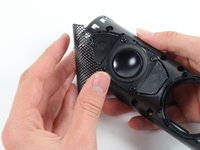
Remove the panel covering the speaker with the spudger. Be careful while doing this, as it is a very fragile and brittle metal panel.
-
-
-
Unscrew the bolts holding the speaker in after removing the panel covering the speakers.
-
-
-
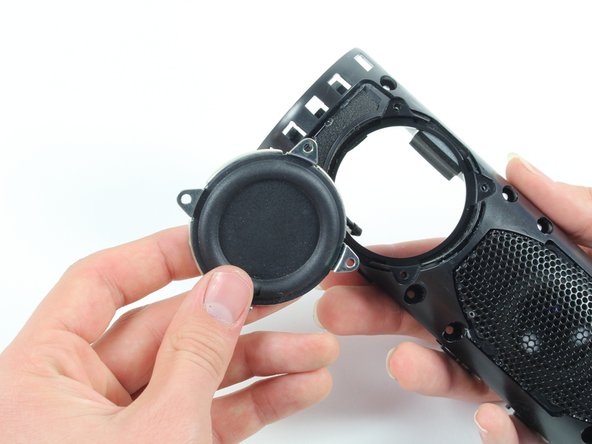
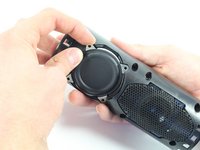
Gently pull the speaker off of the case after unscrewing the screws holding it in place.
-
-
-
Start unscrewing the screws on the second speaker (the process for removing the panels is the same for both speakers!).
-
-
-
Remove the speaker from the casing as was done previously with the other speaker.
-
-
-
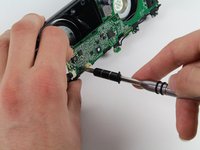
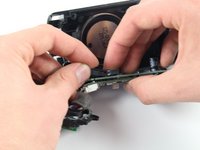
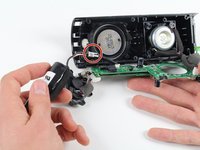
Gently unplug the speaker from the motherboard after removing it from its place in the casing of the device.
-
-
-
Gently unplug the other speaker from the motherboard after removing it from its place in the casing of the device.
-
After this, you will have completely removed the speakers from the device!
-
-




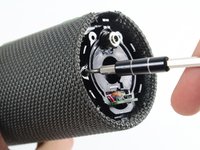


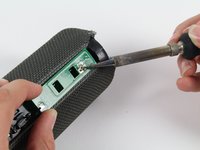
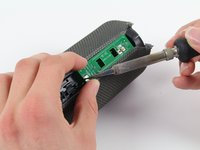
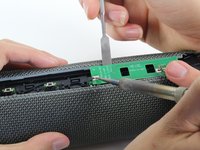


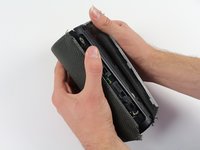
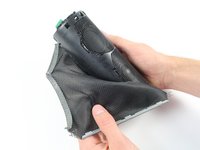
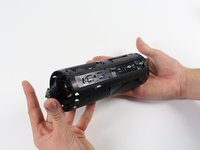


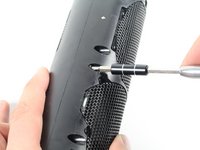










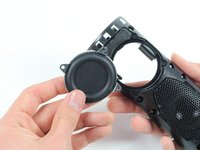


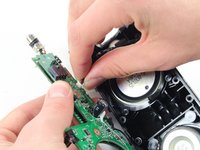
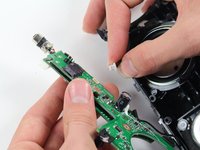


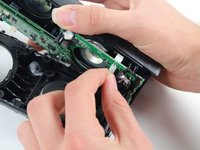
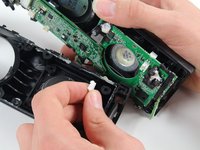
To reassemble your device, follow these instructions in reverse order.
Отменить: Я не выполнил это руководство.
18 человек успешно провели ремонт по этому руководству.

Команда

Cal Poly, Team 4-1, Maness Fall 2015 Участник Cal Poly, Team 4-1, Maness Fall 2015
CPSU-MANESS-F15S4G1
4 членов
Автор 34 руководств
17 Комментарии к руководству
thank you for this excellent tutorial. Would you have an idea where replacement speakers can be found online ?
Is it necessary to solder the bluetooth adapter because my speaker got dented and now it makes a weird popping sound when i play my music on high volume. i think the problem is that the metal frame is touching the speaker causing the popping sound when the speaker vibrates
my speaker have the same problem what should i do?
How many speakers are inside exactly, 2 or 4 ? I didn't understand if there are 2 per side or not...
I don't have sound on a side of my speaker and I don't now if this is normal (it is new)
There are 2 speakers and 2 passive resonators, the 2 on the top are speakers while the 2 on the bottom are basically speakers without coils, they are just cones that rely on the pressure and vibration inside of the device generated by the real speakers on top to vibrate themselves and increase bass/low-end presence.
