Перейти к основному содержанию
Присоединяйся к сообществу ремонтников - Создай аккаунт

MacBook Air 11" Early 2015 Right Speaker Replacement

Просмотров: 3,6 тыс.

Просмотр статистики:

За последние 24 часа:
1
За последние 7 дней:
17
За последние 30 дней:
103
За все время:
3 623
Комментарии: 33

32 комментариев к шагам, 1 комментарий к инструкции.

Перейти к комментариям инструкции
Завершено: 4

4 пользователей отметили эту инстркукцию как "завершенное". Вы будете следующим?

Избранные: 1

1 человек поставил лайк на эту инструкцию (и подписался на нее). Вы будете следующим?

Необходимое время: Нет оценки
Сложность: Умеренно
MacBook Air 11" Early 2015 Right Speaker Replacement

This guide shows you how to replace the speaker on the right side in normal operation. During most of this guide it will be on the left side of the device—be sure you are replacing the correct speaker, and have the proper part.

Выберете то, что Вам нужно

Запчасти

Инструменты

    1. MacBook Air 11" Early 2015 Right Speaker Replacement, Lower Case: шаг 1, изображение 1 из 1
      Инструмент, используемый на этом этапе:
      P5 Pentalobe Screwdriver Retina MacBook Pro and Air
      $5.99
      • Shut down and close your computer. Lay it on a soft surface top-side down.

      • Remove the following ten screws:

      • Two 8 mm 5-point Pentalobe screws

      • Eight 2.5 mm 5-point Pentalobe screws

      • The special screwdriver needed to remove the 5-point Pentalobe screws can be found here.

      Спросите у FixBot

      Добавить комментарий

    2. MacBook Air 11" Early 2015 Right Speaker Replacement: шаг 2, изображение 1 из 1
      • Wedge your fingers between the display and the lower case and pull upward to pop the lower case off the Air.

      Спросите у FixBot

      Добавить комментарий

    1. MacBook Air 11" Early 2015 Right Speaker Replacement, Battery Connector: шаг 3, изображение 1 из 2 MacBook Air 11" Early 2015 Right Speaker Replacement, Battery Connector: шаг 3, изображение 2 из 2
      • In this step you will disconnect the battery to help avoid shorting out any components during service.

      • Use the flat end of a spudger to pry both short sides of the battery connector upward to disconnect it from its socket on the logic board.

      • Bend the battery cable slightly away from the logic board so the connector will not accidentally bend back and make contact with its socket.

      Спросите у FixBot

      Добавить комментарий

    1. MacBook Air 11" Early 2015 Right Speaker Replacement, Battery: шаг 4, изображение 1 из 1
      • Remove the following five screws securing the battery to the upper case:

      • Two 5.2 mm T5 Torx screws

      • One 6 mm T5 Torx screw

      • Two 2.6 mm T5 Torx screws

      Спросите у FixBot

      Добавить комментарий

    2. MacBook Air 11" Early 2015 Right Speaker Replacement: шаг 5, изображение 1 из 1
      • When handling the battery, avoid squeezing or touching the six exposed lithium polymer cells.

      • Lift the battery from its edge nearest the logic board and remove it from the upper case.

      • If you're installing a new battery, you should calibrate it after installation:

      • Charge it to 100%, and then keep charging it for at least 2 more hours. Next, unplug and use it normally to drain the battery. When you see the low battery warning, save your work, and keep your laptop on until it goes to sleep due to low battery. Wait at least 5 hours, then charge your laptop uninterrupted to 100%.

      • If you notice any unusual behavior or problems after installing your new battery, you may need to reset your MacBook's SMC.

      Спросите у FixBot

      Добавить комментарий

    1. MacBook Air 11" Early 2015 Right Speaker Replacement, Right Speaker: шаг 6, изображение 1 из 1
      • Use the tip of a spudger to de-route the right speaker cable from the channel cut into the logic board.

      Спросите у FixBot

      Добавить комментарий

    2. MacBook Air 11" Early 2015 Right Speaker Replacement: шаг 7, изображение 1 из 1
      • Use the flat end of a spudger to pry the right speaker cable connector up and out of its socket on the logic board.

      • Pry upward from beneath the wires.

      Спросите у FixBot

      Добавить комментарий

    3. MacBook Air 11" Early 2015 Right Speaker Replacement: шаг 8, изображение 1 из 2 MacBook Air 11" Early 2015 Right Speaker Replacement: шаг 8, изображение 2 из 2
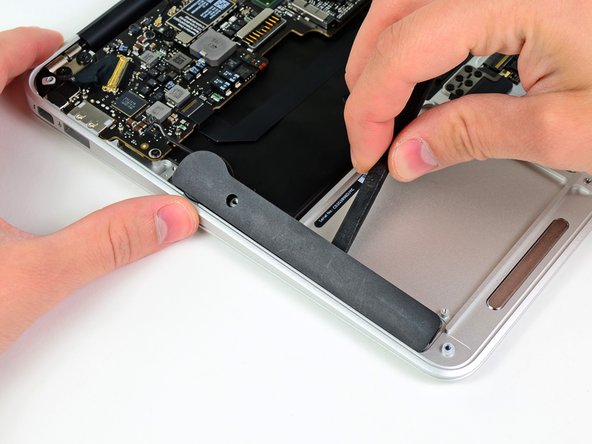
      • Use the flat end of a spudger to pry the right speaker off the adhesive securing it to the upper case.

      • Only pry up on the speaker from the areas of bare aluminum on the upper case. Prying up from the keyboard area may damage the keyboard and the speaker itself.

      Спросите у FixBot

      Добавить комментарий

    4. MacBook Air 11" Early 2015 Right Speaker Replacement: шаг 9, изображение 1 из 1
      • Remove the right speaker from the upper case.

      Спросите у FixBot

      Добавить комментарий

Заключение

To reassemble your device, follow these instructions in reverse order.

Отменить: Я не выполнил это руководство.

4 человек успешно провели ремонт по этому руководству.

Sam Goldheart

Участник с: 10/18/12

478 588 Репутация

Автор 538 руководств

Команду

iFixit Участник iFixit

Staff

121 членов

Автор 72 907 руководств

1 Комментарий к руководству

I normally am very selfish like most of us who are looking for hardware or software support and forget or ignore the

Hardware support engineers who have accomplished training and experience and are kind enough to share with us.

My Comments are related to the methodical format which makes it so much easier to follow, by enumerating the

steps. In addition, this is superior, Identifying the Tools we need to use to do these tasks. Most service manuals

forget to do it or just assume that we know. Thank You so much for this great guide, it has allowed me

to repair and fix multiple issues that I have had with my Apple MacBook Air A1465. It is still working fine because

of this guide and comments.

Zuhirah R Rasulalah - Ответить Поделиться

Добавить комментарий

Статистика просмотров:

За последние 24 часов: 1

За последние 7 дней: 17

За последние 30 дней: 103

За все время: 3,623