Перейти к основному содержанию

Trackpad Prereq

Абсолютно необходимое руководство
Это руководство только для предварительной подготовки! Этот гайд является частью другой процедуры и не предназначен для самостоятельного использования.

Выберете то, что вам нужно

  1. Trackpad Prereq, Prepare your MacBook for disassembly: шаг 1, изображение 1 из 3 Trackpad Prereq, Prepare your MacBook for disassembly: шаг 1, изображение 2 из 3 Trackpad Prereq, Prepare your MacBook for disassembly: шаг 1, изображение 3 из 3
    • Allow your MacBook's battery to drain below 10% before starting this repair. A charged battery may catch fire if damaged during the repair.

    • Fully shut down your MacBook, close the lid, and flip it over. Keep the lid closed until you've physically disconnected the battery.

    • Unplug the MagSafe cable and any accessories connected to your MacBook.

  2. Trackpad Prereq, Unfasten the lower case: шаг 2, изображение 1 из 2 Trackpad Prereq, Unfasten the lower case: шаг 2, изображение 2 из 2
    Инструмент, используемый на этом этапе:
    FixMat
    $36.95
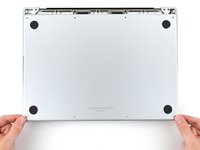
    • Completely power off and unplug your MacBook Pro before you start. Close the screen and flip the entire laptop upside-down.

    • Use a P5 Pentalobe driver to remove eight screws securing the lower case:

    • Four 9.3 mm screws

    • Four 5 mm screws

    • Throughout this repair, keep track of each screw and make sure it goes back exactly where it came from to avoid damaging your device.

  3. Trackpad Prereq, Unclip the lower case: шаг 3, изображение 1 из 2 Trackpad Prereq, Unclip the lower case: шаг 3, изображение 2 из 2
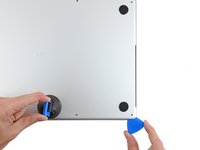
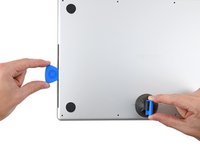
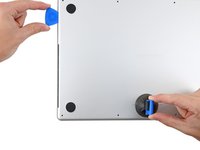
    • Press a suction handle into place near the front edge of the lower case, between the screw holes.

    • Pull up on the suction handle to create a small gap under the lower case.

  4. Trackpad Prereq, Release the right clips: шаг 4, изображение 1 из 3 Trackpad Prereq, Release the right clips: шаг 4, изображение 2 из 3 Trackpad Prereq, Release the right clips: шаг 4, изображение 3 из 3
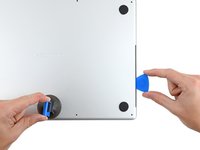
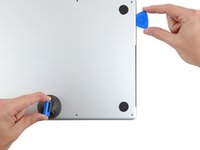
    • Insert an opening pick into the gap you just created.

    • Slide the opening pick around the nearest corner and then halfway up the side of the MacBook Pro.

    • This releases the first of the hidden clips securing the lower case. You should feel and hear the clip pop free.

  5. Trackpad Prereq, Release the left clips: шаг 5, изображение 1 из 3 Trackpad Prereq, Release the left clips: шаг 5, изображение 2 из 3 Trackpad Prereq, Release the left clips: шаг 5, изображение 3 из 3
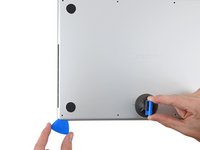
    • Repeat the previous step on the other side, using an opening pick to to release the second clip.

  6. Trackpad Prereq, Release the sliding clips: шаг 6, изображение 1 из 3 Trackpad Prereq, Release the sliding clips: шаг 6, изображение 2 из 3 Trackpad Prereq, Release the sliding clips: шаг 6, изображение 3 из 3
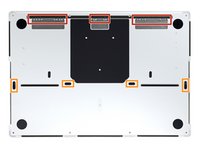
    • Sliding clips along the back edge of the MacBook further secure the lower case. Separating these clips may require a lot of force—consider using gloves to protect your hands from the sharp edges of the lower case.

    • Firmly pull the lower case away from the back edge, one corner at a time, to disengage the sliding clips.

    • Keep the lower case flat to the MacBook. Don't pull upward until it's completely separated.

  7. Trackpad Prereq, Remove the lower case: шаг 7, изображение 1 из 3 Trackpad Prereq, Remove the lower case: шаг 7, изображение 2 из 3 Trackpad Prereq, Remove the lower case: шаг 7, изображение 3 из 3
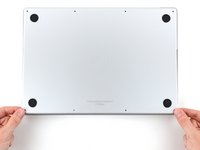
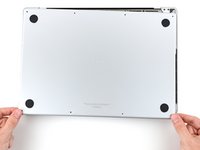
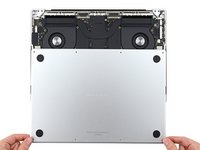
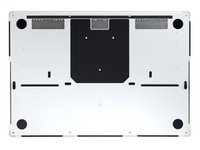
    • Remove the lower case.

    • To reinstall the lower case:

    • Lay it down and align the sliding clips with the back edge of the MacBook. Press down on the lower case and slide it toward the back edge to engage the clips.

    • When one side is engaged, it may push the other out of alignment. Check both sides as you push.

    • Once the back corners of the lower case are secured and flush with the frame, press down along the middle of the lower case to engage the four remaining clips.

    • You'll hear and feel each clip snap into place.

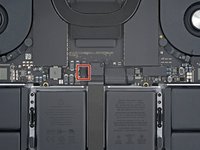
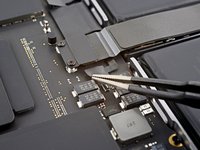
  8. Trackpad Prereq, Disconnect the battery board: шаг 8, изображение 1 из 3 Trackpad Prereq, Disconnect the battery board: шаг 8, изображение 2 из 3 Trackpad Prereq, Disconnect the battery board: шаг 8, изображение 3 из 3
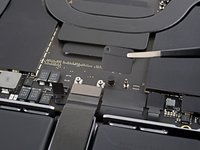
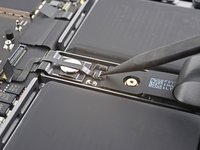
    • Peel back any tape covering the battery board data cable connector on the logic board.

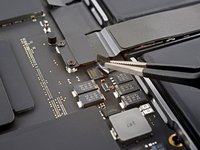
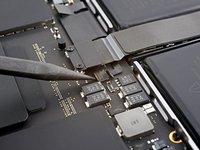
  9. Trackpad Prereq: шаг 9, изображение 1 из 2 Trackpad Prereq: шаг 9, изображение 2 из 2
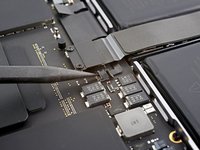
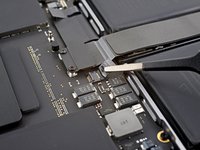
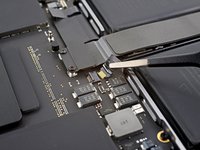
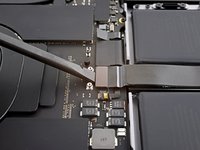
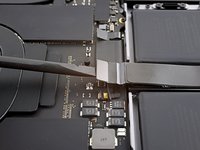
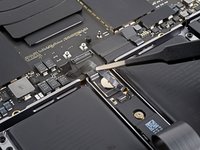
    • Use a spudger to gently pry up the locking flap on the ZIF connector for the battery board data cable.

  10. Trackpad Prereq: шаг 10, изображение 1 из 2 Trackpad Prereq: шаг 10, изображение 2 из 2
    • Disconnect the battery board data cable by sliding it out from its socket on the logic board.

  11. Trackpad Prereq, Unfasten the trackpad cable bracket: шаг 11, изображение 1 из 1
    • Use a 3IP Torx Plus driver to remove the two 2.1 mm‑long screws securing the trackpad cable bracket to the logic board.

  12. Trackpad Prereq, Remove the trackpad cable bracket: шаг 12, изображение 1 из 2 Trackpad Prereq, Remove the trackpad cable bracket: шаг 12, изображение 2 из 2
    Инструмент, используемый на этом этапе:
    Tweezers
    $4.99
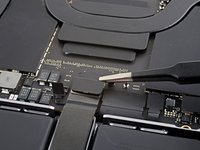
    • Use tweezers, or your fingers, to remove the trackpad cable bracket.

  13. Trackpad Prereq, Disconnect the trackpad cable: шаг 13, изображение 1 из 2 Trackpad Prereq, Disconnect the trackpad cable: шаг 13, изображение 2 из 2
    • Use the flat end of a spudger to pry up and disconnect the trackpad cable's press connector secured to the logic board.

    • To re-attach press connectors like this one, carefully align and press down on one side until it clicks into place, then repeat on the other side. Don't press down on the middle. If the connector is misaligned, the pins can bend, causing permanent damage.

  14. Trackpad Prereq, Reposition the trackpad cable: шаг 14, изображение 1 из 2 Trackpad Prereq, Reposition the trackpad cable: шаг 14, изображение 2 из 2
    • The trackpad cable is lightly adhered to the frame.

    • Peel the trackpad cable away from the device, making sure to separate the adhesive.

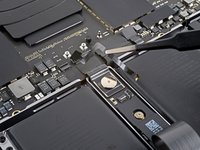
  15. Trackpad Prereq, Disconnect the battery board: шаг 15, изображение 1 из 2 Trackpad Prereq, Disconnect the battery board: шаг 15, изображение 2 из 2
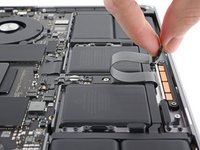
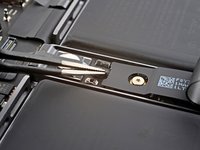
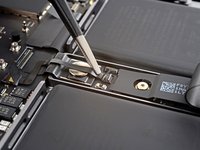
    • Peel back any tape covering the battery board data cable connector under the large pancake screw.

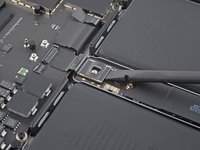
  16. Trackpad Prereq: шаг 16, изображение 1 из 2 Trackpad Prereq: шаг 16, изображение 2 из 2
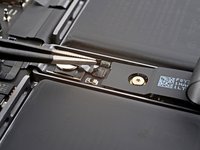
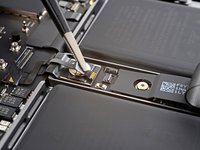
    • Use a spudger to gently pry up the locking flap on the ZIF connector for the battery board data cable.

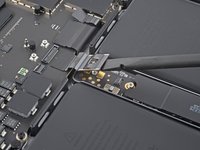
  17. Trackpad Prereq: шаг 17, изображение 1 из 2 Trackpad Prereq: шаг 17, изображение 2 из 2
    • Disconnect the battery board data cable by sliding it out from its socket on the battery board.

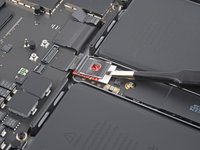
  18. Trackpad Prereq, Remove the data cable: шаг 18, изображение 1 из 2 Trackpad Prereq, Remove the data cable: шаг 18, изображение 2 из 2
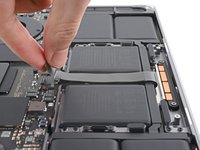
    • The battery board data cable is lightly adhered to the device.

    • Slide blunt nose tweezers under areas with adhesive to separate the cable from the device.

    • Remove the battery board data cable.

  19. Trackpad Prereq, Unfasten the battery connector: шаг 19, изображение 1 из 1
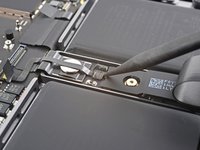
    • Use a 5IP Torx Plus driver to remove the 3.8 mm wide-head screw securing the battery power connector.

  20. Trackpad Prereq, Disconnect the battery connector: шаг 20, изображение 1 из 3 Trackpad Prereq, Disconnect the battery connector: шаг 20, изображение 2 из 3 Trackpad Prereq, Disconnect the battery connector: шаг 20, изображение 3 из 3
    • Use the flat end of your spudger to lift the battery connector away from the battery board, disconnecting the battery.

    • Lift the connector high enough that it doesn't accidentally make contact during the repair, but no more than 45 degrees to prevent damaging its hinge.

    • For added safety, place a barrier, such as a piece of a playing card, between the connector and board.

  21. Trackpad Prereq, Unfasten the trackpad: шаг 21, изображение 1 из 2 Trackpad Prereq, Unfasten the trackpad: шаг 21, изображение 2 из 2
    • Use a 5IP Torx Plus driver to remove the ten 5.7 mm screws securing the trackpad assembly:

    • Adding a little blue threadlocker to the screw threads during reassembly can help prevent the screws from working themselves loose over time.

    • Install the screws loosely at first, and then check the trackpad alignment before tightening them down.

  22. Trackpad Prereq, Remove the trackpad: шаг 22, изображение 1 из 3 Trackpad Prereq, Remove the trackpad: шаг 22, изображение 2 из 3 Trackpad Prereq, Remove the trackpad: шаг 22, изображение 3 из 3
    • Swing the screen open slightly, but keep the MacBook upside-down. The trackpad should separate and lay flat on the display.

    • As you remove the trackpad, be very careful not to lose the six small metal washers resting on the screw posts. (They will fly off and get lost with very little provocation.)

    • Carefully feed the trackpad's ribbon cable through its slot in the frame.

  23. Trackpad Prereq: шаг 23, изображение 1 из 1
    • Remove the trackpad.

    • During reassembly, make sure that each of the nine washers are present before you install the trackpad.

Финишная прямая

Alex Diaz-Kokaisl

Участник с: 01/16/22

214 183 Репутация

Автор 1 041 руководств

Команда

iFixit Участник iFixit

Staff

123 членов

Автор 23 758 руководств

0 Комментарии к руководству

Добавить комментарий

Статистика просмотров:

За последние 24 часов: 0

За последние 7 дней: 0

За последние 30 дней: 2

За всё время: 46