Перейти к основному содержанию
Присоединяйся к сообществу ремонтников - Создай аккаунт

iPad 3 Wi-Fi Adhesive Strips Replacement

Просмотров: 8,5 тыс.

Просмотр статистики:

За последние 24 часа:
2
За последние 7 дней:
20
За последние 30 дней:
99
За все время:
8 462
Комментарии: 13

12 комментариев к шагам, 1 комментарий к инструкции.

Перейти к комментариям инструкции
Завершено: 15

15 пользователей отметили эту инстркукцию как "завершенное". Вы будете следующим?

Избранные: 12

12 эта инструкция понравилась многим пользователям (и они подписались на нее). Вы будете следующим?

Необходимое время: Нет оценки
Сложность: Умеренно
iPad 3 Wi-Fi Adhesive Strips Replacement

Use this guide to replace the adhesive on your iPad 3 Wi-Fi to seal the deal on a repair job well done.

Before you begin peeling and sticking tape, it's important to have clean adhesion surfaces on both the front panel and the rear case. Use a spudger to scrape off any large excess bits of original adhesive, then clean all of the gluing surfaces with a paper towel and rubbing alcohol or Goof Off.

It is recommended that you peel each adhesive strip as needed, rather than lay them out all at once.

Выберете то, что Вам нужно

Запчасти

Инструменты

    1. iPad 3 Wi-Fi Adhesive Strips Replacement, Home Button: шаг 1, изображение 1 из 3 iPad 3 Wi-Fi Adhesive Strips Replacement, Home Button: шаг 1, изображение 2 из 3 iPad 3 Wi-Fi Adhesive Strips Replacement, Home Button: шаг 1, изображение 3 из 3
      Инструмент, используемый на этом этапе:
      Tweezers
      $4.99
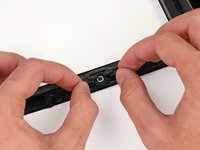
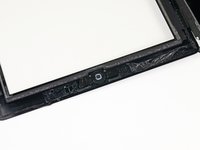
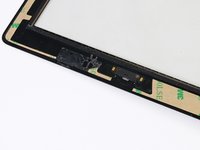
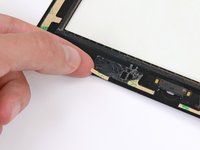
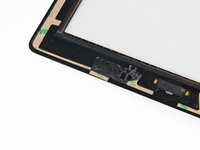
      • Carefully grasp the home button with a pair of tweezers.

      • Gently lower and place the home button into the round opening located at the bottom of the front panel.

      • The correct orientation of the home button is shown in the third picture. Make sure the back of the home button is face up and the flat portion of the inner home button circle is oriented to the top of the iPad.

      Спросите у FixBot

      Добавить комментарий

    1. iPad 3 Wi-Fi Adhesive Strips Replacement, Front Panel Adhesive Strips: шаг 2, изображение 1 из 2 iPad 3 Wi-Fi Adhesive Strips Replacement, Front Panel Adhesive Strips: шаг 2, изображение 2 из 2
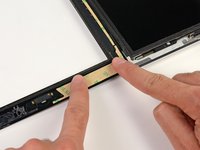
      • The two small notched trapezoidal strips will be used to attach the home button bracket to the front panel.

      • Carefully peel off the first trapezoidal adhesive strip.

      Спросите у FixBot

      Добавить комментарий

    2. iPad 3 Wi-Fi Adhesive Strips Replacement: шаг 3, изображение 1 из 2 iPad 3 Wi-Fi Adhesive Strips Replacement: шаг 3, изображение 2 из 2
      Инструмент, используемый на этом этапе:
      Tweezers
      $4.99
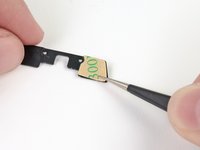
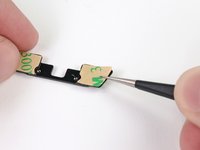
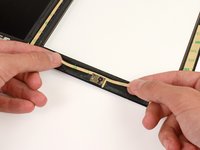
      • Using a pair of tweezers, place the first trapezoidal adhesive strip (minding its correct orientation) on the matching side of the home button mounting bracket.

      • Make sure to line up the profile of the strip with the edge of the mounting bracket.

      • Repeat the procedure for the second trapezoidal adhesive strip.

      Спросите у FixBot

      Добавить комментарий

    3. iPad 3 Wi-Fi Adhesive Strips Replacement: шаг 4, изображение 1 из 1
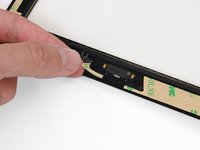
      • Use a pair of tweezers to grasp the corner of one of the adhesive strips placed on the mounting bracket.

      • Lift and peel the brown backing up off the adhesive strip, revealing the clear adhesive strip.

      • Repeat the procedure for the secondary adhesive strip.

      Спросите у FixBot

      Добавить комментарий

    4. iPad 3 Wi-Fi Adhesive Strips Replacement: шаг 5, изображение 1 из 2 iPad 3 Wi-Fi Adhesive Strips Replacement: шаг 5, изображение 2 из 2
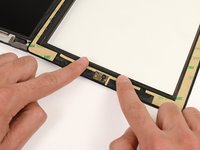
      • Gently place the home button mounting bracket on top of the home button.

      • Make sure the home button mounting bracket is lined up with the bottom of the digitizer.

      Спросите у FixBot

      Добавить комментарий

    5. iPad 3 Wi-Fi Adhesive Strips Replacement: шаг 6, изображение 1 из 2 iPad 3 Wi-Fi Adhesive Strips Replacement: шаг 6, изображение 2 из 2
      • In the following steps, you will be placing the remaining pieces of adhesive on the front panel.

      • Do not peel the brown backing off the strips just yet.

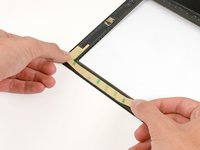
      • Place the largest L-shaped adhesive strip on the top left corner of the front panel.

      • Smooth the strip down from the center out, taking care to not trap any air bubbles between the strip and the front panel.

      Спросите у FixBot

      Добавить комментарий

    6. iPad 3 Wi-Fi Adhesive Strips Replacement: шаг 7, изображение 1 из 2 iPad 3 Wi-Fi Adhesive Strips Replacement: шаг 7, изображение 2 из 2
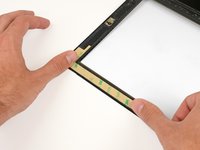
      • Place the thinnest L-shaped adhesive strip on the bottom left corner of the front panel.

      Спросите у FixBot

      Добавить комментарий

    7. iPad 3 Wi-Fi Adhesive Strips Replacement: шаг 8, изображение 1 из 2 iPad 3 Wi-Fi Adhesive Strips Replacement: шаг 8, изображение 2 из 2
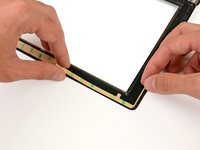
      • Place the remaining thin L-shaped adhesive strip on the top right corner of the front panel, near the camera mounting bracket.

      Спросите у FixBot

      Добавить комментарий

    8. iPad 3 Wi-Fi Adhesive Strips Replacement: шаг 9, изображение 1 из 2 iPad 3 Wi-Fi Adhesive Strips Replacement: шаг 9, изображение 2 из 2
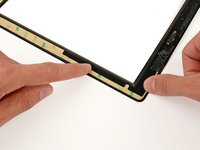
      • Place the straight adhesive strip on the right side of the front panel.

      • If you've already attached the digitizer cable, you'll have to work around/under it to attach this strip.

      Спросите у FixBot

      Добавить комментарий

    9. iPad 3 Wi-Fi Adhesive Strips Replacement: шаг 10, изображение 1 из 2 iPad 3 Wi-Fi Adhesive Strips Replacement: шаг 10, изображение 2 из 2
      • Place the last L-shaped adhesive strip on the bottom right corner of the front panel.

      Спросите у FixBot

      Добавить комментарий

    10. iPad 3 Wi-Fi Adhesive Strips Replacement: шаг 11, изображение 1 из 2 iPad 3 Wi-Fi Adhesive Strips Replacement: шаг 11, изображение 2 из 2
      • Lay the thin T-shaped adhesive strip between the bottom edge of the inner frame of the front panel and the camera mounting bracket. The longest edge should be flush with the inner frame.

      Спросите у FixBot

      Добавить комментарий

    11. iPad 3 Wi-Fi Adhesive Strips Replacement: шаг 12, изображение 1 из 2 iPad 3 Wi-Fi Adhesive Strips Replacement: шаг 12, изображение 2 из 2
      • Place the small hook-shaped adhesive strip below the left side of the home button mounting bracket.

      Спросите у FixBot

      Добавить комментарий

    12. iPad 3 Wi-Fi Adhesive Strips Replacement: шаг 13, изображение 1 из 2 iPad 3 Wi-Fi Adhesive Strips Replacement: шаг 13, изображение 2 из 2
      • Lay the final small rectangular adhesive strip to the left of the hook-shaped adhesive strip, immediately to the right of the thin L-shaped strip, and flush with the bottom of the front panel.

      Спросите у FixBot

      Добавить комментарий

    13. iPad 3 Wi-Fi Adhesive Strips Replacement: шаг 14, изображение 1 из 2 iPad 3 Wi-Fi Adhesive Strips Replacement: шаг 14, изображение 2 из 2
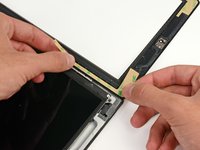
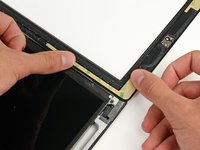
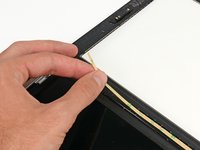
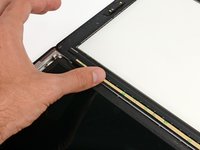
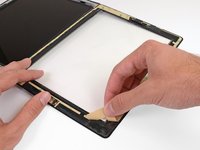
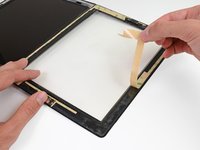
      • Make sure that each adhesive strip is placed in the correct location and orientation before peeling the backing.

      • Peel the brown backing up off each adhesive strip.

      • Some of the adhesive strips are quite small and may require some patience to peel the backing.

      Спросите у FixBot

      Добавить комментарий

Заключение

To reassemble your device, follow these instructions in reverse order.

Отменить: Я не выполнил это руководство.

15 человек успешно провели ремонт по этому руководству.

Jeff Suovanen

Участник с: 08/06/13

455 234 Репутация

Автор 259 руководств

Команду

iFixit Участник iFixit

Staff

121 членов

Автор 72 907 руководств

1 Комментарий к руководству

my adhesive looks nothing like the adhesive strips in the photos. Mine has a white backing instead of clear and is not shaped as pictured above. My model A1416 iPad3 Wifi does not have a home button ribbon of any kind nor do the stickers accommodate for one. This needs updated images and descriptions.

chrisaaron - Ответить Поделиться
Добавить комментарий

Статистика просмотров:

За последние 24 часов: 2

За последние 7 дней: 20

За последние 30 дней: 99

За все время: 8,462