Перейти к основному содержанию

Battery Disconnect

Абсолютно необходимое руководство
Это руководство только для предварительной подготовки! Этот гайд является частью другой процедуры и не предназначен для самостоятельного использования.

Выберете то, что вам нужно

  1. Battery Disconnect, Disable Auto Boot: шаг 1, изображение 1 из 3 Battery Disconnect, Disable Auto Boot: шаг 1, изображение 2 из 3 Battery Disconnect, Disable Auto Boot: шаг 1, изображение 3 из 3
    • Before starting this procedure, you must disable your Mac's Auto Boot feature. Auto Boot powers on your Mac when you open the lid, and may be accidentally triggered during disassembly. Use this guide or follow the abbreviated instructions below to disable Auto Boot. This command may not work on all Macs.

    • Power on your Mac and launch Terminal.

    • Copy and paste the following command (or type it exactly) into Terminal:

    • sudo nvram AutoBoot=%00

    • Press [return]. If prompted, enter your administrator password and press [return] again. Note: Your return key may also be labeled ⏎ or "enter."

    • You can now safely power down your Mac and open the bottom case, without it accidentally powering on.

    • When your repair is complete and your Mac is successfully reassembled, re-enable Auto Boot with the following command:

    • sudo nvram AutoBoot=%03

  2. Battery Disconnect, Remove the pentalobe screws: шаг 2, изображение 1 из 1
    Инструмент, используемый на этом этапе:
    Magnetic Project Mat
    $19.95
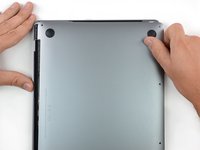
    • Before proceeding, unplug and power down your MacBook. Close the display and lay it on a soft surface, top-side down.

    • Use a P5 Pentalobe driver to remove the six screws securing the lower case:

    • Two 6.2 mm screws

    • Four 3.4 mm screws

    • Throughout this repair, keep track of each screw and make sure it goes back exactly where it came from to avoid damaging your device.

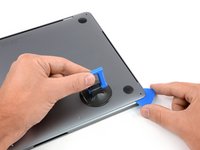
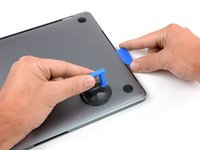
  3. Battery Disconnect, Open a gap using a suction cup: шаг 3, изображение 1 из 2 Battery Disconnect, Open a gap using a suction cup: шаг 3, изображение 2 из 2
    • Apply a suction handle to the lower case near the front-center area of the MacBook Pro.

    • Lift the suction handle to create a slight gap between the lower case and the chassis.

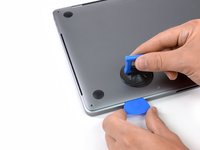
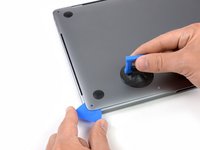
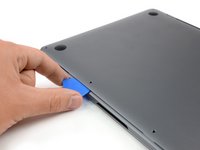
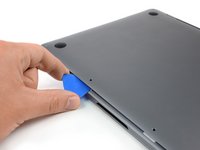
  4. Battery Disconnect, Separate the clips: шаг 4, изображение 1 из 3 Battery Disconnect, Separate the clips: шаг 4, изображение 2 из 3 Battery Disconnect, Separate the clips: шаг 4, изображение 3 из 3
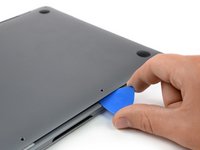
    • Insert one corner of an opening pick into the space between the lower case and the chassis.

    • Slide the opening pick around the nearest corner and halfway up the side of the case.

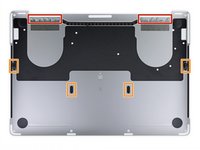
    • This releases the first of the hidden clips securing the lower case to the chassis. You should feel and hear the clip pop free.

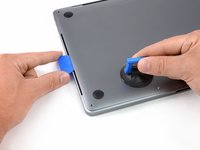
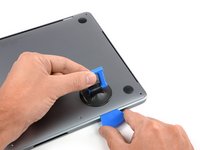
  5. Battery Disconnect: шаг 5, изображение 1 из 3 Battery Disconnect: шаг 5, изображение 2 из 3 Battery Disconnect: шаг 5, изображение 3 из 3
    • Repeat the previous step on the opposite side, sliding your opening pick under the lower case and up the side to pop the second clip free.

  6. Battery Disconnect: шаг 6, изображение 1 из 3 Battery Disconnect: шаг 6, изображение 2 из 3 Battery Disconnect: шаг 6, изображение 3 из 3
    • Insert your opening pick once again under the front edge of the lower case, near one of the two centermost screw holes.

    • Give the pick a firm twist to pop free the third clip securing the lower case to the chassis.

    • Repeat this procedure near the other of the two centermost screw holes, popping the fourth clip free.

  7. Battery Disconnect: шаг 7, изображение 1 из 3 Battery Disconnect: шаг 7, изображение 2 из 3 Battery Disconnect: шаг 7, изображение 3 из 3
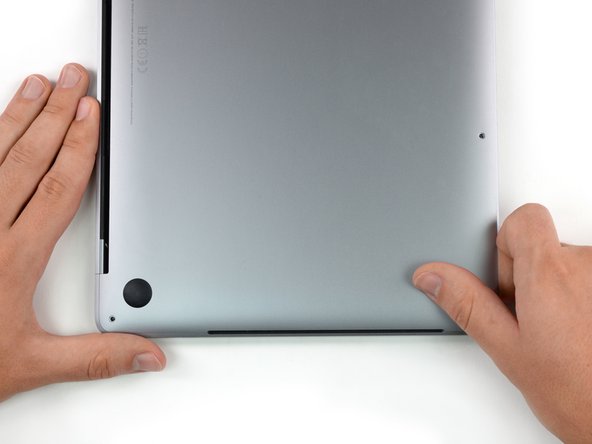
    • Pull the lower case firmly towards the front of the MacBook (away from the hinge area) to separate the last of the clips securing the lower case.

    • Pull first at one corner, then the other.

    • Pull to the side—not up.

    • This can require a lot of force.

  8. Battery Disconnect, Remove the lower case: шаг 8, изображение 1 из 3 Battery Disconnect, Remove the lower case: шаг 8, изображение 2 из 3 Battery Disconnect, Remove the lower case: шаг 8, изображение 3 из 3
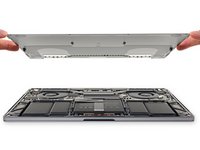
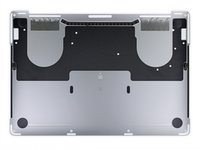
    • Remove the lower case.

    • To reinstall the lower case:

    • Set it in place and align the sliding clips near the display hinge. Press down and slide the cover toward the hinge. It should stop sliding as the clips engage.

    • When the sliding clips are fully engaged and the lower case looks correctly aligned, press down firmly on the lower case to engage the four hidden clips underneath. You should feel and hear them snap into place.

  9. Battery Disconnect, Uncover the battery connector: шаг 9, изображение 1 из 2 Battery Disconnect, Uncover the battery connector: шаг 9, изображение 2 из 2
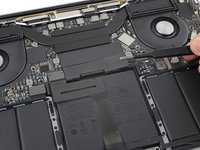
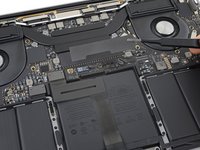
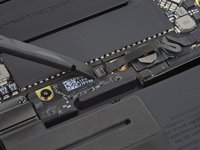
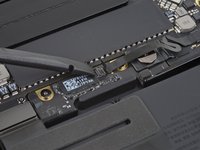
    • Carefully peel up the large piece of tape covering the battery connector, on the edge of the logic board nearest the battery.

    • Remove the tape.

  10. Battery Disconnect: шаг 10, изображение 1 из 2 Battery Disconnect: шаг 10, изображение 2 из 2
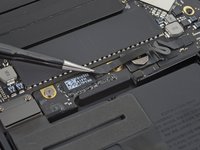
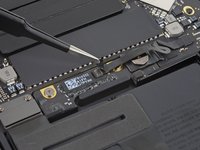
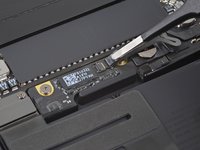
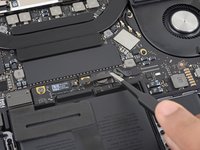
    • Gently peel back the small piece of tape covering the battery board data cable connector.

    • The tape is integrated into the ribbon cable and will not detach completely. Simply peel it back enough to access the connector.

  11. Battery Disconnect: шаг 11, изображение 1 из 2 Battery Disconnect: шаг 11, изображение 2 из 2
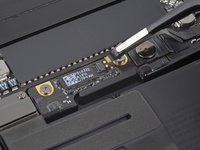
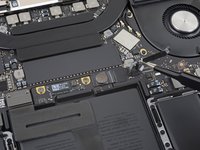
    • Use the tip of a spudger to flip up the small black locking tab securing the cable in its connector.

  12. Battery Disconnect: шаг 12, изображение 1 из 2 Battery Disconnect: шаг 12, изображение 2 из 2
    • Disconnect the battery board data cable by sliding it out from its socket.

    • Slide parallel to the logic board, in the direction of the cable.

  13. Battery Disconnect: шаг 13, изображение 1 из 2 Battery Disconnect: шаг 13, изображение 2 из 2
    • Fold the battery board data cable to the side and out of the way.

  14. Battery Disconnect: шаг 14, изображение 1 из 1
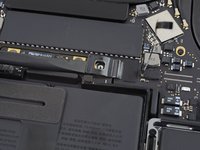
    • Use a T5 Torx driver to remove the 3.7 mm pancake screw securing the battery power connector.

  15. Battery Disconnect, Disconnect the battery: шаг 15, изображение 1 из 2 Battery Disconnect, Disconnect the battery: шаг 15, изображение 2 из 2
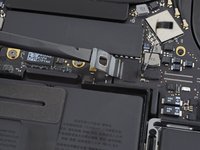
    • Use a spudger to gently lift the battery power connector, disconnecting the battery.

    • Lift the connector high enough so that it stays separated from its socket. If it accidentally makes contact during the course of your repair, it could damage your MacBook Pro.

Заключение

To reassemble your device, follow these instructions in reverse order.

Tarun Thiruma

Участник с: 11/20/19

39 444 Репутация

Автор 134 руководств

0 Комментарии к руководству

Добавить комментарий

Статистика просмотров:

За последние 24 часов: 1

За последние 7 дней: 2

За последние 30 дней: 6

За всё время: 224