Этот перевод был сделан машиной и пока не проверен человеком. Говорите на этом языке? Просмотрите его.
Введение
Функция автоматического включения (Auto Boot) запускает ваш ноутбук сразу при открытии крышки, поэтому её следует отключить перед выполнением некоторых видов ремонта. Функция Auto Boot присутствует на MacBook Pro 2016 года (и новее) и 12-дюймовых MacBook с дисплеем Retina 2017 года (и новее).
В этом руководстве мы покажем вам процесс отключения Auto Boot, а также то, как включить её обратно после завершения ремонта.
Примечание: отключение Auto Boot может не работать на новых MacBook Apple на базе процессоров M-серии, выпущенных в конце 2020 года и позже. На данный момент нам не известны способы отключения Auto Boot на устройствах с установленной macOS Big Sur версии 11.1 или новее.
-
-
-
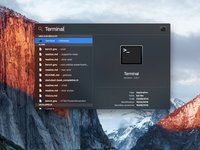
Включите ваш Mac и запустите Терминал.
 Спросите у FixBot
-
-
-
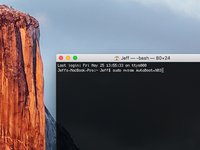
Скопируйте и вставьте следующую команду (или введите её в точности) в Терминал:
-
sudo nvram AutoBoot=%00
-
Нажмите [return].
-
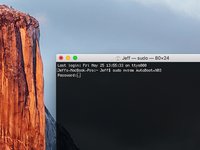
Если появится запрос пароля администратора, введите пароль и нажмите [return].
-
-
-
-
Включите Mac и запустите Терминал.
-
Скопируйте и вставьте следующую команду (или введите её в точности) в Терминал:
-
sudo nvram AutoBoot=%03
-
Нажмите [return].
-
Если потребуется ввести пароль администратора, введите его и нажмите [return].
-
-


Поздравляем! Вы справились.
Отменить: Я не выполнил это руководство.
76 человек успешно провели ремонт по этому руководству.


29 Комментарии к руководству
hello may i ask, how do u make it Jeff$? mine’s scarlet$ and i want to change it but idk how
You change the your user/Homefolder name
You do not need to change it for the command to work. But if you really do want to for a different reason, rename your home folder name.
I can’t type anything into the terminal…what am I doing wrong?
HELP
it doesn’t work on MacBook Air><
my sister’s pro did work, thanks!! but mine can’t do so. what should I do???
