Перейти к основному содержанию
Присоединяйся к сообществу ремонтников - Создай аккаунт

DOPO 10.1 Tablet Speaker Replacement

Просмотров: 1,5 тыс.

Просмотр статистики:

За последние 24 часа:
2
За последние 7 дней:
14
За последние 30 дней:
85
За все время:
1 515
Комментарии: 0

Никто не оставлял комментариев к этой инструкции. Будете ли Вы первым?

Перейти к комментариям инструкции
Завершено: 0

Никто не отмечал эту инструкцию как "завершенное". Будете ли Вы первым?

Избранные: 0

Никто не добавил эту инструкцию в избранное (и не подписался на нее). Будете ли Вы первым?

Необходимое время: 30 минут
Сложность: Умеренно
Запчасти и средства модернизации

Шаги в этом руководстве следует разделить и объединить в серию обязательных руководств.

DOPO 10.1 Tablet Speaker Replacement

Replacing the speakers is a simple process, but will require some background knowledge of how electronic components function. The user will need to have a slight familiarity with how a motherboard works, as well as how to solder wires.

Note: If the user is not familiar with how to solder wires, follow link provided below.

Как паять и выпаивать соединения

Выберете то, что Вам нужно

Инструменты

    1. DOPO 10.1 Tablet Speaker Replacement, Separating the Covers: шаг 1, изображение 1 из 3 DOPO 10.1 Tablet Speaker Replacement, Separating the Covers: шаг 1, изображение 2 из 3 DOPO 10.1 Tablet Speaker Replacement, Separating the Covers: шаг 1, изображение 3 из 3
      • • Insert tool into crease between covers. First, insert one of the plastic tools between the front and back cover as shown. Next, twist the plastic tool until separation has occurred between the front and back of the tablet. Repeat this step until the user is able to fully separate the front and back covers.

      Спросите у FixBot

      Добавить комментарий

    2. DOPO 10.1 Tablet Speaker Replacement, Locate the Speakers: шаг 2, изображение 1 из 2 DOPO 10.1 Tablet Speaker Replacement, Locate the Speakers: шаг 2, изображение 2 из 2
      • The speakers should be attached to the white cover of the tablet as shown. Follow the wires back to the mother board making sure to remove all tape attaching wires to cover along the way. This will free up the wires for easy maneuverability.

      Спросите у FixBot

      Добавить комментарий

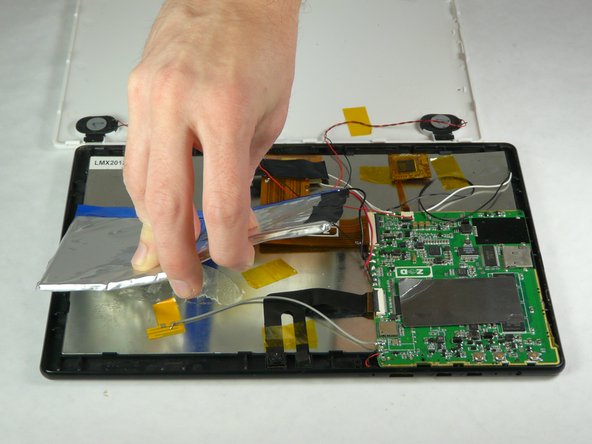
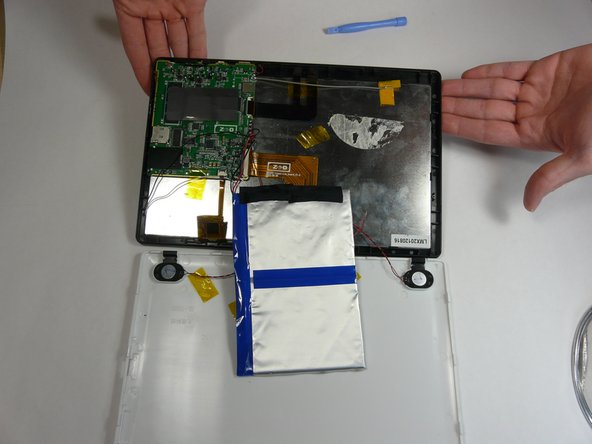
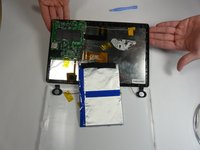
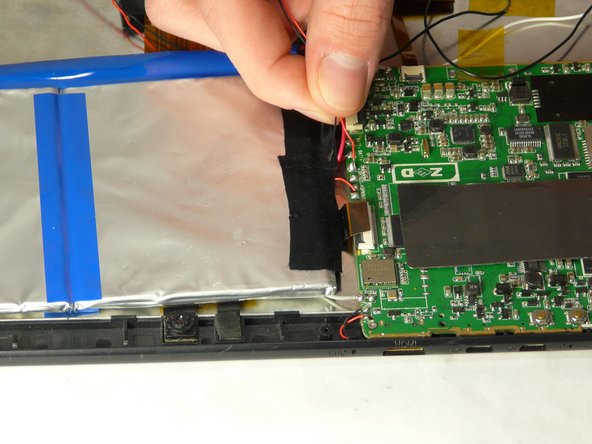
    3. DOPO 10.1 Tablet Speaker Replacement, Clearing the Pathway to Remove Speakers: шаг 3, изображение 1 из 3 DOPO 10.1 Tablet Speaker Replacement, Clearing the Pathway to Remove Speakers: шаг 3, изображение 2 из 3 DOPO 10.1 Tablet Speaker Replacement, Clearing the Pathway to Remove Speakers: шаг 3, изображение 3 из 3
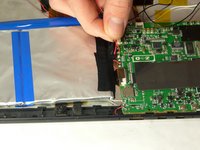
      • We will need to separate the battery from the panel slightly. This will allow for easier maneuverability to remove speakers. Do not separate the battery completely.

      Спросите у FixBot

      Добавить комментарий

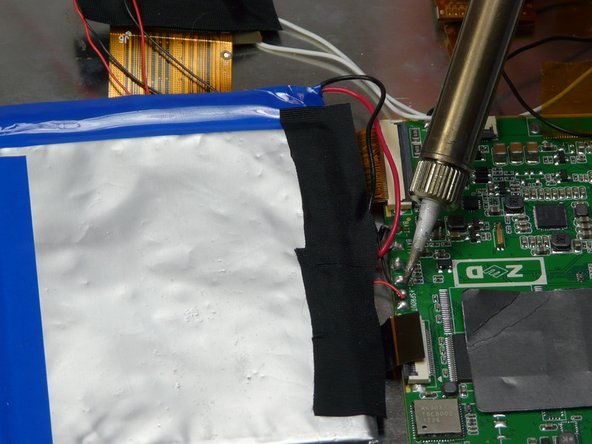
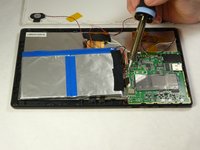
    4. DOPO 10.1 Tablet Speaker Replacement, Desoldering Speakers from Tablet Motherboard: шаг 4, изображение 1 из 3 DOPO 10.1 Tablet Speaker Replacement, Desoldering Speakers from Tablet Motherboard: шаг 4, изображение 2 из 3 DOPO 10.1 Tablet Speaker Replacement, Desoldering Speakers from Tablet Motherboard: шаг 4, изображение 3 из 3
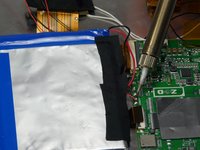
      • De-solder the red and black wires from the tablets motherboard. This will officially disconnect, and separate the defective speakers from the motherboard.

      Спросите у FixBot

      Добавить комментарий

    5. DOPO 10.1 Tablet Speaker Replacement, Removing Speakers: шаг 5, изображение 1 из 1
      • Remove defective speakers from their location in tablet.

      Спросите у FixBot

      Добавить комментарий

Заключение

To reassemble your device, follow these instructions in reverse order.

Отменить: Я не выполнил это руководство.

Kaitlyn Hayes

Участник с: 01/21/15

414 Репутация

Автор 4 руководств

Команду

USF Tampa, Team 5-2, Brown Winter 2015 Участник USF Tampa, Team 5-2, Brown Winter 2015

USFT-BROWN-W15S5G2

4 членов

Автор 60 руководств

0 Комментарии к руководству

Добавить комментарий

Статистика просмотров:

За последние 24 часов: 2

За последние 7 дней: 14

За последние 30 дней: 85

За все время: 1,515