Перейти к основному содержанию
Присоединяйся к сообществу ремонтников - Создай аккаунт

Dell AC511 USB Cable Replacement

Выберете то, что вам нужно

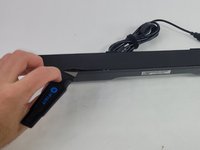
  1. Dell AC511 USB Cable Replacement, Front Panel: шаг 1, изображение 1 из 3 Dell AC511 USB Cable Replacement, Front Panel: шаг 1, изображение 2 из 3 Dell AC511 USB Cable Replacement, Front Panel: шаг 1, изображение 3 из 3
    • Use a Jimmy to peel off the screen stuck to the front of the speaker.

    • Start from any corner and use the Jimmy to get under the screen. Once one side lifts up, you can use your fingers to peel the rest off.

    • Be careful to avoid damage to the rest of the speaker and especially to yourself.

    • Don't worry if it tears; use the Jimmy again to peel off the rest.

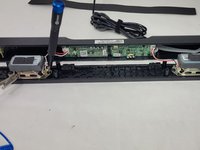
  2. Dell AC511 USB Cable Replacement: шаг 2, изображение 1 из 2 Dell AC511 USB Cable Replacement: шаг 2, изображение 2 из 2
    • Remove ten 6 mm screws using a Phillips #1 screwdriver.

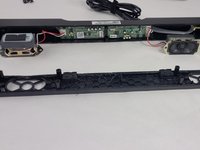
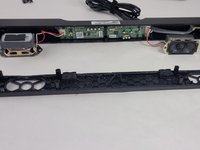
  3. Dell AC511 USB Cable Replacement: шаг 3, изображение 1 из 2 Dell AC511 USB Cable Replacement: шаг 3, изображение 2 из 2
    • Lift the front panel off of the rest of the device.

    • The speakers will still be attached to the front panel. Being too rough could damage them.

    • Remove the 4 mm screws from the speakers using a JIS #1 screwdriver.

    • Remove the front panel from the device.

  4. Dell AC511 USB Cable Replacement, Speaker: шаг 4, изображение 1 из 2 Dell AC511 USB Cable Replacement, Speaker: шаг 4, изображение 2 из 2
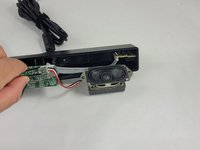
    • Follow the three wires connected to the speaker to find where they connect to the circuit board.

    • Use tweezers to gently rock the end of the wires back and forth until they disconnect from the board.

  5. Dell AC511 USB Cable Replacement, USB Cable: шаг 5, изображение 1 из 2 Dell AC511 USB Cable Replacement, USB Cable: шаг 5, изображение 2 из 2
    • Depending on where the soundbar is damaged, there are two different ways to remove the USB cable. This guide will cover both scenarios.

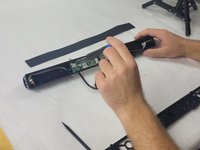
    • Remove the 6 mm screws connecting the circuit board to the rear panel using a Phillips #1 screwdriver.

  6. Dell AC511 USB Cable Replacement: шаг 6, изображение 1 из 2 Dell AC511 USB Cable Replacement: шаг 6, изображение 2 из 2
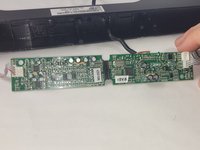
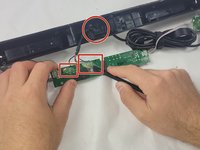
    • If the small wires coming from the USB cable are disconnected from the board, you'll have to solder them on. We recommend not letting that happen if you can help it.

    • The small wires may be glued to the circuit board. Pry off the glue with the Halberd Spudger.

  7. Dell AC511 USB Cable Replacement: шаг 7, изображение 1 из 1
    • Follow this step if the wires are still connected. If they aren't, skip to the next step.

    • If the wiring to the circuit board seems fine, use a razor or wire strippers to clear the rubber insulation away from the USB.

    • Keep track of the colors! If you connect the wrong wires together, the speaker won't work, and you could ruin the board!

    • After removing the rubber insulation from the smaller wires, remove the access USB.

    • Splice in the new USB and wrap the connection with the colored wires in electrical tape.

    • If you end up with reduced sound quality, you may need to solder after all. Continue to the next step in that case.

  8. Dell AC511 USB Cable Replacement: шаг 8, изображение 1 из 1
    • Follow this step if the wires are not connected.

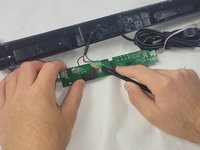
    • Remove the old USB wiring as best as possible from the circuit board.

    • Try to not be too rough. If needed, use wire strippers to remove the wires.

    • Remember the locations of the color coded USB wires and solder each into their respective places.

    • Take your time. Do not add too much solder; you could potentially fry the board if you do.

Заключение

To reassemble your device, follow these instructions in reverse order.

William Cook

Участник с: 03/19/24

653 Репутация

Автор 6 руководств

Команда

UMass Dartmouth, Team 4-6, Shaddix Spring 2024 Участник UMass Dartmouth, Team 4-6, Shaddix Spring 2024

UMASSD-SHADDIX-S24S4G6

4 членов

Автор 6 руководств

0 Комментарии к руководству

Добавить комментарий

Статистика просмотров:

За последние 24 часов: 1

За последние 7 дней: 5

За последние 30 дней: 19

За всё время: 329