Введение
Utilize this guide to replace the RAM (otherwise known as random access memory), in your Dell Inspiron 15 5584 laptop.
RAM acts as a temporary memory bank in order to improve multitasking and overall device performance. Without RAM, your computer would be unable to run or process information, resulting in the computer not being able boot up.
Before tampering with your device, make sure to drain the battery and turn off your laptop. As RAM is directly ported into the motherboard, careless removal may result in your motherboard breaking. Exercise caution when working with sensitive electronic components.
Выберете то, что вам нужно
-
-
Turn over the laptop so that the bottom is facing upwards, and the Inspiron logo is upside-down.
 Спросите у FixBot
-
-
-
Remove the seven 7 mm screws from the bottom using a Phillips #0 screwdriver.
-
Loosen the two captive back corner screws using a Phillips #0 screwdriver.
-
-
-
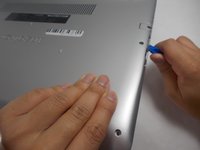
Slide an iFixit opening tool underneath the right side USB port and the keyboard.
-
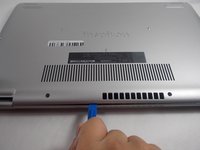
Gently trace the iFixit opening tool along the entire outer rim of the laptop, carefully applying an upwards pressure.
-
-
-
-
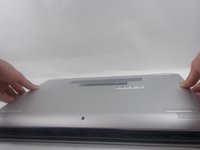
Gently pry off the bottom cover from the laptop.
-
Use the iFixit opening tool to loosen any spots you may have missed from Step 3.
-
-
-
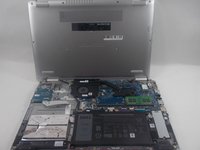
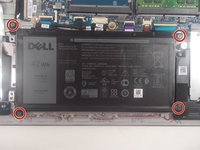
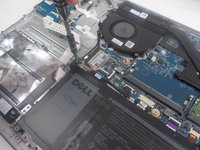
Remove the four 3.5 mm screws holding the battery down with a JIS #0 screwdriver.
-
-
-
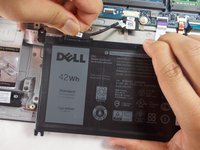
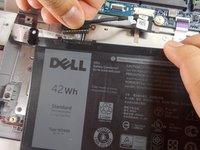
Detach the motherboard connector tab from the top left of the battery.
-
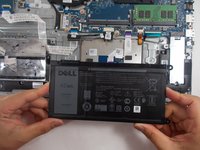
Remove the battery from the device.
-
-
-
Firmly apply pressure on the two latches to the right and left of the RAM stick.
-
-
-
At an angle, gently pull the RAM stick out of the socket.
-
Remove the RAM stick from the motherboard socket.
-










To reassemble your device, follow these instructions in reverse order.
Отменить: Я не выполнил это руководство.
Еще один человек закончил это руководство.

Команда

UMass Dartmouth, Team 1-1, Mellen Spring 2022 Участник UMass Dartmouth, Team 1-1, Mellen Spring 2022
UMASSD-MELLEN-S22S1G1
3 членов
Автор 10 руководств
