Введение
READ: I have confirmed these steps apply to Windows 10 and 11 without process changes. However, this guide was authored in 2018, so Windows 10 was used when it was authored. As such, multiple "end of life" apply:
Windows 10:
- PASSED: On-guide support ends (Windows 10): 1/1/2024
- PASSED: Author support ends (Windows 10): 1/1/2025 (Microsoft EOL: 10/14/25)
Windows 11: TBD; No Win11 EOL date to reference from Microsoft. It is suspected to occur in ~2030.
If you purchased an original Xbox Wireless Receiver for Windows and are having issues using it in Win10/Win11, this guide will show you how to install the driver manually if it is not automatically picked up. While these older adapters generally do not have issues in Windows 10 as often (it happens, but far less frequently), Windows 11 may require some manual assistance as I have observed a few instances where it was not as "plug and play" as the receiver is when using Windows 10.
Guide notes
- In most cases, Windows 10 tends to “just work". Manual installation may be required if it does not automatically pick up and install the driver. This improvement results from Microsoft considering Xbox accessory compatibility in Windows 10/11 and not retroactively adding it. This was a known problem with Win7/8.x being retrofitted to support these accessories (causing all of the early issues).
- Windows 11 can sometimes struggle with the automatic installation process, needing help from Windows Update. This is likely due to time and focus on the "slim" adapter (as well as BT support in 10/11), resulting in less need to use this adapter when Bluetooth has been supported for several generations, somewhat negating its need. I found no other issues when testing in 11 at that time.
- If you use Windows 7/8.x, refer to the guide made specifically for these OSes specifically (NOTE: NOT AUTHOR SUPPORTED AS BOTH 7 AND 8.x ARE EOL; this is kept up for the public as a community benefit as there are no major bugs that warrant taking the guide down). These guides are split as the process is different enough this was needed.
- NOTE: I did not get an initial install prompt and do not know how to trigger it again. As I used this laptop to test my steps before writing the guide, it will not be visible, but it may show for you. I do not know how to trigger the initial installation window manually.
-
-
Plug your Xbox Wireless Receiver into your PC. Proceed further if the automatic installation fails.
-
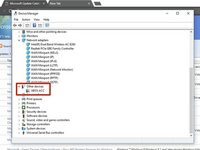
Locate Other Devices. Without a driver installed, the receiver will be found here.
-
Double click XBOX ACC and check for Code 28. Click Update Driver and you will see a window with two options.
-
Before manually installing the driver, select Search automatically for updated driver software. Install the driver manually if this fails.
-
-
-
NOTE: THESE STEPS ARE NOT SHOWN ON MY COMPUTER AS IT TENDS TO WORK THE FIRST TIME WITH MINE. Click Search for updated drivers on Windows Update. Once this is done, the driver will be installed.
-
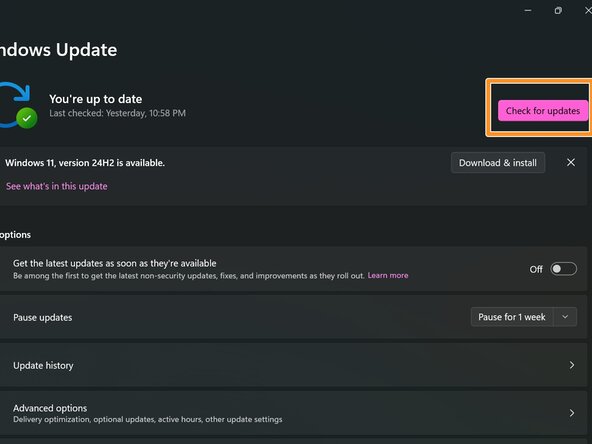
Click Check for updates to ensure the driver will download if the system is unresponsive. Once completed, the receiver should work.
-
-
-
-
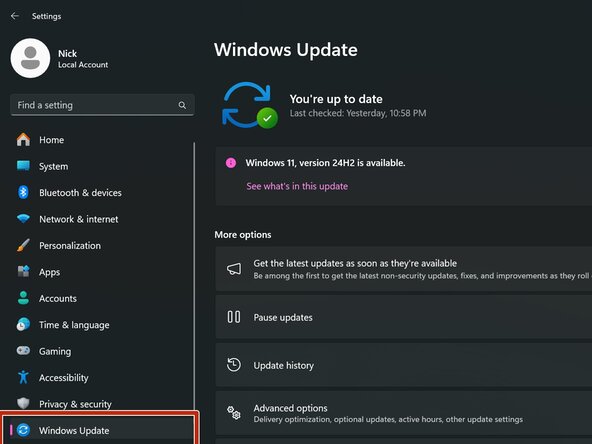
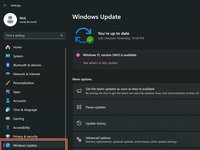
Click on Windows Update.
-
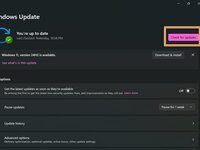
After plugging your receiver into your PC, click on Check for updates. The receiver will show up and download the correct driver.
-
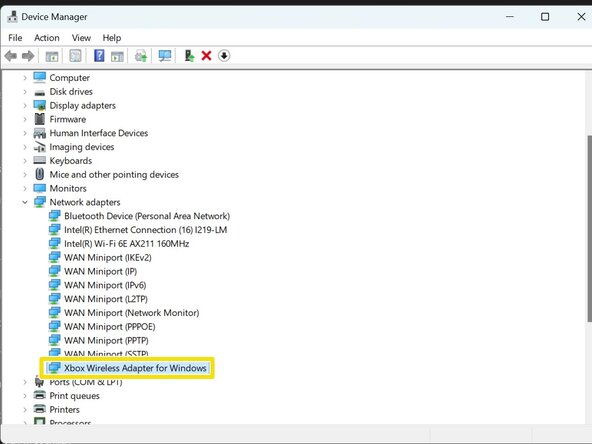
Once the driver is installed, check to make sure the receiver shows in Device Manager correctly.
-
-
-
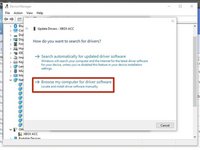
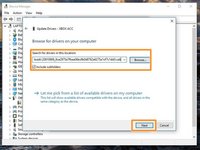
Select Browse my computer for driver software.
-
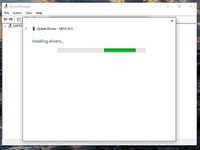
Locate the folder where the driver is located and select Copy address as text. Paste the location into the search box. Click Next.
-
-
-
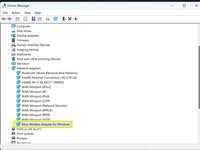
To verify the driver was installed correctly, check under Network Adapters. If the driver was installed correctly, it will show up here.
-







Отменить: Я не выполнил это руководство.
29 человек успешно провели ремонт по этому руководству.


Команда

49 Комментарии к руководству
Hi Nick,
This is a great guide. It seems to be a common issue and many people have offered similar solutions, but this one is the clearest and most well-explained.
However, it didn’t work for me - and from comments I’ve seen around, I know I’m not the only one. I wonder if you have any thoughts on this?
At the end of Step 3 (“Click Next and install the driver”), the window flashes to something like “Searching location…” for less than a second and then I get:
Windows was unable to install your XBOX ACC
Windows could not find drivers for your device.
If you know the manufacturer of your device, you can visit their website and check the support section for downloadable drivers.
I’m using Win 10 64-bit, fully updated.
I’ve tried the other drivers on the Update Catalog with the same result.
Is it possible to manually force the drivers to be installed?
Thanks,
Eryn
You can actually download the driver manually to force the installation. To force the installation, you will need this driver for Win10: Microsoft driver update for Xbox Wireless Adapter for Windows (18.31.1.43)
If the issue is installation, you need to unzip the folder and put the files in a normal folder. The .cab folder from the download site doesn’t work as-is. I should have clarified this, but it’s corrected.
Nick -
Thanks, but that wasn’t my issue.
I figured out that you can use the “Have disk…” option in the driver update dialog to force the install, but that still didn’t fix it - Device Manager correctly identified the device as “Xbox Wireless Adapter”, but it showed error code 10 and still failed to work.
—
What actually fixed it was a NEWER, entirely different (and deceptively named) driver in the Update Catalog.
—
For 64-bit systems:
Title: Xbox - Net - 7/11/2017 12:00:00 AM - 1.0.46.1
Products: Windows 10 Anniversary Update and Later Servicing Drivers,Windows 10 S and Later Servicing Drivers
Classification: Drivers (Networking)
Last Updated: 7/11/2017
Version: 1.0.46.1
Size: 217 KB
—
For x86 systems:
Title: Xbox - Net - 7/11/2017 12:00:00 AM - 1.0.46.1
Products: Windows 10 Anniversary Update and Later Servicing Drivers,Windows 10 S and Later Servicing Drivers
Classification: Drivers (Networking)
Last Updated: 7/11/2017
Version: 1.0.46.1
Size: 194 KB
—
I really hope this helps anyone else out there with the same issues as me.
Eryn
I did it on a W10 Build 1708 system with deferred updates and the throttled internet connection option enabled. I think 1708 is the Anniversary update, so there’s a chance that system had an older build at the time.
Nick -
Yeah, that makes sense.
I also just realised that your guide is for the original Wireless Adapter - whereas I’ve got the new (smaller) one. Maybe add a note that owners of the newer adapter will also need the newer driver?
None of the other guides I’ve seen out there include this info either, and yours is still the easiest to follow… so you’re still winning :)
