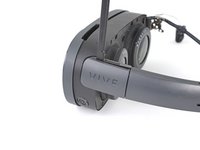
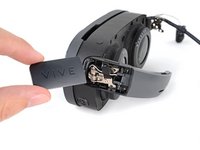
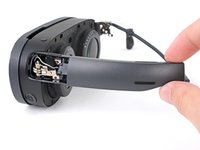
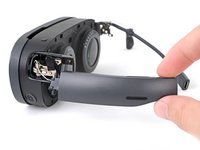
Перейти к основному содержанию
Присоединяйся к сообществу ремонтников - Создай аккаунт
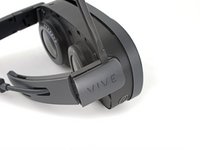
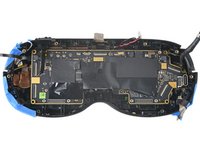
Motherboard Removal

Абсолютно необходимое руководство
Это руководство только для предварительной подготовки! Этот гайд является частью другой процедуры и не предназначен для самостоятельного использования.

Выберете то, что вам нужно

  1. Motherboard Removal, Prepare your Vive XR Elite for disassembly: шаг 1, изображение 1 из 1
    • Before starting this repair, discharge the batteries in your headset below 25%. A charged battery may leak dangerous chemicals or catch fire if damaged.

    • Playing Half Life: Alyx will do the trick!

    • The Vive XR Elite has a proximity sensor that puts the headset in standby mode to save battery when it isn't in use. To drain the battery faster you'll need to use the headset.

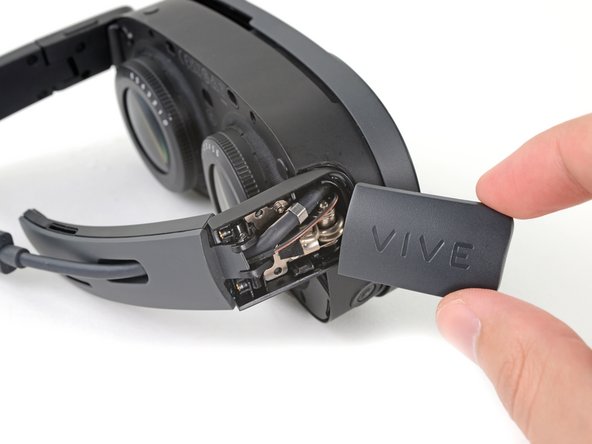
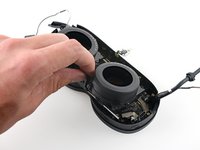
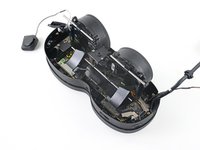
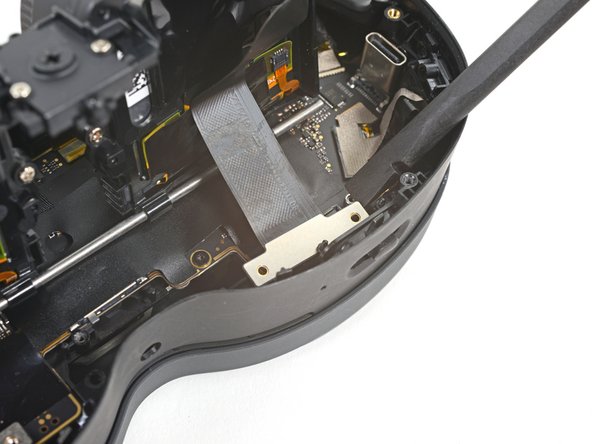
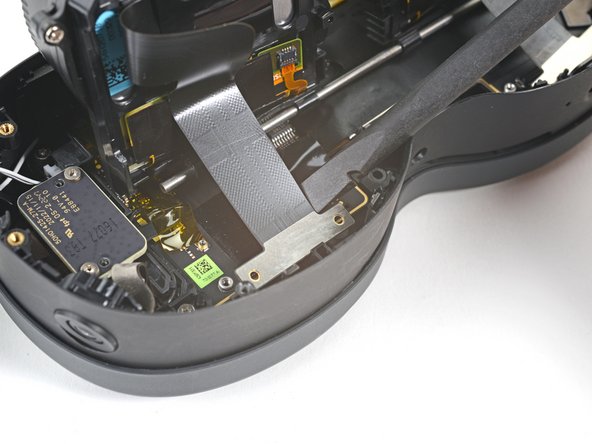
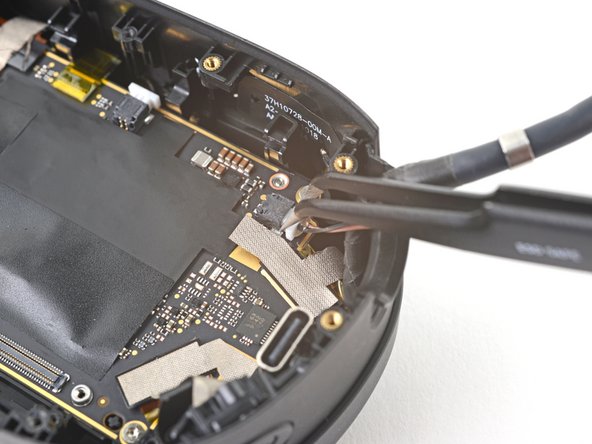
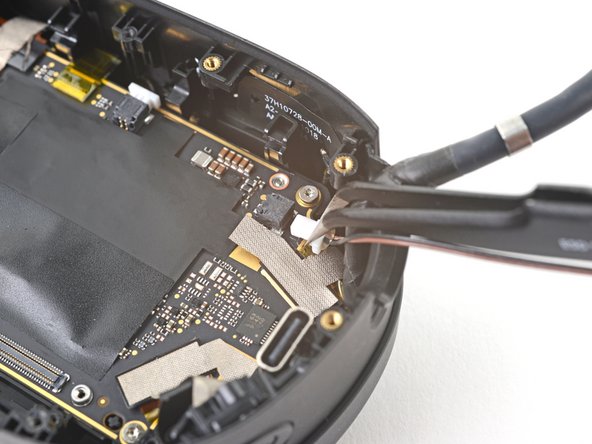
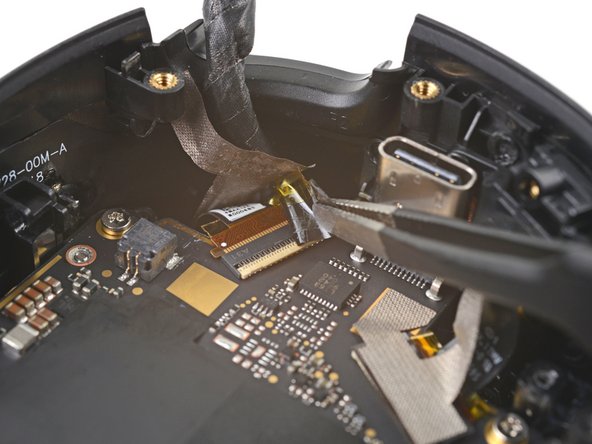
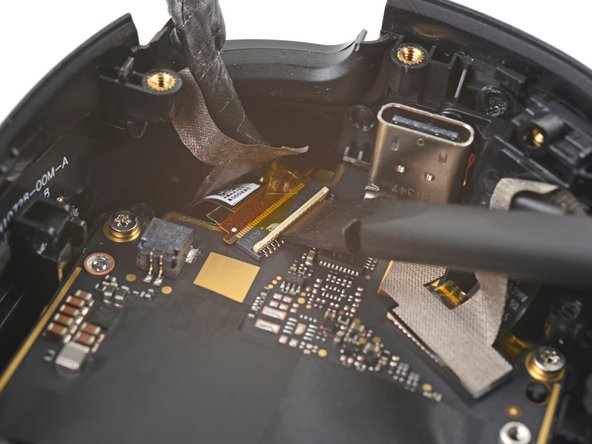
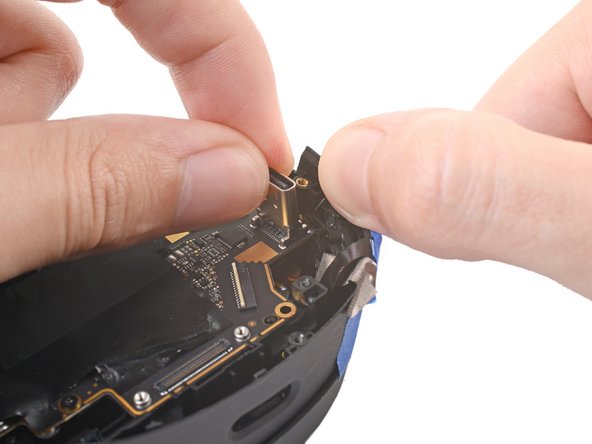
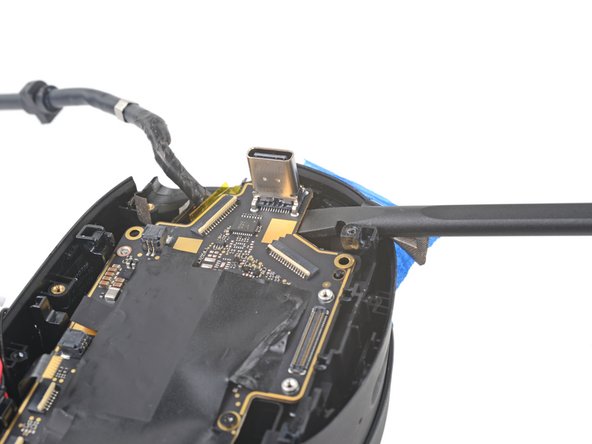
  2. Motherboard Removal, Disconnect the USB-C power cable: шаг 2, изображение 1 из 2 Motherboard Removal, Disconnect the USB-C power cable: шаг 2, изображение 2 из 2
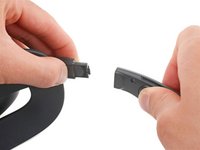
    • Disconnect the USB-C power cable.

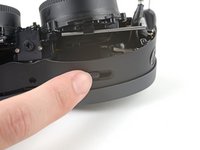
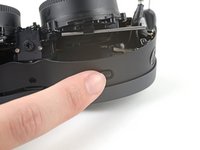
  3. Motherboard Removal, Disconnect the battery cradle: шаг 3, изображение 1 из 3 Motherboard Removal, Disconnect the battery cradle: шаг 3, изображение 2 из 3 Motherboard Removal, Disconnect the battery cradle: шаг 3, изображение 3 из 3
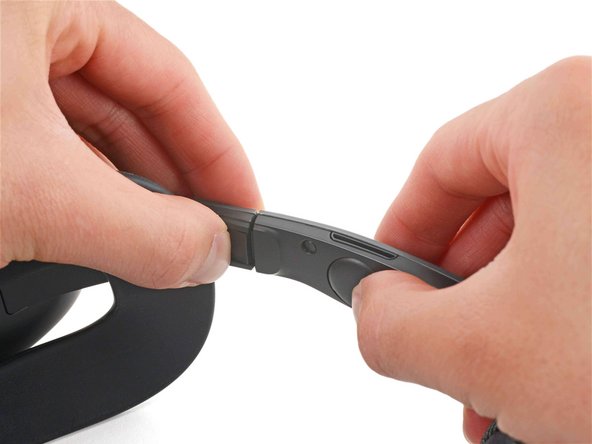
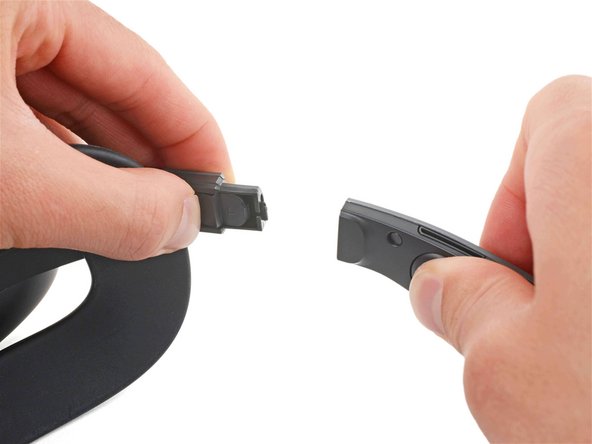
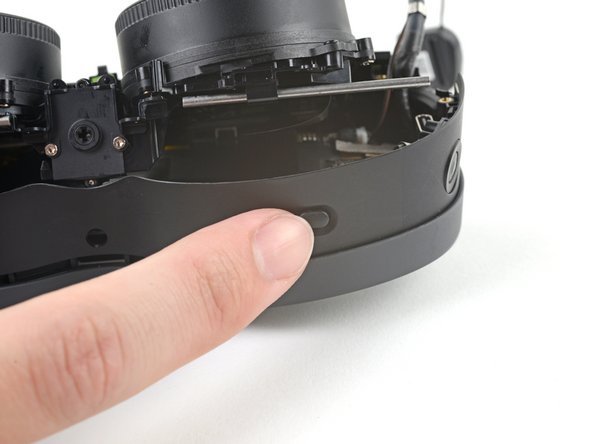
    • Press the release button on the right battery cradle temple slot.

    • Pull the battery cradle away from the right temple slot to disconnect it.

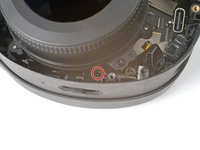
  4. Motherboard Removal: шаг 4, изображение 1 из 3 Motherboard Removal: шаг 4, изображение 2 из 3 Motherboard Removal: шаг 4, изображение 3 из 3
    • Repeat the previous step for the left temple slot.

  5. Motherboard Removal, Separate the headset and battery cradle: шаг 5, изображение 1 из 1
    • Separate the headset and battery cradle.

  6. Motherboard Removal, Remove the face cushion: шаг 6, изображение 1 из 3 Motherboard Removal, Remove the face cushion: шаг 6, изображение 2 из 3 Motherboard Removal, Remove the face cushion: шаг 6, изображение 3 из 3
    • The face cushion is attached to the headset with two magnets. You'll feel the pull of the magnets as you remove it.

    • Grip the middle of the face cushion with your fingers and pull back to remove it.

  7. Motherboard Removal, Remove the screw covers: шаг 7, изображение 1 из 2 Motherboard Removal, Remove the screw covers: шаг 7, изображение 2 из 2
    Инструмент, используемый на этом этапе:
    Tweezers
    $4.99
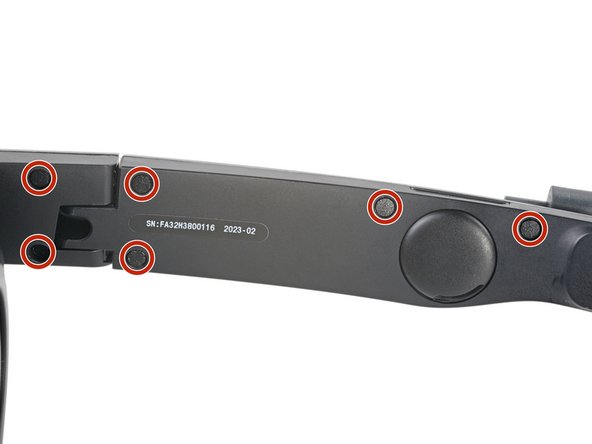
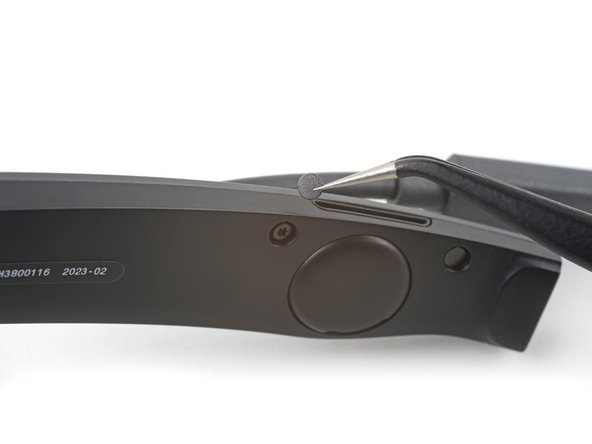
    • Use tweezers to remove the six screw covers from the right temple.

  8. Motherboard Removal, Unfasten the right temple: шаг 8, изображение 1 из 2 Motherboard Removal, Unfasten the right temple: шаг 8, изображение 2 из 2
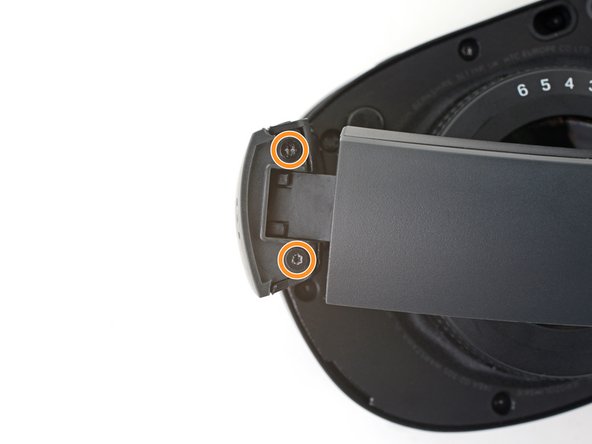
    • Use a T5 Torx screwdriver to remove the six 4.9 mm‑long screws securing the two right temple halves.

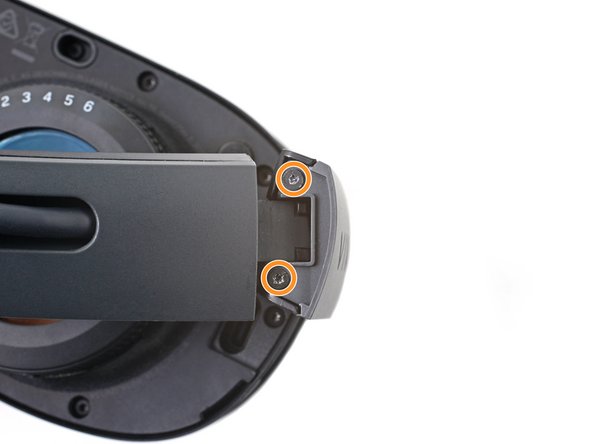
    • Use a T5 Torx screwdriver to remove the two 3.5 mm‑long screws securing the right hinge cover.

  9. Motherboard Removal, Remove the outer hinge cover: шаг 9, изображение 1 из 3 Motherboard Removal, Remove the outer hinge cover: шаг 9, изображение 2 из 3 Motherboard Removal, Remove the outer hinge cover: шаг 9, изображение 3 из 3
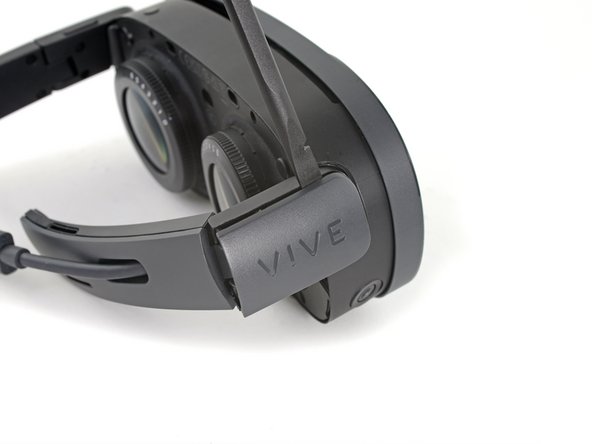
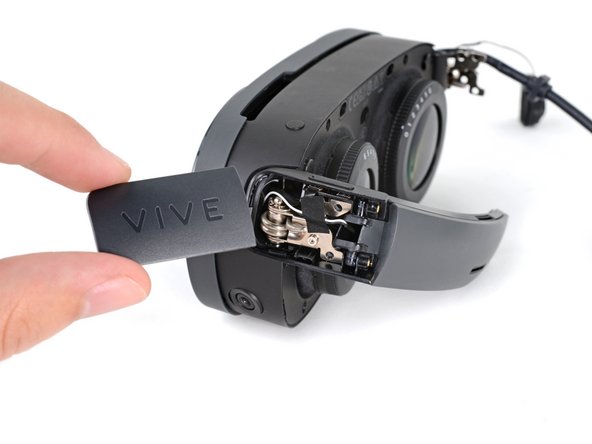
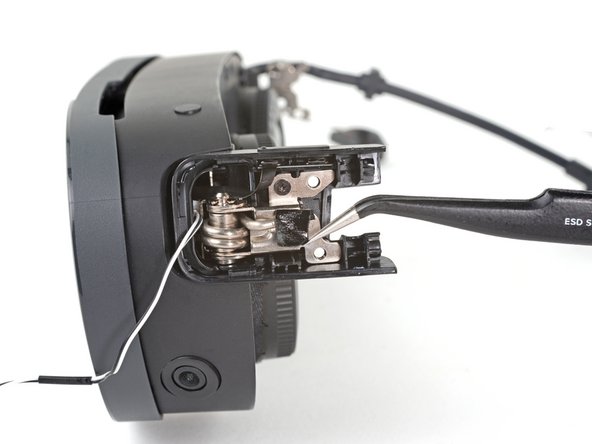
    • Insert the flat end of a spudger in the gap between the right outer and inner hinge covers.

    • Slide the spudger along the gap to separate the clips securing the outer hinge cover.

    • Remove the outer hinge cover.

  10. Motherboard Removal, Remove the outer temple: шаг 10, изображение 1 из 3 Motherboard Removal, Remove the outer temple: шаг 10, изображение 2 из 3 Motherboard Removal, Remove the outer temple: шаг 10, изображение 3 из 3
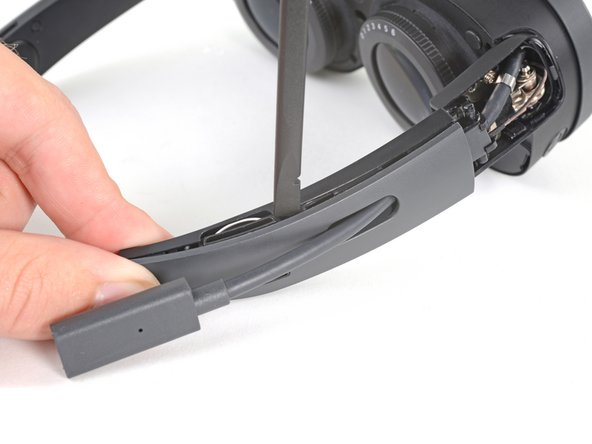
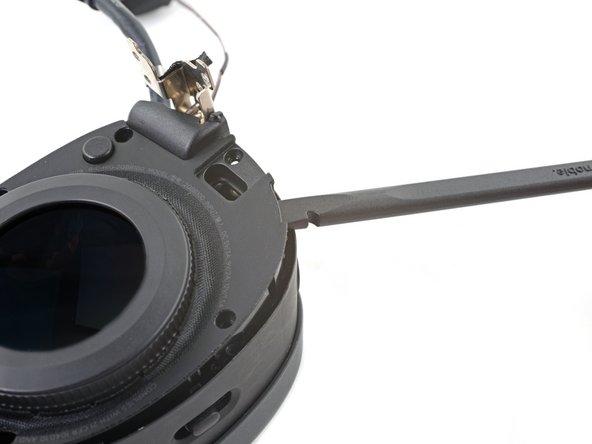
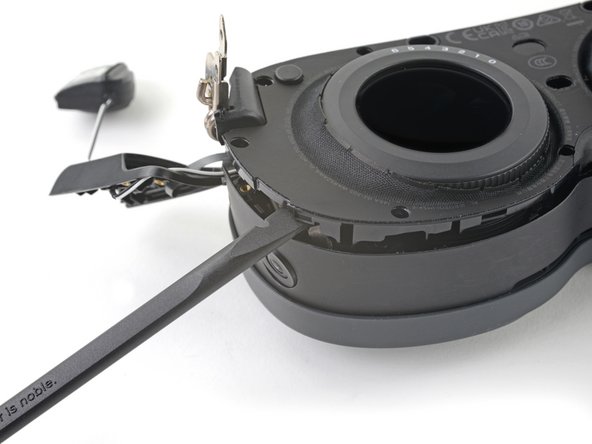
    • Insert the flat end of a spudger in the gap between the outer and inner temple.

    • Slide the spudger along the gap to separate the clips securing the outer temple.

  11. Motherboard Removal: шаг 11, изображение 1 из 3 Motherboard Removal: шаг 11, изображение 2 из 3 Motherboard Removal: шаг 11, изображение 3 из 3
    • Slide the top of the outer temple out of its slot in the hinge.

  12. Motherboard Removal: шаг 12, изображение 1 из 2 Motherboard Removal: шаг 12, изображение 2 из 2
    Инструмент, используемый на этом этапе:
    Tesa 61395 Tape
    $10.95
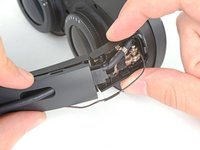
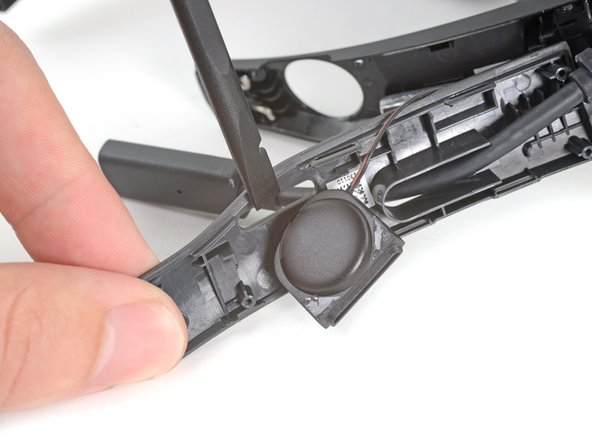
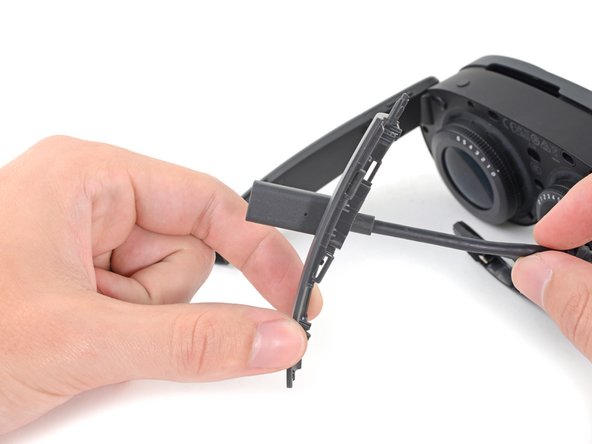
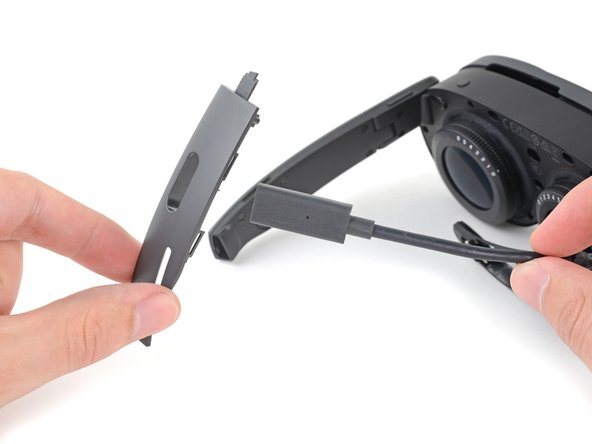
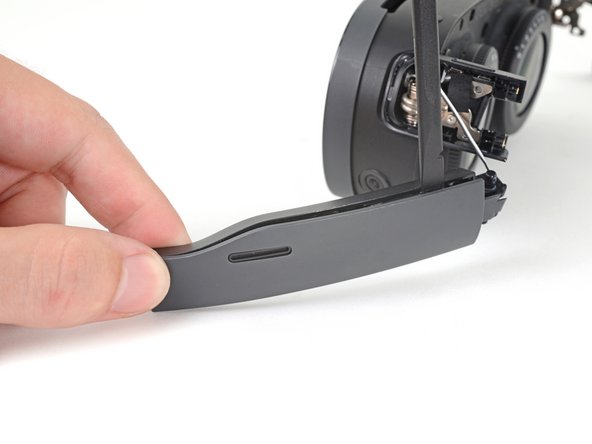
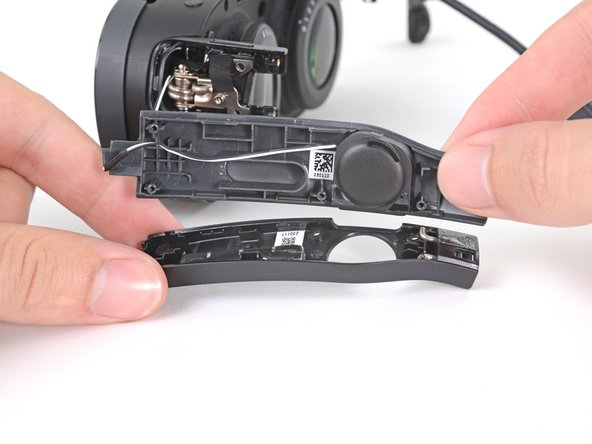
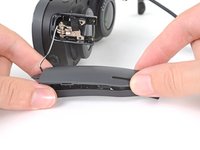
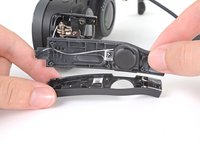
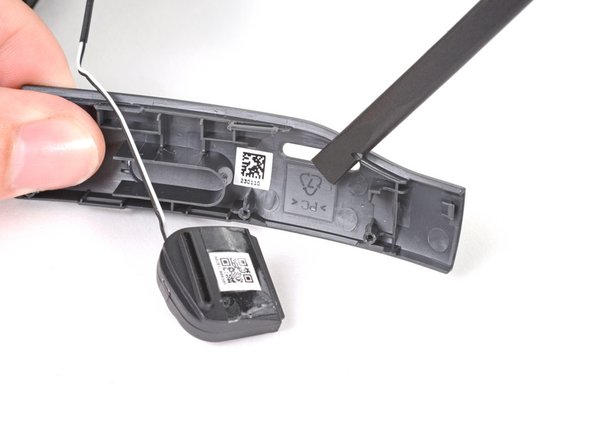
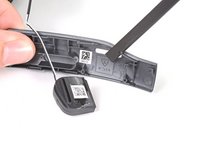
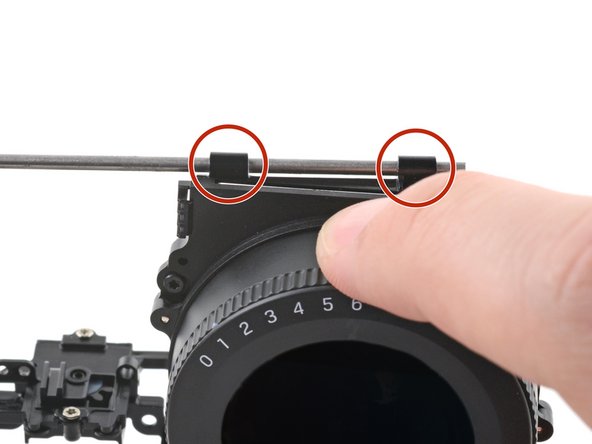
    • The speaker is lightly adhered to the outer temple.

    • Rotate the outer temple towards you to access the speaker.

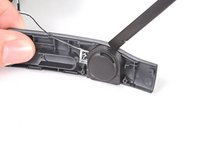
    • Slide the flat end of a spudger under the speaker to separate its adhesive.

    • During reassembly, if your speaker adhesive isn't sticky, use double-sided tape to re-adhere the speaker to the outer temple.

  13. Motherboard Removal: шаг 13, изображение 1 из 3 Motherboard Removal: шаг 13, изображение 2 из 3 Motherboard Removal: шаг 13, изображение 3 из 3
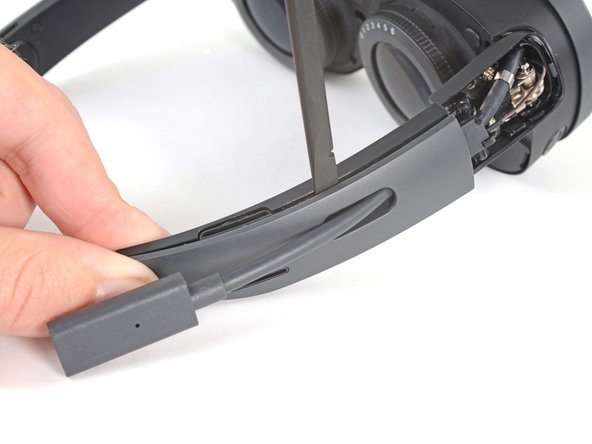
    • Thread the outer temple off of the USB‑C cable and remove it.

  14. Motherboard Removal: шаг 14, изображение 1 из 2 Motherboard Removal: шаг 14, изображение 2 из 2
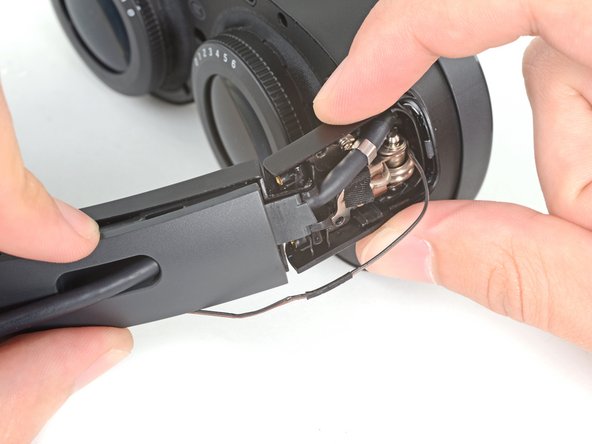
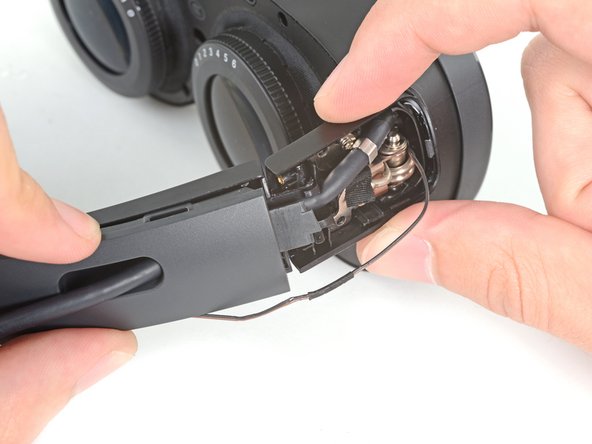
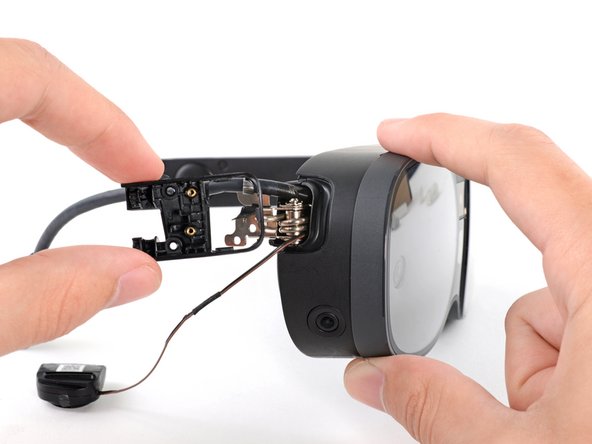
    • Pull the inner temple out of its slot in the hinge and remove it.

  15. Motherboard Removal, Peel the hinge tape: шаг 15, изображение 1 из 2 Motherboard Removal, Peel the hinge tape: шаг 15, изображение 2 из 2
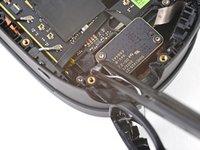
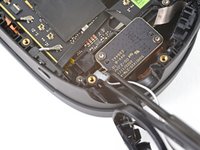
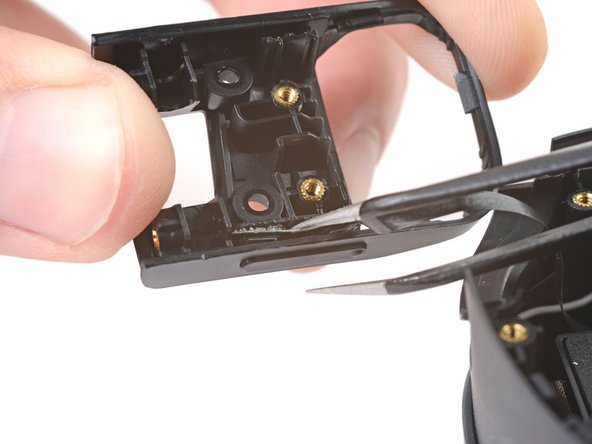
    • Use tweezers to peel back the black tape covering one of the inner hinge cover screws.

  16. Motherboard Removal, Unfasten the inner hinge cover: шаг 16, изображение 1 из 1
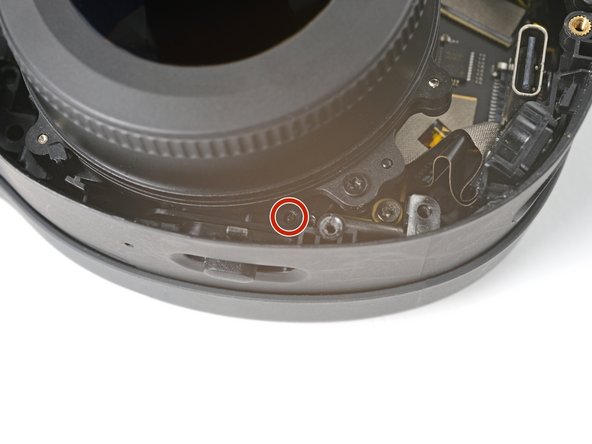
    • Use a T5 Torx screwdriver to remove the two screws securing the inner hinge cover:

    • One 3.1 mm‑long screw

    • One 4.9 mm‑long screw

  17. Motherboard Removal, Remove the inner hinge cover: шаг 17, изображение 1 из 3 Motherboard Removal, Remove the inner hinge cover: шаг 17, изображение 2 из 3 Motherboard Removal, Remove the inner hinge cover: шаг 17, изображение 3 из 3
    • Rotate the inner hinge cover off its groove in the frame.

    • Thread the inner hinge cover off of the USB-C and speaker cables and remove it.

  18. Motherboard Removal, Remove the screw covers: шаг 18, изображение 1 из 2 Motherboard Removal, Remove the screw covers: шаг 18, изображение 2 из 2
    Инструмент, используемый на этом этапе:
    Tweezers
    $4.99
    • Use tweezers to remove the six screw covers from the left temple.

  19. Motherboard Removal, Unfasten the left temple: шаг 19, изображение 1 из 2 Motherboard Removal, Unfasten the left temple: шаг 19, изображение 2 из 2
    • Use a T5 Torx screwdriver to remove the six 4.9 mm‑long screws securing the two left temple halves.

    • Use a T5 Torx screwdriver to remove the two 3.5 mm‑long screws securing the left hinge cover.

  20. Motherboard Removal, Remove the outer hinge cover: шаг 20, изображение 1 из 3 Motherboard Removal, Remove the outer hinge cover: шаг 20, изображение 2 из 3 Motherboard Removal, Remove the outer hinge cover: шаг 20, изображение 3 из 3
    • Insert the flat end of a spudger in the gap between the left outer and inner hinge covers.

    • Slide the spudger along the gap to separate the clips securing the outer hinge cover.

    • Remove the outer hinge cover.

  21. Motherboard Removal, Remove the left temple: шаг 21, изображение 1 из 2 Motherboard Removal, Remove the left temple: шаг 21, изображение 2 из 2
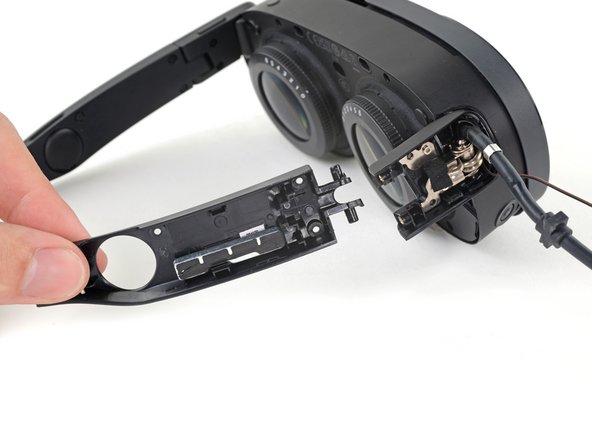
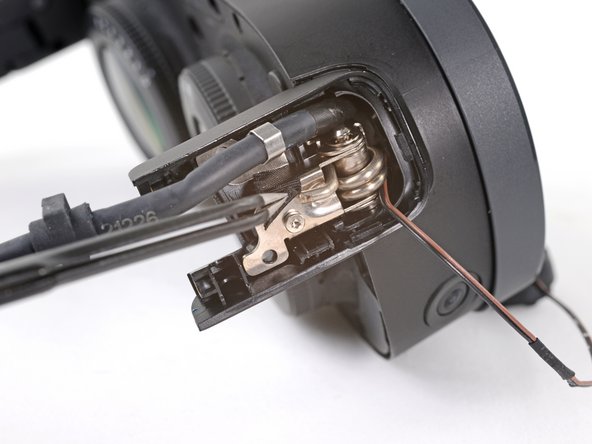
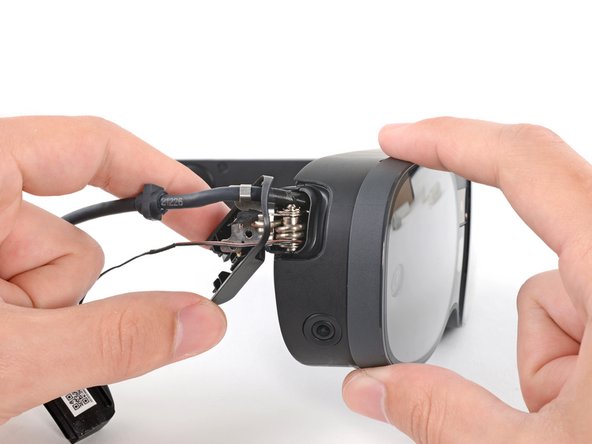
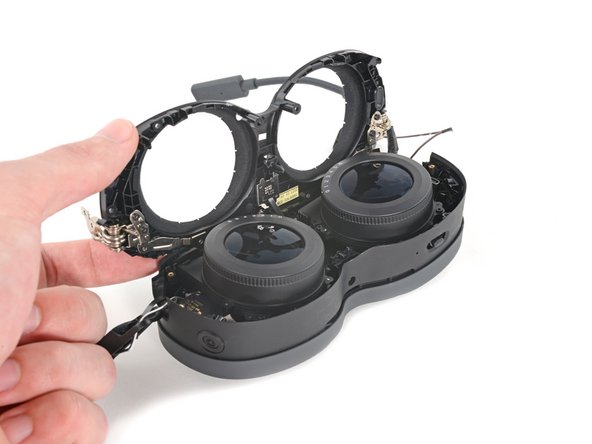
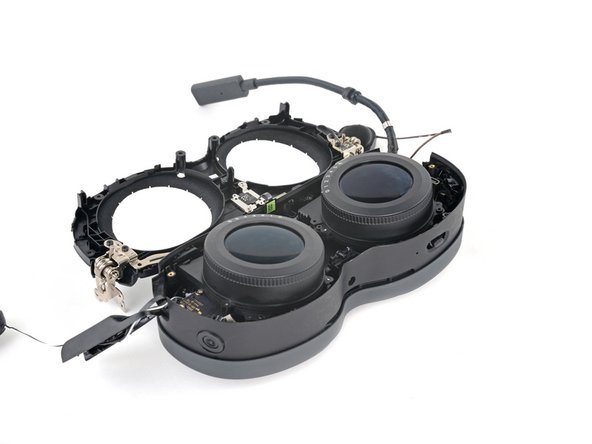
    • Pull the left temple out of its slot in the hinge.

    • Don't try to fully remove it yet, as it's still connected by a cable.

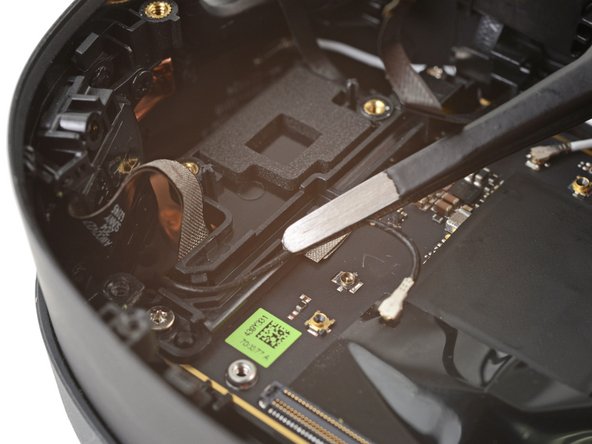
  22. Motherboard Removal: шаг 22, изображение 1 из 2 Motherboard Removal: шаг 22, изображение 2 из 2
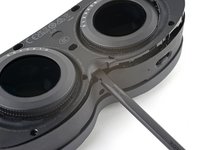
    • Insert the flat end of a spudger in the gap between the outer and inner temple.

    • Slide the spudger along the gap to separate the plastic clips securing the outer temple.

  23. Motherboard Removal: шаг 23, изображение 1 из 2 Motherboard Removal: шаг 23, изображение 2 из 2
    • Pull the outer temple off of its inner half to completely release its plastic clips.

  24. Motherboard Removal: шаг 24, изображение 1 из 2 Motherboard Removal: шаг 24, изображение 2 из 2
    Инструмент, используемый на этом этапе:
    Tesa 61395 Tape
    $10.95
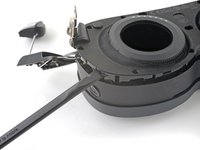
    • The speaker is lightly adhered to the outer temple.

    • Slide the flat end of a spudger under the speaker to separate its adhesive.

    • Let the speaker rest next to the headset before continuing.

    • During reassembly, if your speaker adhesive isn't sticky, use Tesa 61395 Tape to re-adhere the speaker to the outer temple.

  25. Motherboard Removal, Peel the hinge tape: шаг 25, изображение 1 из 2 Motherboard Removal, Peel the hinge tape: шаг 25, изображение 2 из 2
    • Use tweezers to peel back the black tape covering one of the inner hinge cover screws.

  26. Motherboard Removal, Unfasten the inner hinge cover: шаг 26, изображение 1 из 1
    • Use a T5 Torx screwdriver to remove the two screws securing the inner hinge cover:

    • One 3.5 mm‑long screw

    • One 4.9 mm‑long screw

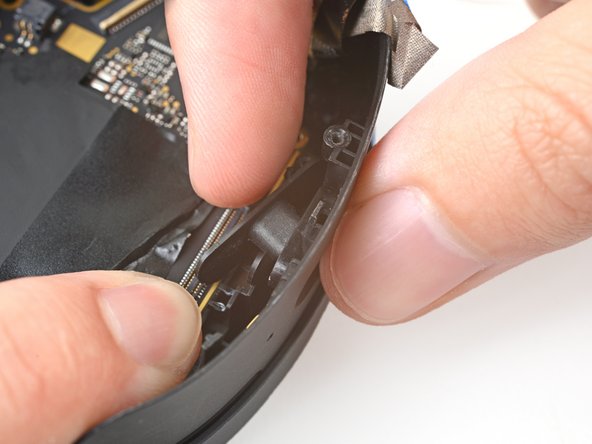
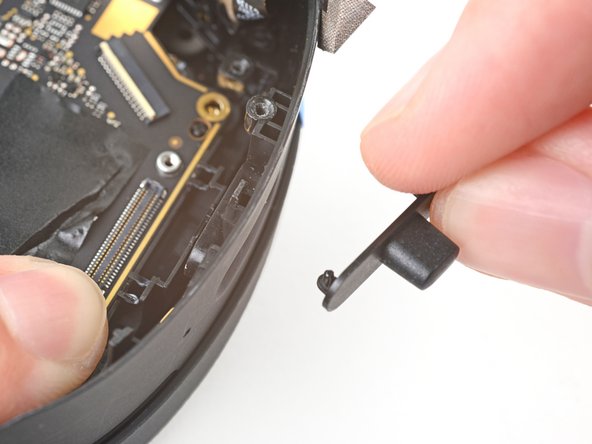
  27. Motherboard Removal, Reposition the inner hinge cover: шаг 27, изображение 1 из 3 Motherboard Removal, Reposition the inner hinge cover: шаг 27, изображение 2 из 3 Motherboard Removal, Reposition the inner hinge cover: шаг 27, изображение 3 из 3
    • Don't fully remove the inner hinge cover, as it's connected by the volume button cable.

    • Rotate the inner hinge cover off its groove in the frame.

    • Let the cover hang off its volume button cable for now.

  28. Motherboard Removal, Unfasten the face plate: шаг 28, изображение 1 из 2 Motherboard Removal, Unfasten the face plate: шаг 28, изображение 2 из 2
    • Use a T5 Torx screwdriver to remove the 12 screws securing the face plate:

    • Six 3.5 mm‑long screws

    • Four 4.9 mm‑long screws

    • Two 6.5 mm‑long screws

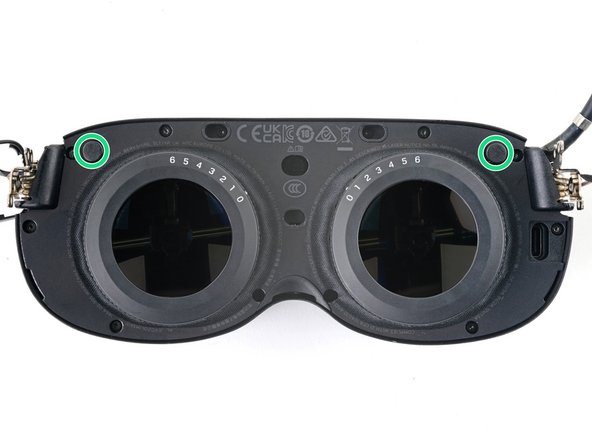
    • There are two magnets at the top corners of the face plate. As you remove nearby screws, they might stick to them.

  29. Motherboard Removal, Unclip the face cover: шаг 29, изображение 1 из 2 Motherboard Removal, Unclip the face cover: шаг 29, изображение 2 из 2
    • Insert the flat end of the spudger in the gap between the frame and the bottom right corner of the face cover.

    • Pry up with the spudger to release the clips securing the face cover.

  30. Motherboard Removal: шаг 30, изображение 1 из 2 Motherboard Removal: шаг 30, изображение 2 из 2
    • Repeat the prying process for the middle and bottom left portions of the face cover.

  31. Motherboard Removal, Reposition the face cover: шаг 31, изображение 1 из 3 Motherboard Removal, Reposition the face cover: шаг 31, изображение 2 из 3 Motherboard Removal, Reposition the face cover: шаг 31, изображение 3 из 3
    • Don't fully remove the face cover completely, as it's connected by the proximity sensor cable.

    • Lift the face cover and rotate it over the top of the frame.

    • Lay the face cover face up before continuing.

  32. Motherboard Removal, Unfasten the proximity sensor: шаг 32, изображение 1 из 1
    • Use a T5 Torx screwdriver to remove the two 3.3 mm‑long screws securing the proximity sensor cable.

  33. Motherboard Removal, Remove the face cover: шаг 33, изображение 1 из 2 Motherboard Removal, Remove the face cover: шаг 33, изображение 2 из 2
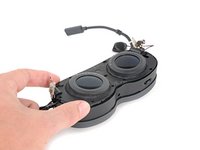
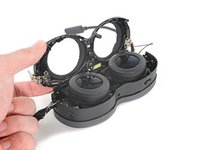
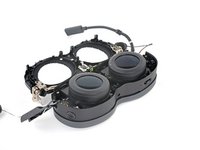
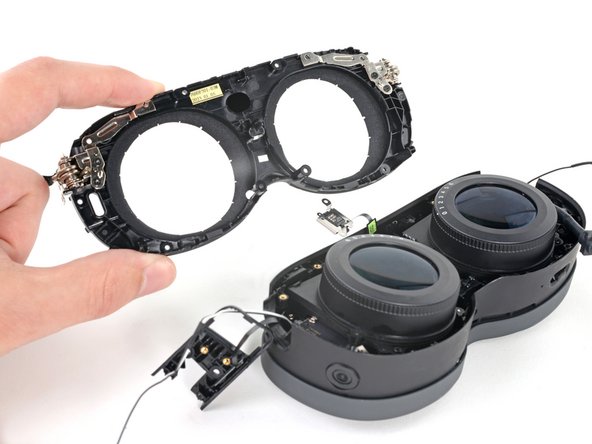
    • Remove the face cover.

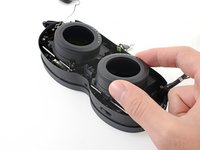
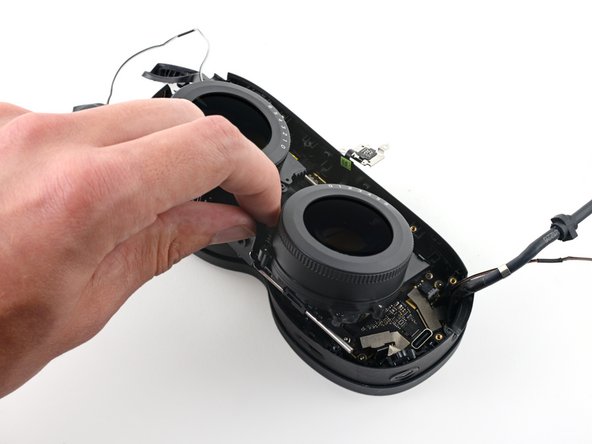
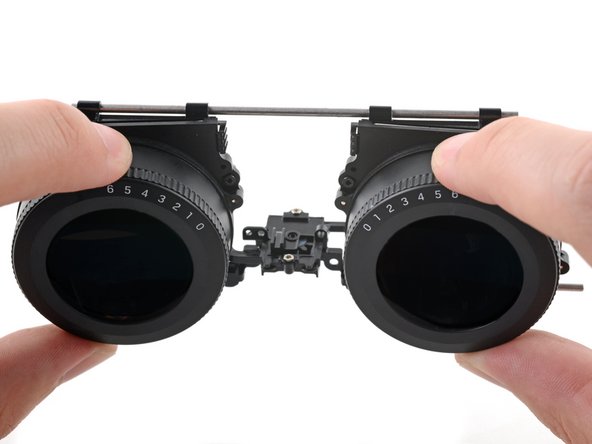
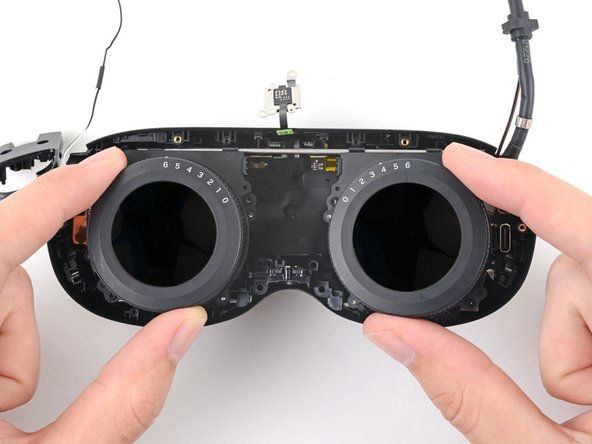
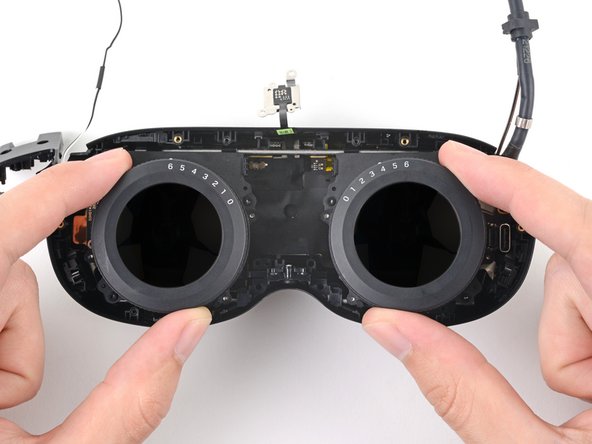
  34. Motherboard Removal, Reposition the lens assembly: шаг 34, изображение 1 из 2 Motherboard Removal, Reposition the lens assembly: шаг 34, изображение 2 из 2
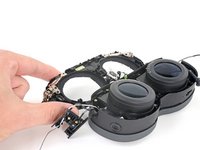
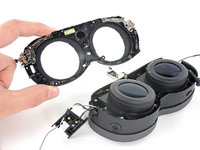
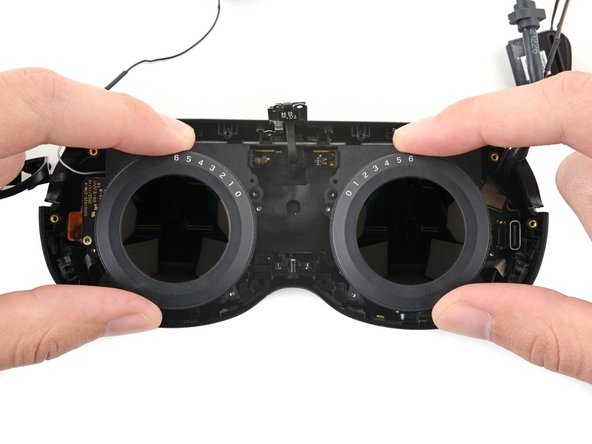
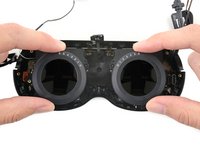
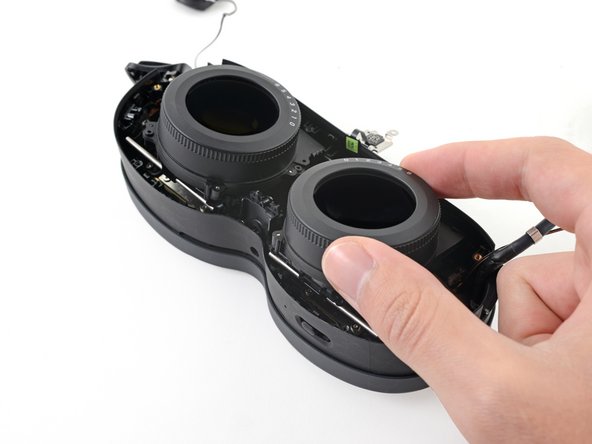
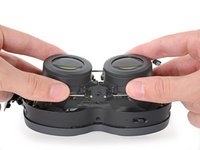
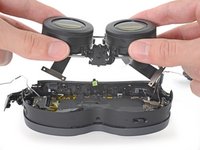
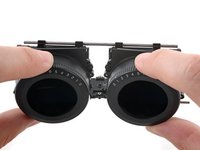
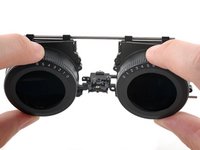
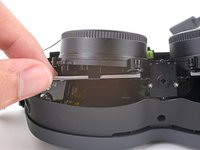
    • Pull the two lenses outward so they're as far apart as possible.

  35. Motherboard Removal, Unfasten the lens assembly: шаг 35, изображение 1 из 1
    • Use a T5 Torx screwdriver to remove the four screws securing the lens assembly:

    • Three 4.9 mm‑long screws

    • One 3.3 mm‑long screw

  36. Motherboard Removal, Remove the brackets: шаг 36, изображение 1 из 3 Motherboard Removal, Remove the brackets: шаг 36, изображение 2 из 3 Motherboard Removal, Remove the brackets: шаг 36, изображение 3 из 3
    Инструмент, используемый на этом этапе:
    Tweezers
    $4.99
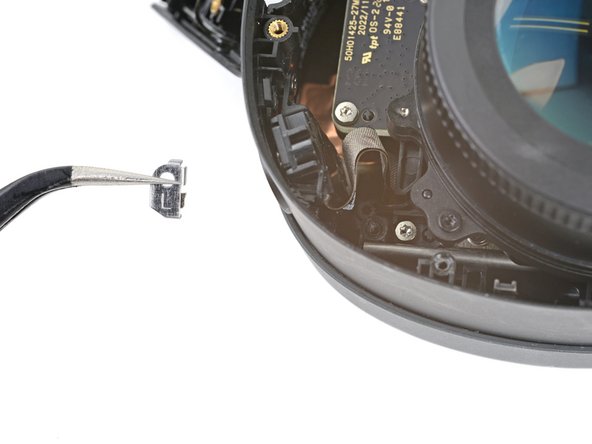
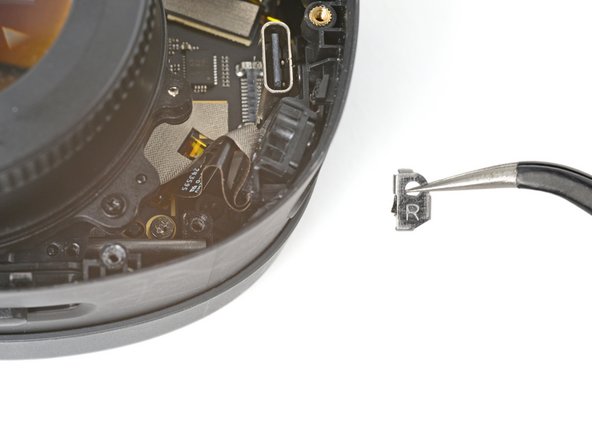
    • The screw brackets are secured with clips and adhesive.

    • Use tweezers to pull the left screw bracket of its post in the frame.

    • This may require some force. Be careful not to scratch any surrounding components.

    • Repeat this process for the right bracket.

    • During reassembly, use tweezers to align the brackets on their posts. Press down with the flat end of a spudger to engage and re-adhere the clips.

  37. Motherboard Removal, Reposition the lens assembly: шаг 37, изображение 1 из 2 Motherboard Removal, Reposition the lens assembly: шаг 37, изображение 2 из 2
    • Lift the bottom of the lens assembly up to separate the bottom rails from their slots in the frame.

  38. Motherboard Removal: шаг 38, изображение 1 из 3 Motherboard Removal: шаг 38, изображение 2 из 3 Motherboard Removal: шаг 38, изображение 3 из 3
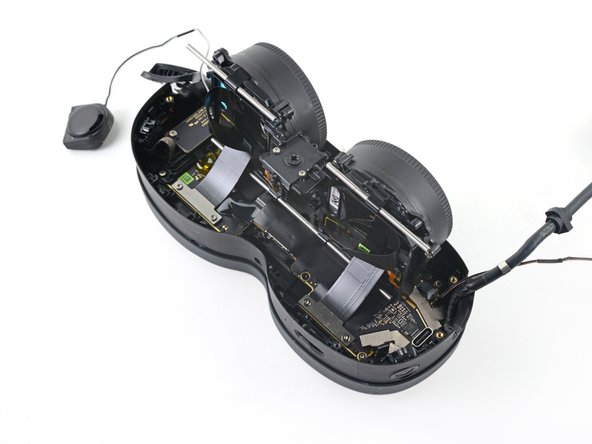
    • Pull the lens assembly upwards to separate the top rails from their slots in the frame.

    • Rotate the lens assembly towards the top of the frame so it sits upright with its cable connectors exposed.

  39. Motherboard Removal, Unfasten the lens assembly cables: шаг 39, изображение 1 из 1
    • Use a T5 Torx screwdriver to remove the four 3.4 mm‑long screws securing the lens assembly cables.

  40. Motherboard Removal, Disconnect the lens assembly cables: шаг 40, изображение 1 из 3 Motherboard Removal, Disconnect the lens assembly cables: шаг 40, изображение 2 из 3 Motherboard Removal, Disconnect the lens assembly cables: шаг 40, изображение 3 из 3
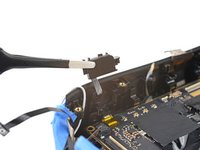
    • Use the flat end of a spudger to pry up and disconnect the lens assembly cable connector.

    • Repeat this procedure for the other connector.

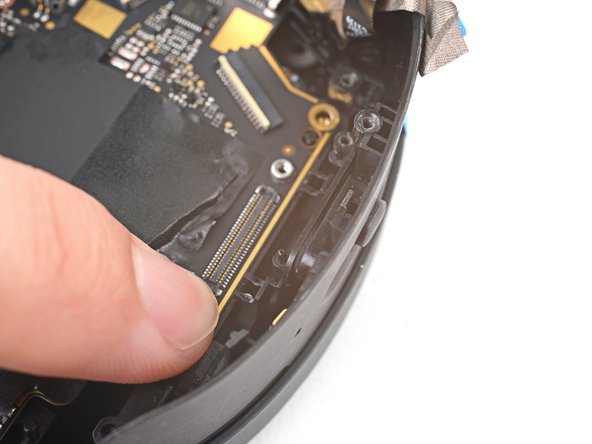
    • To re-attach press connectors like this one, carefully align and press down on one side until it clicks into place, then repeat on the other side. Don't press down on the middle. If the connector is misaligned, the pins can bend, causing permanent damage.

  41. Motherboard Removal, Remove the lens assembly: шаг 41, изображение 1 из 2 Motherboard Removal, Remove the lens assembly: шаг 41, изображение 2 из 2
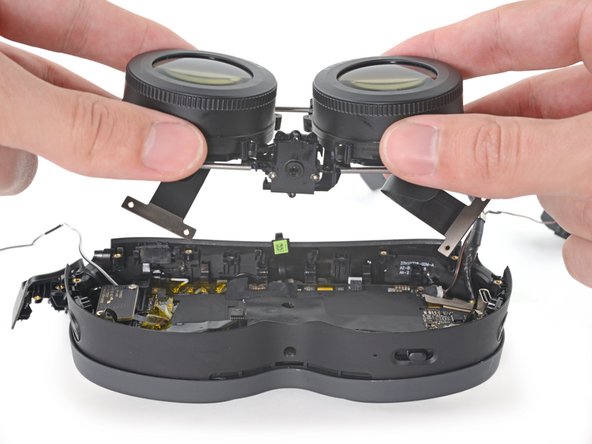
    • Lift up and remove the lens assembly.

  42. Motherboard Removal, Reassembly information: шаг 42, изображение 1 из 3 Motherboard Removal, Reassembly information: шаг 42, изображение 2 из 3 Motherboard Removal, Reassembly information: шаг 42, изображение 3 из 3
    • The next four steps demonstrate how to secure the lens assembly to the frame during reassembly.

    • In order for the lens assembly to rest in the frame properly, it needs to align with a peg in the IPD (interpupillary distance) slider.

    • Before reinstalling the lens assembly, push the IPD slider to its right-most position.

  43. Motherboard Removal: шаг 43, изображение 1 из 3 Motherboard Removal: шаг 43, изображение 2 из 3 Motherboard Removal: шаг 43, изображение 3 из 3
    • Pull the lens assembly outward until its plastic clips sit close to the end of the top rails.

    • You may need to push and pull the top rail so it sits evenly across the plastic clips.

  44. Motherboard Removal: шаг 44, изображение 1 из 3 Motherboard Removal: шаг 44, изображение 2 из 3 Motherboard Removal: шаг 44, изображение 3 из 3
    • Push the bottom rails inwards as far as they will go.

  45. Motherboard Removal: шаг 45, изображение 1 из 3 Motherboard Removal: шаг 45, изображение 2 из 3 Motherboard Removal: шаг 45, изображение 3 из 3
    • To secure the lens assembly into the frame:

    • Slide the top left rail into its slot.

    • Align the other rails.

    • Press the lens assembly into place, making sure to realign the center peg.

  46. Motherboard Removal, Peel the tape: шаг 46, изображение 1 из 3 Motherboard Removal, Peel the tape: шаг 46, изображение 2 из 3 Motherboard Removal, Peel the tape: шаг 46, изображение 3 из 3
    Инструмент, используемый на этом этапе:
    Tweezers
    $4.99
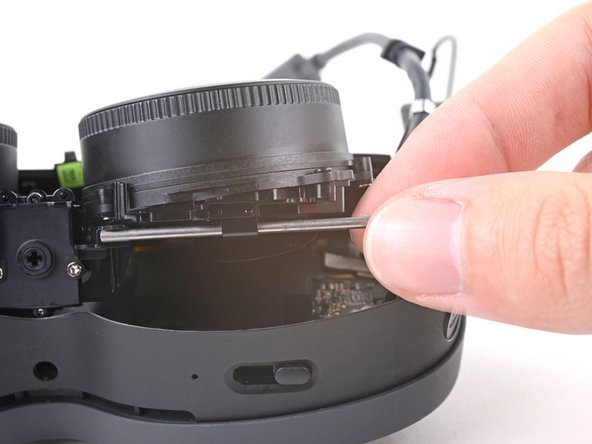
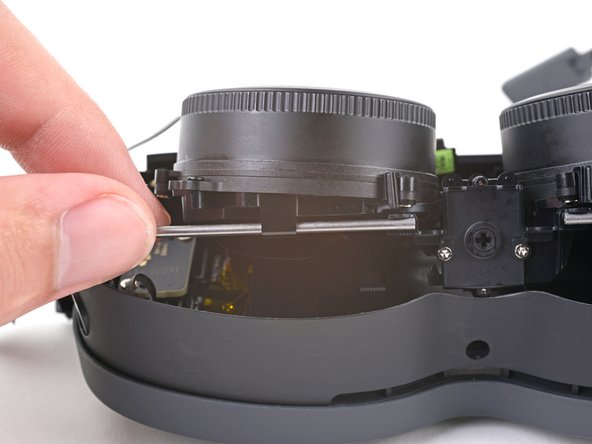
  47. Motherboard Removal: шаг 47, изображение 1 из 1
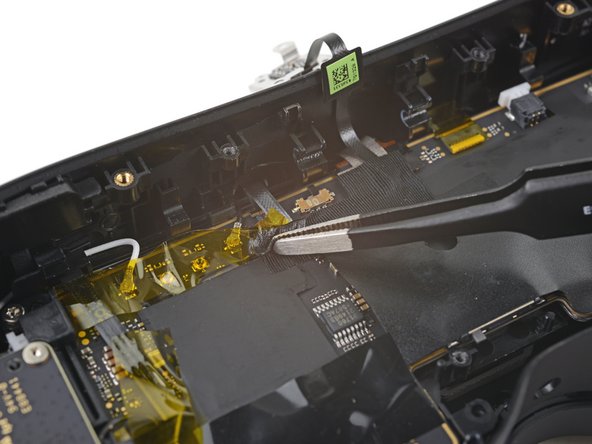
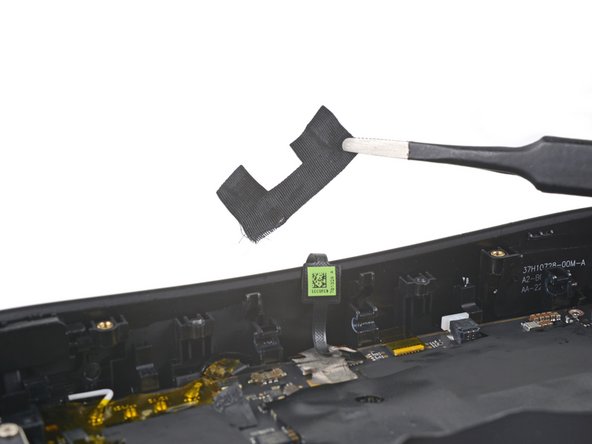
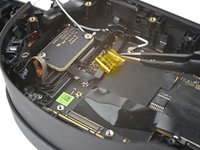
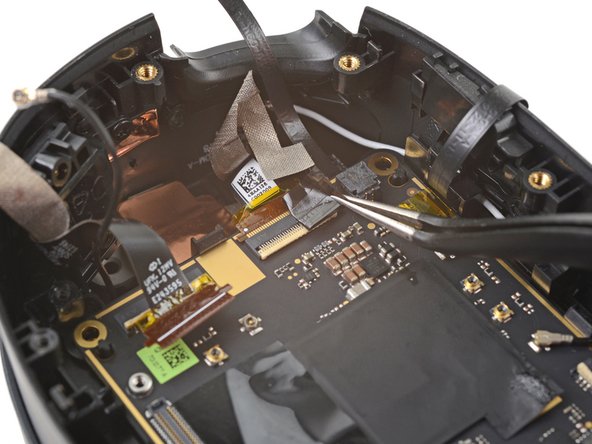
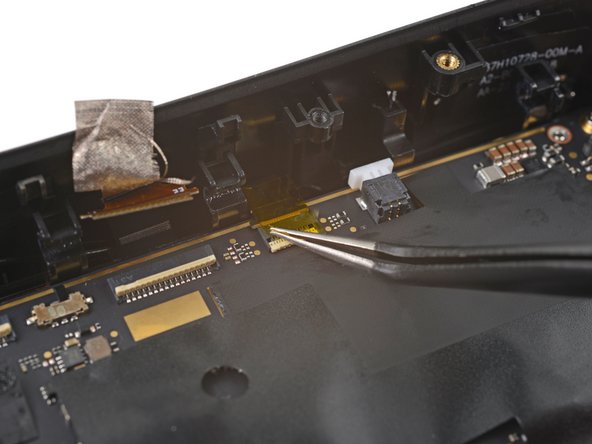
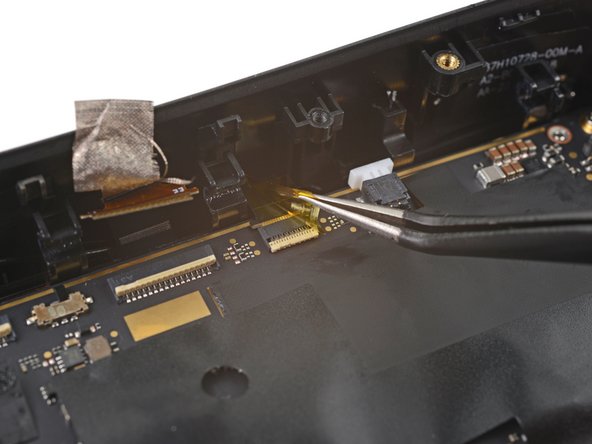
    • Peel off the yellow tape covering the proximity sensor connector.

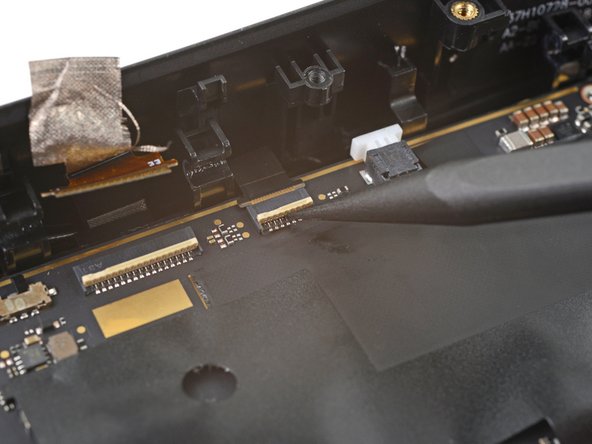
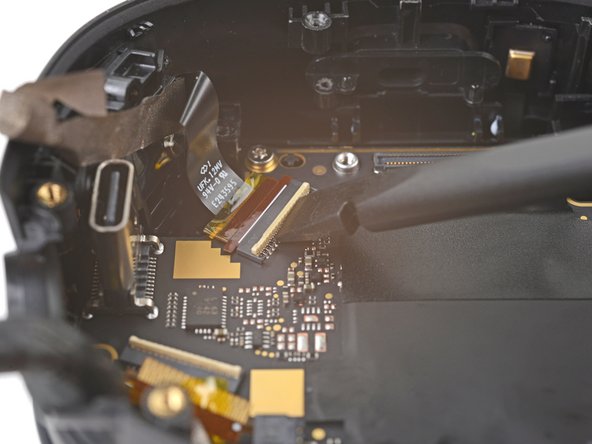
  48. Motherboard Removal, Disconnect the proximity sensor: шаг 48, изображение 1 из 2 Motherboard Removal, Disconnect the proximity sensor: шаг 48, изображение 2 из 2
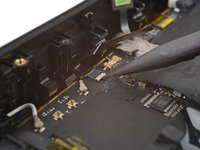
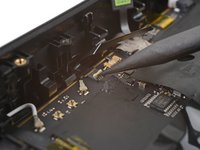
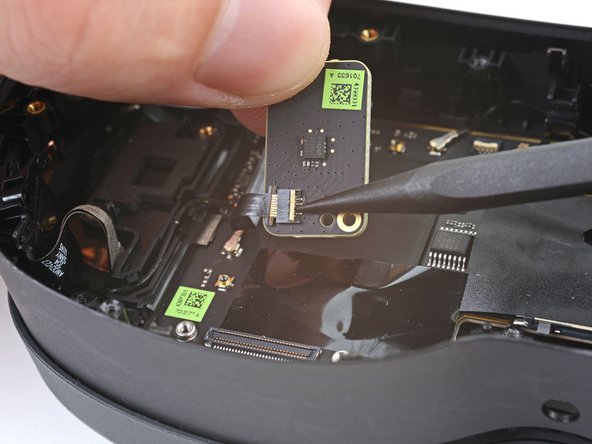
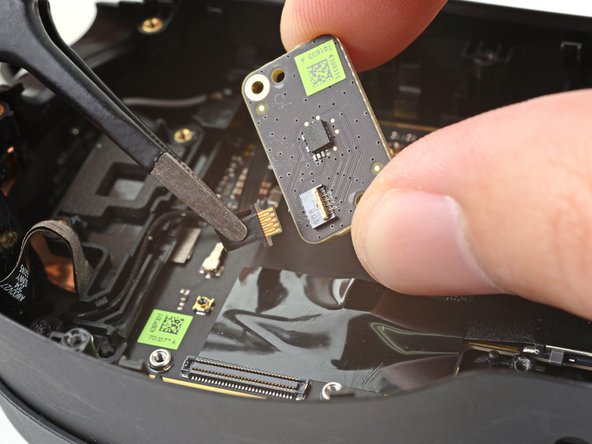
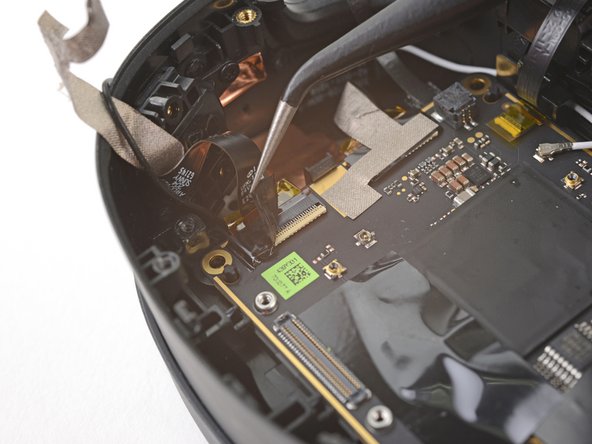
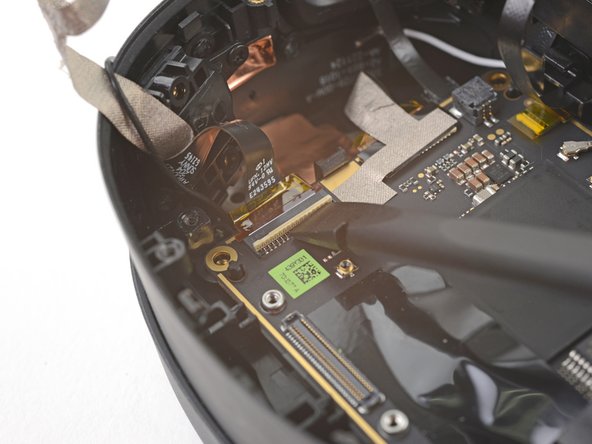
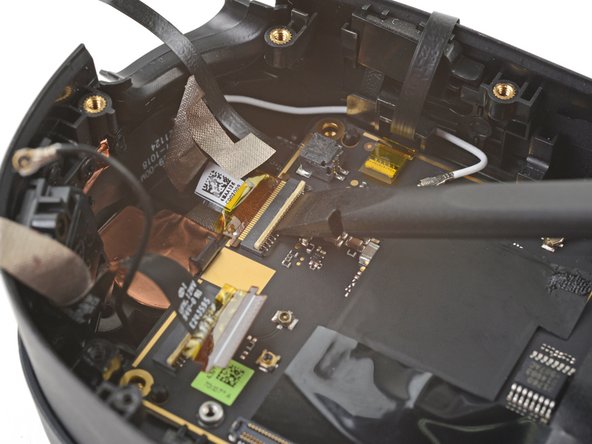
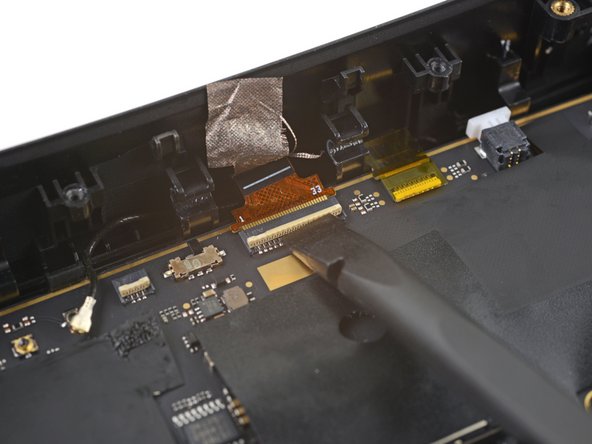
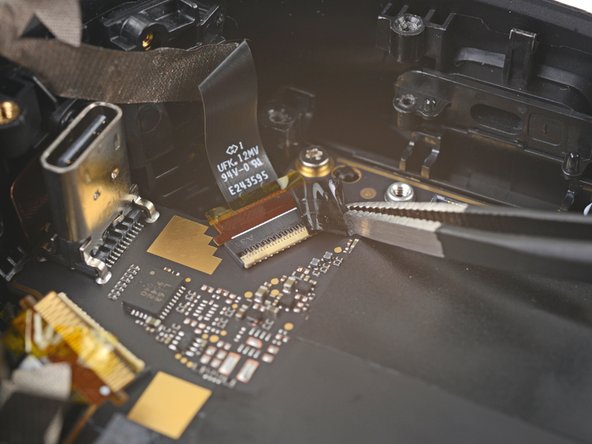
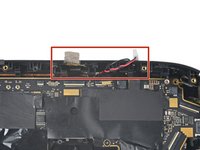
    • Use the point of a spudger to lift up the locking flap on the proximity sensor ZIF connector.

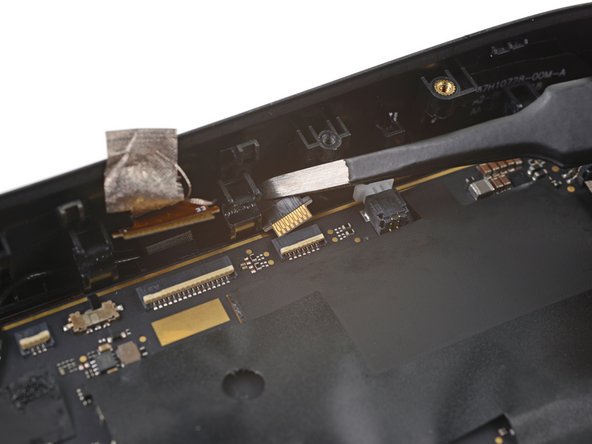
  49. Motherboard Removal: шаг 49, изображение 1 из 2 Motherboard Removal: шаг 49, изображение 2 из 2
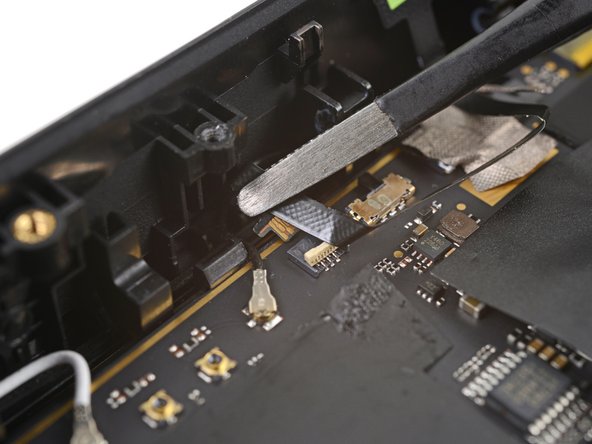
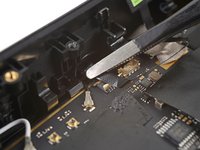
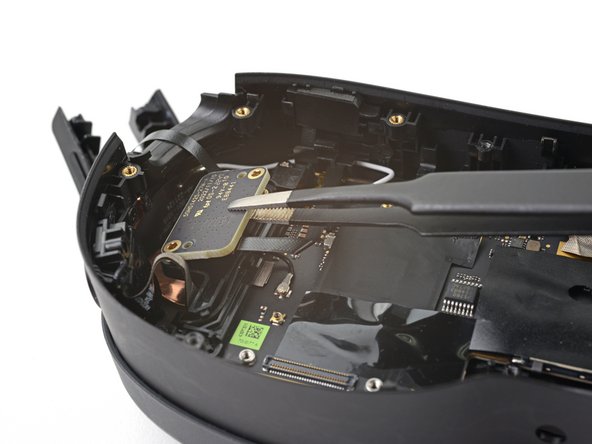
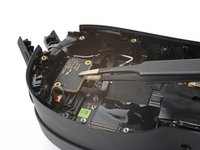
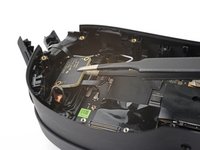
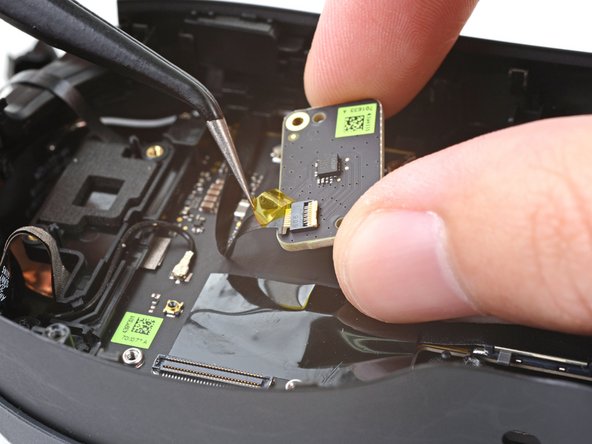
    • Use tweezers to pull the proximity sensor cable out of its slot in the motherboard.

  50. Motherboard Removal, Remove the proximity sensor: шаг 50, изображение 1 из 1
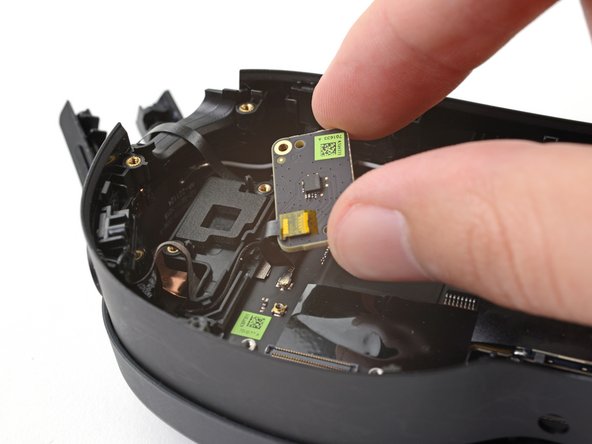
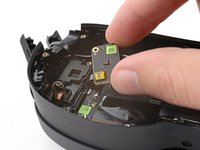
    • Remove the proximity sensor.

  51. Motherboard Removal, Peel the tape: шаг 51, изображение 1 из 3 Motherboard Removal, Peel the tape: шаг 51, изображение 2 из 3 Motherboard Removal, Peel the tape: шаг 51, изображение 3 из 3
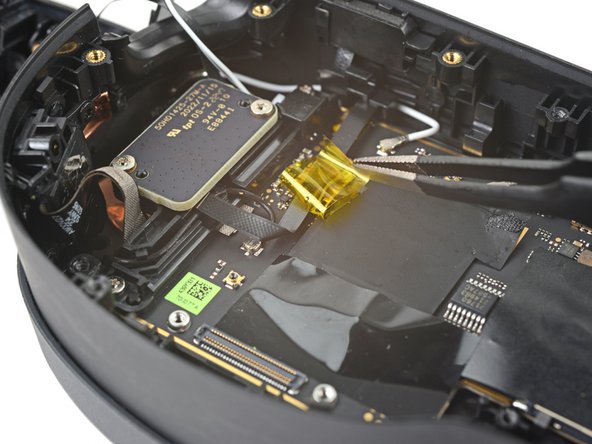
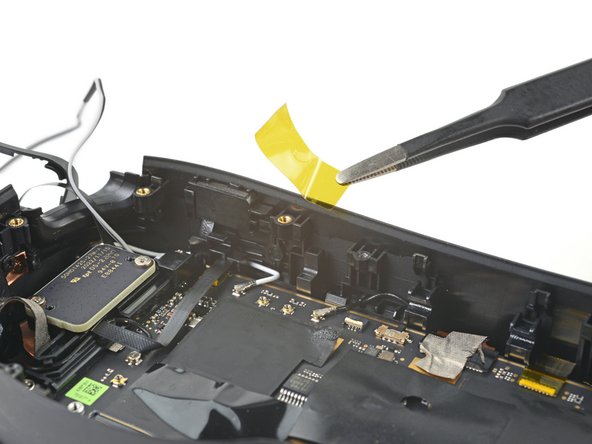
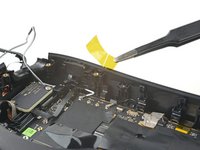
    • Peel off the yellow tape covering the motion sensor cable.

  52. Motherboard Removal, Unfasten the motion sensor: шаг 52, изображение 1 из 1
    • Use a T5 Torx screwdriver to remove the two 3.4 mm‑long screws securing the motion sensor.

  53. Motherboard Removal, Reposition the motion sensor: шаг 53, изображение 1 из 3 Motherboard Removal, Reposition the motion sensor: шаг 53, изображение 2 из 3 Motherboard Removal, Reposition the motion sensor: шаг 53, изображение 3 из 3
    • Don't try to fully remove the motion sensor yet, as it's still connected by a cable.

    • Lift the motion sensor off its pegs in the frame.

    • Flip over the motion sensor and lay it on the frame before continuing.

  54. Motherboard Removal, Peel the tape: шаг 54, изображение 1 из 2 Motherboard Removal, Peel the tape: шаг 54, изображение 2 из 2
    • Peel off the yellow tape covering the motion sensor cable connector.

  55. Motherboard Removal, Disconnect the motion sensor: шаг 55, изображение 1 из 2 Motherboard Removal, Disconnect the motion sensor: шаг 55, изображение 2 из 2
    • Use the point of a spudger to lift up the locking flap on the motion sensor ZIF connector.

  56. Motherboard Removal, Remove the motion sensor: шаг 56, изображение 1 из 2 Motherboard Removal, Remove the motion sensor: шаг 56, изображение 2 из 2
    Инструмент, используемый на этом этапе:
    Tweezers
    $4.99
    • Use tweezers to pull the motion sensor cable connector out of its slot.

    • Remove the motion sensor.

  57. Motherboard Removal, Disconnect the right speaker: шаг 57, изображение 1 из 3 Motherboard Removal, Disconnect the right speaker: шаг 57, изображение 2 из 3 Motherboard Removal, Disconnect the right speaker: шаг 57, изображение 3 из 3
    Инструмент, используемый на этом этапе:
    Tweezers
    $4.99
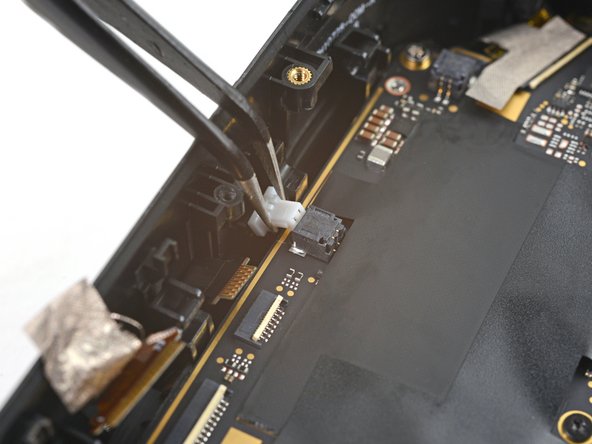
    • Use tweezers to pull the right speaker connector out of its socket.

    • If you're having trouble, try rocking the connector side-to-side to help loosen it.

  58. Motherboard Removal, Remove the right speaker: шаг 58, изображение 1 из 1
    • Remove the right speaker.

  59. Motherboard Removal, Disconnect the left speaker: шаг 59, изображение 1 из 3 Motherboard Removal, Disconnect the left speaker: шаг 59, изображение 2 из 3 Motherboard Removal, Disconnect the left speaker: шаг 59, изображение 3 из 3
    • Use tweezers to pull the left speaker connector out of its socket.

    • If you're having trouble, try rocking the connector side-to-side to help loosen it.

  60. Motherboard Removal, Remove the left speaker: шаг 60, изображение 1 из 1
    • Remove the left speaker.

  61. Motherboard Removal, Separate the volume button cable: шаг 61, изображение 1 из 2 Motherboard Removal, Separate the volume button cable: шаг 61, изображение 2 из 2
    • The volume button cable is lightly adhered to the left inner hinge cover.

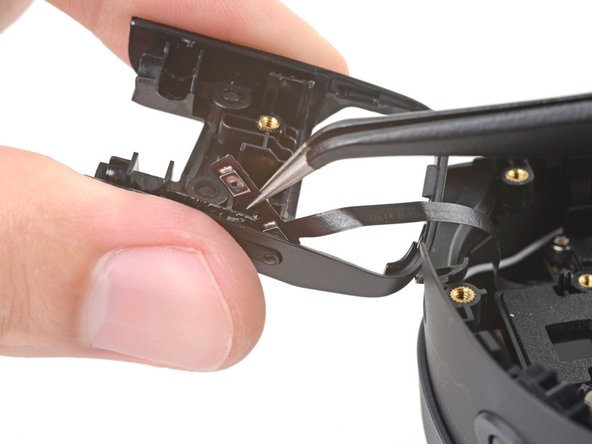
    • Insert one arm of your tweezers between the volume button cable and the hinge cover.

    • Pry away from the hinge cover to separate the adhesive.

  62. Motherboard Removal: шаг 62, изображение 1 из 3 Motherboard Removal: шаг 62, изображение 2 из 3 Motherboard Removal: шаг 62, изображение 3 из 3
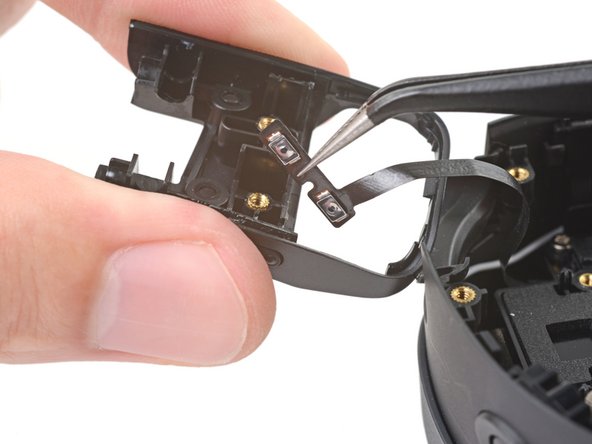
    • Use your tweezers to pull the volume button cable out of its slot in the hinge cover.

  63. Motherboard Removal, Disconnect the bottom left antenna: шаг 63, изображение 1 из 2 Motherboard Removal, Disconnect the bottom left antenna: шаг 63, изображение 2 из 2
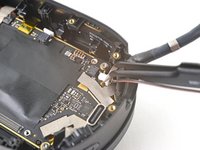
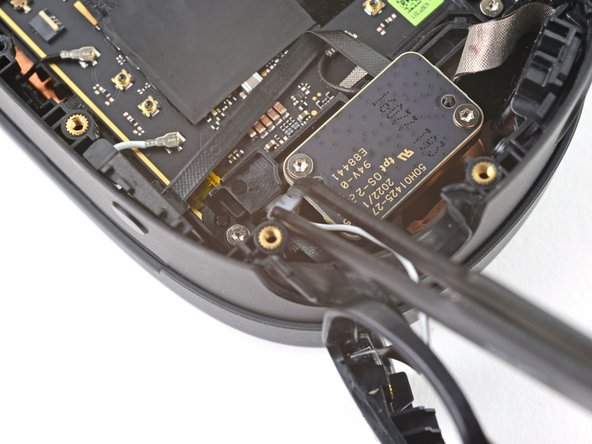
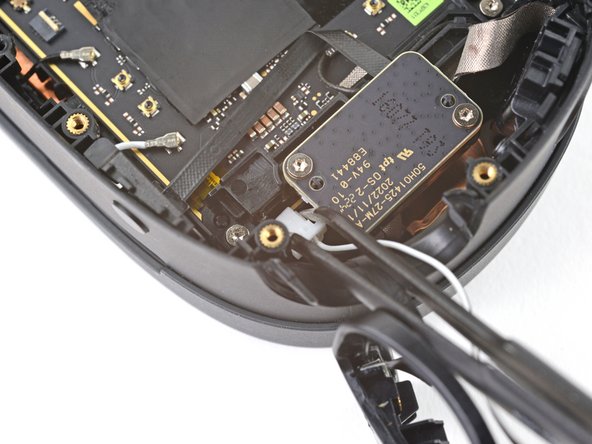
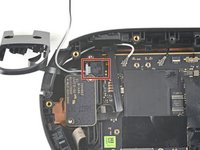
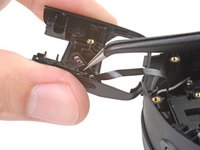
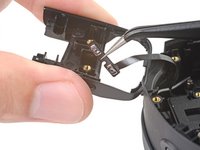
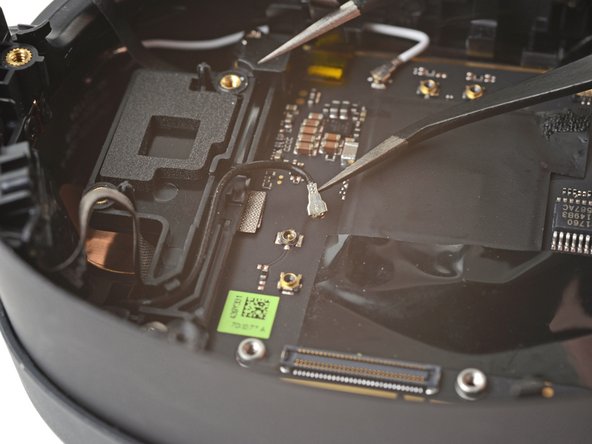
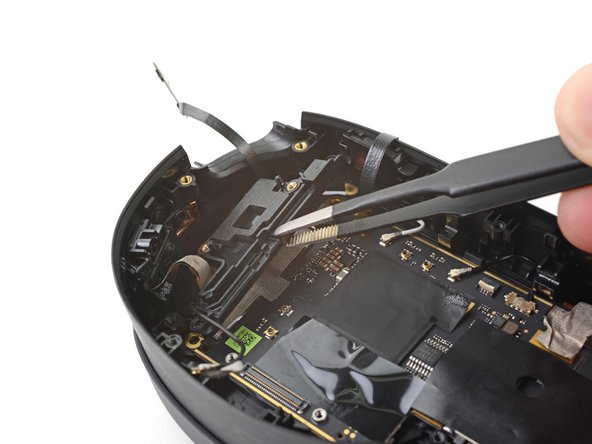
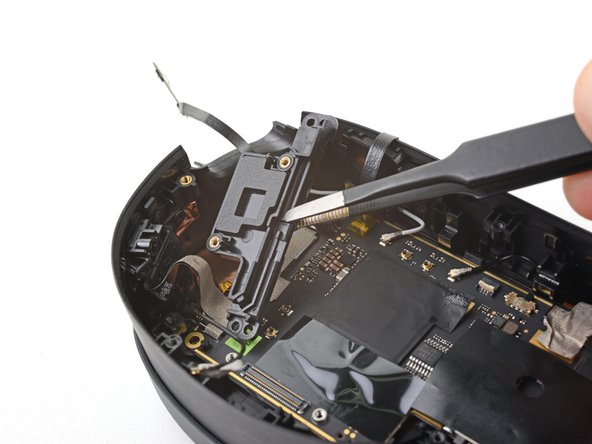
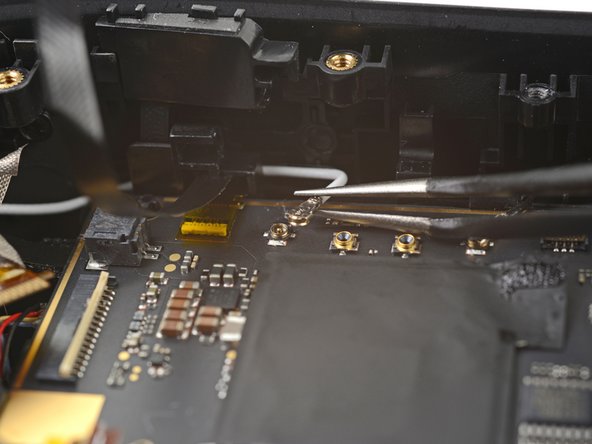
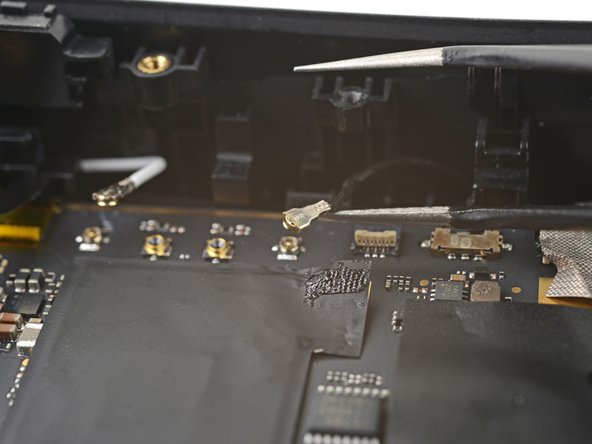
    • Use one arm of your tweezers to pry up and disconnect the bottom left antenna cable.

    • During reassembly, these can be tricky to reconnect. Hold the connector in place over its socket and press down with the flat end of a spudger. The connector should snap into place.

  64. Motherboard Removal, Reposition the bottom left antenna cable: шаг 64, изображение 1 из 2 Motherboard Removal, Reposition the bottom left antenna cable: шаг 64, изображение 2 из 2
  65. Motherboard Removal, Unfasten the motion sensor bracket: шаг 65, изображение 1 из 1
    • Use a T5 Torx screwdriver to remove the two 4.9 mm‑long screws securing the motion sensor bracket.

  66. Motherboard Removal, Remove the motion sensor bracket: шаг 66, изображение 1 из 3 Motherboard Removal, Remove the motion sensor bracket: шаг 66, изображение 2 из 3 Motherboard Removal, Remove the motion sensor bracket: шаг 66, изображение 3 из 3
    • Lift the motion sensor off its pegs on the motherboard.

    • Remove the motion sensor bracket.

  67. Motherboard Removal, Peel the tape: шаг 67, изображение 1 из 2 Motherboard Removal, Peel the tape: шаг 67, изображение 2 из 2
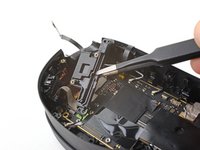
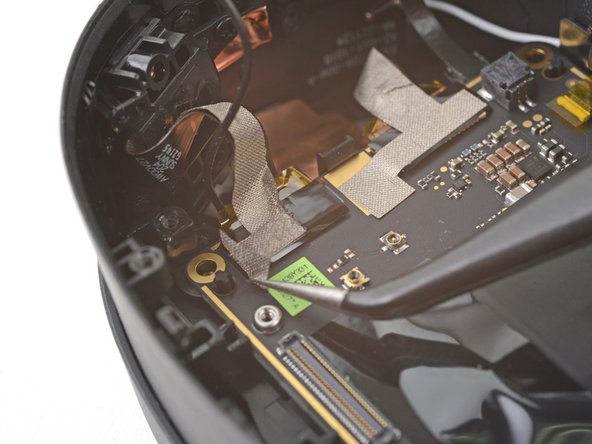
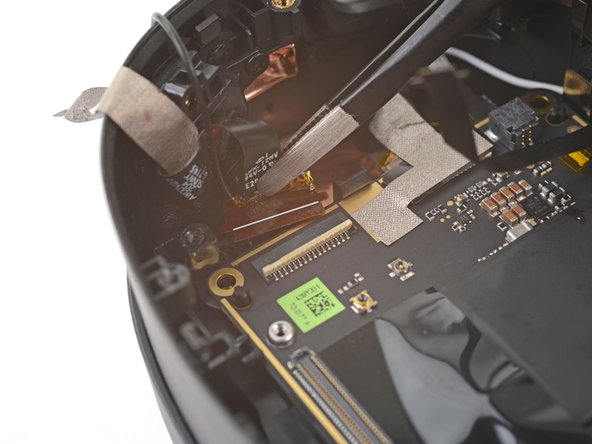
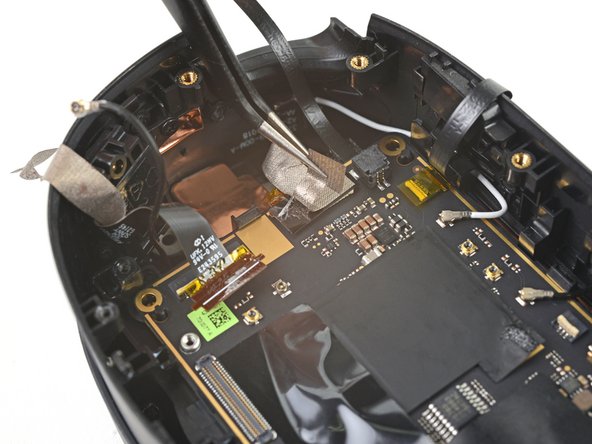
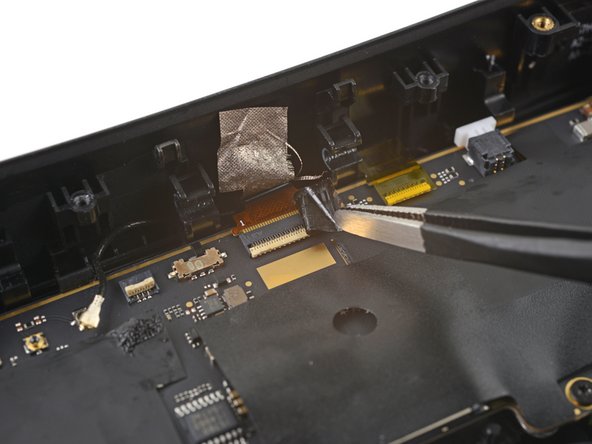
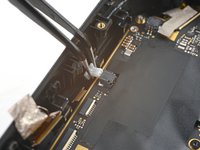
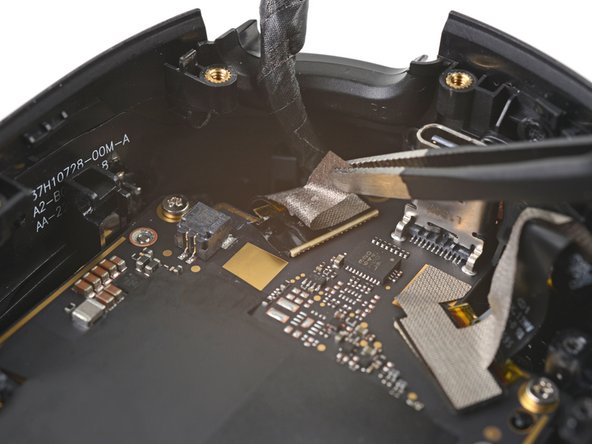
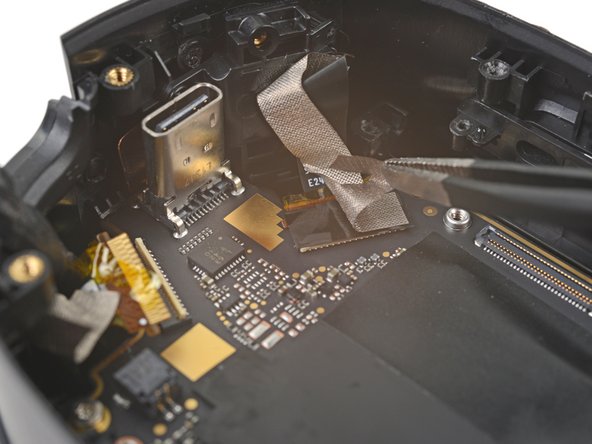
    • Use tweezers to peel back the gray conductive tape covering the left side‑camera ZIF connector.

  68. Motherboard Removal: шаг 68, изображение 1 из 2 Motherboard Removal: шаг 68, изображение 2 из 2
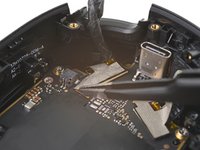
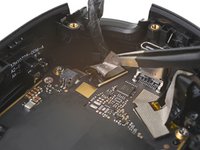
    • Use tweezers to peel off the black tape covering the left side‑camera ZIF connector.

  69. Motherboard Removal, Disconnect the left side camera: шаг 69, изображение 1 из 2 Motherboard Removal, Disconnect the left side camera: шаг 69, изображение 2 из 2
    • Use flat end of a spudger to lift up the locking flap on the left side‑camera ZIF connector.

  70. Motherboard Removal: шаг 70, изображение 1 из 2 Motherboard Removal: шаг 70, изображение 2 из 2
    • Use tweezers to pull the left side‑camera cable connector out of its slot in the motherboard.

  71. Motherboard Removal, Peel the tape: шаг 71, изображение 1 из 2 Motherboard Removal, Peel the tape: шаг 71, изображение 2 из 2
    • Use tweezers to peel back the gray conductive tape covering the left tracking camera ZIF connector.

  72. Motherboard Removal: шаг 72, изображение 1 из 2 Motherboard Removal: шаг 72, изображение 2 из 2
    • Use tweezers to peel off the black tape covering the left tracking camera ZIF connector.

  73. Motherboard Removal, Disconnect the left tracking camera: шаг 73, изображение 1 из 2 Motherboard Removal, Disconnect the left tracking camera: шаг 73, изображение 2 из 2
    • Use a spudger to lift up the locking flap on the left tracking camera ZIF connector.

  74. Motherboard Removal: шаг 74, изображение 1 из 1
    • Use tweezers to pull the left tracking camera cable connector out of its slot in the motherboard.

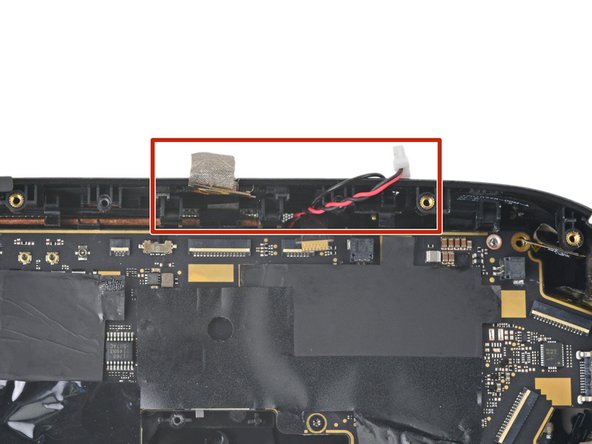
  75. Motherboard Removal, Disconnect the antennas: шаг 75, изображение 1 из 3 Motherboard Removal, Disconnect the antennas: шаг 75, изображение 2 из 3 Motherboard Removal, Disconnect the antennas: шаг 75, изображение 3 из 3
  76. Motherboard Removal, Peel the tape: шаг 76, изображение 1 из 2 Motherboard Removal, Peel the tape: шаг 76, изображение 2 из 2
  77. Motherboard Removal: шаг 77, изображение 1 из 2 Motherboard Removal: шаг 77, изображение 2 из 2
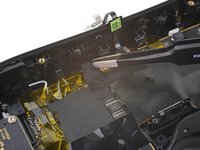
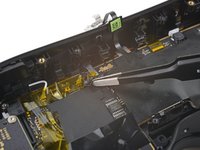
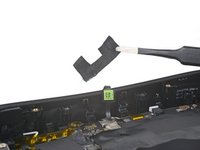
    • Use tweezers to peel off the black tape covering the pass-through camera ZIF connector.

  78. Motherboard Removal, Disconnect the pass-through camera: шаг 78, изображение 1 из 2 Motherboard Removal, Disconnect the pass-through camera: шаг 78, изображение 2 из 2
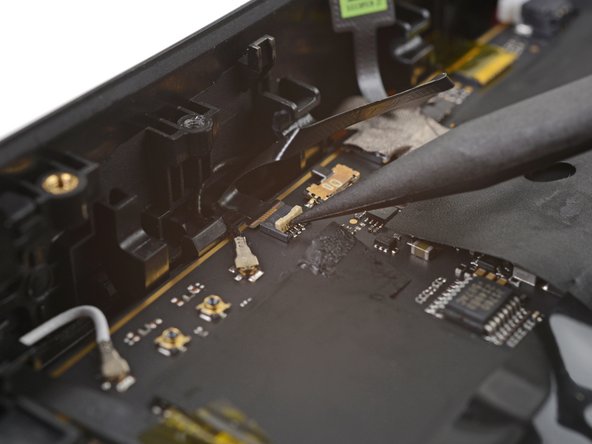
    • Use a spudger to lift up the locking flap on the pass-through camera ZIF connector.

  79. Motherboard Removal: шаг 79, изображение 1 из 1
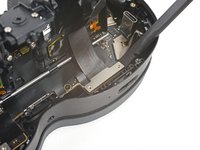
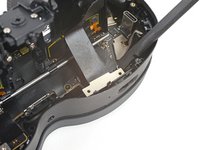
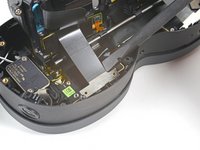
    • Use tweezers to pull the pass-through camera cable connector out of its slot in the motherboard.

  80. Motherboard Removal, Peel the tape: шаг 80, изображение 1 из 2 Motherboard Removal, Peel the tape: шаг 80, изображение 2 из 2
  81. Motherboard Removal, Disconnect the microphone: шаг 81, изображение 1 из 2 Motherboard Removal, Disconnect the microphone: шаг 81, изображение 2 из 2
    • Use the point of a spudger to lift up the locking flap on the microphone ZIF connector.

  82. Motherboard Removal: шаг 82, изображение 1 из 2 Motherboard Removal: шаг 82, изображение 2 из 2
    • Use tweezers to pull the microphone cable connector out of its slot in the motherboard.

  83. Motherboard Removal, Disconnect the depth sensor: шаг 83, изображение 1 из 2 Motherboard Removal, Disconnect the depth sensor: шаг 83, изображение 2 из 2
    • Use tweezers to pull the depth sensor cable connector out of its slot in the motherboard.

  84. Motherboard Removal, Peel the tape: шаг 84, изображение 1 из 2 Motherboard Removal, Peel the tape: шаг 84, изображение 2 из 2
    • Use tweezers to peel back the gray conductive tape covering the right tracking camera ZIF connector.

  85. Motherboard Removal: шаг 85, изображение 1 из 2 Motherboard Removal: шаг 85, изображение 2 из 2
    • Use tweezers to peel off the black tape covering the right tracking camera ZIF connector.

  86. Motherboard Removal, Disconnect the right tracking camera: шаг 86, изображение 1 из 2 Motherboard Removal, Disconnect the right tracking camera: шаг 86, изображение 2 из 2
    • Use a spudger to lift up the locking flap on the right tracking camera ZIF connector.

  87. Motherboard Removal: шаг 87, изображение 1 из 1
    • Use tweezers to pull the right tracking camera cable connector out of its slot.

  88. Motherboard Removal, Peel the tape: шаг 88, изображение 1 из 2 Motherboard Removal, Peel the tape: шаг 88, изображение 2 из 2
    • Use tweezers to peel back the gray conductive tape covering the right side‑camera ZIF connector.

  89. Motherboard Removal: шаг 89, изображение 1 из 2 Motherboard Removal: шаг 89, изображение 2 из 2
    • Use tweezers to peel off the black tape covering the right side‑camera ZIF connector.

  90. Motherboard Removal, Disconnect the right side camera: шаг 90, изображение 1 из 2 Motherboard Removal, Disconnect the right side camera: шаг 90, изображение 2 из 2
    • Use a spudger to lift up the locking flap on the right side-camera ZIF connector.

  91. Motherboard Removal: шаг 91, изображение 1 из 1
    • Use tweezers to pull the right side‑camera cable connector out of its slot.

  92. Motherboard Removal, Unfasten the motherboard frame: шаг 92, изображение 1 из 1
    • Use a T5 Torx screwdriver to remove the two 4.9 mm‑long screws securing the motherboard frame.

  93. Motherboard Removal, Tape the cables: шаг 93, изображение 1 из 2 Motherboard Removal, Tape the cables: шаг 93, изображение 2 из 2
    • Use tape with light adhesive, such as painter's tape, to keep the left and right side cables away from the motherboard.

    • The cables near the top edge need slack for the motherboard to rest properly in the frame. Avoid taping them tightly—or avoid taping them altogether.

  94. Motherboard Removal, Disconnect the power button: шаг 94, изображение 1 из 2 Motherboard Removal, Disconnect the power button: шаг 94, изображение 2 из 2
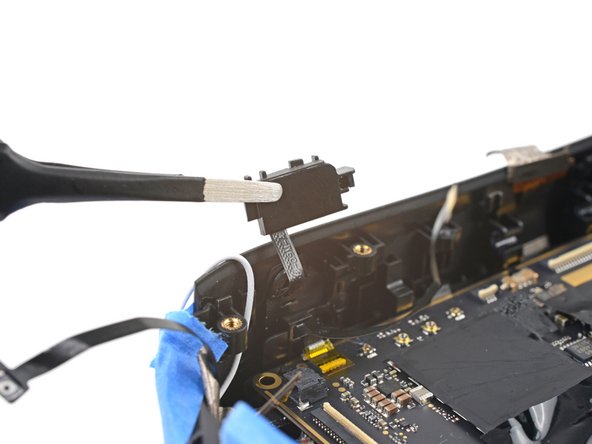
    • Lift the power button out of its slot in the frame.

    • Don't remove the button completely, as it's still attached by a cable.

  95. Motherboard Removal, Remove the IPD slider: шаг 95, изображение 1 из 2 Motherboard Removal, Remove the IPD slider: шаг 95, изображение 2 из 2
    • Press down the bottom right corner of the motherboard so its edge rests under the IPD slider.

  96. Motherboard Removal: шаг 96, изображение 1 из 3 Motherboard Removal: шаг 96, изображение 2 из 3 Motherboard Removal: шаг 96, изображение 3 из 3
    • While pressing down on the motherboard, push the IPD slider out of its slot in the frame.

    • Remove the IPD slider.

  97. Motherboard Removal, Remove the motherboard assembly: шаг 97, изображение 1 из 3 Motherboard Removal, Remove the motherboard assembly: шаг 97, изображение 2 из 3 Motherboard Removal, Remove the motherboard assembly: шаг 97, изображение 3 из 3
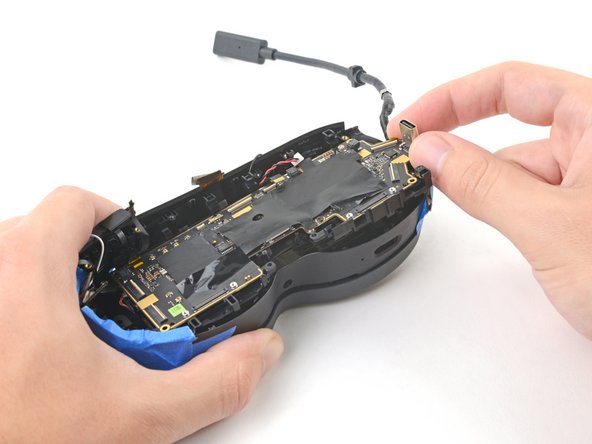
    • Grip the USB-C port with one hand and the right side of the frame with the other.

    • Pull the frame outward while lifting the motherboard assembly until it clears its slot next to the right side‑camera.

    • Use a spudger to pry up the motherboard assembly until its right side completely clears the frame.

  98. Motherboard Removal: шаг 98, изображение 1 из 3 Motherboard Removal: шаг 98, изображение 2 из 3 Motherboard Removal: шаг 98, изображение 3 из 3
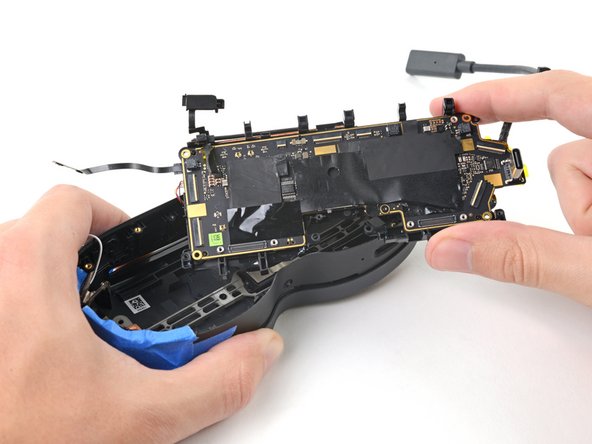
    • Pull the right side of the motherboard assembly toward the bottom edge of the device to separate it from the frame.

    • Remove the motherboard assembly.

    • During reassembly, make sure the cables stay above the motherboard assembly as you reinstall it.

Заключение

To reassemble your device, follow these instructions in reverse order.

Alex Diaz-Kokaisl

Участник с: 01/16/22

217 908 Репутация

Автор 1 087 руководств

Команда

iFixit Участник iFixit

Staff

123 членов

Автор 23 992 руководств

0 Комментарии к руководству

Добавить комментарий

Статистика просмотров:

За последние 24 часов: 0

За последние 7 дней: 0

За последние 30 дней: 5

За всё время: 117