Перейти к основному содержанию
Присоединяйся к сообществу ремонтников - Создай аккаунт

PlayStation 4 Optical Drive Replacement

Выберете то, что вам нужно

  1. PlayStation 4 Optical Drive Replacement, Flip over the PS4: шаг 1, изображение 1 из 1
    • Flip the PS4 upside-down with the back side facing towards you.

    Спросите у FixBot
  2. PlayStation 4 Optical Drive Replacement, Remove the warranty stickers: шаг 2, изображение 1 из 3 PlayStation 4 Optical Drive Replacement, Remove the warranty stickers: шаг 2, изображение 2 из 3 PlayStation 4 Optical Drive Replacement, Remove the warranty stickers: шаг 2, изображение 3 из 3
    Инструмент, используемый на этом этапе:
    Tweezers
    $4.99
    • Use tweezers to remove the two stickers in the center of the back of the PS4 exposing two case screws.

    Спросите у FixBot
  3. PlayStation 4 Optical Drive Replacement, Remove the plastic screw covers: шаг 3, изображение 1 из 2 PlayStation 4 Optical Drive Replacement, Remove the plastic screw covers: шаг 3, изображение 2 из 2
    • Use tweezers to carefully remove the plastic screw covers in each corner, exposing two more case screws.

    Спросите у FixBot
  4. PlayStation 4 Optical Drive Replacement, Remove the rear case screws: шаг 4, изображение 1 из 2 PlayStation 4 Optical Drive Replacement, Remove the rear case screws: шаг 4, изображение 2 из 2
    • Remove the four 7.2 mm T8 Torx security screws on the back of the PS4.

    Спросите у FixBot
  5. PlayStation 4 Optical Drive Replacement, Remove the lower case: шаг 5, изображение 1 из 2 PlayStation 4 Optical Drive Replacement, Remove the lower case: шаг 5, изображение 2 из 2
    • Use your thumbs to lift the lower case up and off the PS4.

    • The lower case is held into place by plastic clips. You may need to use significant force to release the lower case.

    Спросите у FixBot
  6. PlayStation 4 Optical Drive Replacement: шаг 6, изображение 1 из 2 PlayStation 4 Optical Drive Replacement: шаг 6, изображение 2 из 2
    • Use a pair of tweezers to pull the power supply cable straight out and disconnect the power supply unit from the motherboard.

    • If your connector feels stuck, use a spudger to gently pry the connector out.

    Спросите у FixBot
  7. PlayStation 4 Optical Drive Replacement, Remove the power supply unit: шаг 7, изображение 1 из 2 PlayStation 4 Optical Drive Replacement, Remove the power supply unit: шаг 7, изображение 2 из 2
    • Remove three 9.7 mm-long TR8 Torx security screws.

    • Remove two 41 mm-long Phillips screws and brackets.

    Спросите у FixBot
  8. PlayStation 4 Optical Drive Replacement: шаг 8, изображение 1 из 3 PlayStation 4 Optical Drive Replacement: шаг 8, изображение 2 из 3 PlayStation 4 Optical Drive Replacement: шаг 8, изображение 3 из 3
    • Lift the power supply straight up and out of the PS4.

    • The power supply is held firmly in place by prongs on the left side. It may take multiple attempts to remove it.

    • During reassembly, ensure the prongs are aligned, then press the power supply into place.

    Спросите у FixBot
  9. PlayStation 4 Optical Drive Replacement, Remove the Wi-Fi antenna: шаг 9, изображение 1 из 2 PlayStation 4 Optical Drive Replacement, Remove the Wi-Fi antenna: шаг 9, изображение 2 из 2
    • Use the tip of a spudger to disconnect the antenna cable from the motherboard.

    Спросите у FixBot
  10. PlayStation 4 Optical Drive Replacement: шаг 10, изображение 1 из 3 PlayStation 4 Optical Drive Replacement: шаг 10, изображение 2 из 3 PlayStation 4 Optical Drive Replacement: шаг 10, изображение 3 из 3
    Инструмент, используемый на этом этапе:
    Tweezers
    $4.99
    • Use a pair of tweezers or your fingers to grab the antenna cable and move it out from the cable guides.

    Спросите у FixBot
  11. PlayStation 4 Optical Drive Replacement: шаг 11, изображение 1 из 3 PlayStation 4 Optical Drive Replacement: шаг 11, изображение 2 из 3 PlayStation 4 Optical Drive Replacement: шаг 11, изображение 3 из 3
    • Use a pair of tweezers or your fingers to thread the antenna cable out from underneath the optical drive cable.

    Спросите у FixBot
  12. PlayStation 4 Optical Drive Replacement: шаг 12, изображение 1 из 2 PlayStation 4 Optical Drive Replacement: шаг 12, изображение 2 из 2
    • Remove the 9.7 mm Torx security screw securing the antenna.

    Спросите у FixBot
  13. PlayStation 4 Optical Drive Replacement: шаг 13, изображение 1 из 2 PlayStation 4 Optical Drive Replacement: шаг 13, изображение 2 из 2
    • Remove the Wi-Fi antenna.

    Спросите у FixBot
  14. PlayStation 4 Optical Drive Replacement, Disconnect the optical drive: шаг 14, изображение 1 из 3 PlayStation 4 Optical Drive Replacement, Disconnect the optical drive: шаг 14, изображение 2 из 3 PlayStation 4 Optical Drive Replacement, Disconnect the optical drive: шаг 14, изображение 3 из 3
    Инструмент, используемый на этом этапе:
    Tweezers
    $4.99
    • Use your fingernail to press down on the metal release lever of the ribbon cable on top of the optical drive.

    • Use your fingers or a pair of tweezers to disconnect the ribbon cable by pulling on the black tab.

    • You do not need to press the metal lever when inserting the ribbon cable back in. You will hear a click once it is fully inserted.

    Спросите у FixBot
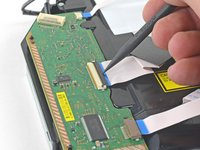
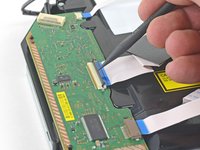
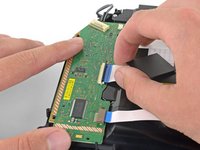
  15. PlayStation 4 Optical Drive Replacement: шаг 15, изображение 1 из 3 PlayStation 4 Optical Drive Replacement: шаг 15, изображение 2 из 3 PlayStation 4 Optical Drive Replacement: шаг 15, изображение 3 из 3
    • Use your fingernail to press down the metal release lever for the ribbon cable connected to the motherboard.

    • Use your fingers or a pair of tweezers to disconnect the ribbon cable by pulling on the black tab.

    • Set the ribbon cable aside for reassembly.

    • You do not need to press the metal lever when inserting the ribbon cable back in. You will hear a click once it is fully inserted.

    Спросите у FixBot
  16. PlayStation 4 Optical Drive Replacement: шаг 16, изображение 1 из 2 PlayStation 4 Optical Drive Replacement: шаг 16, изображение 2 из 2
    • Use your fingers or a pair of tweezers to disconnect the optical drive cable from the motherboard.

    Спросите у FixBot
  17. PlayStation 4 Optical Drive Replacement: шаг 17, изображение 1 из 3 PlayStation 4 Optical Drive Replacement: шаг 17, изображение 2 из 3 PlayStation 4 Optical Drive Replacement: шаг 17, изображение 3 из 3
    • Use your fingers or a pair of tweezers to remove the optical drive cable from the cable guides that hold it in place.

    Спросите у FixBot
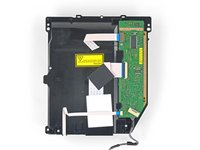
  18. PlayStation 4 Optical Drive Replacement, Remove the optical drive: шаг 18, изображение 1 из 2 PlayStation 4 Optical Drive Replacement, Remove the optical drive: шаг 18, изображение 2 из 2
    • Remove the four screws securing the optical drive.

    • Three 9.7 mm Torx screws

    • One 6.2 mm Phillips screw

    Спросите у FixBot
  19. PlayStation 4 Optical Drive Replacement: шаг 19, изображение 1 из 2 PlayStation 4 Optical Drive Replacement: шаг 19, изображение 2 из 2
    • Lift the optical drive straight up and out of the PS4.

    Спросите у FixBot
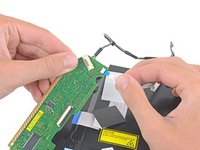
  20. PlayStation 4 Optical Drive Replacement, Remove the PCB: шаг 20, изображение 1 из 2 PlayStation 4 Optical Drive Replacement, Remove the PCB: шаг 20, изображение 2 из 2
    • If you purchased an optical drive with the PCB board and bracket included, skip the remaining steps and begin reassembly.

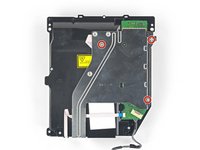
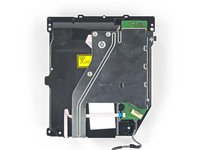
    • Remove the three 6.2 mm Phillips screws from the metal bracket.

    Спросите у FixBot
  21. PlayStation 4 Optical Drive Replacement: шаг 21, изображение 1 из 2 PlayStation 4 Optical Drive Replacement: шаг 21, изображение 2 из 2
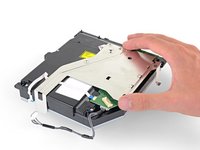
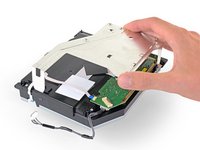
    • Lift the metal bracket straight up to separate it from the optical drive.

    Спросите у FixBot
  22. PlayStation 4 Optical Drive Replacement: шаг 22, изображение 1 из 2 PlayStation 4 Optical Drive Replacement: шаг 22, изображение 2 из 2
    • Remove the 6.4 mm Phillips screw from the PCB board.

    Спросите у FixBot
  23. PlayStation 4 Optical Drive Replacement: шаг 23, изображение 1 из 2 PlayStation 4 Optical Drive Replacement: шаг 23, изображение 2 из 2
    • Use the tip of a spudger to flip open the ZIF connector locking bar.

    Спросите у FixBot
  24. PlayStation 4 Optical Drive Replacement: шаг 24, изображение 1 из 2 PlayStation 4 Optical Drive Replacement: шаг 24, изображение 2 из 2
    • Pull the ribbon cable straight out of the ZIF connector.

    Спросите у FixBot
  25. PlayStation 4 Optical Drive Replacement: шаг 25, изображение 1 из 2 PlayStation 4 Optical Drive Replacement: шаг 25, изображение 2 из 2
    • Hold the PCB in one hand and the lower ribbon cable in the other.

    • Gently pull the lower ribbon cable straight out of the socket.

    Спросите у FixBot
  26. PlayStation 4 Optical Drive Replacement: шаг 26, изображение 1 из 2 PlayStation 4 Optical Drive Replacement: шаг 26, изображение 2 из 2
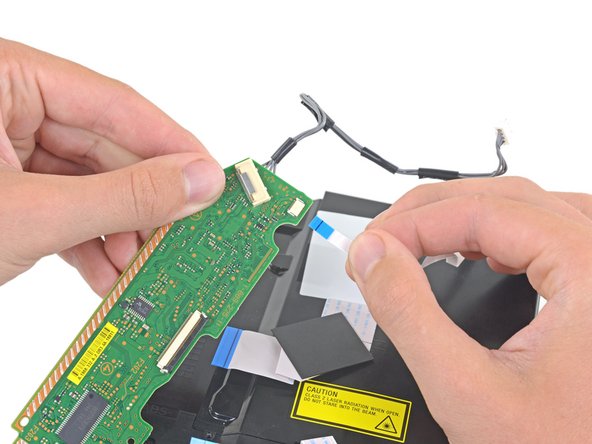
    • Hold the PCB in one hand and the upper ribbon cable in the other.

    • Pull the upper ribbon cable straight out of the socket.

    Спросите у FixBot
  27. PlayStation 4 Optical Drive Replacement: шаг 27, изображение 1 из 1
    • Remove the PCB.

    Спросите у FixBot
Заключение

📌To reassemble your device, follow the above steps in reverse order.

Take your e-waste to an R2 or e-Stewards certified recycler.

Repair didn’t go as planned? Check out our Answers community for troubleshooting help.

Compare your new replacement part to the original part—you may need to transfer remaining components or remove adhesive backings from the new part before installing.

199 человек успешно провели ремонт по этому руководству.

Sam Omiotek

Участник с: 02/25/19

98 462 Репутация

Автор 290 руководств

74 Комментарии к руководству

This was a great help after my 2 yr old put a coin in my PS4. However when following the steps backwards I got to step 7 which says 'Remove the 5 wire plug attached from the power supply to the motherboard' & couldn't see how to reattach it. I then noticed it looks like I've pulled the whole plastic white casing/plug holder (within the orange rectangle) off the mobo rather than just the plug from the casing. Although the pic looks like the plastic casing does come off the mobo as it's at an angle (maybe why I pulled the whole thing out or maybe I did it right).

I'm thinking I've made a mistake is because now I cant see anywhere that I can 'plug' the 5 L shaped wires on the bottom of the plastic casing back onto the mobo. Plus where they used to be attached there's now 5 tiny silver rectangles on the mobo (2 opposite 3), so I guess these 5 wires were some how adhered to those mobo rectangles by a conductive adhesive of some sort.

Any suggestion for the best repair method would be appreciated.

Thanks

doc browejnn - Ответить Поделиться

If you've pulled the female end from the motherboard the it need to be resoldered to the board, most likely gonna need to pull the motherboard. It's a very simple connector, sounds as if you yanked the whole thing off.

lynx2069 - Ответить Поделиться

Is anyone there who try to change the optical drive without change the Motherboard in the same time ? And does it run ?

Thanks for your help.

Frederic Morelli - Ответить Поделиться
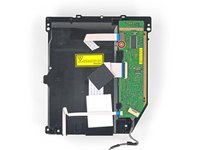
How about a guide for replacing just the laser unit instead of the whole drive?

david.walker52 - Ответить Поделиться

I changed the drive with its motherboard, when I want to update the system, an error message appears:

CE-42116-8 .

rafat abulaeth - Ответить Поделиться

Добавить комментарий

Статистика просмотров:

За последние 24 часов: 40

За последние 7 дней: 332

За последние 30 дней: 1,503

За всё время: 526,072