Перейти к основному содержанию
Присоединяйся к сообществу ремонтников - Создай аккаунт
Battery Bracket Removal

Абсолютно необходимое руководство
Это руководство только для предварительной подготовки! Этот гайд является частью другой процедуры и не предназначен для самостоятельного использования.

Выберете то, что вам нужно

  1. Battery Bracket Removal, Remove the front trim: шаг 1, изображение 1 из 3 Battery Bracket Removal, Remove the front trim: шаг 1, изображение 2 из 3 Battery Bracket Removal, Remove the front trim: шаг 1, изображение 3 из 3
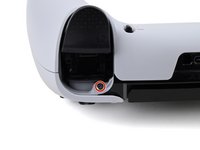
    • Place the controller on a work surface with the joysticks facing down.

    • Use a spudger or your finger to slide the Release tab to the left. The front trim should fall to the table.

    • If the front trim doesn't fall open, make sure the front trim has room to fall down and the Release tab is pushed all the way to the left.

    • Lift the controller up, leaving the front trim on the table.

    • During reassembly, insert the front trim at an angle so the top slots in first, then lower the trim into place and snap it onto the controller.

  2. Battery Bracket Removal, Remove the joysticks: шаг 2, изображение 1 из 3 Battery Bracket Removal, Remove the joysticks: шаг 2, изображение 2 из 3 Battery Bracket Removal, Remove the joysticks: шаг 2, изображение 3 из 3
    • Flip the controller over so the joysticks are facing up.

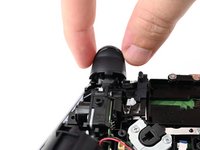
    • Lift the metal lever that holds the joystick in place until the joystick slides out slightly.

    • Slide the joystick out from its slot.

  3. Battery Bracket Removal: шаг 3, изображение 1 из 1
    • Repeat this process to remove the other joystick.

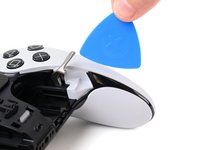
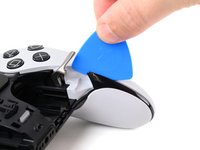
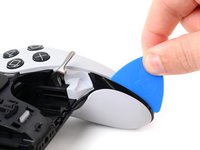
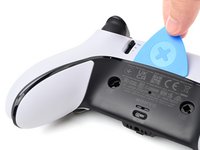
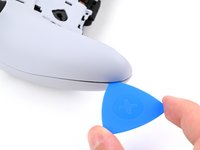
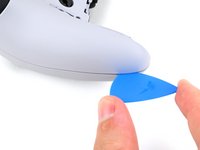
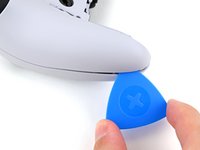
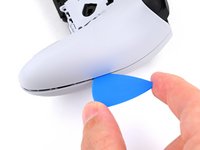
  4. Battery Bracket Removal, Insert an opening pick: шаг 4, изображение 1 из 3 Battery Bracket Removal, Insert an opening pick: шаг 4, изображение 2 из 3 Battery Bracket Removal, Insert an opening pick: шаг 4, изображение 3 из 3
    • The rear trim is held in place by fragile plastic clips. Work slowly and gently to avoid breaking the clips.

    • If you installed the back button paddles included with your controller, remove them before beginning this process.

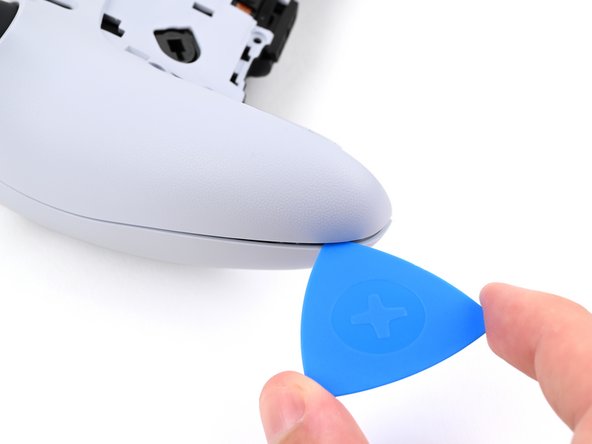
    • Insert the flat edge of an opening pick between the black portion of the rear trim and the top cover, near the joystick lever.

    • Slide the opening pick towards the bottom of the grip to release the clips.

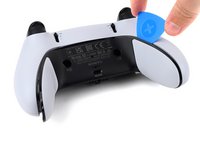
  5. Battery Bracket Removal, Release the clips: шаг 5, изображение 1 из 2 Battery Bracket Removal, Release the clips: шаг 5, изображение 2 из 2
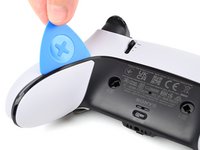
    • Slide the pick around to the rear of the controller and flip the controller over so the buttons are facing down.

    • Slide the opening pick around the edge of the rear trim to release the clips.

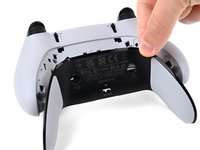
  6. Battery Bracket Removal, Remove the rear trim: шаг 6, изображение 1 из 3 Battery Bracket Removal, Remove the rear trim: шаг 6, изображение 2 из 3 Battery Bracket Removal, Remove the rear trim: шаг 6, изображение 3 из 3
    • Slide the opening along the edge of the trim on the other grip.

    • Once all clips are released, remove the trim.

    • If at any point the trim feels stuck, stop and look for any clips that may have re-engaged and release them with the opening pick to avoid damaging them.

  7. Battery Bracket Removal, Remove the L1 and R1 buttons: шаг 7, изображение 1 из 3 Battery Bracket Removal, Remove the L1 and R1 buttons: шаг 7, изображение 2 из 3 Battery Bracket Removal, Remove the L1 and R1 buttons: шаг 7, изображение 3 из 3
    • The L1 and R1 buttons are held in by two clips. If only one clip releases, move your spudger to the other side of the button to release the remaining clip. Don't continue prying on one side after a clip is released, or you risk breaking the other clip.

    • Insert the flat end of a spudger in the gap between the L1 and L2 buttons.

    • Use the spudger to pry out the L1 button.

    • The buttons tend to shoot out in this step. You can place your thumb over the button to prevent this.

    • Repeat this process to remove the R1 button.

  8. Battery Bracket Removal, Remove the screws: шаг 8, изображение 1 из 2 Battery Bracket Removal, Remove the screws: шаг 8, изображение 2 из 2
    • Remove the two 6.4 mm screws behind the L1 and R1 buttons.

    • Use a JIS J0 driver or an official iFixit Phillips PH0 driver, which is designed to be cross-compatible with JIS screws. Using a screwdriver other than an official iFixit driver or a JIS driver may result in stripped screws.

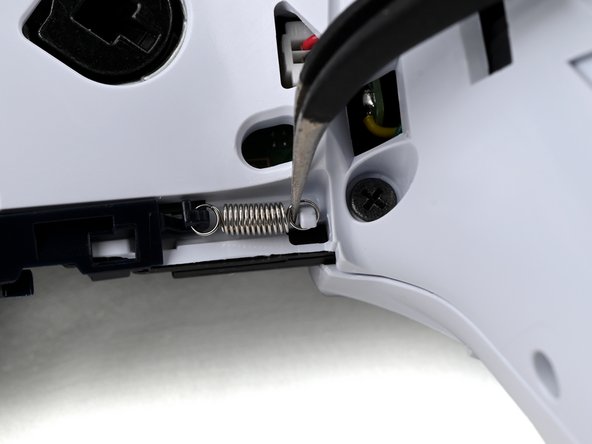
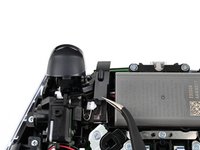
  9. Battery Bracket Removal, Lift the release bar spring: шаг 9, изображение 1 из 2 Battery Bracket Removal, Lift the release bar spring: шаг 9, изображение 2 из 2
    • Rotate the controller so the grips are pointing towards you.

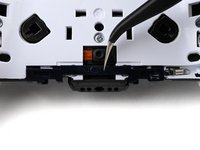
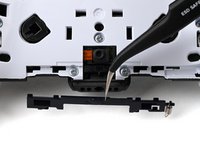
    • Use a pair of angled tweezers to lift the right end of the release bar spring off of the white post.

    • The spring is located below the RB button.

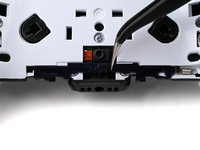
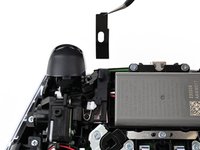
  10. Battery Bracket Removal, Remove the trim release bar: шаг 10, изображение 1 из 3 Battery Bracket Removal, Remove the trim release bar: шаг 10, изображение 2 из 3 Battery Bracket Removal, Remove the trim release bar: шаг 10, изображение 3 из 3
    • Use a pair of tweezers or your fingers to slide the release bar to the left.

    • Slide the release bar away from the controller to remove it.

  11. Battery Bracket Removal, Remove the rear case screws: шаг 11, изображение 1 из 1
    • Remove the nine screws securing the rear case:

    • Seven 6.4 mm‑long screws

    • Two 10.5 mm‑long screws

  12. Battery Bracket Removal, Insert an opening pick: шаг 12, изображение 1 из 2 Battery Bracket Removal, Insert an opening pick: шаг 12, изображение 2 из 2
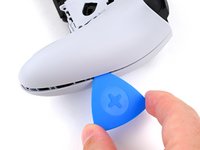
    • Insert the point an opening pick in the gap along the outside edge of one of the controller grips, near the bottom.

  13. Battery Bracket Removal, Separate the rear case: шаг 13, изображение 1 из 3 Battery Bracket Removal, Separate the rear case: шаг 13, изображение 2 из 3 Battery Bracket Removal, Separate the rear case: шаг 13, изображение 3 из 3
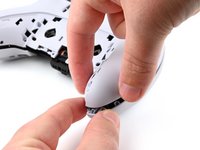
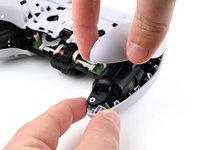
    • Pry with the opening pick to separate the rear case from the front case by releasing the clips that hold them together.

    • Continue prying along the edge of the controller until one side is separated.

  14. Battery Bracket Removal: шаг 14, изображение 1 из 2 Battery Bracket Removal: шаг 14, изображение 2 из 2
    • Repeat this process to separate the other side of the rear case.

  15. Battery Bracket Removal, Remove the rear case: шаг 15, изображение 1 из 3 Battery Bracket Removal, Remove the rear case: шаг 15, изображение 2 из 3 Battery Bracket Removal, Remove the rear case: шаг 15, изображение 3 из 3
    • If at any point the case feels stuck, stop and look for any clips that may have re-engaged and release them with the opening pick to avoid damaging them.

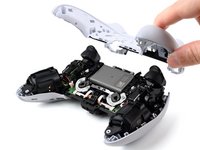
    • Hold the main body of the controller with one hand.

    • Lift the rear case with your other hand. It should lift at an angle.

    • Pushing slightly towards the L and R buttons, lift the rear case off of the controller and remove it.

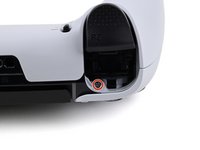
    • During reassembly, make sure the plastic covers for the adaptive trigger assembly adjustment sliders are correctly installed over the sliders.

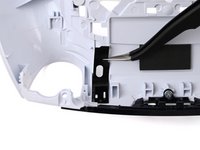
  16. Battery Bracket Removal, Replace the slider covers: шаг 16, изображение 1 из 3 Battery Bracket Removal, Replace the slider covers: шаг 16, изображение 2 из 3 Battery Bracket Removal, Replace the slider covers: шаг 16, изображение 3 из 3
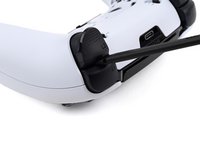
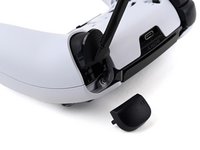
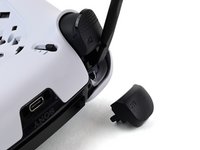
    • The rear case holds two small plastic covers for the adaptive trigger assembly adjustment sliders. These may have come off during removal. Place them back in the rear cover now to avoid losing them.

    • Use a pair of tweezers or your fingers to lift the cover from the controller.

    • Slide the flat end of the cover under the plastic tab in the rear case.

    • Make sure it is placed so it can move freely in its groove. The edge with the notch should be towards the middle of the controller.

    • If a cover got bent during the rear case removal or reassembly process, apply a small amount of heat with a hair dryer to restore it to its original shape.

    • During reassembly, you can use a small piece of painter's tape on the outside of the rear case to hold the covers in place.

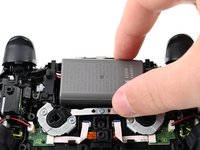
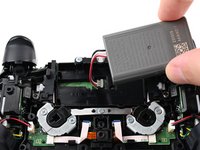
  17. Battery Bracket Removal, Lift the battery: шаг 17, изображение 1 из 2 Battery Bracket Removal, Lift the battery: шаг 17, изображение 2 из 2
    • If your battery is swollen or deformed in any way, take appropriate precautions.

    • Lift the battery and move it to the right, so the connector underneath the battery is accessible.

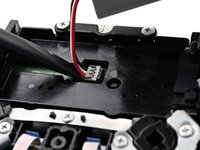
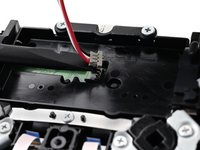
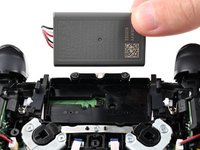
  18. Battery Bracket Removal, Disconnect the battery: шаг 18, изображение 1 из 3 Battery Bracket Removal, Disconnect the battery: шаг 18, изображение 2 из 3 Battery Bracket Removal, Disconnect the battery: шаг 18, изображение 3 из 3
    • Use the flat end of a spudger to pry up the low profile connector.

    • Only pry on the connector. Do not pry on the wires, as that may damage the wires.

    • Remove the battery.

  19. Battery Bracket Removal, Move the vibration motor cable: шаг 19, изображение 1 из 3 Battery Bracket Removal, Move the vibration motor cable: шаг 19, изображение 2 из 3 Battery Bracket Removal, Move the vibration motor cable: шаг 19, изображение 3 из 3
    • This procedure is written using the R2 trigger assembly, which is on your left. The procedure to remove the L2 assembly is identical.

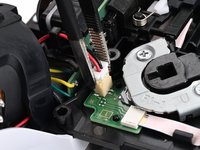
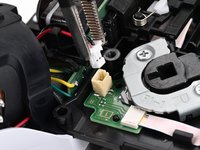
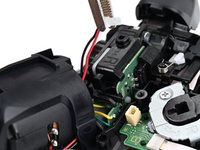
    • Use a pair of tweezers to disconnect the vibration motor cable by lifting the JST connector out of its socket.

    • This cable is connected to the back button board, between the RB or LB button and the vibration motor.

    • Continue lifting until the vibration motor cable is free of the clip on the trigger assembly.

  20. Battery Bracket Removal, Remove the trigger assembly screws: шаг 20, изображение 1 из 1
    • Remove the two 6.4 mm‑long screws securing the trigger assembly.

  21. Battery Bracket Removal, Lift the trigger assembly: шаг 21, изображение 1 из 2 Battery Bracket Removal, Lift the trigger assembly: шаг 21, изображение 2 из 2
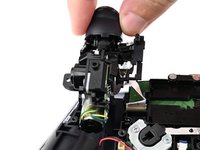
    • Lift the trigger assembly away from the controller and hold it so you can access the ribbon cable underneath it.

    • Do not try to fully remove the trigger assembly yet. It's still connected by a ribbon cable, which you'll disconnect in the next step

  22. Battery Bracket Removal, Disconnect the trigger assembly: шаг 22, изображение 1 из 3 Battery Bracket Removal, Disconnect the trigger assembly: шаг 22, изображение 2 из 3 Battery Bracket Removal, Disconnect the trigger assembly: шаг 22, изображение 3 из 3
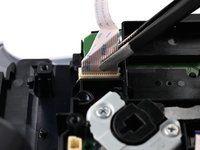
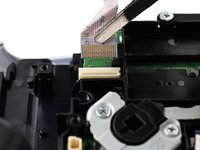
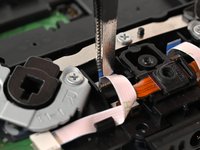
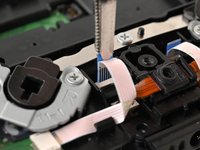
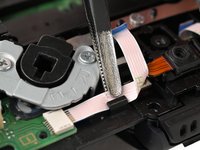
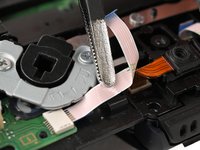
    • While holding the trigger assembly above the controller, use a pair of tweezers to disconnect the trigger assembly ribbon cable by gripping the pull tab and pulling away from the connector.

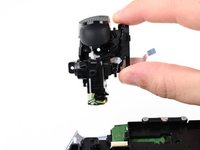
    • Remove the trigger assembly

  23. Battery Bracket Removal, Remove the R back button ribbon cable: шаг 23, изображение 1 из 2 Battery Bracket Removal, Remove the R back button ribbon cable: шаг 23, изображение 2 из 2
    • Make sure you removed both the L2 and the R2 adaptive trigger assemblies before continuing.

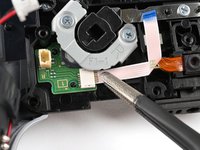
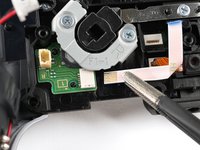
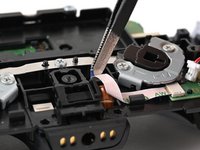
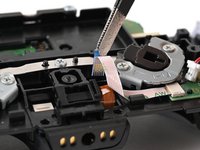
    • Use a pair of tweezers to disconnect the RB back button ribbon cable connector from the motherboard by griping the blue tab on the ribbon cable and pulling away from the connector.

    • The RB back button has an "R" engraved on the bracket and it's to your left.

  24. Battery Bracket Removal: шаг 24, изображение 1 из 2 Battery Bracket Removal: шаг 24, изображение 2 из 2
    • Use a pair of tweezers to move the RB back button ribbon cable out from its plastic clip.

  25. Battery Bracket Removal: шаг 25, изображение 1 из 2 Battery Bracket Removal: шаг 25, изображение 2 из 2
    • Use a pair of tweezers to disconnect the RB back button ribbon cable from the back button board.

  26. Battery Bracket Removal, Remove the rear microphone: шаг 26, изображение 1 из 2 Battery Bracket Removal, Remove the rear microphone: шаг 26, изображение 2 из 2
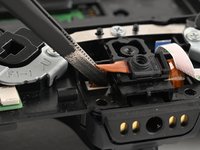
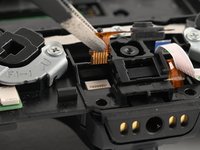
    • Use a pair of tweezers to disconnect the rear microphone ribbon cable from the motherboard.

    • Continue lifting to remove the microphone.

    • During reassembly, make sure to slot the plastic on the right edge of the microphone into the bracket on the microphone housing.

  27. Battery Bracket Removal, Disconnect the L back button: шаг 27, изображение 1 из 2 Battery Bracket Removal, Disconnect the L back button: шаг 27, изображение 2 из 2
    • Use a pair of tweezers to disconnect the LB back button ribbon cable from the motherboard by gripping the blue tab and pulling away from the connector.

  28. Battery Bracket Removal, Remove the battery bracket screws: шаг 28, изображение 1 из 1
    • Remove the three screws securing the battery bracket:

    • Two 6.4 mm‑long screws near the middle of the left and right edges of the battery bracket

    • One 10.4 mm‑long screw near the center of the battery bracket

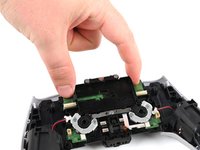
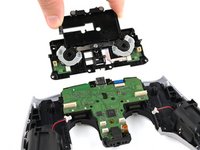
  29. Battery Bracket Removal, Remove the battery bracket: шаг 29, изображение 1 из 2 Battery Bracket Removal, Remove the battery bracket: шаг 29, изображение 2 из 2
    • Lift and remove the battery bracket.

Заключение

To reassemble your device, follow these instructions in reverse order.

Spencer Pennington

Участник с: 09/09/23

23 824 Репутация

Автор 125 руководств

Команда

Guide Team Участник Guide Team

Staff

10 членов

Автор 16 053 руководств

0 Комментарии к руководству

Добавить комментарий

Статистика просмотров:

За последние 24 часов: 0

За последние 7 дней: 5

За последние 30 дней: 12

За всё время: 79