Перейти к основному содержанию

DualSense Controller v2 Touchpad Replacement

Выберете то, что вам нужно

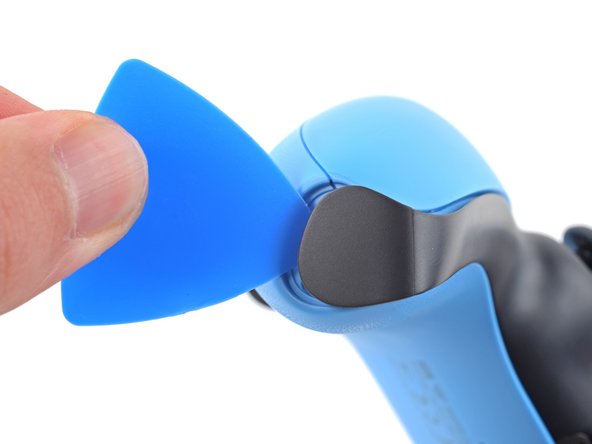
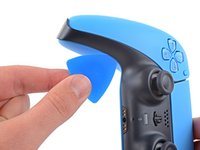
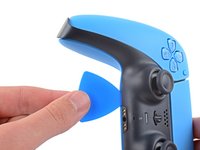
  1. DualSense Controller v2 Touchpad Replacement, Unclip the right end of the middle trim: шаг 1, изображение 1 из 2 DualSense Controller v2 Touchpad Replacement, Unclip the right end of the middle trim: шаг 1, изображение 2 из 2
    • Disconnect and power down the controller before you begin.

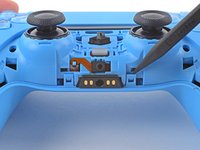
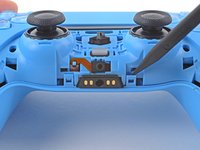
    • Insert an opening pick underneath the middle trim at the bottom-right corner of the controller to release the clips securing it to the case.

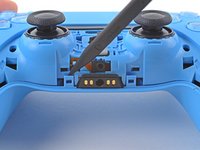
  2. DualSense Controller v2 Touchpad Replacement, Unclip the lower-right edge of the middle trim: шаг 2, изображение 1 из 3 DualSense Controller v2 Touchpad Replacement, Unclip the lower-right edge of the middle trim: шаг 2, изображение 2 из 3 DualSense Controller v2 Touchpad Replacement, Unclip the lower-right edge of the middle trim: шаг 2, изображение 3 из 3
    • Slide the opening pick along the lower-right edge of the middle trim to release the clips securing it to the case.

  3. DualSense Controller v2 Touchpad Replacement, Unclip the left end of the middle trim: шаг 3, изображение 1 из 2 DualSense Controller v2 Touchpad Replacement, Unclip the left end of the middle trim: шаг 3, изображение 2 из 2
    • Insert an opening pick underneath the middle trim at the bottom-left corner of the controller to release the clips securing it to the case.

  4. DualSense Controller v2 Touchpad Replacement, Unclip the lower-left edge of the middle trim: шаг 4, изображение 1 из 3 DualSense Controller v2 Touchpad Replacement, Unclip the lower-left edge of the middle trim: шаг 4, изображение 2 из 3 DualSense Controller v2 Touchpad Replacement, Unclip the lower-left edge of the middle trim: шаг 4, изображение 3 из 3
    • Slide the opening pick along the lower-left edge of the middle trim to release the clips securing it to the case.

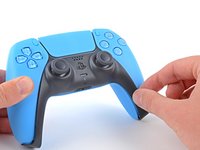
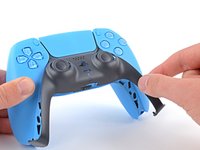
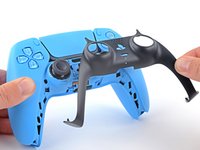
  5. DualSense Controller v2 Touchpad Replacement, Remove the middle trim: шаг 5, изображение 1 из 3 DualSense Controller v2 Touchpad Replacement, Remove the middle trim: шаг 5, изображение 2 из 3 DualSense Controller v2 Touchpad Replacement, Remove the middle trim: шаг 5, изображение 3 из 3
    • Use your fingers to lift up the bottom edge of the middle trim to release the remaining clips.

    • Lift the middle trim over the joysticks to remove it.

    • During reassembly, position the middle trim into place and press along all edges to engage the clips securing it to the controller.

  6. DualSense Controller v2 Touchpad Replacement, Remove the L1 button: шаг 6, изображение 1 из 3 DualSense Controller v2 Touchpad Replacement, Remove the L1 button: шаг 6, изображение 2 из 3 DualSense Controller v2 Touchpad Replacement, Remove the L1 button: шаг 6, изображение 3 из 3
    • Insert the flat end of a spudger into the gap above the L1 button.

    • Cover the button with your thumb to prevent it from ejecting across the room.

    • Pry the spudger upward to remove the L1 button.

  7. DualSense Controller v2 Touchpad Replacement, Remove the R1 button: шаг 7, изображение 1 из 3 DualSense Controller v2 Touchpad Replacement, Remove the R1 button: шаг 7, изображение 2 из 3 DualSense Controller v2 Touchpad Replacement, Remove the R1 button: шаг 7, изображение 3 из 3
    • Insert the flat end of a spudger into the gap above the R1 button.

    • Cover the button with your thumb to prevent it from ejecting across the room.

    • Pry the spudger upward to remove the R1 button.

  8. DualSense Controller v2 Touchpad Replacement, Remove the case screws: шаг 8, изображение 1 из 1
    • Use a Phillips screwdriver to remove the two 6.5 mm screws securing the bottom corners of the lower case.

  9. DualSense Controller v2 Touchpad Replacement: шаг 9, изображение 1 из 1
    • Use a Phillips screwdriver to remove the two 6.5 mm screws behind the L1 and R1 buttons.

  10. DualSense Controller v2 Touchpad Replacement, Unclip the rear case: шаг 10, изображение 1 из 3 DualSense Controller v2 Touchpad Replacement, Unclip the rear case: шаг 10, изображение 2 из 3 DualSense Controller v2 Touchpad Replacement, Unclip the rear case: шаг 10, изображение 3 из 3
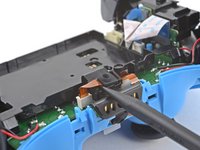
    • Use the pointed edge of a spudger to unclip the two clips on either side of the headset jack.

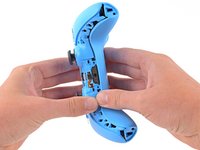
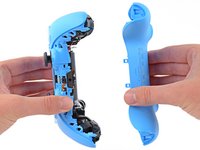
  11. DualSense Controller v2 Touchpad Replacement, Remove the rear case: шаг 11, изображение 1 из 2 DualSense Controller v2 Touchpad Replacement, Remove the rear case: шаг 11, изображение 2 из 2
    • Use your hands to carefully pull the rear case off of the controller.

    • During reassembly, make sure the red and black vibration motor wires are not pinched between the front and rear case.

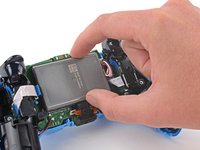
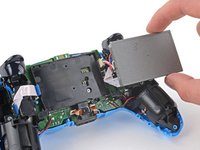
  12. DualSense Controller v2 Touchpad Replacement, Reposition the battery: шаг 12, изображение 1 из 2 DualSense Controller v2 Touchpad Replacement, Reposition the battery: шаг 12, изображение 2 из 2
    • Lift the battery out of its bracket and reposition it to the right for better access to the battery connector.

    • Don't strain the battery cables.

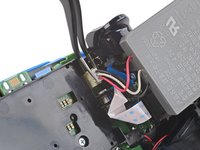
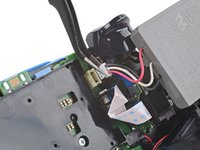
  13. DualSense Controller v2 Touchpad Replacement, Disconnect the battery: шаг 13, изображение 1 из 2 DualSense Controller v2 Touchpad Replacement, Disconnect the battery: шаг 13, изображение 2 из 2
    Инструмент, используемый на этом этапе:
    Tweezers
    $4.99
    • Use a pair of tweezers or your fingers to disconnect the battery from the motherboard.

    • Don't pull on the wires to disconnect the battery.

  14. DualSense Controller v2 Touchpad Replacement, Remove the battery: шаг 14, изображение 1 из 1
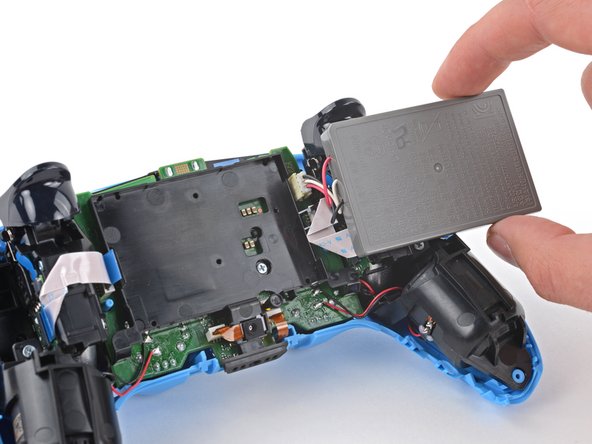
    • Remove the battery.

  15. DualSense Controller v2 Touchpad Replacement, Remove the lower microphone: шаг 15, изображение 1 из 2 DualSense Controller v2 Touchpad Replacement, Remove the lower microphone: шаг 15, изображение 2 из 2
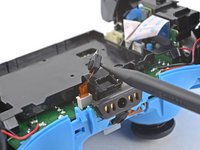
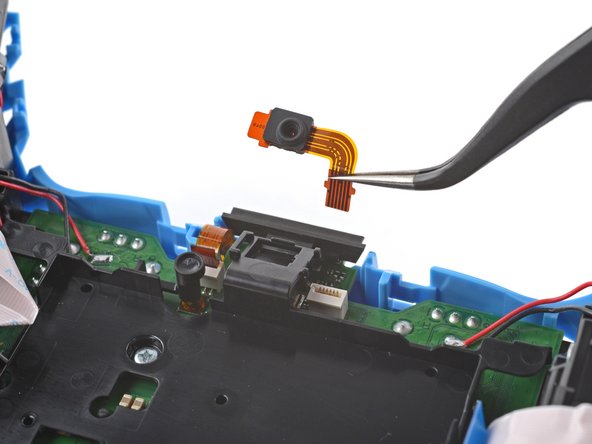
    • Use the pointed end of a spudger to remove the lower microphone from its bracket next to the battery.

    • During reassembly, make sure the end of the microphone's ribbon cable is slotted into the bracket.

  16. DualSense Controller v2 Touchpad Replacement: шаг 16, изображение 1 из 2 DualSense Controller v2 Touchpad Replacement: шаг 16, изображение 2 из 2
    Инструмент, используемый на этом этапе:
    Tweezers
    $4.99
    • Grab the lower microphone ribbon cable pull tab with your fingers or a pair of tweezers and disconnect it from the motherboard.

  17. DualSense Controller v2 Touchpad Replacement, Remove the battery bracket: шаг 17, изображение 1 из 1
    • Use a Phillips screwdriver to remove the 6.5 mm screw securing the battery bracket.

  18. DualSense Controller v2 Touchpad Replacement: шаг 18, изображение 1 из 2 DualSense Controller v2 Touchpad Replacement: шаг 18, изображение 2 из 2
    • Lift the battery bracket off of the motherboard.

  19. DualSense Controller v2 Touchpad Replacement, Disconnect the right trigger assembly: шаг 19, изображение 1 из 2 DualSense Controller v2 Touchpad Replacement, Disconnect the right trigger assembly: шаг 19, изображение 2 из 2
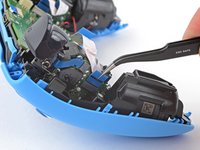
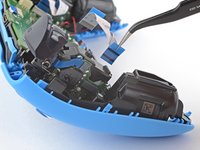
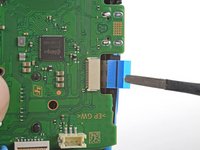
    • Grip the right trigger assembly cable with a pair of tweezers or your fingers and disconnect it from the motherboard.

    • Use the pull tab to disconnect the cable. Don't pull on the cable itself.

    • Don't completely remove the ribbon cable yet.

  20. DualSense Controller v2 Touchpad Replacement: шаг 20, изображение 1 из 2 DualSense Controller v2 Touchpad Replacement: шаг 20, изображение 2 из 2
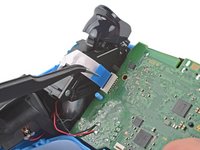
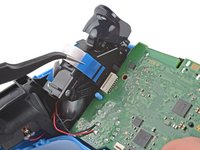
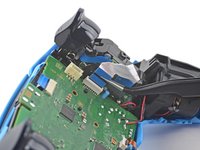
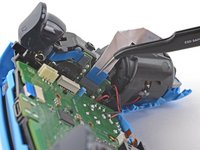
    • Grip the right trigger assembly cable with a pair of tweezers or your fingers, and disconnect it from the trigger assembly.

    • Use the pull tab to disconnect the cable. Don't pull on the cable itself.

    • Depending on the controller's model, the ribbon cable may block the motherboard from coming loose. If so, remove the cable from the trigger assembly.

  21. DualSense Controller v2 Touchpad Replacement, Disconnect the left trigger assembly: шаг 21, изображение 1 из 2 DualSense Controller v2 Touchpad Replacement, Disconnect the left trigger assembly: шаг 21, изображение 2 из 2
    • Grip the left trigger assembly cable with a pair of tweezers or your fingers to disconnect it from the motherboard.

    • Use the pull tab to disconnect the cable. Don't pull on the cable itself.

    • Don't completely remove the ribbon cable yet.

  22. DualSense Controller v2 Touchpad Replacement: шаг 22, изображение 1 из 2 DualSense Controller v2 Touchpad Replacement: шаг 22, изображение 2 из 2
    • Grip the left trigger assembly cable with a pair of tweezers or your fingers to disconnect it from the trigger assembly.

    • Use the pull tab to disconnect the cable. Don't pull on the cable itself.

    • Depending on the controller's model, the ribbon cable may block the motherboard from coming loose. If so, remove the cable from the trigger assembly.

  23. DualSense Controller v2 Touchpad Replacement, Disconnect the upper microphone: шаг 23, изображение 1 из 2 DualSense Controller v2 Touchpad Replacement, Disconnect the upper microphone: шаг 23, изображение 2 из 2
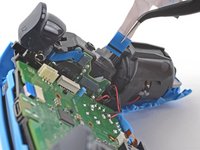
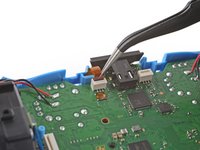
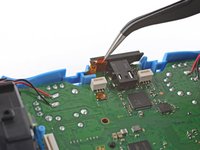
    • Use a pair of tweezers or your fingers to disconnect the upper microphone from the motherboard.

    • Use the pull tab to disconnect the cable. Don't pull on the cable itself.

    • If you're not replacing this microphone, don't remove it from the frame.

  24. DualSense Controller v2 Touchpad Replacement, Disconnect the touchpad: шаг 24, изображение 1 из 2 DualSense Controller v2 Touchpad Replacement, Disconnect the touchpad: шаг 24, изображение 2 из 2
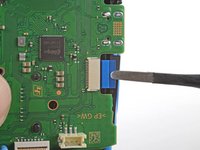
    • Use a pair of tweezers or your fingers to disconnect the touchpad cable from the motherboard.

    • Use the pull tab to disconnect the cable. Don't pull on the cable itself.

  25. DualSense Controller v2 Touchpad Replacement, Lift out the motherboard: шаг 25, изображение 1 из 3 DualSense Controller v2 Touchpad Replacement, Lift out the motherboard: шаг 25, изображение 2 из 3 DualSense Controller v2 Touchpad Replacement, Lift out the motherboard: шаг 25, изображение 3 из 3
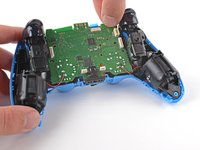
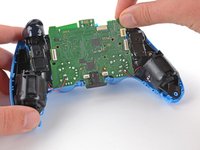
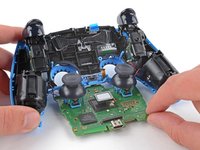
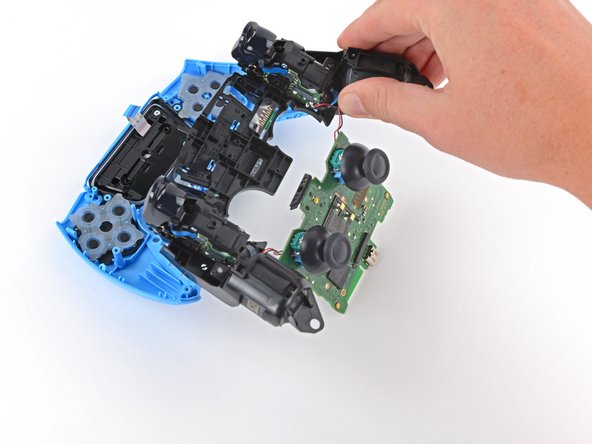
    • Carefully guide the joysticks through the front case and lift the motherboard out.

    • Don't strain the four soldered wires tethering the motherboard to the vibration motors.

  26. DualSense Controller v2 Touchpad Replacement, Remove the light guide: шаг 26, изображение 1 из 3 DualSense Controller v2 Touchpad Replacement, Remove the light guide: шаг 26, изображение 2 из 3 DualSense Controller v2 Touchpad Replacement, Remove the light guide: шаг 26, изображение 3 из 3
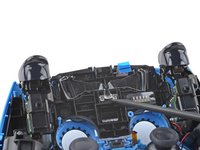
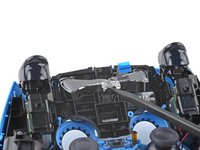
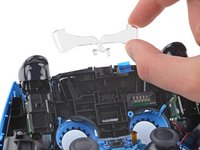
    • Use the pointed end of your spudger to lift the center of the light guide out of the controller.

    • Remove the light guide.

  27. DualSense Controller v2 Touchpad Replacement, Remove the midframe: шаг 27, изображение 1 из 1
    • Use your Phillips driver to remove the two 6.5 mm screws securing the midframe to the front case.

  28. DualSense Controller v2 Touchpad Replacement: шаг 28, изображение 1 из 3 DualSense Controller v2 Touchpad Replacement: шаг 28, изображение 2 из 3 DualSense Controller v2 Touchpad Replacement: шаг 28, изображение 3 из 3
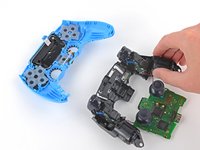
    • Carefully lift the midframe and motherboard up and out of the front case.

    • Be careful not to strain the vibrator motor wires.

    • During reassembly, feed the touchpad's ribbon cable back through its rectangular opening in the midframe.

  29. DualSense Controller v2 Touchpad Replacement, Remove the touchpad: шаг 29, изображение 1 из 1
    • Use your Phillips screwdriver to remove the 6.5 mm screw securing the touchpad to its bracket.

  30. DualSense Controller v2 Touchpad Replacement: шаг 30, изображение 1 из 3 DualSense Controller v2 Touchpad Replacement: шаг 30, изображение 2 из 3 DualSense Controller v2 Touchpad Replacement: шаг 30, изображение 3 из 3
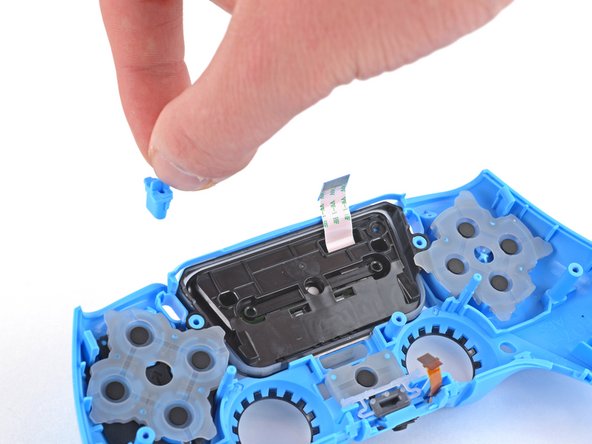
    • Remove the Select and Start buttons from the front case.

  31. DualSense Controller v2 Touchpad Replacement: шаг 31, изображение 1 из 3 DualSense Controller v2 Touchpad Replacement: шаг 31, изображение 2 из 3 DualSense Controller v2 Touchpad Replacement: шаг 31, изображение 3 из 3
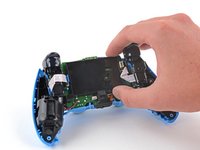
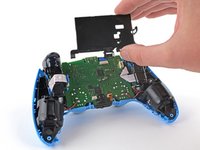
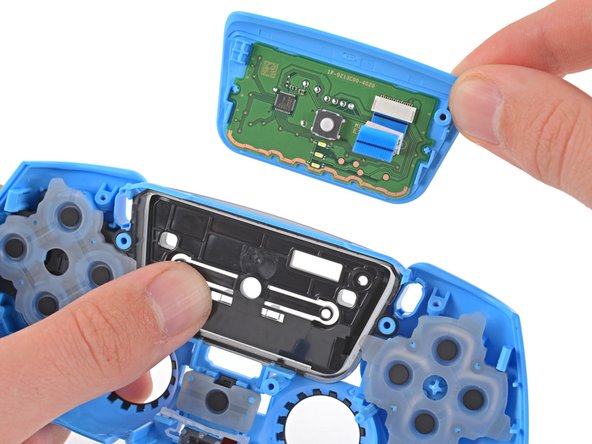
    • Grip the top right corner of the touchpad (near where the screw was) and gently pry it off of its bracket.

    • The touchpad is lightly secured to its bracket by clips.

    • Hold the bracket in place with your thumb as you separate the touchpad.

    • During reinstallation, make sure the touchpad clips engage with the bracket. You should hear and feel a snap when installed properly.

Заключение

To reassemble your device, follow these instructions in reverse order.

Take your e-waste to an R2 or e-Stewards certified recycler.

Repair didn’t go as planned? Try some basic troubleshooting, or ask our Answers community for help.

5 человек успешно провели ремонт по этому руководству.

Sam Omiotek

Участник с: 02/25/19

92 845 Репутация

Автор 290 руководств

2 Комментарии к руководству

My touchpad is clicky (feels kinda stuck), followed the whole guide but it didn't fix the issue, what else could it be?

Diogo Sousa - Ответить

The white light under the touchpad isn’t turning on, and the touchpad itself isn’t working, neither the touch function nor the button. The touchpad ribbon cable is slightly torn. If I replace the ribbon cable, will all these functions start working?

Jakub Tarnawski - Ответить

Добавить комментарий

Статистика просмотров:

За последние 24 часов: 11

За последние 7 дней: 75

За последние 30 дней: 326

За всё время: 10,362