Перейти к основному содержанию

HP EliteBook 845 G8 SSD Replacement

Выберете то, что вам нужно

  1. HP EliteBook 845 G8 SSD Replacement, Before you begin: шаг 1, изображение 1 из 2 HP EliteBook 845 G8 SSD Replacement, Before you begin: шаг 1, изображение 2 из 2
    • Before starting your repair, allow your laptop's battery to drain below 25%—a charged lithium-ion battery is a potential safety hazard if accidentally damaged.

    • Save your work, fully shut down your laptop, and unplug all cables.

  2. HP EliteBook 845 G8 SSD Replacement, Unfasten the bottom cover: шаг 2, изображение 1 из 2 HP EliteBook 845 G8 SSD Replacement, Unfasten the bottom cover: шаг 2, изображение 2 из 2
    • Despite the standards, Phillips screwdrivers can vary in size and shape—two drivers labeled as the same size may fit differently in the same screw. Use the size that fits the most snug into the screw head to avoid stripping it.

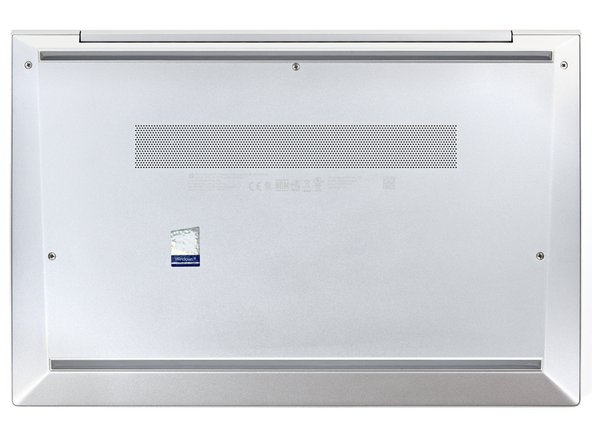
    • Use a Phillips screwdriver to fully loosen (but not remove) the five captive screws securing the bottom cover.

  3. HP EliteBook 845 G8 SSD Replacement, Release the bottom cover clips: шаг 3, изображение 1 из 3 HP EliteBook 845 G8 SSD Replacement, Release the bottom cover clips: шаг 3, изображение 2 из 3 HP EliteBook 845 G8 SSD Replacement, Release the bottom cover clips: шаг 3, изображение 3 из 3
    • Position your laptop so the rear edge (with the screen hinge) is closest to you.

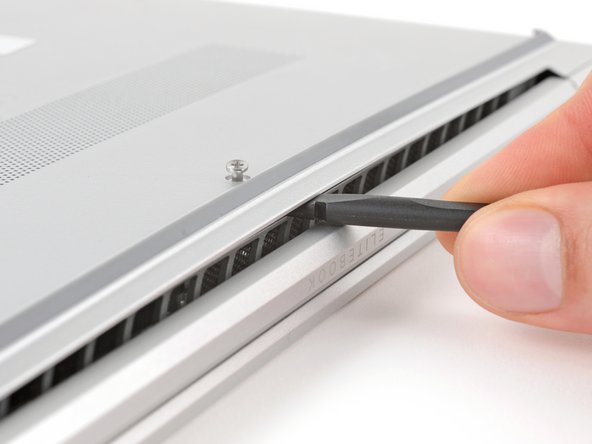
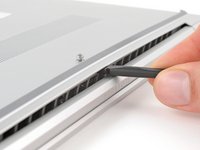
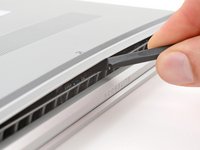
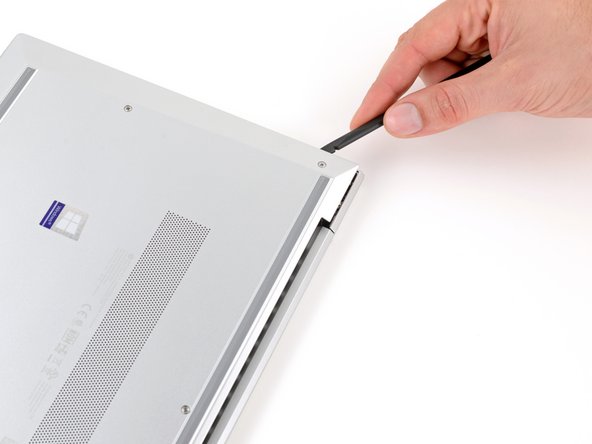
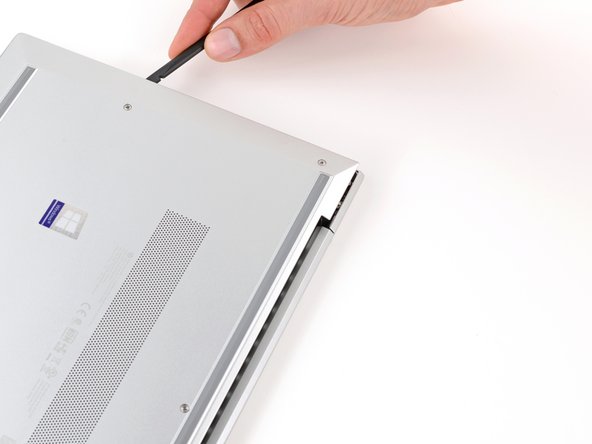
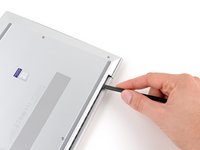
    • Insert the flat end of a spudger between the rear edge of the bottom cover and the frame, near the middle screw and ELITEBOOK text.

    • If you're having trouble inserting your spudger, make sure the screw is fully loosened. If necessary, use your fingers to gently pull the screw up.

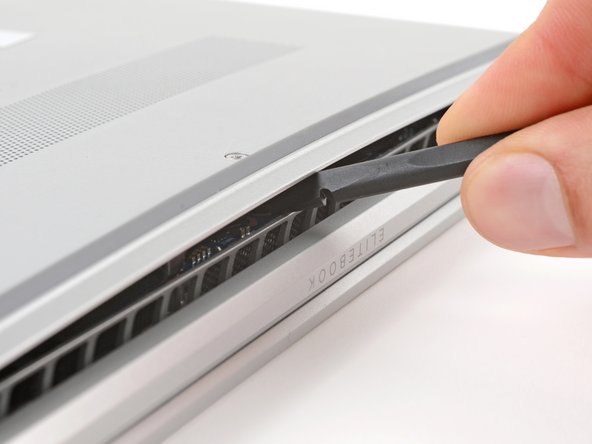
    • Use your spudger to pry up the cover to release the clip securing it.

    • Leave the spudger inserted under the bottom cover for the next step.

  4. HP EliteBook 845 G8 SSD Replacement: шаг 4, изображение 1 из 3 HP EliteBook 845 G8 SSD Replacement: шаг 4, изображение 2 из 3 HP EliteBook 845 G8 SSD Replacement: шаг 4, изображение 3 из 3
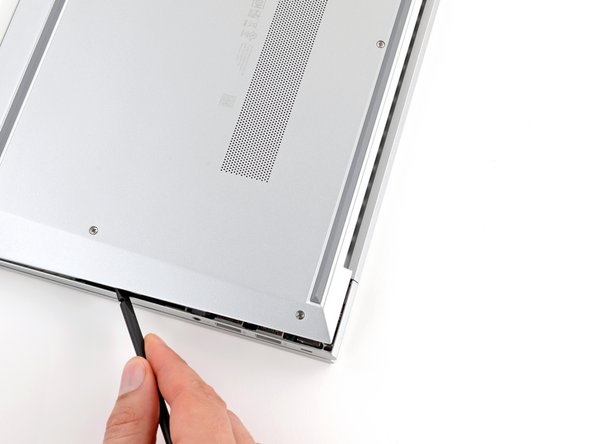
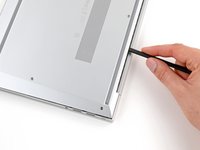
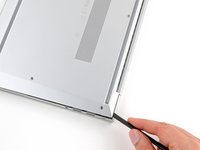
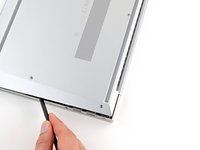
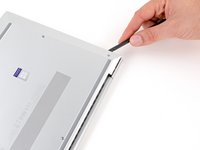
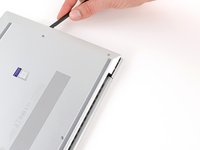
    • Slide your spudger along the rear edge toward one of the corners to release the rear edge clips.

    • Rotate your spudger around the corner and up the edge to release the clips securing the short edge of the cover.

  5. HP EliteBook 845 G8 SSD Replacement: шаг 5, изображение 1 из 3 HP EliteBook 845 G8 SSD Replacement: шаг 5, изображение 2 из 3 HP EliteBook 845 G8 SSD Replacement: шаг 5, изображение 3 из 3
    • Reinsert the flat end of a spudger near the ELITEBOOK text.

    • Repeat the previous step for the other side of the cover to release the remaining clips.

  6. HP EliteBook 845 G8 SSD Replacement, Remove the bottom cover: шаг 6, изображение 1 из 3 HP EliteBook 845 G8 SSD Replacement, Remove the bottom cover: шаг 6, изображение 2 из 3 HP EliteBook 845 G8 SSD Replacement, Remove the bottom cover: шаг 6, изображение 3 из 3
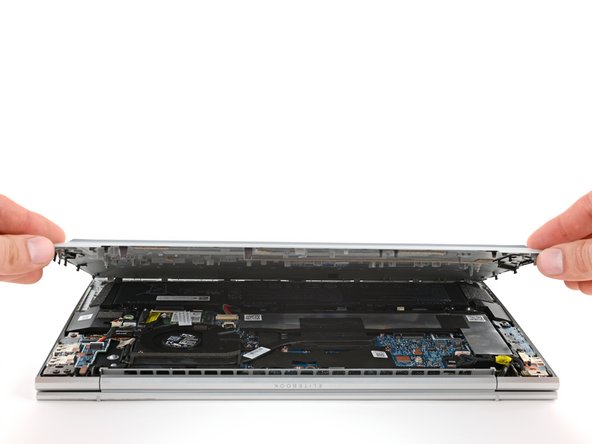
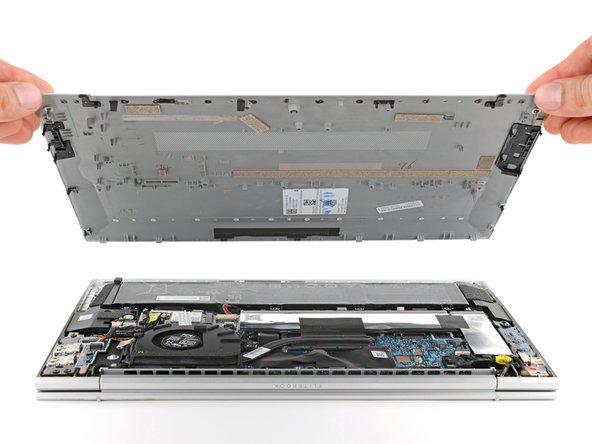
    • Lift and remove the bottom cover.

    • The cover should lift away easily. If you feel resistance, use the flat end of a spudger to release any remaining clips, and check that all screws are fully loosened.

    • During reassembly, slide the clips along the front edge of the cover (opposite the hinge) into their slots on the frame, then lay the cover down. Press firmly around the perimeter to engage all of the clips.

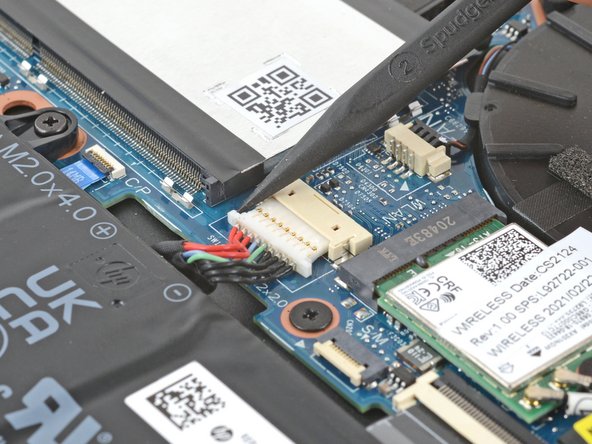
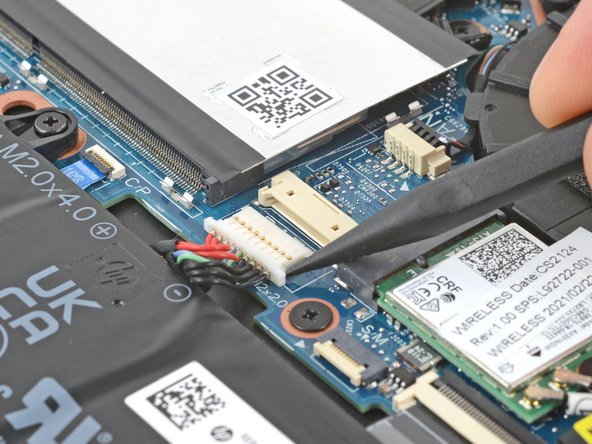
  7. HP EliteBook 845 G8 SSD Replacement, Disconnect the battery: шаг 7, изображение 1 из 3 HP EliteBook 845 G8 SSD Replacement, Disconnect the battery: шаг 7, изображение 2 из 3 HP EliteBook 845 G8 SSD Replacement, Disconnect the battery: шаг 7, изображение 3 из 3
    • Position your laptop so the front edge (opposite the screen hinges) is closest to you.

    • Use the point of a spudger or your fingernail to push on alternating sides of the battery's sliding connector to walk it completely out of its socket.

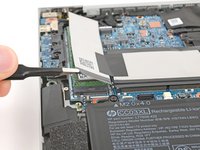
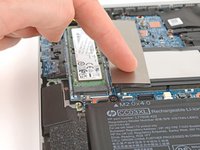
  8. HP EliteBook 845 G8 SSD Replacement, HP EliteBook 840 Aero G8 SSD Cover Repositioning: шаг 8, изображение 1 из 3 HP EliteBook 845 G8 SSD Replacement, HP EliteBook 840 Aero G8 SSD Cover Repositioning: шаг 8, изображение 2 из 3 HP EliteBook 845 G8 SSD Replacement, HP EliteBook 840 Aero G8 SSD Cover Repositioning: шаг 8, изображение 3 из 3
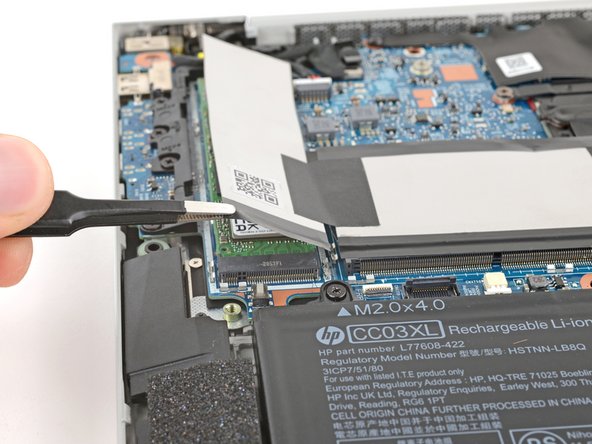
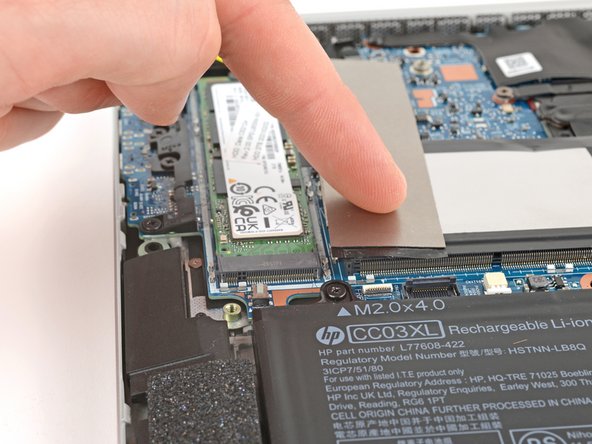
    • Depending on your laptop configuration, your device may have a metal shield or no cover at all.

    • Use tweezers or your fingers to peel up the bottom edge of the SSD cover.

    • If the cover is difficult to peel up, use an iOpener or hair dryer to lightly heat it. Be careful not to overheat the tape or the surrounding components.

    • Fold the SSD cover over, onto the memory module cover.

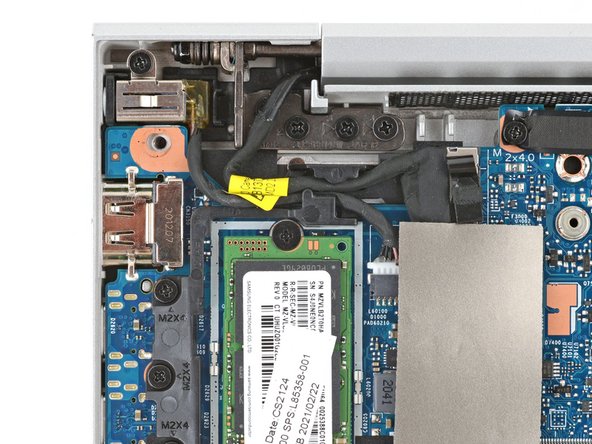
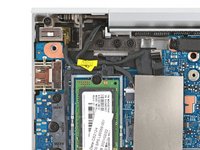
  9. HP EliteBook 845 G8 SSD Replacement, Remove the SSD screw: шаг 9, изображение 1 из 2 HP EliteBook 845 G8 SSD Replacement, Remove the SSD screw: шаг 9, изображение 2 из 2
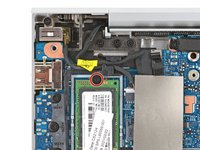
    • Use a Phillips screwdriver to remove the 2.4 mm‑long screw securing the SSD.

    • With the screw removed, the SSD may pop up at a slight angle.

    • During reassembly, gently hold down the SSD while installing its screw.

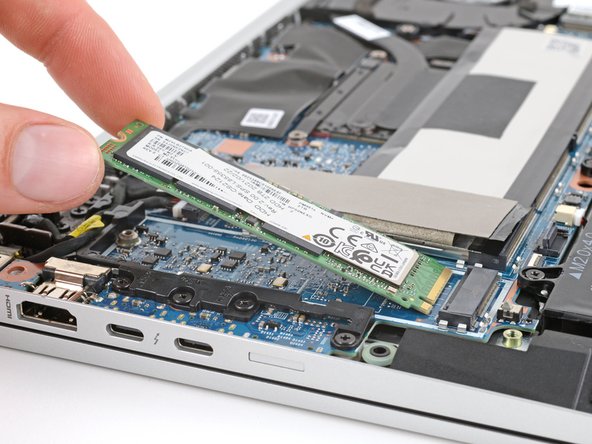
  10. HP EliteBook 845 G8 SSD Replacement, Remove the SSD: шаг 10, изображение 1 из 2 HP EliteBook 845 G8 SSD Replacement, Remove the SSD: шаг 10, изображение 2 из 2
    • Don't pull up at a sharp angle, or you may damage the SSD and its socket.

    • Grip the SSD by its edges and pull it straight out of its socket to remove it.

    • During reassembly, insert the SSD into its socket at a slight downward angle.

Заключение

To reassemble your device, follow these instructions in reverse order.

Take your e-waste to an R2 or e-Stewards certified recycler. Depending on your region, used HP devices and parts can be returned for reuse or recycling through the HP Planet Partners program.

Repair didn’t go as planned? Try some basic troubleshooting, or ask our Answers community for help.

Еще один человек закончил это руководство.

Carsten Frauenheim

Участник с: 03/10/20

155 514 Репутация

Автор 439 руководств

0 Комментарии к руководству

Добавить комментарий

Статистика просмотров:

За последние 24 часов: 10

За последние 7 дней: 61

За последние 30 дней: 265

За всё время: 1,306