Перейти к основному содержанию

Interconnect Cables Removal

Абсолютно необходимое руководство
Это руководство только для предварительной подготовки! Этот гайд является частью другой процедуры и не предназначен для самостоятельного использования.

Выберете то, что вам нужно

  1. Interconnect Cables Removal, Prepare your phone for disassembly: шаг 1, изображение 1 из 2 Interconnect Cables Removal, Prepare your phone for disassembly: шаг 1, изображение 2 из 2
    • Allow your phone's battery to drain below 25%, as a charged lithium-ion battery is a potential safety hazard. If your battery is swollen, take appropriate precautions.

    • Unplug any cables from your phone.

    • Hold the side key and the volume down button, then select "Power off" to turn off your phone.

  2. Interconnect Cables Removal, Heat the right edge: шаг 2, изображение 1 из 1
    • Heat an iOpener and apply it to the right edge of the back cover for two minutes.

    • You may use a hair dryer, heat gun, or hot plate instead, but be careful not to overheat the phone—the display and internal battery are susceptible to heat damage.

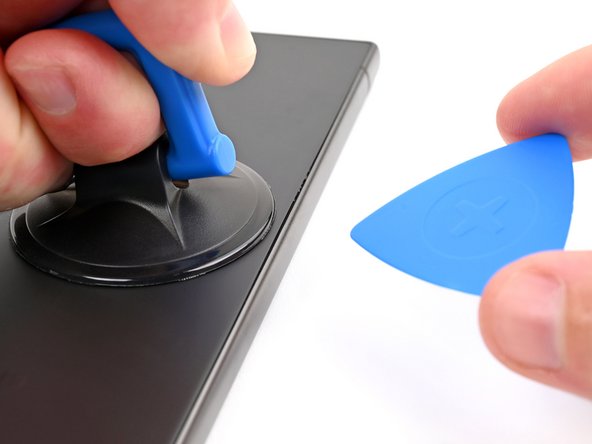
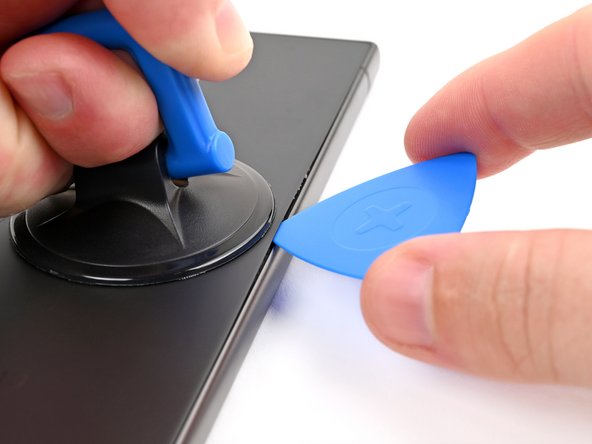
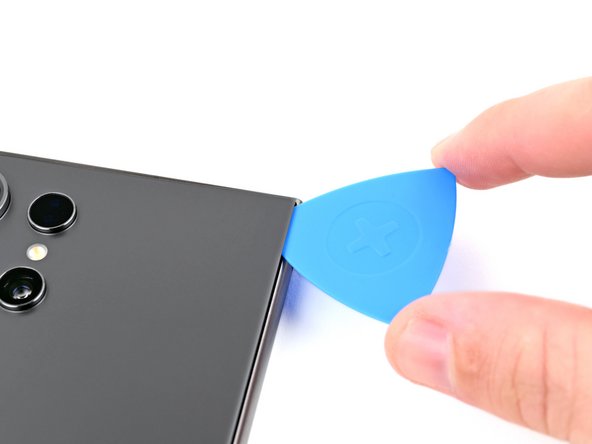
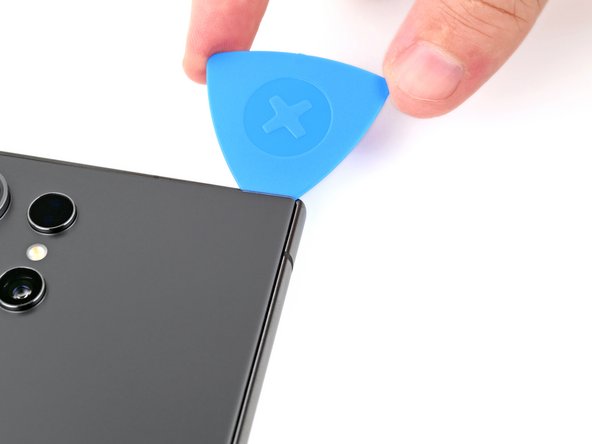
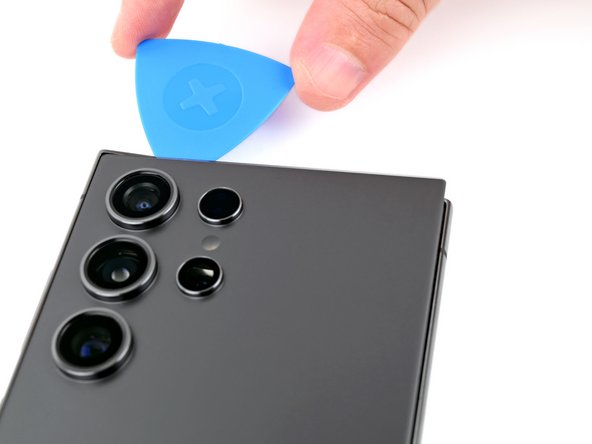
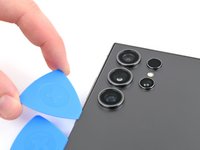
  3. Interconnect Cables Removal, Insert an opening pick: шаг 3, изображение 1 из 3 Interconnect Cables Removal, Insert an opening pick: шаг 3, изображение 2 из 3 Interconnect Cables Removal, Insert an opening pick: шаг 3, изображение 3 из 3
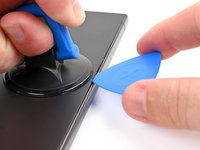
    • Apply a suction handle to the back cover, as close to the center of the right edge as possible.

    • Pull up on the suction handle with strong, steady force to create a gap between the cover and the frame.

    • If you have trouble creating a gap, apply more heat to further soften the adhesive. Follow the iOpener instructions to avoid overheating.

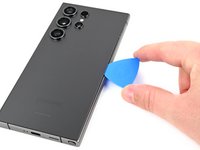
    • Insert an opening pick into the gap.

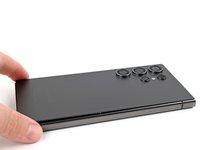
  4. Interconnect Cables Removal, Separate the right adhesive: шаг 4, изображение 1 из 3 Interconnect Cables Removal, Separate the right adhesive: шаг 4, изображение 2 из 3 Interconnect Cables Removal, Separate the right adhesive: шаг 4, изображение 3 из 3
    • Slide the pick back and forth along the right edge to separate the adhesive.

    • Leave the pick inserted near the bottom right corner to prevent the adhesive from resealing.

  5. Interconnect Cables Removal, Heat the bottom edge: шаг 5, изображение 1 из 1
    • Apply a heated iOpener to the bottom edge of the back cover for two minutes.

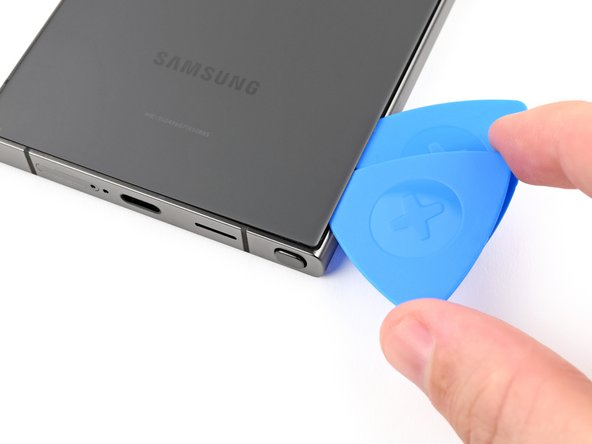
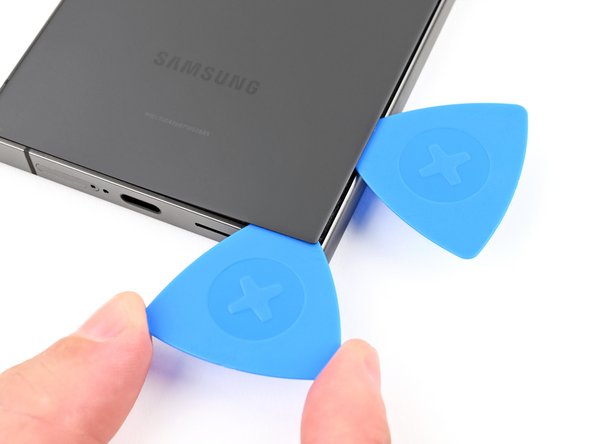
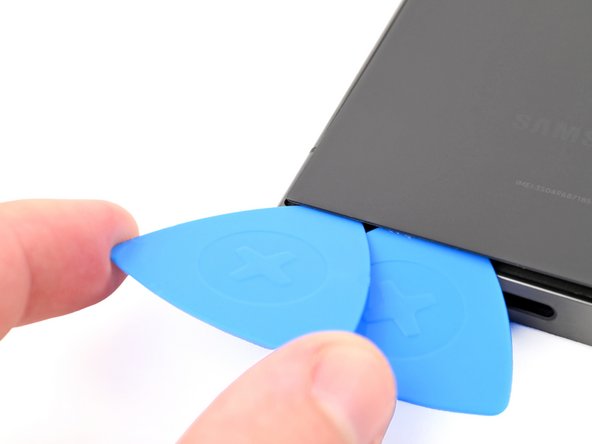
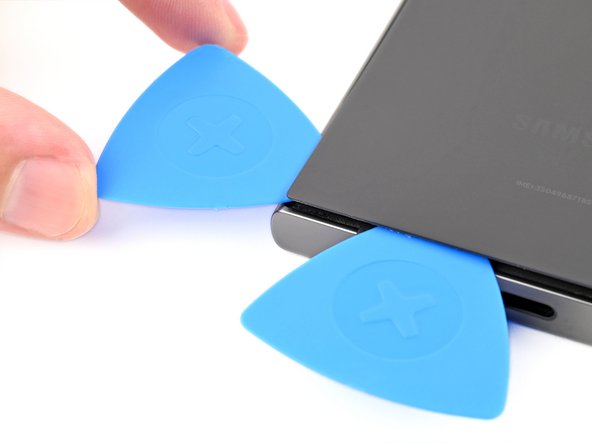
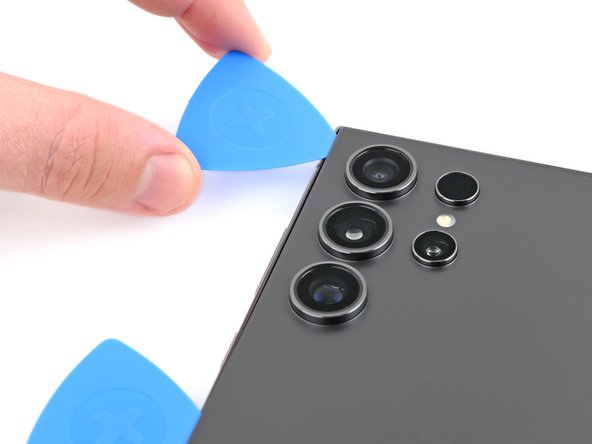
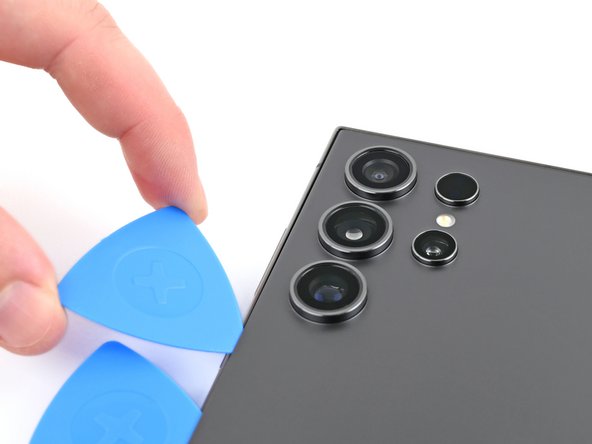
  6. Interconnect Cables Removal, Separate the bottom adhesive: шаг 6, изображение 1 из 3 Interconnect Cables Removal, Separate the bottom adhesive: шаг 6, изображение 2 из 3 Interconnect Cables Removal, Separate the bottom adhesive: шаг 6, изображение 3 из 3
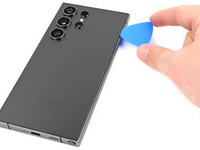
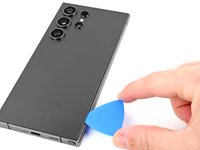
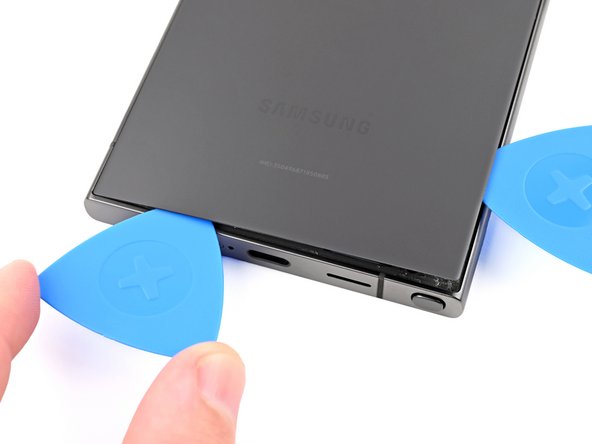
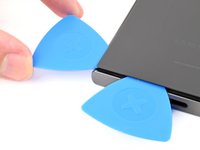
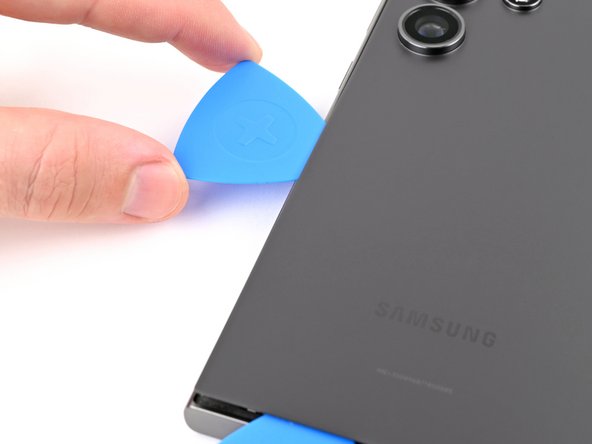
    • Insert a second opening pick next to the first one, near the bottom of the right edge.

    • Rotate the opening pick around the bottom right corner to separate the adhesive.

  7. Interconnect Cables Removal: шаг 7, изображение 1 из 2 Interconnect Cables Removal: шаг 7, изображение 2 из 2
    • Slide the opening pick along the bottom edge to separate the adhesive.

    • Leave the pick inserted near the bottom left corner to prevent the adhesive from resealing.

  8. Interconnect Cables Removal, Heat the left edge: шаг 8, изображение 1 из 1
    • Apply a heated iOpener to the left edge of the back cover for two minutes.

  9. Interconnect Cables Removal, Separate the left adhesive: шаг 9, изображение 1 из 3 Interconnect Cables Removal, Separate the left adhesive: шаг 9, изображение 2 из 3 Interconnect Cables Removal, Separate the left adhesive: шаг 9, изображение 3 из 3
    • Insert a third opening pick next to the second one, near the left side of the bottom edge.

    • Rotate the opening pick around the bottom left corner to separate the adhesive.

  10. Interconnect Cables Removal: шаг 10, изображение 1 из 2 Interconnect Cables Removal: шаг 10, изображение 2 из 2
    • Slide your opening pick along the left edge to separate the adhesive, stopping before you reach the power button.

    • Do not insert the pick more than 4 mm to avoid damaging the antenna cable.

    • Leave the pick inserted near the power button to prevent the adhesive from resealing.

  11. Interconnect Cables Removal, Heat the top edge: шаг 11, изображение 1 из 1
    • Apply a heated iOpener to the top edge of the back cover for two minutes.

  12. Interconnect Cables Removal, Separate the top adhesive: шаг 12, изображение 1 из 3 Interconnect Cables Removal, Separate the top adhesive: шаг 12, изображение 2 из 3 Interconnect Cables Removal, Separate the top adhesive: шаг 12, изображение 3 из 3
    • Insert an opening pick in the gap at the top of the right edge.

    • Rotate the opening pick around the top right corner to separate the adhesive.

  13. Interconnect Cables Removal: шаг 13, изображение 1 из 2 Interconnect Cables Removal: шаг 13, изображение 2 из 2
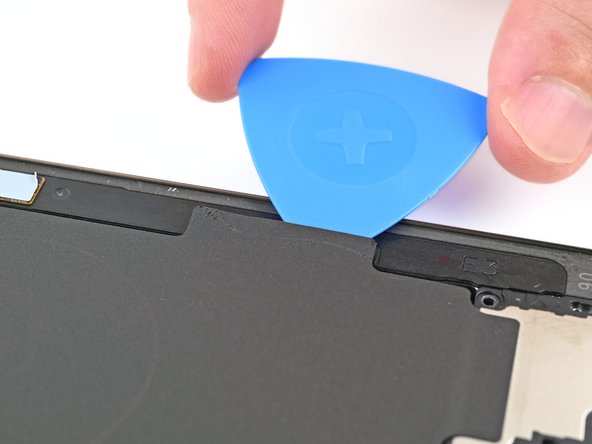
    • Slide the pick along the top edge to separate the adhesive.

    • Do not insert the pick more than 4 mm to avoid damaging the sensor or camera near the top edge.

  14. Interconnect Cables Removal, Separate the remaining adhesive: шаг 14, изображение 1 из 3 Interconnect Cables Removal, Separate the remaining adhesive: шаг 14, изображение 2 из 3 Interconnect Cables Removal, Separate the remaining adhesive: шаг 14, изображение 3 из 3
    • Slide the pick around the top left corner and down the left edge to separate the remaining adhesive.

    • Do not insert the pick more than 4 mm to avoid damaging the cameras.

  15. Interconnect Cables Removal, Remove the back cover: шаг 15, изображение 1 из 2 Interconnect Cables Removal, Remove the back cover: шаг 15, изображение 2 из 2
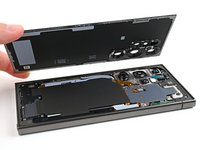
    • Grab and remove the back cover.

    • If your cover is still sticking to the frame, slide an opening pick around the edges to separate any adhesive that may have resealed.

    • During reassembly:

    • This is a good point to power on your phone and test all functions before sealing it up. Be sure to power your phone back down completely before you continue working.

    • Remove any adhesive chunks with a pair of tweezers or your fingers. Apply heat if you're having trouble separating the adhesive.

    • If you're using custom-cut adhesives, follow this guide.

    • If you're using double-sided tape, follow this guide.

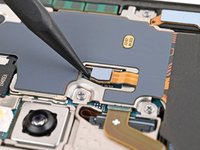
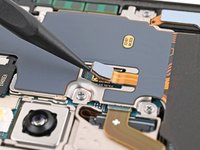
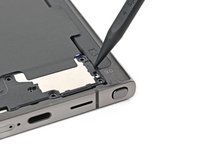
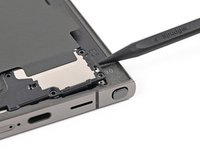
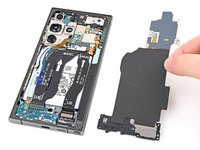
  16. Interconnect Cables Removal, Disconnect the wireless charging coil: шаг 16, изображение 1 из 2 Interconnect Cables Removal, Disconnect the wireless charging coil: шаг 16, изображение 2 из 2
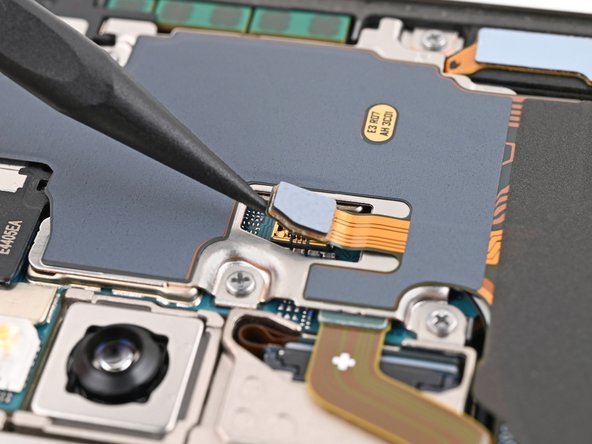
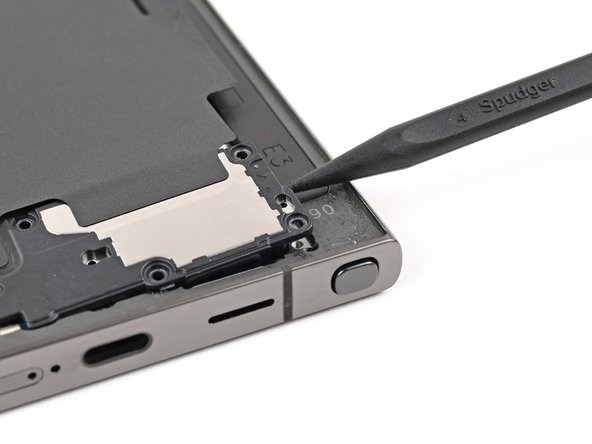
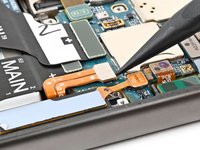
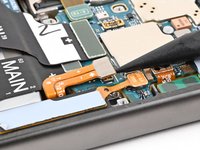
    • Use a spudger to pry up and disconnect the wireless charging coil press connector from the motherboard.

    • There's an arrow printed on the board near each press connector that indicates the recommended prying location. Only pry in this location for each press connector to avoid dislodging surface-mounted components.

    • To reconnect press connectors, align the connector carefully over its socket and press down with your fingertip—first on one side, then the other—until it clicks into place. Don't try to force the connector into place. If you're having trouble, reposition it and try again.

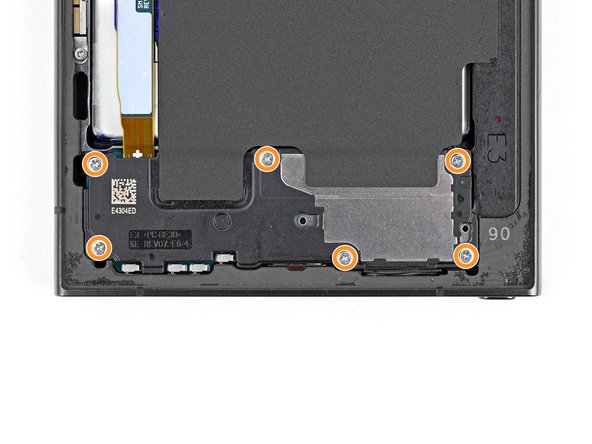
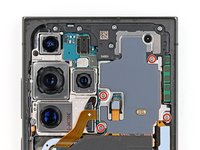
  17. Interconnect Cables Removal, Remove the wireless charging coil and loudspeaker screws: шаг 17, изображение 1 из 2 Interconnect Cables Removal, Remove the wireless charging coil and loudspeaker screws: шаг 17, изображение 2 из 2
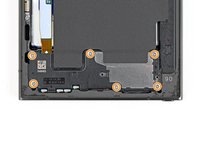
    • Use a Phillips screwdriver to remove the ten 3.5 mm‑long screws securing the wireless charging coil and the loudspeaker:

    • Four screws securing the wireless charging coil

    • Six screws securing the loudspeaker

  18. Interconnect Cables Removal, Separate the coil adhesive: шаг 18, изображение 1 из 2 Interconnect Cables Removal, Separate the coil adhesive: шаг 18, изображение 2 из 2
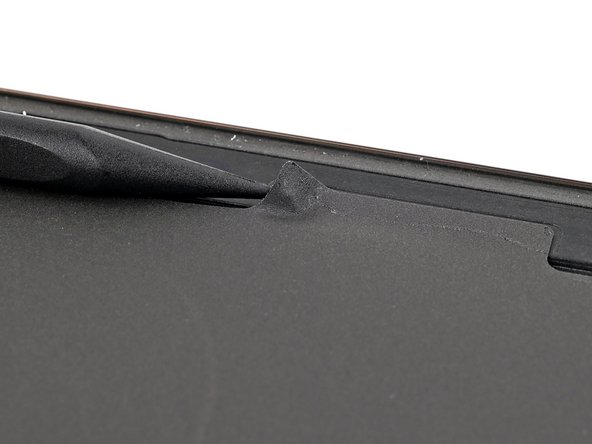
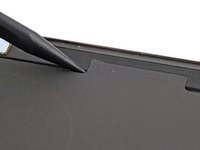
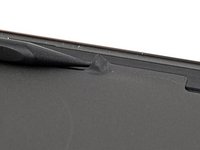
    • Use a spudger to gently pry up a corner of the tab of the wireless charging coil that's adhered to the right edge of the frame.

  19. Interconnect Cables Removal: шаг 19, изображение 1 из 2 Interconnect Cables Removal: шаг 19, изображение 2 из 2
    • Use an opening pick to separate the tab from the frame.

  20. Interconnect Cables Removal, Remove the wireless charging coil and loudspeaker: шаг 20, изображение 1 из 2 Interconnect Cables Removal, Remove the wireless charging coil and loudspeaker: шаг 20, изображение 2 из 2
    • Insert the point of a spudger into the gap between the right edge of the loudspeaker and the frame.

    • There's an arrow engraved in the loudspeaker to indicate the recommended prying location.

    • Pry up to unclip the loudspeaker from the frame.

  21. Interconnect Cables Removal: шаг 21, изображение 1 из 2 Interconnect Cables Removal: шаг 21, изображение 2 из 2
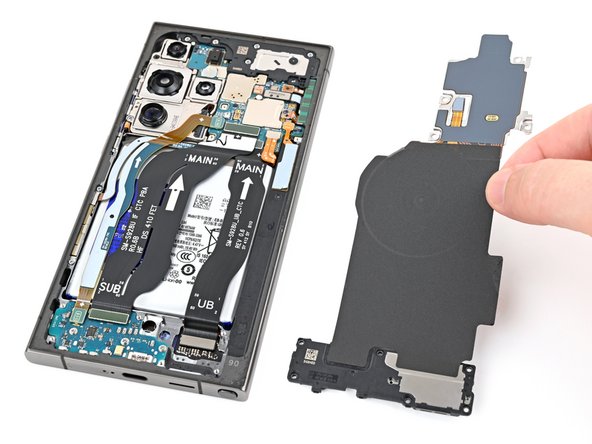
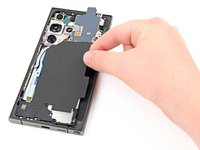
    • Remove the wireless charging coil and loudspeaker from the frame.

    • During reassembly, press around the edges of the loudspeaker to clip it to the frame before reinserting the screws.

  22. Interconnect Cables Removal, Disconnect the battery: шаг 22, изображение 1 из 2 Interconnect Cables Removal, Disconnect the battery: шаг 22, изображение 2 из 2
    • Use a spudger to pry up and disconnect the battery press connector.

  23. Interconnect Cables Removal, Disconnect the interconnect cables: шаг 23, изображение 1 из 3 Interconnect Cables Removal, Disconnect the interconnect cables: шаг 23, изображение 2 из 3 Interconnect Cables Removal, Disconnect the interconnect cables: шаг 23, изображение 3 из 3
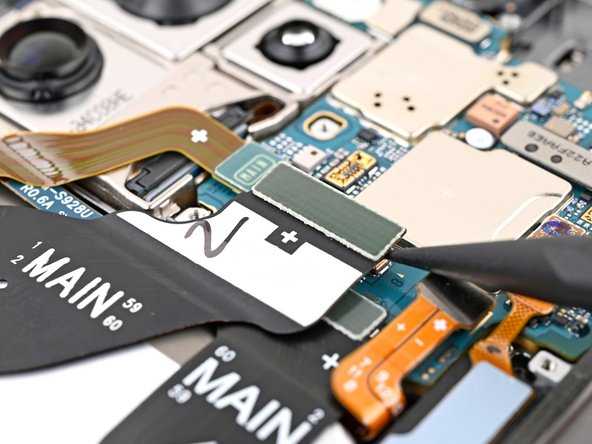
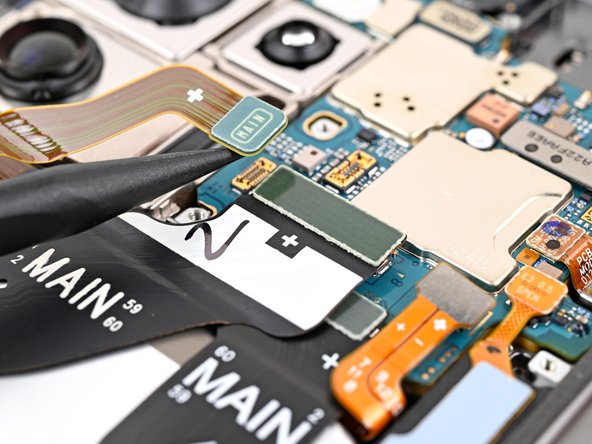
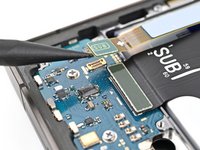
    • Use a spudger to pry up and disconnect both interconnect cable press connectors from the motherboard.

  24. Interconnect Cables Removal: шаг 24, изображение 1 из 3 Interconnect Cables Removal: шаг 24, изображение 2 из 3 Interconnect Cables Removal: шаг 24, изображение 3 из 3
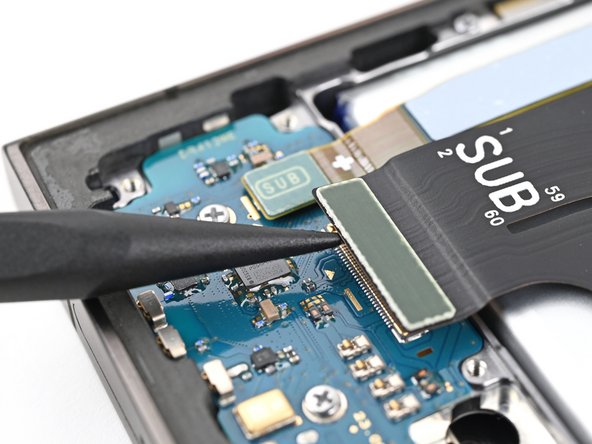
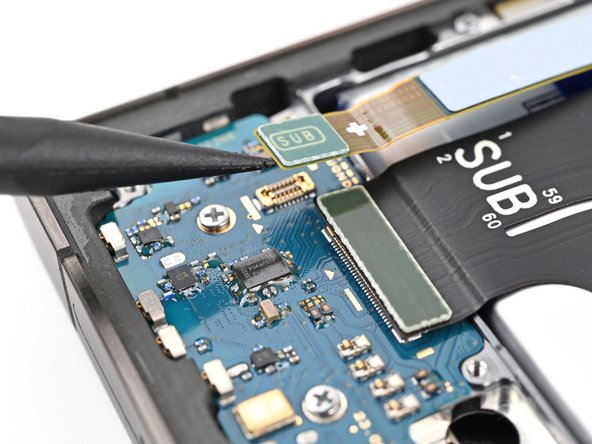
    • Use a spudger to pry up and disconnect both interconnect cable press connectors from the daughterboard.

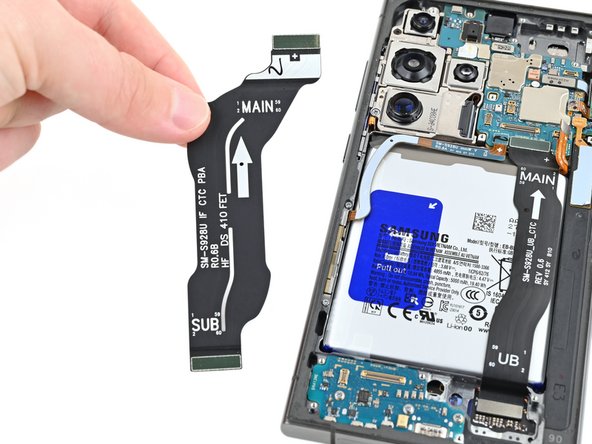
  25. Interconnect Cables Removal, Remove the interconnect cables: шаг 25, изображение 1 из 2 Interconnect Cables Removal, Remove the interconnect cables: шаг 25, изображение 2 из 2
    • Grab and remove the interconnect cables from the phone.

Заключение

To reassemble your device, follow these instructions in reverse order.

Spencer Pennington

Участник с: 09/09/23

23 458 Репутация

Автор 125 руководств

Команда

Guide Team Участник Guide Team

Staff

10 членов

Автор 15 932 руководств

0 Комментарии к руководству

Добавить комментарий

Статистика просмотров:

За последние 24 часов: 0

За последние 7 дней: 0

За последние 30 дней: 3

За всё время: 51