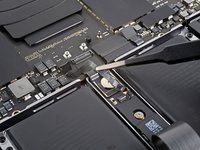
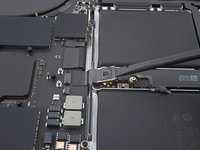
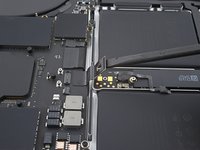
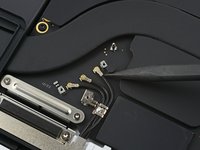
Перейти к основному содержанию
Присоединяйся к сообществу ремонтников - Создай аккаунт
MacBook Pro 16" 2021 Fan Assembly Replacement

Просмотров: 11 тыс.

Просмотр статистики:

За последние 24 часа:
6
За последние 7 дней:
70
За последние 30 дней:
290
За все время:
10 904
Комментарии: 42

38 комментариев к шагам, 4 комментариев к инструкции.

Перейти к комментариям инструкции
Завершено: 3

3 пользователей отметили эту инстркукцию как "завершенное". Вы будете следующим?

Избранные: 1

1 человек поставил лайк на эту инструкцию (и подписался на нее). Вы будете следующим?

Необходимое время: 1 - 2 часов
Сложность: Умеренно
В работе

Это руководство находится в процессе написания. Чтобы видеть последние изменения, периодически обновляйте страницу.

MacBook Pro 16" 2021 Fan Assembly Replacement

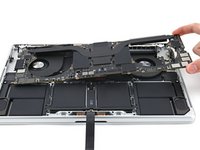
Use this guide to replace one or both of the fans in your MacBook Pro 16" 2021.

Unlike repairs of the same kind, you have to remove the logic board to replace the fans in the MackBook Pro.

For your safety, discharge the battery below 25% before disassembling your MacBook. This reduces the risk of fire if the battery is accidentally damaged during the repair. If your battery is swollen, take appropriate precautions.

Выберете то, что Вам нужно

Запчасти

Инструменты

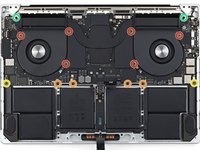
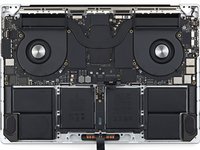
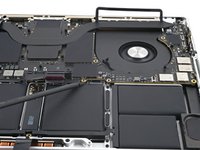
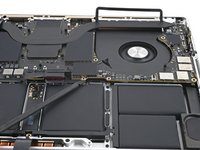
    1. MacBook Pro 16" 2021 Fan Assembly Replacement, Unfasten the lower case: шаг 1, изображение 1 из 2 MacBook Pro 16" 2021 Fan Assembly Replacement, Unfasten the lower case: шаг 1, изображение 2 из 2
      Инструмент, используемый на этом этапе:
      Magnetic Project Mat
      $19.95
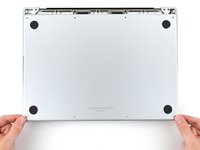
      • Completely power off and unplug your MacBook Pro before you start. Close the display and flip the entire laptop upside-down.

      • Use a P5 Pentalobe driver to remove eight screws securing the lower case:

      • Four 9.1 mm screws

      • Four 5 mm screws

      • Throughout this repair, keep track of each screw and make sure it goes back exactly where it came from to avoid damaging your device.

      Спросите у FixBot

      Добавить комментарий

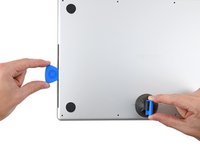
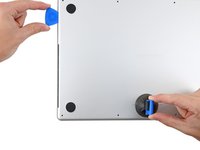
    2. MacBook Pro 16" 2021 Fan Assembly Replacement, Unclip the lower case: шаг 2, изображение 1 из 2 MacBook Pro 16" 2021 Fan Assembly Replacement, Unclip the lower case: шаг 2, изображение 2 из 2
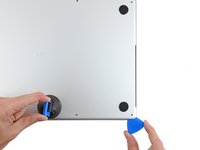
      • Press a suction handle into place near the front edge of the lower case, between the screw holes.

      • Pull up on the suction handle to create a small gap under the lower case.

      Спросите у FixBot

      Добавить комментарий

    3. MacBook Pro 16" 2021 Fan Assembly Replacement, Release the rear cover's right clips: шаг 3, изображение 1 из 3 MacBook Pro 16" 2021 Fan Assembly Replacement, Release the rear cover's right clips: шаг 3, изображение 2 из 3 MacBook Pro 16" 2021 Fan Assembly Replacement, Release the rear cover's right clips: шаг 3, изображение 3 из 3
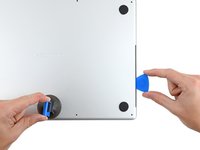
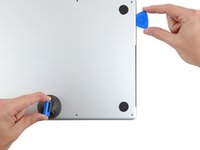
      • Insert an opening pick into the gap you just created.

      • Slide the opening pick around the nearest corner and then halfway up the side of the MacBook Pro.

      • This releases the first of the hidden clips securing the lower case. You should feel and hear the clip pop free.

      Спросите у FixBot

      Добавить комментарий

    4. MacBook Pro 16" 2021 Fan Assembly Replacement, Release the rear cover's left clips: шаг 4, изображение 1 из 3 MacBook Pro 16" 2021 Fan Assembly Replacement, Release the rear cover's left clips: шаг 4, изображение 2 из 3 MacBook Pro 16" 2021 Fan Assembly Replacement, Release the rear cover's left clips: шаг 4, изображение 3 из 3
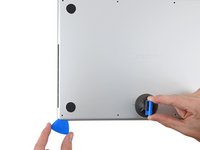
      • Repeat the previous step on the other side, using an opening pick to to release the second clip.

      Спросите у FixBot

      Добавить комментарий

    5. MacBook Pro 16" 2021 Fan Assembly Replacement: шаг 5, изображение 1 из 3 MacBook Pro 16" 2021 Fan Assembly Replacement: шаг 5, изображение 2 из 3 MacBook Pro 16" 2021 Fan Assembly Replacement: шаг 5, изображение 3 из 3
      • Pull firmly to slide the lower case towards the front edge of the MacBook (away from the hinge area) to separate the last of the clips securing the lower case.

      • Pull first at one corner, then the other.

      • Pull to the side—not up.

      • This may require a lot of force.

      Спросите у FixBot

      Добавить комментарий

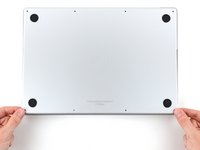
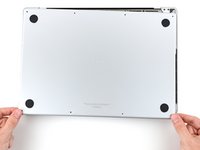
    6. MacBook Pro 16" 2021 Fan Assembly Replacement, Remove the lower case: шаг 6, изображение 1 из 3 MacBook Pro 16" 2021 Fan Assembly Replacement, Remove the lower case: шаг 6, изображение 2 из 3 MacBook Pro 16" 2021 Fan Assembly Replacement, Remove the lower case: шаг 6, изображение 3 из 3
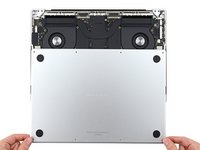
      • Remove the lower case.

      • To reinstall the lower case:

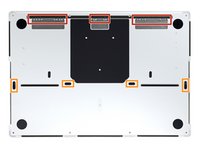
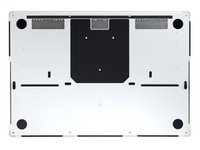
      • Set it in place and align the sliding clips near the display hinge. Press down and slide the cover toward the hinge. It should stop sliding as the clips engage.

      • When the sliding clips are fully engaged and the lower case looks correctly aligned, press down firmly on the lower case to engage the four hidden clips underneath. You should feel and hear them snap into place.

      Спросите у FixBot

      Добавить комментарий

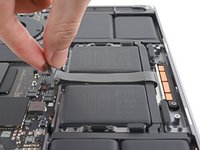
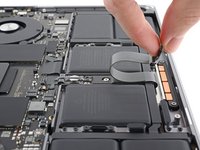
    1. MacBook Pro 16" 2021 Fan Assembly Replacement, Disconnect the battery board: шаг 7, изображение 1 из 3 MacBook Pro 16" 2021 Fan Assembly Replacement, Disconnect the battery board: шаг 7, изображение 2 из 3 MacBook Pro 16" 2021 Fan Assembly Replacement, Disconnect the battery board: шаг 7, изображение 3 из 3
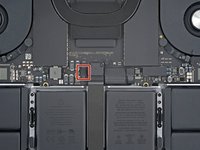
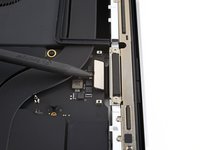
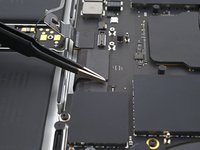
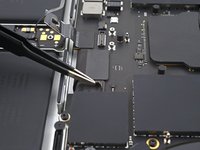
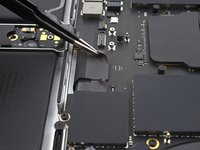
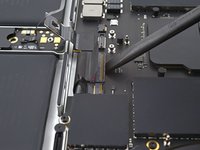
      • Peel back any tape covering the battery board data cable connector on the logic board.

      Спросите у FixBot

      Добавить комментарий

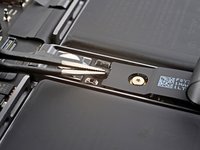
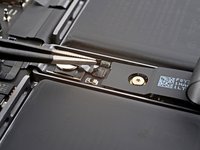
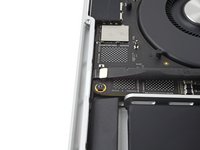
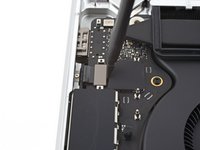
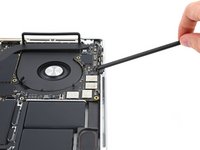
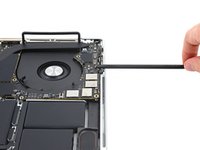
    2. MacBook Pro 16" 2021 Fan Assembly Replacement: шаг 8, изображение 1 из 2 MacBook Pro 16" 2021 Fan Assembly Replacement: шаг 8, изображение 2 из 2
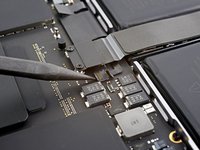
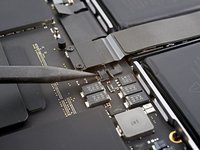
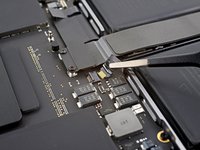
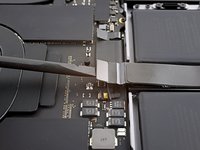
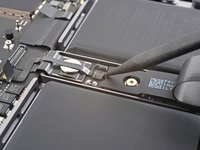
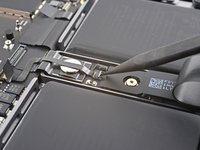
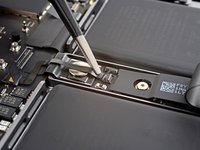
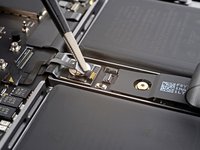
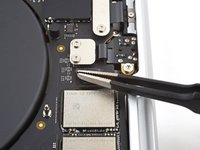
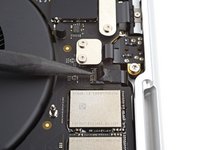
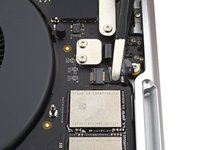
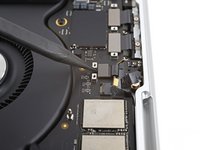
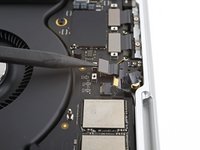
      • Use a spudger to gently pry up the locking flap on the ZIF connector for the battery board data cable.

      Спросите у FixBot

      Добавить комментарий

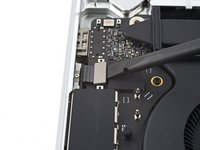
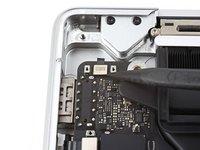
    3. MacBook Pro 16" 2021 Fan Assembly Replacement: шаг 9, изображение 1 из 2 MacBook Pro 16" 2021 Fan Assembly Replacement: шаг 9, изображение 2 из 2
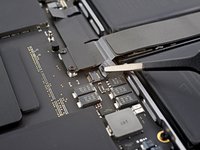
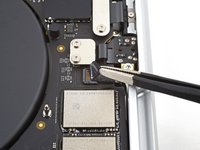
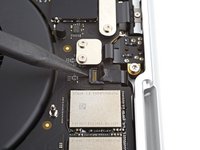
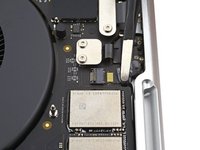
      • Disconnect the battery board data cable by sliding it out from its socket on the logic board.

      Спросите у FixBot

      Добавить комментарий

    4. MacBook Pro 16" 2021 Fan Assembly Replacement, Unfasten the trackpad cable bracket: шаг 10, изображение 1 из 1
      • Use a T3 Torx driver to remove the two 2.1 mm‑long screws securing the trackpad cable bracket to the logic board.

      Спросите у FixBot

      Добавить комментарий

    5. MacBook Pro 16" 2021 Fan Assembly Replacement, Remove the trackpad cable bracket: шаг 11, изображение 1 из 2 MacBook Pro 16" 2021 Fan Assembly Replacement, Remove the trackpad cable bracket: шаг 11, изображение 2 из 2
      Инструмент, используемый на этом этапе:
      Tweezers
      $4.99
      • Use tweezers, or your fingers, to remove the trackpad cable bracket.

      Спросите у FixBot

      Добавить комментарий

    6. MacBook Pro 16" 2021 Fan Assembly Replacement, Disconnect the trackpad cable: шаг 12, изображение 1 из 2 MacBook Pro 16" 2021 Fan Assembly Replacement, Disconnect the trackpad cable: шаг 12, изображение 2 из 2
      • Use the flat end of a spudger to pry up and disconnect the trackpad cable's press connector from the logic board.

      • To re-attach press connectors like this one, carefully align and press down on one side until it clicks into place, then repeat on the other side. Do not press down on the middle. If the connector is misaligned, the pins can bend, causing permanent damage.

      Спросите у FixBot

      Добавить комментарий

    7. MacBook Pro 16" 2021 Fan Assembly Replacement, Reposition the trackpad cable: шаг 13, изображение 1 из 2 MacBook Pro 16" 2021 Fan Assembly Replacement, Reposition the trackpad cable: шаг 13, изображение 2 из 2
      • The trackpad cable is lightly adhered to the frame.

      • Peel the trackpad cable away from the device, making sure to separate the adhesive.

      Спросите у FixBot

      Добавить комментарий

    8. MacBook Pro 16" 2021 Fan Assembly Replacement, Disconnect the battery board: шаг 14, изображение 1 из 2 MacBook Pro 16" 2021 Fan Assembly Replacement, Disconnect the battery board: шаг 14, изображение 2 из 2
      • Peel back any tape covering the battery board data cable connector under the large pancake screw.

      Спросите у FixBot

      Добавить комментарий

    9. MacBook Pro 16" 2021 Fan Assembly Replacement: шаг 15, изображение 1 из 2 MacBook Pro 16" 2021 Fan Assembly Replacement: шаг 15, изображение 2 из 2
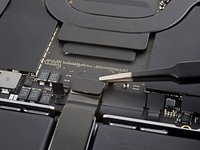
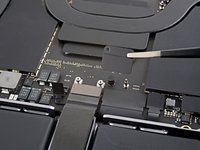
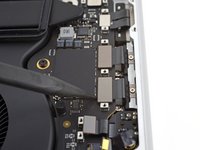
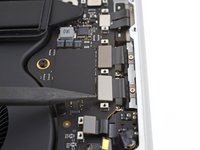
      • Use a spudger to gently pry up the locking flap on the ZIF connector for the battery board data cable.

      Спросите у FixBot

      Добавить комментарий

    10. MacBook Pro 16" 2021 Fan Assembly Replacement: шаг 16, изображение 1 из 2 MacBook Pro 16" 2021 Fan Assembly Replacement: шаг 16, изображение 2 из 2
      • Disconnect the battery board data cable by sliding it out from its socket on the battery board.

      Спросите у FixBot

      Добавить комментарий

    11. MacBook Pro 16" 2021 Fan Assembly Replacement, Remove the data cable: шаг 17, изображение 1 из 2 MacBook Pro 16" 2021 Fan Assembly Replacement, Remove the data cable: шаг 17, изображение 2 из 2
      • The battery board data cable is lightly adhered to the device.

      • Slide blunt nose tweezers under areas with adhesive to separate the cable from the device.

      • Remove the battery board data cable.

      Спросите у FixBot

      Добавить комментарий

    12. MacBook Pro 16" 2021 Fan Assembly Replacement, Unfasten the battery connector: шаг 18, изображение 1 из 1
      • Use a T5 Torx driver to remove the 3.9 mm pancake screw securing the battery power connector.

      Спросите у FixBot

      Добавить комментарий

    13. MacBook Pro 16" 2021 Fan Assembly Replacement, Disconnect the battery connector: шаг 19, изображение 1 из 2 MacBook Pro 16" 2021 Fan Assembly Replacement, Disconnect the battery connector: шаг 19, изображение 2 из 2
      • Use a spudger to lift the battery power connector, disconnecting the battery.

      • Lift the connector high enough to keep it separated from its socket while you work. If it accidentally makes contact, it could damage your MacBook Pro.

      Спросите у FixBot

      Добавить комментарий

    1. Внимание: шаги 20-54 взяты из руководства, помеченного как незавершенное.

      MacBook Pro 16" 2021 Fan Assembly Replacement, Unfasten the antenna bar's connector bracket: шаг 20, изображение 1 из 2 MacBook Pro 16" 2021 Fan Assembly Replacement, Unfasten the antenna bar's connector bracket: шаг 20, изображение 2 из 2
      • Use a T3 Torx screwdriver to remove the three 2.1 mm screws securing the antenna board bracket and coaxial cable cover to the frame.

      Спросите у FixBot

      Добавить комментарий

    2. MacBook Pro 16" 2021 Fan Assembly Replacement: шаг 21, изображение 1 из 2 MacBook Pro 16" 2021 Fan Assembly Replacement: шаг 21, изображение 2 из 2
      Инструмент, используемый на этом этапе:
      Tweezers
      $4.99
      • Use tweezers, or your fingers, to remove the cover on top of the antenna bar's coaxial cables.

      Спросите у FixBot

      Добавить комментарий

    3. MacBook Pro 16" 2021 Fan Assembly Replacement, Disconnect the antenna bar: шаг 22, изображение 1 из 2 MacBook Pro 16" 2021 Fan Assembly Replacement, Disconnect the antenna bar: шаг 22, изображение 2 из 2
      • Use the tip of a spudger to pry up and disconnect the antenna bar's coaxial cable.

      • Repeat for the two other cables.

      • During reassembly, these can be tricky to reconnect. Hold each connector in place over its socket and press down with the flat end of a spudger. The connector should snap into place.

      Спросите у FixBot

      Добавить комментарий

    4. MacBook Pro 16" 2021 Fan Assembly Replacement, Unfasten the display cable covers: шаг 23, изображение 1 из 2 MacBook Pro 16" 2021 Fan Assembly Replacement, Unfasten the display cable covers: шаг 23, изображение 2 из 2
      • Use a T3 Torx driver to remove the four 2.1 mm screws securing the display cable covers.

      Спросите у FixBot

      Добавить комментарий

    5. MacBook Pro 16" 2021 Fan Assembly Replacement, Remove the display cable covers: шаг 24, изображение 1 из 2 MacBook Pro 16" 2021 Fan Assembly Replacement, Remove the display cable covers: шаг 24, изображение 2 из 2
      • Use tweezers, or your fingers, to remove the two display cable covers from the logic board.

      Спросите у FixBot

      Добавить комментарий

    6. MacBook Pro 16" 2021 Fan Assembly Replacement, Disconnect the display cables: шаг 25, изображение 1 из 3 MacBook Pro 16" 2021 Fan Assembly Replacement, Disconnect the display cables: шаг 25, изображение 2 из 3 MacBook Pro 16" 2021 Fan Assembly Replacement, Disconnect the display cables: шаг 25, изображение 3 из 3
      • Use the flat end of a spudger to pry up and disconnect the two right-most display cable press connectors secured to the logic board.

      Спросите у FixBot

      Добавить комментарий

    7. MacBook Pro 16" 2021 Fan Assembly Replacement: шаг 26, изображение 1 из 2 MacBook Pro 16" 2021 Fan Assembly Replacement: шаг 26, изображение 2 из 2
      • Repeat the previous disconnection process for the remaining press connector.

      Спросите у FixBot

      Добавить комментарий

    8. MacBook Pro 16" 2021 Fan Assembly Replacement: шаг 27, изображение 1 из 2 MacBook Pro 16" 2021 Fan Assembly Replacement: шаг 27, изображение 2 из 2
      • Peel back any tape covering the microphone cable connector.

      Спросите у FixBot

      Добавить комментарий

    9. MacBook Pro 16" 2021 Fan Assembly Replacement: шаг 28, изображение 1 из 2 MacBook Pro 16" 2021 Fan Assembly Replacement: шаг 28, изображение 2 из 2
      • Use a spudger to gently pry up the locking flap on the ZIF connector for the microphone cable.

      Спросите у FixBot

      Добавить комментарий

    10. MacBook Pro 16" 2021 Fan Assembly Replacement: шаг 29, изображение 1 из 2 MacBook Pro 16" 2021 Fan Assembly Replacement: шаг 29, изображение 2 из 2
      • Disconnect the microphone cable by sliding it out from its socket on the logic board.

      Спросите у FixBot

      Добавить комментарий

    11. MacBook Pro 16" 2021 Fan Assembly Replacement, Unfasten the right-side cable covers: шаг 30, изображение 1 из 2 MacBook Pro 16" 2021 Fan Assembly Replacement, Unfasten the right-side cable covers: шаг 30, изображение 2 из 2
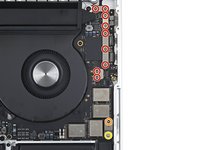
      • Use a T3 Torx driver to remove the 11 screws securing the right cable covers to the frame:

      • Nine 2.1 mm screws

      • One 2 mm screw

      • One 3.5 mm screw

      Спросите у FixBot

      Добавить комментарий

    12. MacBook Pro 16" 2021 Fan Assembly Replacement, Remove the right cable covers: шаг 31, изображение 1 из 2 MacBook Pro 16" 2021 Fan Assembly Replacement, Remove the right cable covers: шаг 31, изображение 2 из 2
      • Use tweezers, or your fingers, to remove the five right cable covers.

      Спросите у FixBot

      Добавить комментарий

    13. MacBook Pro 16" 2021 Fan Assembly Replacement, Disconnect the right speaker: шаг 32, изображение 1 из 2 MacBook Pro 16" 2021 Fan Assembly Replacement, Disconnect the right speaker: шаг 32, изображение 2 из 2
      • Use the flat end of a spudger to pry up and disconnect the right speaker's press connector.

      Спросите у FixBot

      Добавить комментарий

    14. MacBook Pro 16" 2021 Fan Assembly Replacement, Disconnect the headphone jack: шаг 33, изображение 1 из 2 MacBook Pro 16" 2021 Fan Assembly Replacement, Disconnect the headphone jack: шаг 33, изображение 2 из 2
      • Use a spudger to pry up and disconnect the headphone jack's press connector.

      Спросите у FixBot

      Добавить комментарий

    15. MacBook Pro 16" 2021 Fan Assembly Replacement, Disconnect the right USB-C ports: шаг 34, изображение 1 из 3 MacBook Pro 16" 2021 Fan Assembly Replacement, Disconnect the right USB-C ports: шаг 34, изображение 2 из 3 MacBook Pro 16" 2021 Fan Assembly Replacement, Disconnect the right USB-C ports: шаг 34, изображение 3 из 3
      • Use a spudger to pry up and disconnect the right USB-C ports' two press connectors.

      Спросите у FixBot

      Добавить комментарий

    16. MacBook Pro 16" 2021 Fan Assembly Replacement, Disconnect the MagSafe port: шаг 35, изображение 1 из 2 MacBook Pro 16" 2021 Fan Assembly Replacement, Disconnect the MagSafe port: шаг 35, изображение 2 из 2
      • Use a spudger to pry up and disconnect the MagSafe port's press connector.

      Спросите у FixBot

      Добавить комментарий

    17. MacBook Pro 16" 2021 Fan Assembly Replacement, Disconnect the lid angle sensor cable: шаг 36, изображение 1 из 2 MacBook Pro 16" 2021 Fan Assembly Replacement, Disconnect the lid angle sensor cable: шаг 36, изображение 2 из 2
      • Use a spudger to pry up and disconnect the lid angle sensor's press connector.

      Спросите у FixBot

      Добавить комментарий

    18. MacBook Pro 16" 2021 Fan Assembly Replacement, Unfasten the left cable covers: шаг 37, изображение 1 из 2 MacBook Pro 16" 2021 Fan Assembly Replacement, Unfasten the left cable covers: шаг 37, изображение 2 из 2
      • Use a T3 Torx driver to remove the six screws securing the left cable covers to the frame:

      • Four 2.1 mm screws

      • One 2 mm screw

      • One 3.6 mm screw

      Спросите у FixBot

      Добавить комментарий

    19. MacBook Pro 16" 2021 Fan Assembly Replacement, Remove the left cable covers: шаг 38, изображение 1 из 1
      • Use tweezers, or your fingers, to remove the three left cable covers.

      Спросите у FixBot

      Добавить комментарий

    20. MacBook Pro 16" 2021 Fan Assembly Replacement, Disconnect the left speaker: шаг 39, изображение 1 из 2 MacBook Pro 16" 2021 Fan Assembly Replacement, Disconnect the left speaker: шаг 39, изображение 2 из 2
      • Use the flat end of a spudger to pry up and disconnect the left speaker's press connector.

      Спросите у FixBot

      Добавить комментарий

    21. MacBook Pro 16" 2021 Fan Assembly Replacement, Disconnect the left USB-C port: шаг 40, изображение 1 из 2 MacBook Pro 16" 2021 Fan Assembly Replacement, Disconnect the left USB-C port: шаг 40, изображение 2 из 2
      • Use a spudger to pry up and disconnect the left USB-C port's press connector.

      Спросите у FixBot

      Добавить комментарий

    22. MacBook Pro 16" 2021 Fan Assembly Replacement, Disconnect the Touch ID sensor: шаг 41, изображение 1 из 2 MacBook Pro 16" 2021 Fan Assembly Replacement, Disconnect the Touch ID sensor: шаг 41, изображение 2 из 2
      • Use a spudger to pry up and disconnect the Touch ID sensor's press connector.

      Спросите у FixBot

      Добавить комментарий

    23. MacBook Pro 16" 2021 Fan Assembly Replacement, Disconnect the keyboard: шаг 42, изображение 1 из 3 MacBook Pro 16" 2021 Fan Assembly Replacement, Disconnect the keyboard: шаг 42, изображение 2 из 3 MacBook Pro 16" 2021 Fan Assembly Replacement, Disconnect the keyboard: шаг 42, изображение 3 из 3
      Спросите у FixBot

      Добавить комментарий

    24. MacBook Pro 16" 2021 Fan Assembly Replacement: шаг 43, изображение 1 из 3 MacBook Pro 16" 2021 Fan Assembly Replacement: шаг 43, изображение 2 из 3 MacBook Pro 16" 2021 Fan Assembly Replacement: шаг 43, изображение 3 из 3
      • Use a spudger to gently pry up the locking flap on the two ZIF connectors for the keyboard cables.

      Спросите у FixBot

      Добавить комментарий

    25. MacBook Pro 16" 2021 Fan Assembly Replacement: шаг 44, изображение 1 из 3 MacBook Pro 16" 2021 Fan Assembly Replacement: шаг 44, изображение 2 из 3 MacBook Pro 16" 2021 Fan Assembly Replacement: шаг 44, изображение 3 из 3
      • Disconnect the keyboard and keyboard backlight cables by sliding them out from their sockets on the logic board.

      Спросите у FixBot

      Добавить комментарий

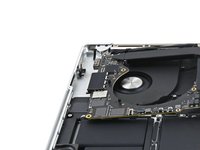
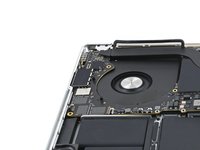
    26. MacBook Pro 16" 2021 Fan Assembly Replacement, Disconnect the fans: шаг 45, изображение 1 из 3 MacBook Pro 16" 2021 Fan Assembly Replacement, Disconnect the fans: шаг 45, изображение 2 из 3 MacBook Pro 16" 2021 Fan Assembly Replacement, Disconnect the fans: шаг 45, изображение 3 из 3
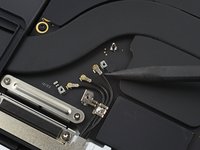
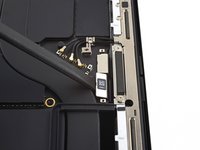
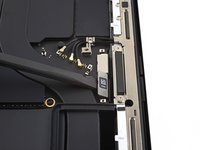
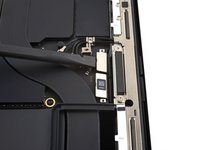
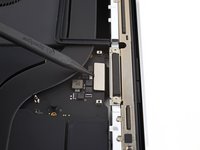
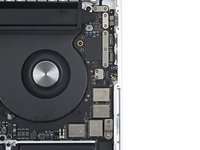
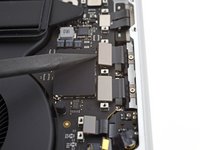
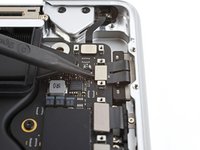
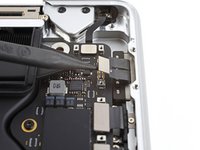
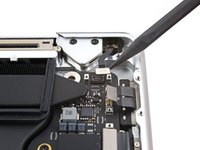
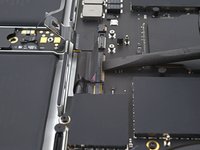
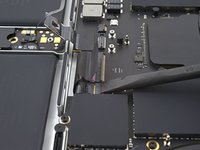
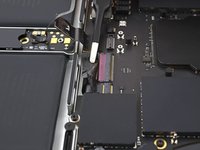
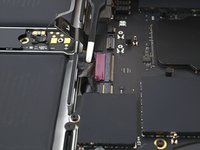
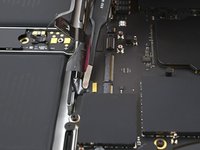
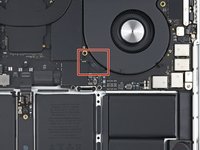
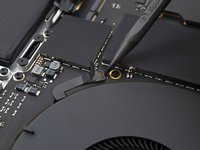
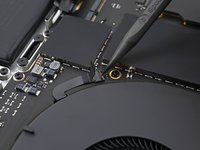
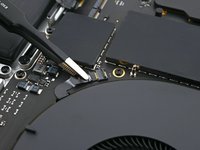
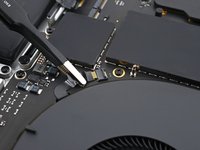
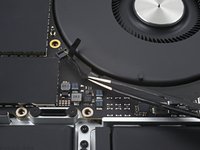
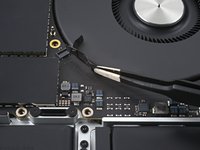
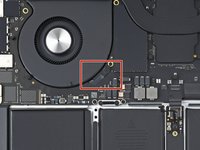
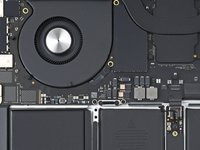
      • Peel back any tape covering the right fan cable connector.

      Спросите у FixBot

      Добавить комментарий

    27. MacBook Pro 16" 2021 Fan Assembly Replacement: шаг 46, изображение 1 из 2 MacBook Pro 16" 2021 Fan Assembly Replacement: шаг 46, изображение 2 из 2
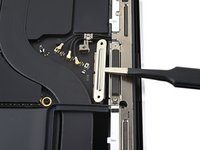
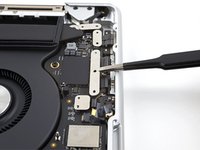
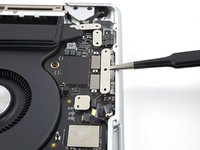
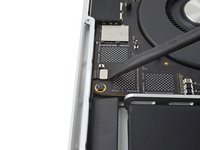
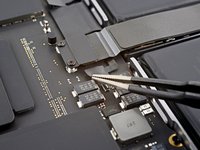
      • Use a spudger to gently pry up the locking flap on the ZIF connector for the right fan cable.

      Спросите у FixBot

      Добавить комментарий

    28. MacBook Pro 16" 2021 Fan Assembly Replacement: шаг 47, изображение 1 из 2 MacBook Pro 16" 2021 Fan Assembly Replacement: шаг 47, изображение 2 из 2
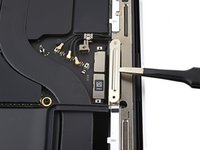
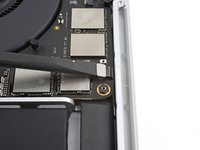
      • Disconnect the right fan cable by sliding it out from its socket on the logic board.

      Спросите у FixBot

      Добавить комментарий

    29. MacBook Pro 16" 2021 Fan Assembly Replacement, Reposition the right fan cable: шаг 48, изображение 1 из 2 MacBook Pro 16" 2021 Fan Assembly Replacement, Reposition the right fan cable: шаг 48, изображение 2 из 2
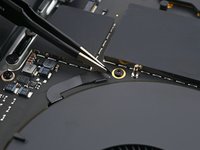
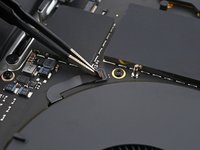
      • The right fan cable is lightly adhered to the logic board.

      • Pull the fan cable away from the logic board with tweezers to separate the adhesive.

      • The fan cables are incredibly delicate and prone to tearing; use caution when bending them with tools.

      Спросите у FixBot

      Добавить комментарий

    30. MacBook Pro 16" 2021 Fan Assembly Replacement: шаг 49, изображение 1 из 2 MacBook Pro 16" 2021 Fan Assembly Replacement: шаг 49, изображение 2 из 2
      • Repeat the previous disconnection and reposition procedure for the left fan cable.

      Спросите у FixBot

      Добавить комментарий

    31. MacBook Pro 16" 2021 Fan Assembly Replacement, Unfasten the logic board: шаг 50, изображение 1 из 2 MacBook Pro 16" 2021 Fan Assembly Replacement, Unfasten the logic board: шаг 50, изображение 2 из 2
      • Use a T5 Torx driver to remove the ten screws securing the logic board to the frame:

      • Six 3.8 mm screws

      • Four 4.6 mm screws

      • Use a 4 mm Hex nut driver to remove the two 6 mm screws securing the logic board to the frame.

      • Use a T6 Torx driver to remove the two 6 mm screws securing the heat sink to the logic board and frame.

      Спросите у FixBot

      Добавить комментарий

    32. MacBook Pro 16" 2021 Fan Assembly Replacement, Release the logic board's clips: шаг 51, изображение 1 из 2 MacBook Pro 16" 2021 Fan Assembly Replacement, Release the logic board's clips: шаг 51, изображение 2 из 2
      • Insert a spudger between the right side of the logic board and the frame.

      • Pry up with the spudger to release the logic board from its clips.

      Спросите у FixBot

      Добавить комментарий

    33. MacBook Pro 16" 2021 Fan Assembly Replacement: шаг 52, изображение 1 из 2 MacBook Pro 16" 2021 Fan Assembly Replacement: шаг 52, изображение 2 из 2
      • Insert a spudger between the bottom of the logic board and the frame.

      • Pry up with the spudger to release the logic board from its clips.

      Спросите у FixBot

      Добавить комментарий

    34. MacBook Pro 16" 2021 Fan Assembly Replacement, Remove the logic board: шаг 53, изображение 1 из 3 MacBook Pro 16" 2021 Fan Assembly Replacement, Remove the logic board: шаг 53, изображение 2 из 3 MacBook Pro 16" 2021 Fan Assembly Replacement, Remove the logic board: шаг 53, изображение 3 из 3
      • Gently lift up the logic board by its right side to completely release the clips.

      • If it feels like it's not coming out, check that all the cables are disconnected.

      • Pull the logic board away from the left side of the device to separate the HDMI and SDXC ports from their slots in the frame.

      • Remove the logic board.

      Спросите у FixBot

      Добавить комментарий

    35. MacBook Pro 16" 2021 Fan Assembly Replacement, Reassembly information: шаг 54, изображение 1 из 3 MacBook Pro 16" 2021 Fan Assembly Replacement, Reassembly information: шаг 54, изображение 2 из 3 MacBook Pro 16" 2021 Fan Assembly Replacement, Reassembly information: шаг 54, изображение 3 из 3
      • When reinstalling the logic board, insert the left side first to reposition the HMDI and SDXC ports.

      • Use your fingers to slightly compress the HDMI port to fit it into its recess. Otherwise, the logic board won't sit correctly.

      • Make sure all of the connectors are above the logic board before securing it back into the frame.

      • If you're having trouble positioning the connectors, use tape to keep them out of the way.

      Спросите у FixBot

      Добавить комментарий

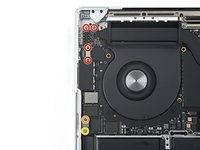
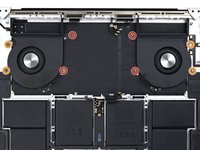
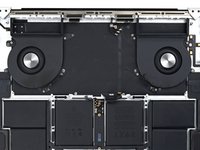
    1. MacBook Pro 16" 2021 Fan Assembly Replacement, Remove the screw covers: шаг 55, изображение 1 из 3 MacBook Pro 16" 2021 Fan Assembly Replacement, Remove the screw covers: шаг 55, изображение 2 из 3 MacBook Pro 16" 2021 Fan Assembly Replacement, Remove the screw covers: шаг 55, изображение 3 из 3
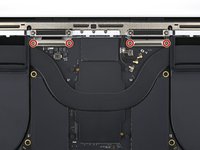
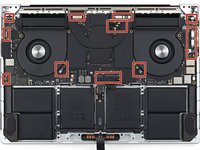
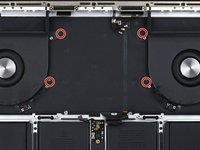
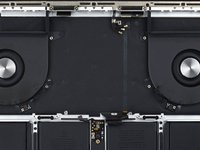
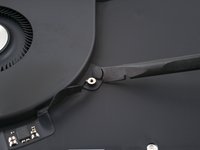
      • Use a spudger to remove the four screw covers.

      Спросите у FixBot

      Добавить комментарий

    2. MacBook Pro 16" 2021 Fan Assembly Replacement, Separate the adhesive: шаг 56, изображение 1 из 3 MacBook Pro 16" 2021 Fan Assembly Replacement, Separate the adhesive: шаг 56, изображение 2 из 3 MacBook Pro 16" 2021 Fan Assembly Replacement, Separate the adhesive: шаг 56, изображение 3 из 3
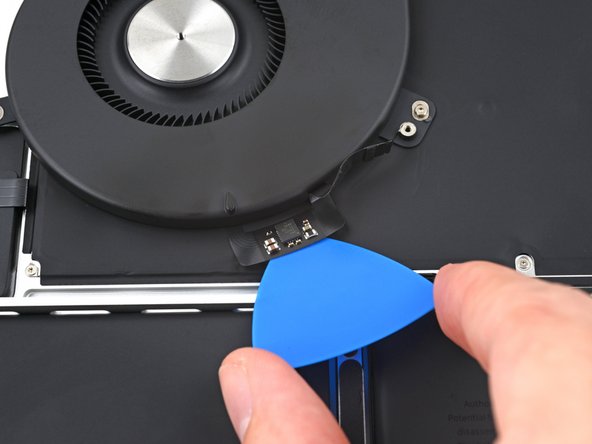
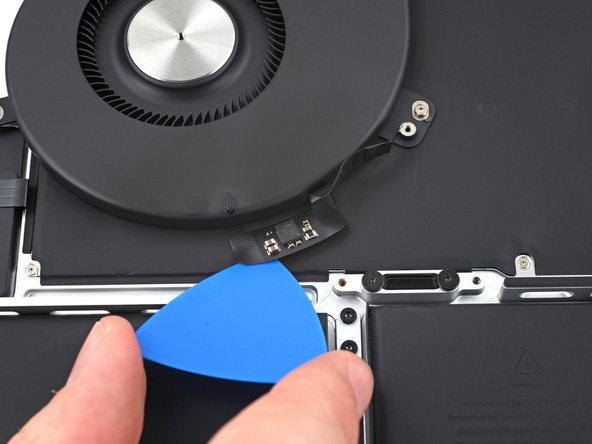
      • Both of the fans' cables are lightly adhered to the frame.

      • Insert the tip of an opening pick between the fan's cable and the frame.

      • Slice with the pick along the edges of the cable to separate the adhesive.

      Спросите у FixBot

      Добавить комментарий

    3. MacBook Pro 16" 2021 Fan Assembly Replacement, Unfasten the fans: шаг 57, изображение 1 из 2 MacBook Pro 16" 2021 Fan Assembly Replacement, Unfasten the fans: шаг 57, изображение 2 из 2
      • Use a Torx driver to remove the following screws securing the fans to the frame:

      • Four 3.3 mm T3 screws

      • Four 3 mm T5 screws

      Спросите у FixBot

      Добавить комментарий

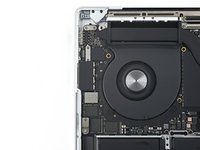
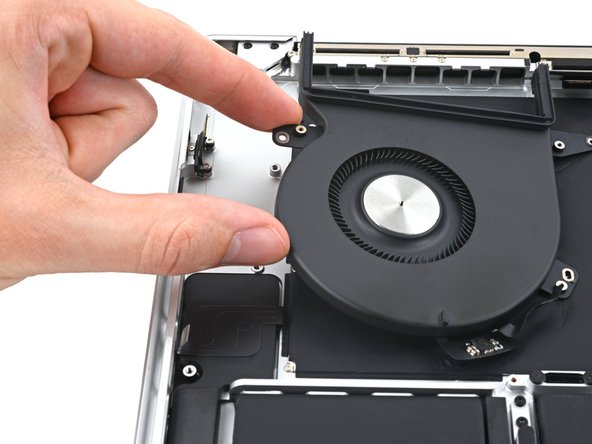
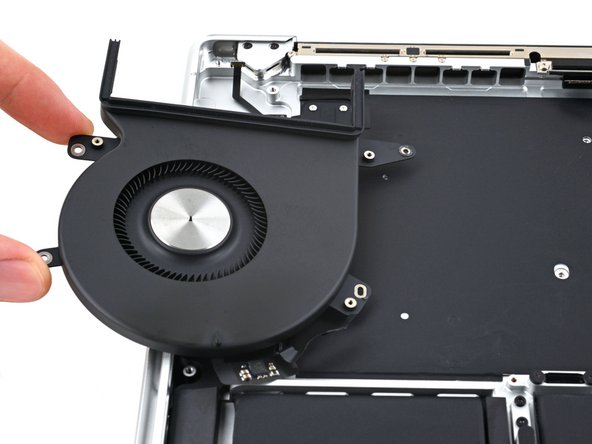
    4. MacBook Pro 16" 2021 Fan Assembly Replacement, Remove the fans: шаг 58, изображение 1 из 3 MacBook Pro 16" 2021 Fan Assembly Replacement, Remove the fans: шаг 58, изображение 2 из 3 MacBook Pro 16" 2021 Fan Assembly Replacement, Remove the fans: шаг 58, изображение 3 из 3
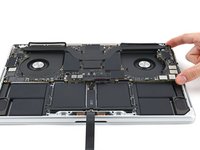
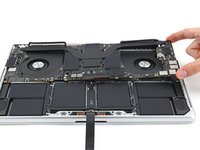
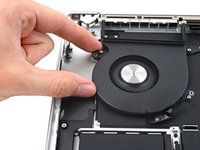
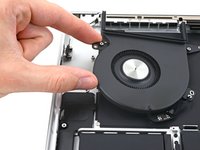
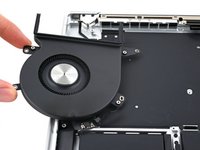
      • Remove the fans.

      Спросите у FixBot

      Добавить комментарий

Заключение

To reassemble your device, follow these instructions in reverse order.

Compare your new replacement part to the original part—you may need to transfer remaining components or remove adhesive backings from the new part before you install it.

Repair didn’t go as planned? Try some basic troubleshooting, or ask our MacBook Pro 16" 2021 Answers community for help.

Отменить: Я не выполнил это руководство.

3 человек успешно провели ремонт по этому руководству.

Alex Diaz-Kokaisl

Участник с: 01/16/22

250 935 Репутация

Автор 1 200 руководств

Команду

Guide Team Участник Guide Team

Staff

10 членов

Автор 62 132 руководств

4 Комментарии к руководству

Hello!

While doing this process I accidentally broke the locking flap of the fan (step 46), and after turning on, the fan is not working. Apple diagnostics gives ppf004, ppf001, ppf003.

Is there a way to replace the locking flap?

German robayo - Ответить Поделиться
Hi there.

There is a way to replace the locking flap, but it's rather hard. Here's a guide on how to do the procedure, and here's some extra info and possible alternatives. Let us know how it goes! Good luck!

Alex Diaz-Kokaisl - Ответить Поделиться

Do you need to put the screw covers back on after replacing the fan or is it ok if you forgot to put them on ? Sorry for the basic question I just want to make sure .

Jacob Leffler - Ответить Поделиться

Hello! While attempting to screw a 2mm T3 screw back after completing my repair, it snapped in half. The tip is stick inside the thread and the head fell out, which means the cable cover is loose (see steps 37 and 38). Is there any way I can remove this screw? The hole is so small I can't even get a thin-tipped tweezer in there. Also, once removed, where can I get a replacement screw from? Thank you.

Vikrant - Ответить Поделиться

Добавить комментарий

Статистика просмотров:

За последние 24 часов: 6

За последние 7 дней: 70

За последние 30 дней: 290

За все время: 10,904