Перейти к основному содержанию
Присоединяйся к сообществу ремонтников - Создай аккаунт
Motherboard Removal

Абсолютно необходимое руководство
Это руководство только для предварительной подготовки! Этот гайд является частью другой процедуры и не предназначен для самостоятельного использования.

Выберете то, что вам нужно

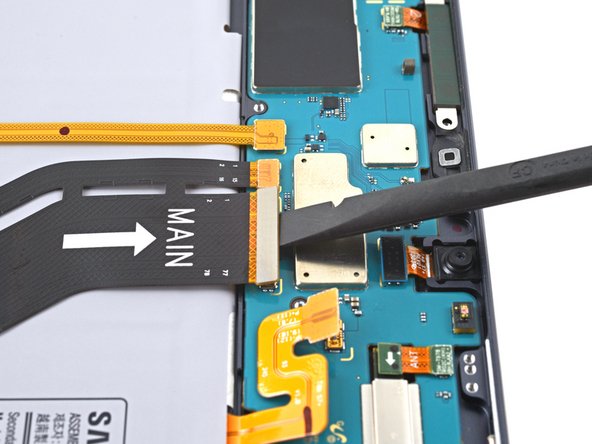
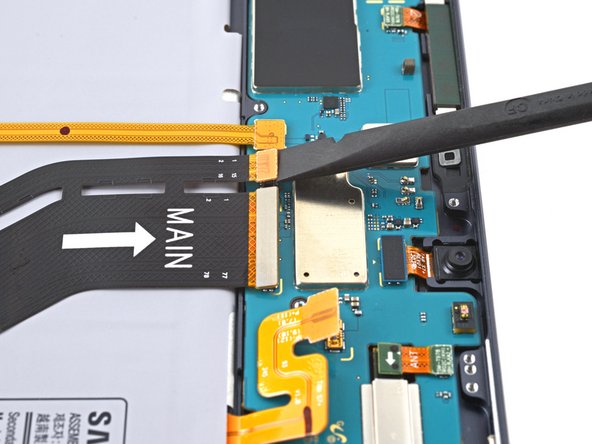
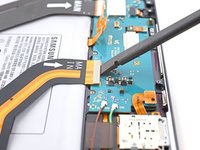
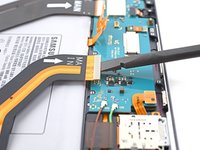
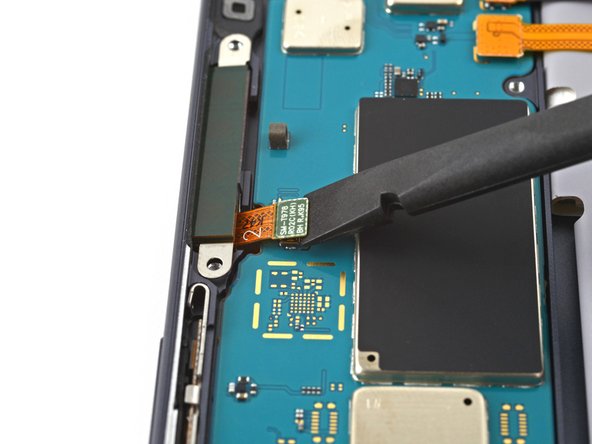
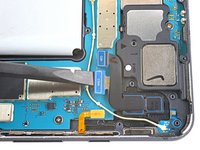
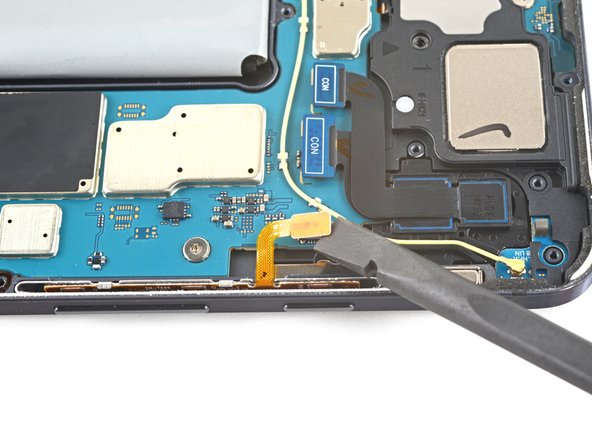
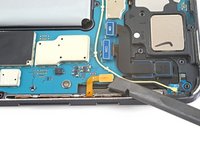
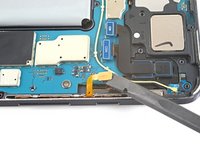
  1. Motherboard Removal, Disconnect the display cable: шаг 1, изображение 1 из 3 Motherboard Removal, Disconnect the display cable: шаг 1, изображение 2 из 3 Motherboard Removal, Disconnect the display cable: шаг 1, изображение 3 из 3
    • Use the flat end of a spudger to pry up and disconnect the display cable's press connector secured to the motherboard.

    • Repeat for the fingerprint sensor cable attached to display cable.

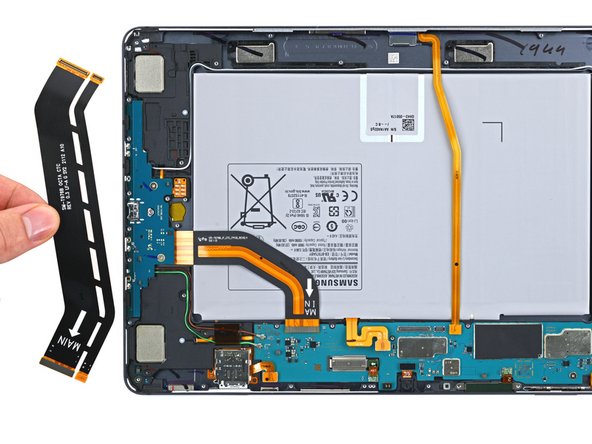
  2. Motherboard Removal, Remove the display cable: шаг 2, изображение 1 из 2 Motherboard Removal, Remove the display cable: шаг 2, изображение 2 из 2
    • Use your fingers to remove the display cable.

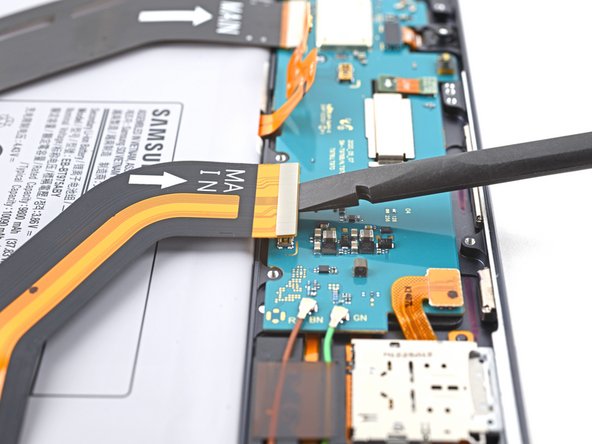
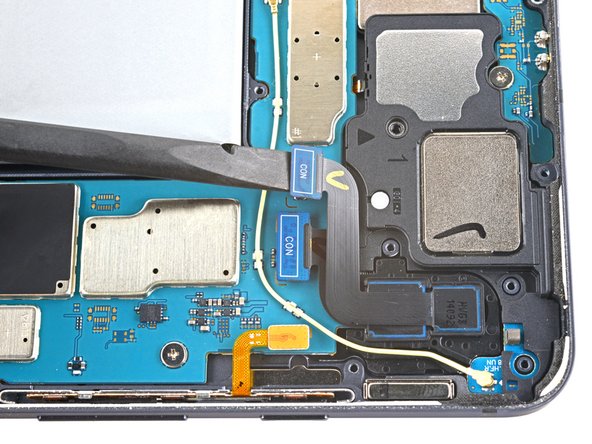
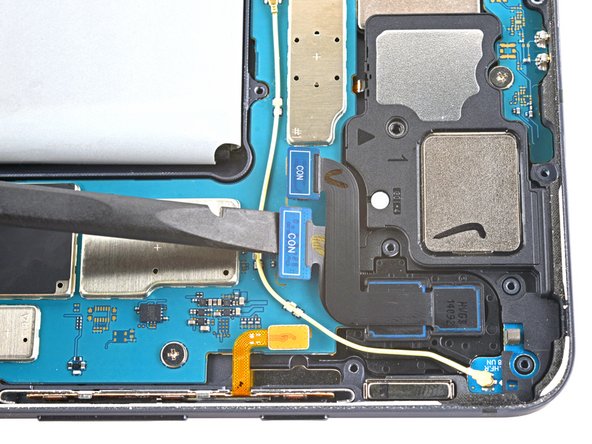
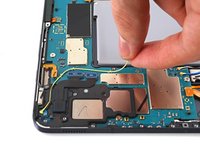
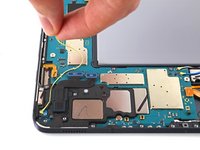
  3. Motherboard Removal, Disconnect the daughterboard interconnect cable: шаг 3, изображение 1 из 2 Motherboard Removal, Disconnect the daughterboard interconnect cable: шаг 3, изображение 2 из 2
    • Use the flat end of a spudger to pry up and disconnect the daughterboard interconnect cable's press connector secured to the motherboard.

  4. Motherboard Removal, Disconnect the keyboard dock port cable: шаг 4, изображение 1 из 2 Motherboard Removal, Disconnect the keyboard dock port cable: шаг 4, изображение 2 из 2
    • Use the flat end of a spudger to pry up and disconnect the keyboard dock port cable's press connector secured to the motherboard.

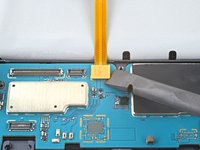
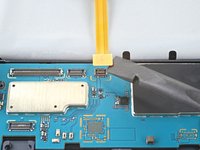
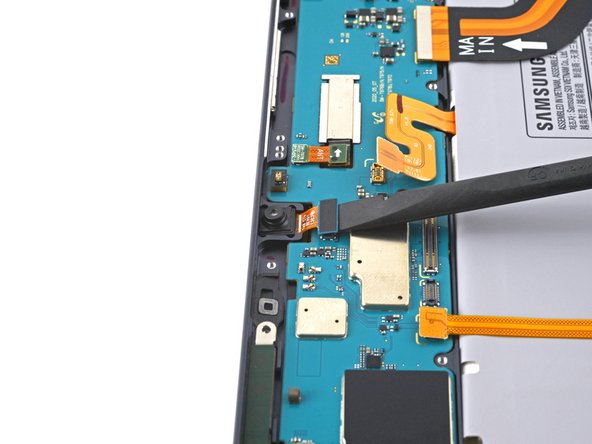
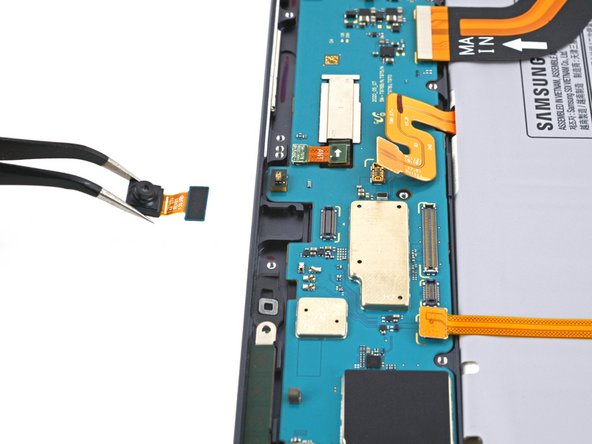
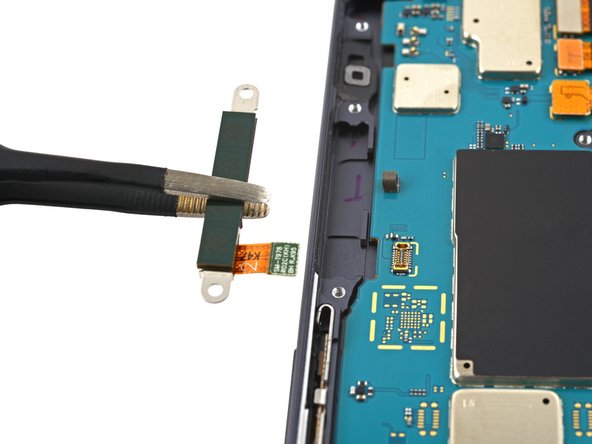
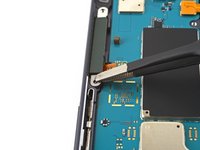
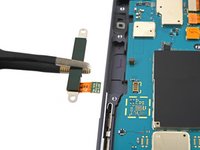
  5. Motherboard Removal, Remove the front camera: шаг 5, изображение 1 из 3 Motherboard Removal, Remove the front camera: шаг 5, изображение 2 из 3 Motherboard Removal, Remove the front camera: шаг 5, изображение 3 из 3
    Инструмент, используемый на этом этапе:
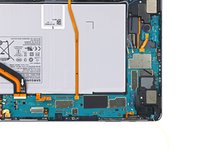
    Tweezers
    $4.99
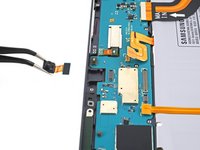
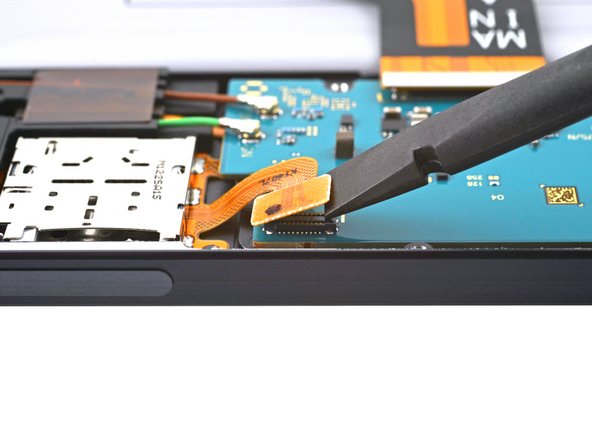
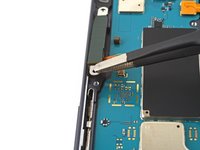
    • Use the flat end of a spudger to pry up and disconnect the front camera's press connector secured to the motherboard.

    • Use tweezers, or your fingers, to remove the front camera.

  6. Motherboard Removal, Disconnect the microSD card reader: шаг 6, изображение 1 из 2 Motherboard Removal, Disconnect the microSD card reader: шаг 6, изображение 2 из 2
    • Use the flat end of a spudger to pry up and disconnect the microSD card reader's press connector secured to the motherboard.

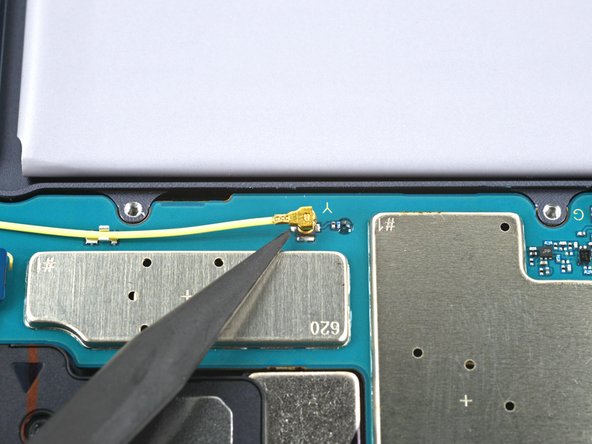
  7. Motherboard Removal, Disconnect the 5G antenna: шаг 7, изображение 1 из 2 Motherboard Removal, Disconnect the 5G antenna: шаг 7, изображение 2 из 2
    • Use the flat end of a spudger to pry up and disconnect the 5G antenna's press connector secured to the motherboard.

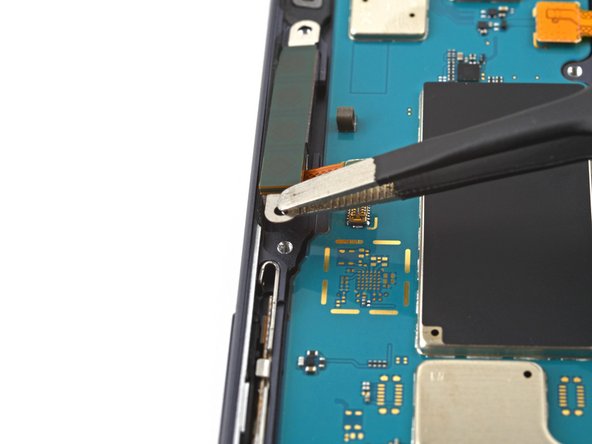
  8. Motherboard Removal, Remove the 5G antenna: шаг 8, изображение 1 из 3 Motherboard Removal, Remove the 5G antenna: шаг 8, изображение 2 из 3 Motherboard Removal, Remove the 5G antenna: шаг 8, изображение 3 из 3
    • Use tweezers to pull the antenna out of the frame by its bracket.

    • Remove the 5G antenna.

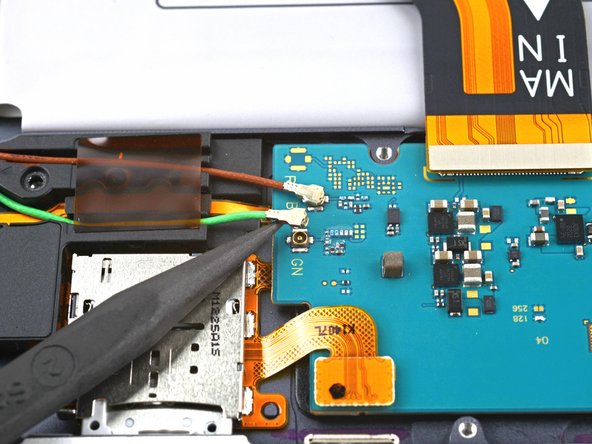
  9. Motherboard Removal, Disconnect the left coaxial cables: шаг 9, изображение 1 из 3 Motherboard Removal, Disconnect the left coaxial cables: шаг 9, изображение 2 из 3 Motherboard Removal, Disconnect the left coaxial cables: шаг 9, изображение 3 из 3
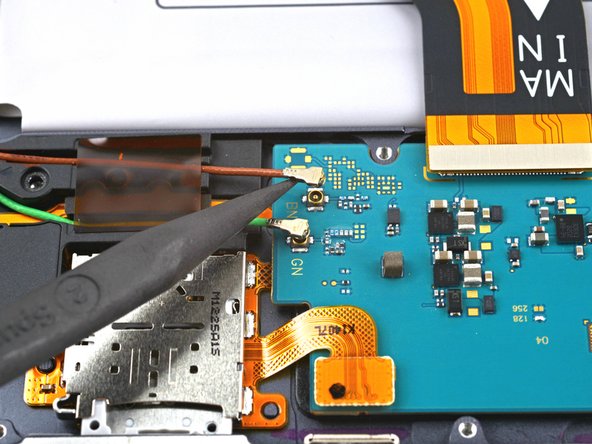
    • Use the point of a spudger to carefully pry up and disconnect the green coaxial cable from the left side of the motherboard.

    • Repeat this process for the red coaxial cable.

  10. Motherboard Removal, Disconnect the rear camera: шаг 10, изображение 1 из 3 Motherboard Removal, Disconnect the rear camera: шаг 10, изображение 2 из 3 Motherboard Removal, Disconnect the rear camera: шаг 10, изображение 3 из 3
    • Use the flat end of a spudger to pry up and disconnect the rear camera's two press connectors secured to the motherboard.

  11. Motherboard Removal, Disconnect the power button cable: шаг 11, изображение 1 из 2 Motherboard Removal, Disconnect the power button cable: шаг 11, изображение 2 из 2
    • Use the flat end of a spudger to pry up and disconnect the power button cable's press connector secured to the motherboard.

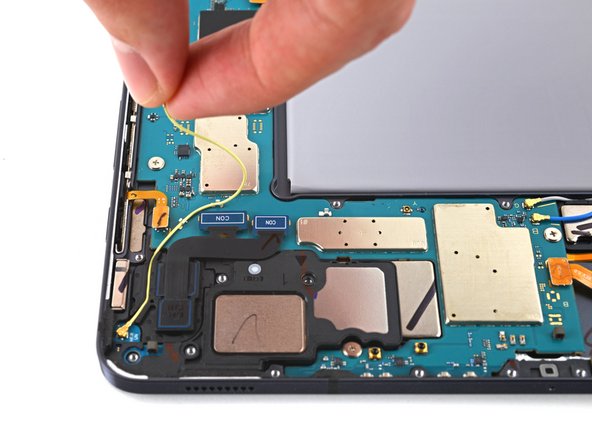
  12. Motherboard Removal, Disconnect the bottom-right coaxial cable: шаг 12, изображение 1 из 2 Motherboard Removal, Disconnect the bottom-right coaxial cable: шаг 12, изображение 2 из 2
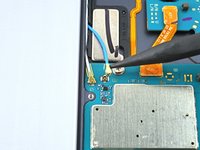
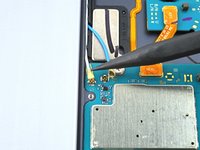
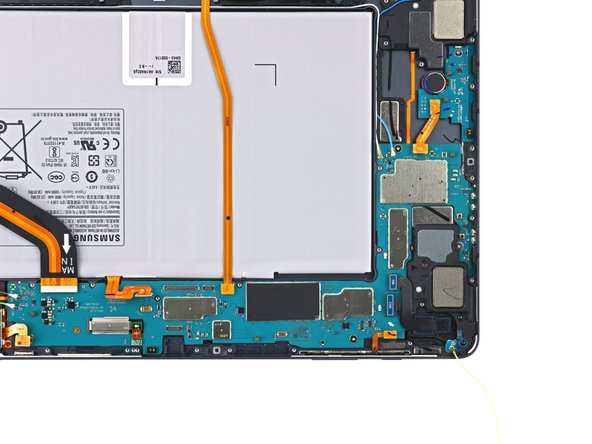
    • Use the point of a spudger to carefully pry up and disconnect the bottom-right loudspeaker's yellow coaxial cable from the motherboard.

    • Take care not to puncture or bend the battery with your tool—a punctured or bent battery may leak dangerous chemicals or cause a fire.

    • During reassembly, these can be tricky to reconnect. One at a time, hold each connector in place over its socket and press down with the flat end of a spudger. The connector should snap into place.

  13. Motherboard Removal, Reposition the bottom-right coaxial cable: шаг 13, изображение 1 из 2 Motherboard Removal, Reposition the bottom-right coaxial cable: шаг 13, изображение 2 из 2
    • Pull the coaxial cable away from the frame, making sure the cable is completely unthreaded from the motherboard.

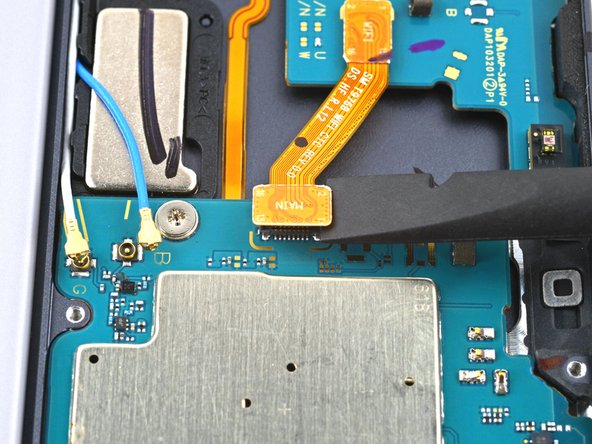
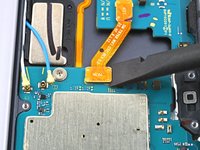
  14. Motherboard Removal, Disconnect the interconnect cable: шаг 14, изображение 1 из 2 Motherboard Removal, Disconnect the interconnect cable: шаг 14, изображение 2 из 2
    • Use the flat end of a spudger to pry up and disconnect the interconnect cable's press connector secured to the motherboard.

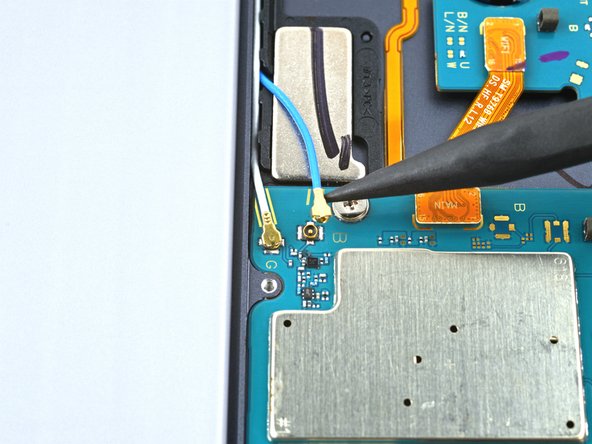
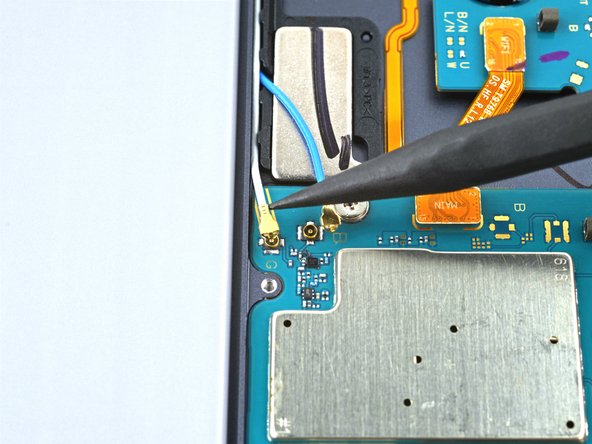
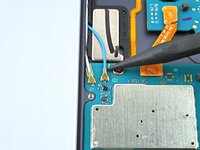
  15. Motherboard Removal, Disconnect the top-right coaxial cables: шаг 15, изображение 1 из 3 Motherboard Removal, Disconnect the top-right coaxial cables: шаг 15, изображение 2 из 3 Motherboard Removal, Disconnect the top-right coaxial cables: шаг 15, изображение 3 из 3
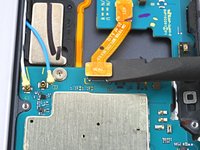
    • Use the point of a spudger to carefully pry up and disconnect the top-right loudspeaker's blue coaxial cable from the motherboard.

    • Repeat this process for the white coaxial cable.

  16. Motherboard Removal, Unfasten the motherboard: шаг 16, изображение 1 из 2 Motherboard Removal, Unfasten the motherboard: шаг 16, изображение 2 из 2
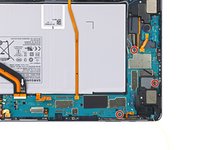
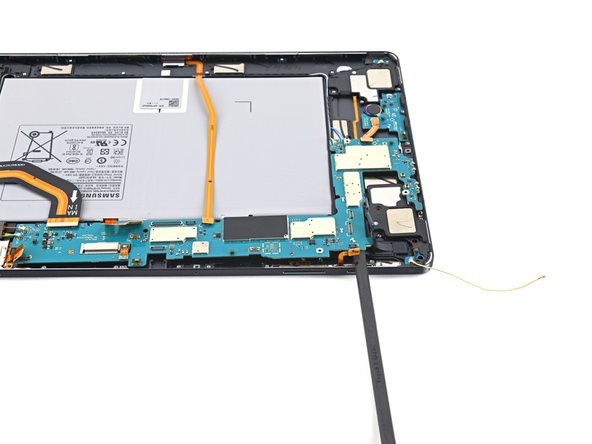
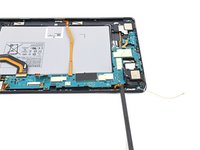
    • Use a Phillips #00 screwdriver to remove the three 2 mm screws securing the motherboard to the frame.

  17. Motherboard Removal, Remove the motherboard: шаг 17, изображение 1 из 3 Motherboard Removal, Remove the motherboard: шаг 17, изображение 2 из 3 Motherboard Removal, Remove the motherboard: шаг 17, изображение 3 из 3
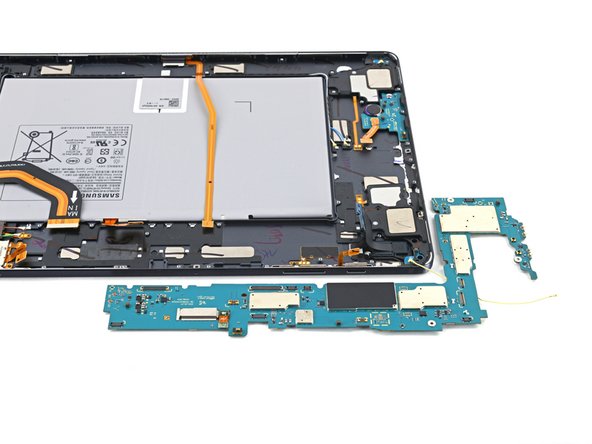
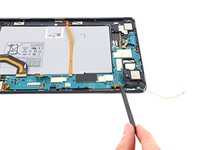
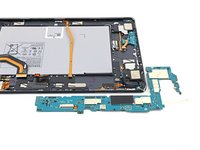
    • Insert a spudger into a gap between the motherboard and the frame.

    • Pry up with the spudger to release the motherboard from its clips.

    • Remove the motherboard.

    • During reassembly, refasten the motherboard screws first to properly align it into place, then reconnect the cables.

Заключение

To reassemble your device, follow these instructions in reverse order.

Compare your new replacement part to the original part—you may need to transfer remaining components or remove adhesive backings from the new part before you install it.

Repair didn’t go as planned? Try some basic troubleshooting, or ask our Samsung Galaxy Tab S7+ Answers community for help.

Alex Diaz-Kokaisl

Участник с: 01/16/22

216 162 Репутация

Автор 1 046 руководств

Команда

iFixit Участник iFixit

Staff

123 членов

Автор 23 888 руководств

0 Комментарии к руководству

Добавить комментарий

Статистика просмотров:

За последние 24 часов: 0

За последние 7 дней: 3

За последние 30 дней: 6

За всё время: 51