Перейти к основному содержанию
Присоединяйся к сообществу ремонтников - Создай аккаунт
iMac Intel 21.5" EMC 2428 CPU Replacement

Выберете то, что вам нужно

  1. iMac Intel 21.5" EMC 2428 CPU Replacement, Access Door: шаг 1, изображение 1 из 2 iMac Intel 21.5" EMC 2428 CPU Replacement, Access Door: шаг 1, изображение 2 из 2
    • Unplug your iMac's AC cord along with any peripheral devices.

    • Lay your iMac face-down on a soft, clean surface as shown.

    • Be sure there isn't any dirt or debris on your work surface, as it may scratch the glass panel on the front of your iMac. We recommend placing a towel between the iMac and the work surface.

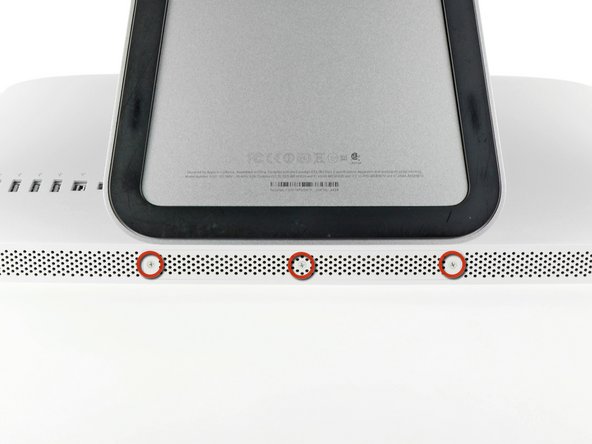
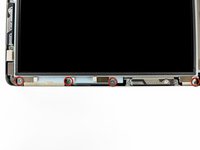
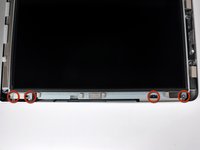
    • Loosen the three Phillips screws securing the access door to the bottom edge of your iMac.

    • All three screws will remain captive in the access door.

    • Remove the access door.

    Спросите у FixBot
  2. iMac Intel 21.5" EMC 2428 CPU Replacement, RAM: шаг 2, изображение 1 из 3 iMac Intel 21.5" EMC 2428 CPU Replacement, RAM: шаг 2, изображение 2 из 3 iMac Intel 21.5" EMC 2428 CPU Replacement, RAM: шаг 2, изображение 3 из 3
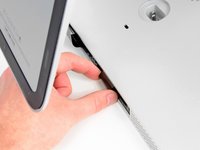
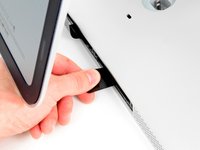
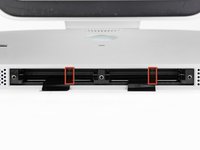
    • Gently slide the black plastic RAM pull tab out from the RAM slot.

    • Pull the black plastic tab away from the bottom edge of the iMac to eject the module(s) on that side of the RAM bay.

    • This may require a bit of force.

    Спросите у FixBot
  3. iMac Intel 21.5" EMC 2428 CPU Replacement: шаг 3, изображение 1 из 1
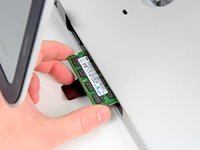
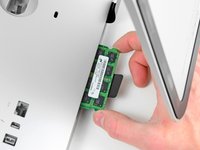
    • Slide the old RAM module(s) out of their slots in the RAM bay and set them aside.

    Спросите у FixBot
  4. iMac Intel 21.5" EMC 2428 CPU Replacement: шаг 4, изображение 1 из 3 iMac Intel 21.5" EMC 2428 CPU Replacement: шаг 4, изображение 2 из 3 iMac Intel 21.5" EMC 2428 CPU Replacement: шаг 4, изображение 3 из 3
    • Repeat the process in the previous steps to remove the RAM module(s) from the other side of the RAM bay.

    Спросите у FixBot
  5. iMac Intel 21.5" EMC 2428 CPU Replacement: шаг 5, изображение 1 из 3 iMac Intel 21.5" EMC 2428 CPU Replacement: шаг 5, изображение 2 из 3 iMac Intel 21.5" EMC 2428 CPU Replacement: шаг 5, изображение 3 из 3
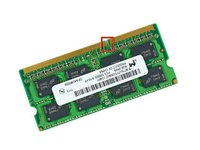
    • When installing new RAM modules, it is important to orient them correctly.

    • Be sure the small notch cut into each RAM module (shown in the first picture) mates with the protrusion in each RAM slot (shown in the second picture).

    • Your iMac has four RAM slots. Be sure to slide each RAM module into its slot horizontally. This will prevent getting the modules stuck between two of the adjacent slots.

    • Once you have oriented the new RAM modules correctly, gently slide them completely into the iMac and use your thumbs to firmly seat them in their sockets.

    Спросите у FixBot
  6. iMac Intel 21.5" EMC 2428 CPU Replacement, Glass Panel: шаг 6, изображение 1 из 2 iMac Intel 21.5" EMC 2428 CPU Replacement, Glass Panel: шаг 6, изображение 2 из 2
    Инструмент, используемый на этом этапе:
    Heavy-Duty Suction Cups (Pair)
    $16.95
    • Before beginning, unplug your iMac and lay it on a soft surface as shown.

    • Stick a suction cup near each of the two top corners of the glass panel.

    • To attach the suction cups we sell, first position the suction cup with the movable handle parallel to the face of the glass panel. While lightly holding the suction cup against the glass, raise the movable handle until it is parallel with the other handle.

    • If your suction cups refuse to stick, try cleaning both the glass panel and the suction cup with a mild solvent.

    Спросите у FixBot
  7. iMac Intel 21.5" EMC 2428 CPU Replacement: шаг 7, изображение 1 из 2 iMac Intel 21.5" EMC 2428 CPU Replacement: шаг 7, изображение 2 из 2
    • Gently lift the glass panel perpendicular to the face of the LCD enough to clear the steel mounting pins attached along the underside of the top edge of the glass panel.

    • Pull the glass panel away from the lower edge of the iMac and carefully set it aside.

    • During reinstallation, be sure to meticulously clean the inside of the glass panel and the face of the LCD as any dust or fingerprints trapped inside will be annoyingly visible when the machine is turned on.

    Спросите у FixBot
  8. iMac Intel 21.5" EMC 2428 CPU Replacement, Display: шаг 8, изображение 1 из 3 iMac Intel 21.5" EMC 2428 CPU Replacement, Display: шаг 8, изображение 2 из 3 iMac Intel 21.5" EMC 2428 CPU Replacement, Display: шаг 8, изображение 3 из 3
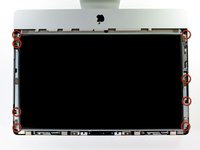
    • Remove the eight 8 mm T10 Torx screws securing the display to the outer case.

    • The last two pictures are detail shots of each side of the display.

    Спросите у FixBot
  9. iMac Intel 21.5" EMC 2428 CPU Replacement: шаг 9, изображение 1 из 1
    • Slightly lift the top edge of the display out of the outer case.

    • Do not lift it too much. There are several cables attaching the display to the logic board. Twisting or pulling the display assembly with the cables attached will damage your iMac.

    Спросите у FixBot
  10. iMac Intel 21.5" EMC 2428 CPU Replacement: шаг 10, изображение 1 из 2 iMac Intel 21.5" EMC 2428 CPU Replacement: шаг 10, изображение 2 из 2
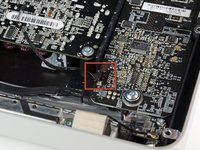
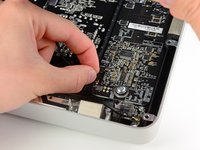
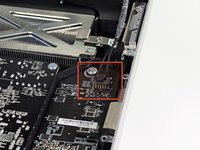
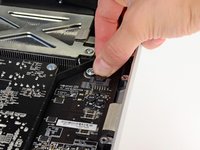
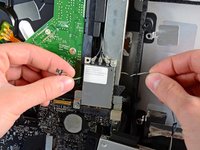
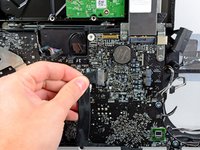
    • Pull the vertical sync cable connector out of its socket on the LED driver board near the top left corner of your iMac.

    Спросите у FixBot
  11. iMac Intel 21.5" EMC 2428 CPU Replacement: шаг 11, изображение 1 из 2 iMac Intel 21.5" EMC 2428 CPU Replacement: шаг 11, изображение 2 из 2
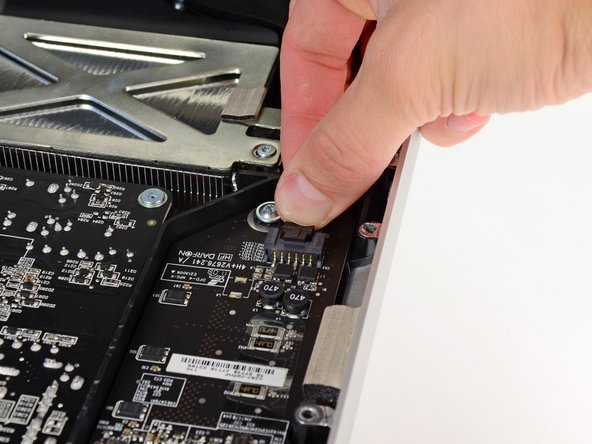
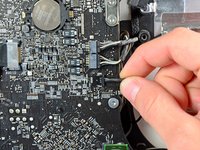
    • Rotate the display out of the outer case enough to disconnect the LED backlight power cable from the LED driver board.

    • Disconnect the LED backlight power cable by depressing the locking mechanism while pulling the connector away from its socket (toward the bottom edge of the iMac).

    Спросите у FixBot
  12. iMac Intel 21.5" EMC 2428 CPU Replacement: шаг 12, изображение 1 из 3 iMac Intel 21.5" EMC 2428 CPU Replacement: шаг 12, изображение 2 из 3 iMac Intel 21.5" EMC 2428 CPU Replacement: шаг 12, изображение 3 из 3
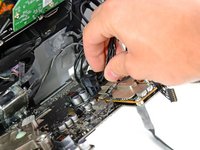
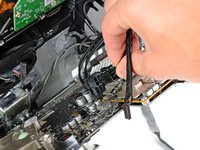
    • Grab the plastic pull tab secured to the display data cable lock and rotate it towards upwards.

    • Pull the display data cable straight out of its socket on the logic board.

    • Do not lift up on the display data cable, as its socket is very fragile. Pull the cable parallel to the face of the logic board.

    Спросите у FixBot
  13. iMac Intel 21.5" EMC 2428 CPU Replacement: шаг 13, изображение 1 из 2 iMac Intel 21.5" EMC 2428 CPU Replacement: шаг 13, изображение 2 из 2
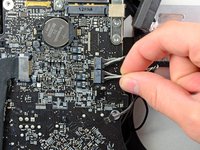
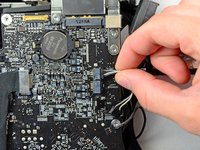
    • Disconnect the LCD thermal sensor cable connector from its socket on the logic board.

    Спросите у FixBot
  14. iMac Intel 21.5" EMC 2428 CPU Replacement: шаг 14, изображение 1 из 1
    • Carefully pull the display toward the top edge of your iMac and lift it out of the outer case, minding any cables that may get caught.

    Спросите у FixBot
  15. iMac Intel 21.5" EMC 2428 CPU Replacement, Optical Drive: шаг 15, изображение 1 из 1
    • From here, the repair will be easier if you flip the computer around so the base is facing you.

    • Remove the following four screws:

    • One 9.3 mm T10 Torx screw with a large head

    • Three 9.3 mm T10 Torx screws with a normal sized head

    Спросите у FixBot
  16. iMac Intel 21.5" EMC 2428 CPU Replacement: шаг 16, изображение 1 из 2 iMac Intel 21.5" EMC 2428 CPU Replacement: шаг 16, изображение 2 из 2
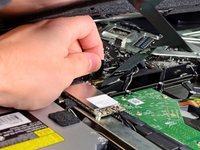
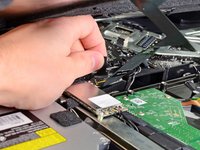
    • Pull the optical drive thermal sensor connector straight up from its socket on the logic board. Pull parallel to the board.

    Спросите у FixBot
  17. iMac Intel 21.5" EMC 2428 CPU Replacement: шаг 17, изображение 1 из 2 iMac Intel 21.5" EMC 2428 CPU Replacement: шаг 17, изображение 2 из 2
    • Lift the inner edge of the optical drive and maneuver its connector past the GPU frame attached to the logic board.

    • Carefully pull the optical drive off its mounting pins on the right side of the outer case to gain clearance for disconnecting the optical drive cable.

    • Allow the optical drive to hang down as you de-route the optical drive thermal sensor connector from behind the GPU heat sink.

    Спросите у FixBot
  18. iMac Intel 21.5" EMC 2428 CPU Replacement: шаг 18, изображение 1 из 1
    • Disconnect the optical drive cable by pulling its connector away from the optical drive.

    • Remove the optical drive from the iMac.

    Спросите у FixBot
  19. iMac Intel 21.5" EMC 2428 CPU Replacement, Optical Drive Fan: шаг 19, изображение 1 из 1
    • Remove the single 13 mm T10 Torx screw securing the optical drive fan to the outer case.

    Спросите у FixBot
  20. iMac Intel 21.5" EMC 2428 CPU Replacement: шаг 20, изображение 1 из 1
    • Pull the optical drive fan off the pins attached to the outer case.

    Спросите у FixBot
  21. iMac Intel 21.5" EMC 2428 CPU Replacement: шаг 21, изображение 1 из 1
    • Pull the optical drive fan connector away from its socket on the logic board.

    • Remove the optical drive fan from the iMac.

    Спросите у FixBot
  22. iMac Intel 21.5" EMC 2428 CPU Replacement, Logic Board: шаг 22, изображение 1 из 1
    • In the proceeding steps, you will disconnect the following cables:

    • SD Board

    • Left/Right Speaker and Microphone

    • Audio Port

    • Wi-Fi Antenna

    • Right Temperature Sensor, Bluetooth/Ambient Light Sensor/Camera/Left Temperature, and Hard Drive Fan

    • CPU Fan/Ambient Temperature and Power Button

    • IR Sensor

    Спросите у FixBot
  23. iMac Intel 21.5" EMC 2428 CPU Replacement: шаг 23, изображение 1 из 1
    • Pull the SD board cable out of its socket on the logic board.

    Спросите у FixBot
  24. iMac Intel 21.5" EMC 2428 CPU Replacement: шаг 24, изображение 1 из 3 iMac Intel 21.5" EMC 2428 CPU Replacement: шаг 24, изображение 2 из 3 iMac Intel 21.5" EMC 2428 CPU Replacement: шаг 24, изображение 3 из 3
    • Disconnect the microphone, left speaker, and right speaker cables by pulling their connectors toward the right side of the iMac.

    Спросите у FixBot
  25. iMac Intel 21.5" EMC 2428 CPU Replacement: шаг 25, изображение 1 из 2 iMac Intel 21.5" EMC 2428 CPU Replacement: шаг 25, изображение 2 из 2
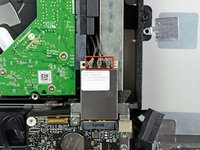
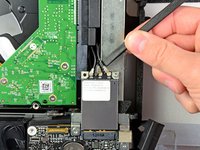
    • Use the flat end of a spudger to pry all three AirPort antenna connectors up from their sockets on the AirPort board.

    • During reinstallation, connect the cable with no stripes to the socket marked CH0, the cable with one stripe to CH1, and the cable with two stripes to CH2.

    Спросите у FixBot
  26. iMac Intel 21.5" EMC 2428 CPU Replacement: шаг 26, изображение 1 из 1
    • Pull the hard drive fan connector toward the top edge of the iMac to disconnect it from its socket on the logic board.

    Спросите у FixBot
  27. iMac Intel 21.5" EMC 2428 CPU Replacement: шаг 27, изображение 1 из 1
    • Use your thumbnails on both sides of the Bluetooth/ambient light sensor/camera/left temperature connector to push it toward the top edge of the iMac and out of its socket on the logic board.

    Спросите у FixBot
  28. iMac Intel 21.5" EMC 2428 CPU Replacement: шаг 28, изображение 1 из 1
    • Use your thumbnails to push the right temperature sensor connector toward the top edge of the iMac and out of its socket.

    Спросите у FixBot
  29. iMac Intel 21.5" EMC 2428 CPU Replacement: шаг 29, изображение 1 из 1
    • Pull the CPU fan/ambient temperature sensor connector toward the bottom left edge of the iMac and out of its socket on the logic board.

    Спросите у FixBot
  30. iMac Intel 21.5" EMC 2428 CPU Replacement: шаг 30, изображение 1 из 1
    • Pull the power button connector toward the bottom left corner of the iMac to disconnect it from its socket on the logic board.

    Спросите у FixBot
  31. iMac Intel 21.5" EMC 2428 CPU Replacement: шаг 31, изображение 1 из 2 iMac Intel 21.5" EMC 2428 CPU Replacement: шаг 31, изображение 2 из 2
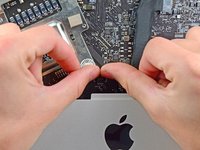
    • Use your thumbs to push the IR sensor connector toward the top edge of the iMac and out of its socket on the logic board.

    • Pull the IR sensor board up from behind the front face of the outer case.

    • Remove the IR sensor and set it aside.

    Спросите у FixBot
  32. iMac Intel 21.5" EMC 2428 CPU Replacement: шаг 32, изображение 1 из 2 iMac Intel 21.5" EMC 2428 CPU Replacement: шаг 32, изображение 2 из 2
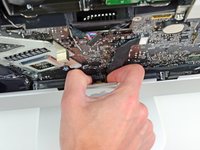
    • Pull the audio port cable connector toward the left side of the iMac to disconnect it from the logic board.

    • Do not pull the cable toward yourself (away from the front face of the logic board) as you disconnect it.

    • Peel the audio port cable off the front face of the logic board and let it hang down as shown in the second picture.

    Спросите у FixBot
  33. iMac Intel 21.5" EMC 2428 CPU Replacement: шаг 33, изображение 1 из 1
    • Remove the following seven screws:

    • Two 7 mm T10 torx screws

    • One 30 mm T10 Torx screw

    • Two 25 mm T10 Torx screws

    • Two 21 mm T10 Torx screws

    Спросите у FixBot
  34. iMac Intel 21.5" EMC 2428 CPU Replacement: шаг 34, изображение 1 из 2 iMac Intel 21.5" EMC 2428 CPU Replacement: шаг 34, изображение 2 из 2
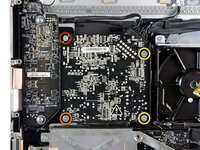
    • Remove the following four screws:

    • One 9.3 mm T10 coarse-threaded screw

    • One 25 mm T10 coarse-threaded screw

    • Two 22 mm fine-threaded screws

    • Pull the upper right and lower left corners of the power supply away from the rear case to dislodge the mounting posts attached to the power supply's corners.

    Спросите у FixBot
  35. iMac Intel 21.5" EMC 2428 CPU Replacement: шаг 35, изображение 1 из 2 iMac Intel 21.5" EMC 2428 CPU Replacement: шаг 35, изображение 2 из 2
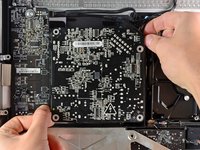
    • Carefully lift the power supply out of the outer case and rotate it to expose the cable lock as shown, minding the DC-out and AC-in cables still attaching it to the iMac.

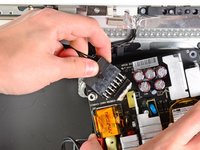
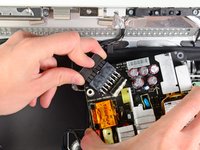
    • Disconnect the DC-out cable by depressing the locking mechanism on the connector while you pull the connector away from its socket on the power supply.

    • Once the locking mechanism has cleared the socket, pull the DC-in connector away from the power supply.

    Спросите у FixBot
  36. iMac Intel 21.5" EMC 2428 CPU Replacement: шаг 36, изображение 1 из 1
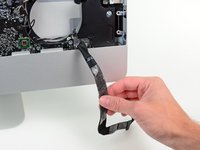
    • Disconnect the AC-In cable by depressing the locking mechanism while pulling the connector away from its socket.

    • Remove the power supply from the outer case.

    Спросите у FixBot
  37. iMac Intel 21.5" EMC 2428 CPU Replacement: шаг 37, изображение 1 из 1
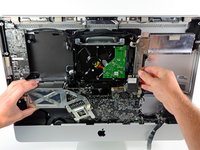
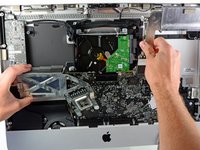
    • Remove the plastic wall that is installed directly to the right of the LED driver board.

    Спросите у FixBot
  38. iMac Intel 21.5" EMC 2428 CPU Replacement: шаг 38, изображение 1 из 2 iMac Intel 21.5" EMC 2428 CPU Replacement: шаг 38, изображение 2 из 2
    • Slightly pull the logic board away from the back of the outer case, then lift it upward to clear the lower front face of the outer case.

    Спросите у FixBot
  39. iMac Intel 21.5" EMC 2428 CPU Replacement: шаг 39, изображение 1 из 1
    • Disconnect the LCD temperature cable by pulling its connector up and out of its socket on the logic board.

    Спросите у FixBot
  40. iMac Intel 21.5" EMC 2428 CPU Replacement: шаг 40, изображение 1 из 2 iMac Intel 21.5" EMC 2428 CPU Replacement: шаг 40, изображение 2 из 2
    • Depress the locking mechanism and carefully pull the DC-In cable out of its socket on the back of the logic board.

    Спросите у FixBot
  41. iMac Intel 21.5" EMC 2428 CPU Replacement: шаг 41, изображение 1 из 1
    • Being careful not to damage the socket on the logic board, gently pull the hard drive SATA data cable straight out of its socket on the logic board.

    Спросите у FixBot
  42. iMac Intel 21.5" EMC 2428 CPU Replacement: шаг 42, изображение 1 из 1
    • Pull the hard drive power cable connector out of its socket on the logic board.

    Спросите у FixBot
  43. iMac Intel 21.5" EMC 2428 CPU Replacement: шаг 43, изображение 1 из 1
    • Remove the logic board from the outer case, minding any cables that may get caught.

    • When reinstalling the logic board, plug in a thunderbolt cable and a USB cable into the USB port closest to the headphone/microphone ports before tightening the logic board screws to ensure proper alignment.

    Спросите у FixBot
  44. iMac Intel 21.5" EMC 2428 CPU Replacement, CPU Heat Sink: шаг 44, изображение 1 из 1
    • Peel the piece of tape covering the heat sink thermal sensor cable up off the logic board.

    Спросите у FixBot
  45. iMac Intel 21.5" EMC 2428 CPU Replacement: шаг 45, изображение 1 из 1
    • Lift the heat sink thermal sensor connector straight up out of its socket on the logic board.

    • Make sure to pull only on the connector and not the socket itself.

    Спросите у FixBot
  46. iMac Intel 21.5" EMC 2428 CPU Replacement: шаг 46, изображение 1 из 1
    • If present, remove the "Warranty void if removed" sticker covering one hidden screw on the heat sink.

    Спросите у FixBot
  47. iMac Intel 21.5" EMC 2428 CPU Replacement: шаг 47, изображение 1 из 2 iMac Intel 21.5" EMC 2428 CPU Replacement: шаг 47, изображение 2 из 2
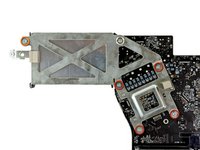
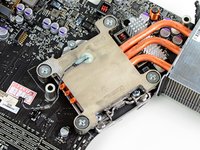
    • Remove the following five screws securing the heat sink to the logic board:

    • Four 6.4 mm T8 Torx screws

    • One 4.3 mm T10 Torx screw

    • It may be necessary to hold the socket with a Phillips screwdriver on one side of the board while you unscrew the Torx screw on the other side of the board.

    Спросите у FixBot
  48. iMac Intel 21.5" EMC 2428 CPU Replacement: шаг 48, изображение 1 из 1
    • Carefully lift the logic board off the heat sink.

    • If the two components appear stuck together, carefully pry them apart with the flat end of a spudger, being careful not to disturb any surface-mount components on the logic board.

    • Make sure to apply a new layer of thermal paste before reattaching the heat sink. Our thermal paste guide makes it easy.

    Спросите у FixBot
  49. iMac Intel 21.5" EMC 2428 CPU Replacement, CPU: шаг 49, изображение 1 из 2 iMac Intel 21.5" EMC 2428 CPU Replacement, CPU: шаг 49, изображение 2 из 2
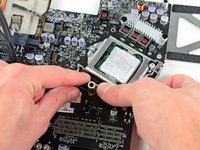
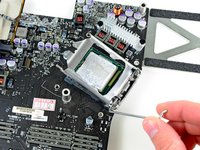
    • Carefully pull the CPU retaining bar away from the CPU socket.

    • Rotate the bar away from the logic board.

    Спросите у FixBot
  50. iMac Intel 21.5" EMC 2428 CPU Replacement: шаг 50, изображение 1 из 2 iMac Intel 21.5" EMC 2428 CPU Replacement: шаг 50, изображение 2 из 2
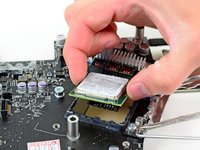
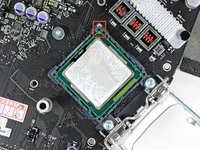
    • Carefully lift the CPU straight up off its socket.

    • Be sure your new CPU is properly aligned and seated before clamping it back down. The small gold arrow on the CPU should align with the white arrow printed on the logic board near the CPU socket as seen in the second picture.

    • Make sure to apply a new layer of thermal paste before reattaching the heat sink. Our thermal paste guide makes it easy.

    Спросите у FixBot
Заключение

To reassemble your device, follow these instructions in reverse order.

50 человек успешно провели ремонт по этому руководству.

12 Комментарии к руководству

BTW, what's the most powerful CPU you can upgrade to? 21.5" 2428 logic board no.:820-2641-A. Also, can radeon 6750M be replaced with 6770M or even 6950/6970M?

Thank you

bogdanblokar - Ответить Поделиться

i7 2600s (65W) and 6770m, as I heard 6950 and 6970 have bigger size

imho

Andrew - Ответить Поделиться

Managed to upgrade my 21.5" 2428 with a i7-2600 (not S!), it has a higher base clock frequency than the S.

Running well so far. Thanks for the guide!

vincenth - Ответить Поделиться

how is the 2600 working after this years? any issues so far? thanks!

Diego Morais - Ответить Поделиться

Hello, any info regarding the i7-2600? How is the iMac running? Thanks in advance

charles_chappet - Ответить Поделиться

Добавить комментарий

Статистика просмотров:

За последние 24 часов: 3

За последние 7 дней: 27

За последние 30 дней: 172

За всё время: 61,790