Введение
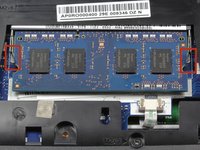
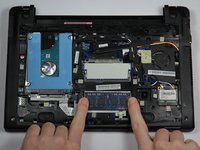
RAM provides programs with quick access to the data they need. The more programs you have open at once, the more RAM your computer will need.
Выберете то, что вам нужно
-
-
-
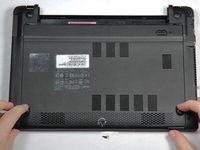
Place the laptop on a flat surface with the bottom side facing up.
-
Place the tip of a spudger or finger into the hole on the battery release slider.
 Спросите у FixBot
-
-
-
Use the spudger to move the slider to the right and hold it there.
-
With the slider held, use your other hand to pull the battery back away from the laptop.
-
-
-
-
-
-
Use the screwdriver to pierce the warranty sticker.
-
Unscrew and remove the #0 6mm Phillips screw and set it aside.
-
-
-
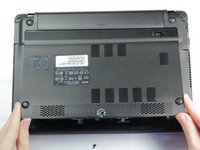
Slide the back panel towards you. The best spots to place your fingers are on the bumpers.
-
Lift on the front edge to remove the panel.
-
-
-






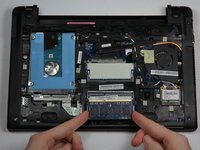
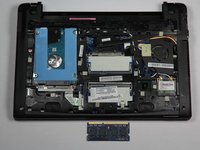
To reassemble your device, follow these instructions in reverse order.
Отменить: Я не выполнил это руководство.
13 человек успешно провели ремонт по этому руководству.

Команда

Cal Poly, Team 13-3, Forte Fall 2013 Участник Cal Poly, Team 13-3, Forte Fall 2013
CPSU-FORTE-F13S13G3
5 членов
Автор 35 руководств
7 Комментарии к руководству
Is there only one RAM stick? My wife's C710 has 2 GB of RAM and I have two spare 2 GB sticks. I assumed that the C710 had two 1 GB sticks. Is this incorrect? Are two 2 GB sticks not going to help?
I believe the C710 comes with a single stick of RAM preinstalled, but there are two slots there. So if you have the correct type of RAM, you should be good to go. One installs right on top of the other.
Awesome, thank you!
Acer and Crucial insist that 4 GB is maximum ram, but I’ve successfully installed 12 GB and I’ve read reports on the web of 16 GB. It uses the same memory as my 2012 Mac Mini, (my source for the additional RAM) Adding a SSD will make this a powerful machine indeed. The main limitation is that although it will run the (aging) Chrubuntu (an Ubuntu install running on the Chrome kernel), it will not dual boot with linux. The firmware needs to be flashed in order to install a newer linux distro (Gallium OS or a specialized Mint 18), and this will effectively end it’s ability to run Chrome (although I beleive the firmware can be re-flashed so as to return it to Chrome OS .)
I want to change the ram stick up to 16 GB ram stick.
How?
