Перейти к основному содержанию
Присоединяйся к сообществу ремонтников - Создай аккаунт

Alienware M14xR2 RAM Replacement

Выберете то, что вам нужно

    1. Alienware M14xR2 RAM Replacement, Battery: шаг 1, изображение 1 из 1
      • Turn the computer off.

      • Disconnect the charging cable from the computer.

      • Failure to unplug the charging cable could result in electric shock and serious injury.

      • Flip the computer upside down.

      Спросите у FixBot

      Добавить комментарий

    2. Alienware M14xR2 RAM Replacement: шаг 2, изображение 1 из 3 Alienware M14xR2 RAM Replacement: шаг 2, изображение 2 из 3 Alienware M14xR2 RAM Replacement: шаг 2, изображение 3 из 3
      • Loosen the two 6.35 mm size 1 Phillips screws on the back cover.

      • The two screws are spring loaded and will not separate from the cover.

      • Slide the back cover towards you and then lift upwards to remove.

      Спросите у FixBot

      Добавить комментарий

    3. Alienware M14xR2 RAM Replacement: шаг 3, изображение 1 из 1
      • Loosen the two 6.35 mm size 1 Philips screws attaching the battery to the laptop.

      • The two screws are clipped into the battery and will not detach.

      Спросите у FixBot

      Добавить комментарий

    4. Alienware M14xR2 RAM Replacement: шаг 4, изображение 1 из 3 Alienware M14xR2 RAM Replacement: шаг 4, изображение 2 из 3 Alienware M14xR2 RAM Replacement: шаг 4, изображение 3 из 3
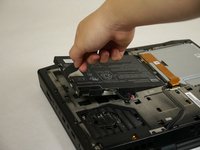
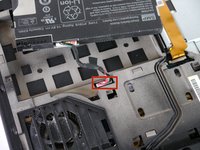
      • Pull up on the black tab on the battery to reveal the connection between the battery and laptop.

      • Pull up on the white connector to disconnect it from the laptop.

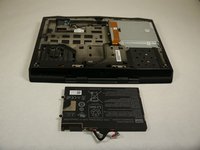
      • The battery is now free to remove from the laptop and can be set aside.

      Спросите у FixBot

      Добавить комментарий

    1. Alienware M14xR2 RAM Replacement, Optical Drive: шаг 5, изображение 1 из 3 Alienware M14xR2 RAM Replacement, Optical Drive: шаг 5, изображение 2 из 3 Alienware M14xR2 RAM Replacement, Optical Drive: шаг 5, изображение 3 из 3
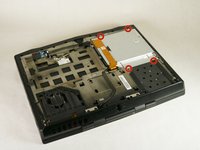
      • Unscrew the four 6.35 mm size 1 screws.

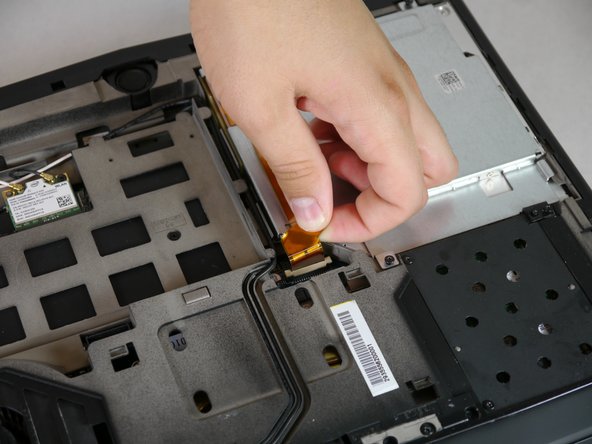
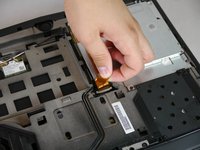
      • Pull up on the end of the orange tab to detach it from the white connector.

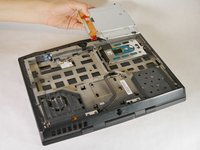
      • Lift the optical drive up and out of the laptop and set it aside.

      Спросите у FixBot

      Добавить комментарий

    1. Alienware M14xR2 RAM Replacement, RAM: шаг 6, изображение 1 из 3 Alienware M14xR2 RAM Replacement, RAM: шаг 6, изображение 2 из 3 Alienware M14xR2 RAM Replacement, RAM: шаг 6, изображение 3 из 3
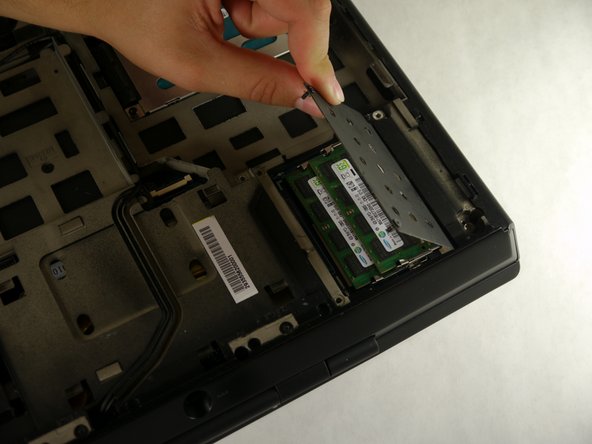
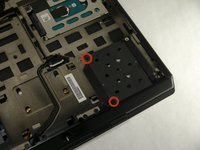
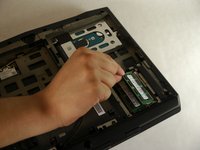
      • Unscrew the two 6.35 mm size 1 screws.

      • Lift up and remove the panel covering the RAM sticks.

      Спросите у FixBot

      Добавить комментарий

    2. Alienware M14xR2 RAM Replacement: шаг 7, изображение 1 из 2 Alienware M14xR2 RAM Replacement: шаг 7, изображение 2 из 2
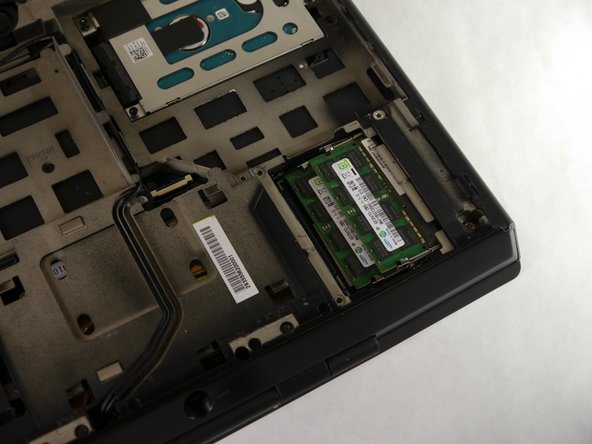
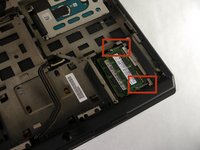
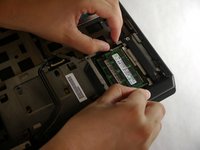
      • Push outward on both prongs that secure the RAM sticks in place.

      • The RAM sticks will rise upward when released from the prongs.

      Спросите у FixBot

      Добавить комментарий

    3. Alienware M14xR2 RAM Replacement: шаг 8, изображение 1 из 2 Alienware M14xR2 RAM Replacement: шаг 8, изображение 2 из 2
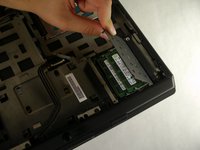
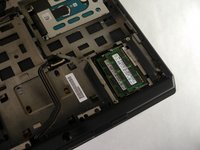
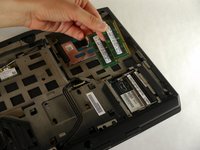
      • Grab and pull the RAM sticks up and out of their casing and set them aside.

      Спросите у FixBot

      Добавить комментарий

Заключение

To reassemble your device, follow these instructions in reverse order.

Отменить: Я не выполнил это руководство.

4 человек успешно провели ремонт по этому руководству.

Eugene Park

Участник с: 09/30/13

195 Репутация

1 руководство автора

Команда

Cal Poly, Team 13-4, Forte Fall 2013 Участник Cal Poly, Team 13-4, Forte Fall 2013

CPSU-FORTE-F13S13G4

5 членов

Автор 45 руководств

3 Комментарии к руководству

How max is the ram upgrade compatible with the m14x ifixit?!

doantuan85 - Ответить Поделиться

I meaned r1 model

doantuan85 - Ответить Поделиться

Yo, man! If my RAM slot is damaged somehow, is there any possibility to change/repair it? It won't detect a RAM card, keeps beeping 4 times at the start.

tasanov - Ответить Поделиться

Добавить комментарий

Статистика просмотров:

За последние 24 часов: 1

За последние 7 дней: 7

За последние 30 дней: 31

За всё время: 2,731