Перейти к основному содержанию
Присоединяйся к сообществу ремонтников - Создай аккаунт

Amazon Fire HD 10 Battery Replacement

Выберете то, что вам нужно

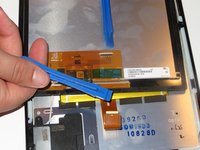
  1. Amazon Fire HD 10 Battery Replacement, Screen: шаг 1, изображение 1 из 3 Amazon Fire HD 10 Battery Replacement, Screen: шаг 1, изображение 2 из 3 Amazon Fire HD 10 Battery Replacement, Screen: шаг 1, изображение 3 из 3
    • Avoid prying near bottom right hand side due to LCD Connector

    • Use a plastic opening tool to pry the screen up in the right hand corner.

    Спросите у FixBot

    Добавить комментарий

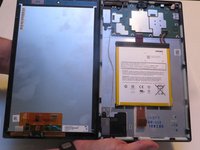
  2. Amazon Fire HD 10 Battery Replacement: шаг 2, изображение 1 из 1
    • Do not completely remove the screen yet as there is a ZIF connector connected.

    • Lift the screen and digitizer from the case.

    • You may need to use some force due to the glue.

    Спросите у FixBot

    Добавить комментарий

  3. Amazon Fire HD 10 Battery Replacement: шаг 3, изображение 1 из 2 Amazon Fire HD 10 Battery Replacement: шаг 3, изображение 2 из 2
    • Be mindful of the ZIF connector.

    • Disconnect the ribbon connector from the digitizer side using your hands or the plastic opening tool.

    Спросите у FixBot

    Добавить комментарий

  4. Amazon Fire HD 10 Battery Replacement: шаг 4, изображение 1 из 1
    • Remove the screen and digitizer from the case completely.

    Спросите у FixBot

    Добавить комментарий

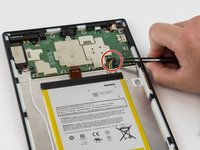
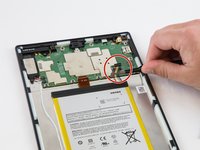
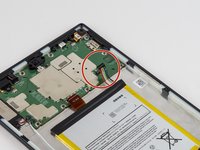
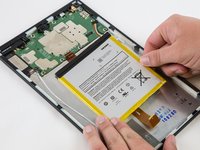
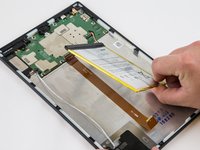
  5. Amazon Fire HD 10 Battery Replacement, Battery: шаг 5, изображение 1 из 3 Amazon Fire HD 10 Battery Replacement, Battery: шаг 5, изображение 2 из 3 Amazon Fire HD 10 Battery Replacement, Battery: шаг 5, изображение 3 из 3
    • Locate the power cable that links the battery to the motherboard.

    • Carefully unplug the battery power cable to disconnect the battery from the motherboard.

    • The third image shows what it should look like with the battery power cable is disconnected.

    Спросите у FixBot

    Добавить комментарий

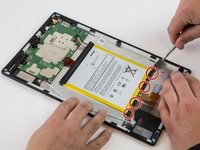
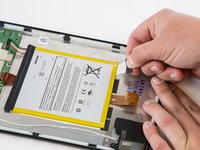
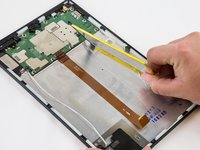
  6. Amazon Fire HD 10 Battery Replacement: шаг 6, изображение 1 из 3 Amazon Fire HD 10 Battery Replacement: шаг 6, изображение 2 из 3 Amazon Fire HD 10 Battery Replacement: шаг 6, изображение 3 из 3
    • Begin by locating the double sided pull tape locations.

    • Do not lift on the battery when doing the following step. You will bend it. It is very pliable.

    • Pull the black soft tabs to release the tape's adhesion.

    • Make sure you pull the tabs slowly and continuously away from the case until the adhesive is completely out.

    • Do this to all 4 tabs until the battery is completely free of adhesion to the device's backing.

    Спросите у FixBot

    Добавить комментарий

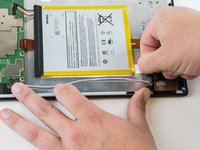
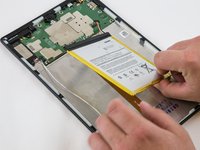
  7. Amazon Fire HD 10 Battery Replacement: шаг 7, изображение 1 из 3 Amazon Fire HD 10 Battery Replacement: шаг 7, изображение 2 из 3 Amazon Fire HD 10 Battery Replacement: шаг 7, изображение 3 из 3
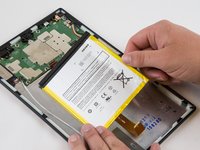
    • Make sure all the adhesive is removed before trying to lift the battery from the case.

    • After the battery is totally free of any adhesion, simply lift the battery from the case.

    Спросите у FixBot

    Добавить комментарий

  8. Amazon Fire HD 10 Battery Replacement: шаг 8, изображение 1 из 3 Amazon Fire HD 10 Battery Replacement: шаг 8, изображение 2 из 3 Amazon Fire HD 10 Battery Replacement: шаг 8, изображение 3 из 3
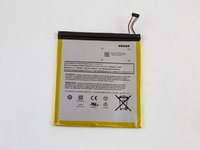
    • Inspect battery for any leakage.

    • Please follow all U.S. regulations and laws when disposing or recycling the battery.

    Спросите у FixBot

    Добавить комментарий

Заключение

To reassemble your device, follow these instructions in reverse order.

Отменить: Я не выполнил это руководство.

11 человек успешно провели ремонт по этому руководству.

Jaie Hillery

Участник с: 10/07/14

1 774 Репутация

Автор 10 руководств

Команда

USF Tampa, Team 16-6, Blackwell Winter 2016 Участник USF Tampa, Team 16-6, Blackwell Winter 2016

USFT-BLACKWELL-W16S16G6

3 членов

Автор 22 руководств

9 Комментарии к руководству

why is there so much empty space next to the battery?

echow2001 - Ответить Поделиться

Big screen, little processor. The screen dictates the space, that’s why the battery has to be secured with adhesive.

ctgblue - Ответить Поделиться

I’m confused. If it’s a battery replacement issue, why is the battery not listed on the parts list? Is that not necessary once you take the old one out? Where do I get a new battery to replace the one this is teaching me to remove? O.o

tyger.night - Ответить Поделиться

You’ll have to google one. Amazon does not offer one. They want to sell you a new Kindle instead.

I am buying one with the plastic tools (ebay), even if they suck, they should get through this process once.

ctgblue - Ответить Поделиться

How do you know if ita battery or charging port? Mine dont do anything whe. Its

Tech Reviews - Ответить Поделиться

Добавить комментарий

Статистика просмотров:

За последние 24 часов: 2

За последние 7 дней: 43

За последние 30 дней: 218

За всё время: 52,086