Введение
The keys on your laptop are what you use ton input text, data, and commands through to your computer. This guide will teach you how to replace the keys on your laptop's keys. If your keys are stuck or some go missing, this guide will be a helpful tool for you.
Выберете то, что вам нужно
-
-
-
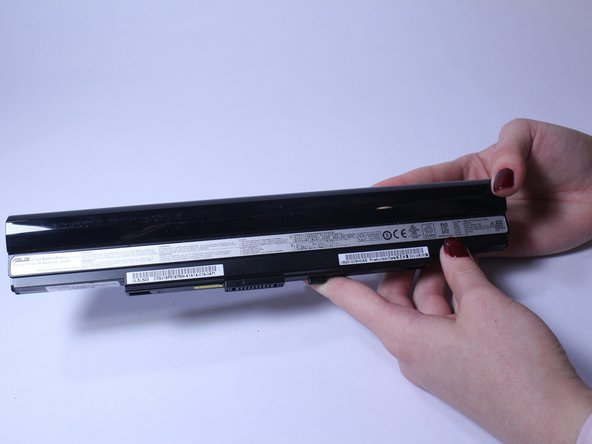
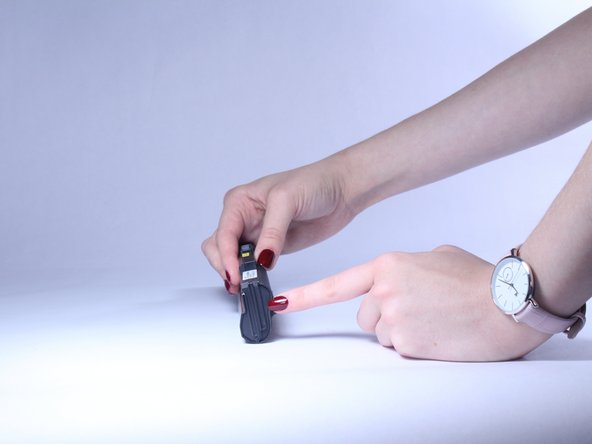
Slide the button marked with an arrow to the left. The battery should now unclick. Slide the battery away from the laptop to remove it.
-
-
-
-
Insert a plastic opening tool or a flat-head screwdriver between the laptop body and the keyboard.
-
-
-
Инструмент, используемый на этом этапе:Plastic Cards$2.99
-
Gently pry the keyboard up. This will allow you to unclip the keyboard.
-
Use an old plastic card or a similar flat object to prevent the keyboard from clipping back in while carefully working along the keyboard perimeter.
-
-
-
Keep unclipping the keyboard along the perimeter. Once the keyboard is unclipped, be careful and do not take it out right away, as there is still a ribbon that connects the keyboard with the rest of the computer located on the bottom.
-
-
-
Slowly lift the keyboard and use flash light if needed to locate the ribbon cable on the bottom. Lift the ZIF connector tab before pulling the ribbon cable out.
-
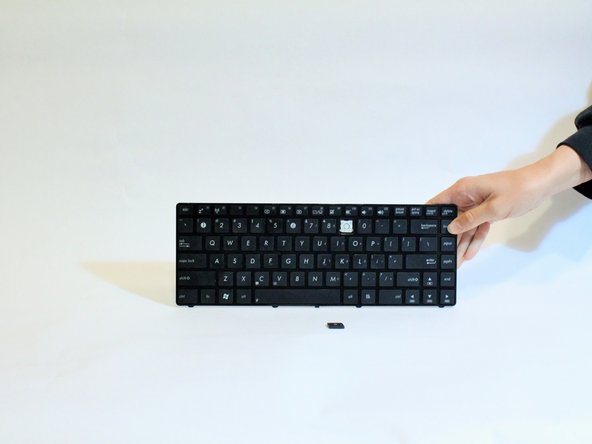
Remove the tape from the ribbon cable if needed and remove the keyboard.
-
-
-
-
-
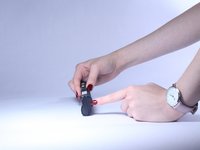
Gently insert the plastic opening tool between the key cap and the hinge. Slowly push the screwdriver up. The key should pop up easily.
-
-
-
Clean the surface underneath the key with a soft brush or condensed air.
-
-
-
Insert the new key in place of the old key. Ensure the clipping sound occurs.
-
-

 Спросите у FixBot






To reassemble your device, follow these instructions in reverse order.

Команда

USF Tampa, Team S2-G4, Lacy Spring 2017 Участник USF Tampa, Team S2-G4, Lacy Spring 2017
USFT-LACY-S17S2G4
3 членов
Автор 49 руководств
