Перейти к основному содержанию
Присоединяйся к сообществу ремонтников - Создай аккаунт

Asus X551CA Fan Replacement

Выберете то, что вам нужно

  1. Asus X551CA Fan Replacement, Keyboard Plate Cover: шаг 1, изображение 1 из 1
    • Power off and unplug your laptop before you begin.

    • Turn the laptop upside-down and remove the following screws using a Phillips #0 driver:

    • Two 9.5 mm screws in the middle of the back edge, and one 9.5 mm screw in the right edge

    • Two 4.3 mm screws in the back corners

    • One 17.5 mm screw at the left edge near the optical drive

    • Three 4.3 mm screws in the front edge

    Спросите у FixBot

    Добавить комментарий

  2. Asus X551CA Fan Replacement: шаг 2, изображение 1 из 1
    • Use the plastic opening tool to separate the keyboard plate cover from the bottom cover. In order to do this, insert the plastic opening tool in between the keyboard plate cover and the bottom cover, then slide along edges to pry open.

    Спросите у FixBot

    Добавить комментарий

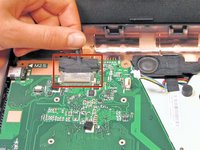
  3. Asus X551CA Fan Replacement: шаг 3, изображение 1 из 1
    • Locate the three ribbons connecting the keyboard plate cover to the bottom cover.

    Спросите у FixBot

    Добавить комментарий

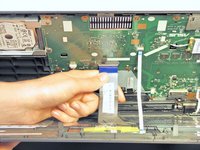
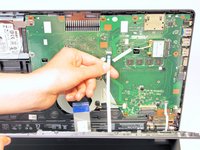
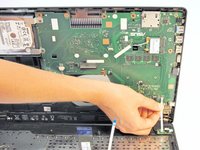
  4. Asus X551CA Fan Replacement: шаг 4, изображение 1 из 3 Asus X551CA Fan Replacement: шаг 4, изображение 2 из 3 Asus X551CA Fan Replacement: шаг 4, изображение 3 из 3
    • Invert the laptop in order to gain access to the ribbons.

    • Remove each ribbon by flipping the small white plastic flap up and gently pulling on the ribbon.

    Спросите у FixBot

    Добавить комментарий

  5. Asus X551CA Fan Replacement: шаг 5, изображение 1 из 1
    • Now that the ribbons have been detached from the bottom cover, carefully remove the keyboard plate cover. Once it has been removed, place it in a safe and moisture free area so it does not get damaged.

    Спросите у FixBot

    Добавить комментарий

  6. Asus X551CA Fan Replacement, Hard Drive: шаг 6, изображение 1 из 1
    • Unscrew the three 5.5 mm Phillips #0 screws with the Phillips #0 Screwdriver.

    Спросите у FixBot

    Добавить комментарий

  7. Asus X551CA Fan Replacement: шаг 7, изображение 1 из 1
    • Once the screws have been removed, place your fingers on the left corners and push the hard drive towards the right edge of the laptop (relative to the picture).

    Спросите у FixBot

    Добавить комментарий

  8. Asus X551CA Fan Replacement: шаг 8, изображение 1 из 1
    • Once it is free, remove the hard drive from its internal cavity.

    Спросите у FixBot

    Добавить комментарий

  9. Asus X551CA Fan Replacement, Spacer: шаг 9, изображение 1 из 1
    • Using the Phillips #0 Screwdriver, unscrew the 5.5 mm Phillips #0 screw that holds the spacer in place.

    Спросите у FixBot

    Добавить комментарий

  10. Asus X551CA Fan Replacement: шаг 10, изображение 1 из 1
    • Remove the spacer from the laptop by gently sliding it towards the right edge of the laptop.

    Спросите у FixBot

    Добавить комментарий

  11. Asus X551CA Fan Replacement, WiFi Card: шаг 11, изображение 1 из 1
    • Use the Phillips #0 Screwdriver to unscrew the 3.2 mm Phillips #0 screw which attaches the WiFi card to the motherboard.

    Спросите у FixBot

    Добавить комментарий

  12. Asus X551CA Fan Replacement: шаг 12, изображение 1 из 1
    • Disconnect the Wifi card from the motherboard by gently sliding it towards the right edge of the laptop.

    Спросите у FixBot

    Добавить комментарий

  13. Asus X551CA Fan Replacement: шаг 13, изображение 1 из 1
    • Remove each of the two small antenna connections by disconnecting one wire at a time. Each wire should easily unsnap from the Wifi card.

    Спросите у FixBot

    Добавить комментарий

  14. Asus X551CA Fan Replacement, Battery: шаг 14, изображение 1 из 1
    • Remove the battery from the laptop by applying pressure on both ends and lifting it out of the case.

    Спросите у FixBot

    Добавить комментарий

  15. Asus X551CA Fan Replacement, Motherboard: шаг 15, изображение 1 из 1
    • With the Phillips #0 Screwdriver, remove the nine 5.5 mm Phillips #0 screws which hold the motherboard in place.

    Спросите у FixBot

    Добавить комментарий

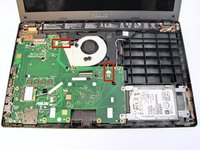
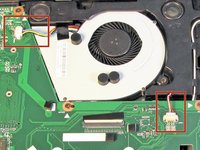
  16. Asus X551CA Fan Replacement: шаг 16, изображение 1 из 2 Asus X551CA Fan Replacement: шаг 16, изображение 2 из 2
    • Now, locate the two wires connected to the motherboard.

    Спросите у FixBot

    Добавить комментарий

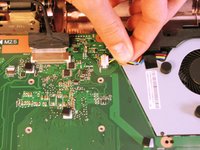
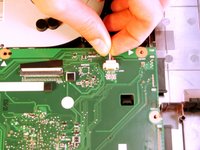
  17. Asus X551CA Fan Replacement: шаг 17, изображение 1 из 2 Asus X551CA Fan Replacement: шаг 17, изображение 2 из 2
    • Remove the wires by easily pulling them parallel to the motherboard's surface.

    • The wires are very fragile. Be sure to pull carefully so that they do not break!

    Спросите у FixBot

    Добавить комментарий

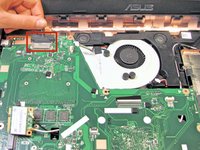
  18. Asus X551CA Fan Replacement: шаг 18, изображение 1 из 2 Asus X551CA Fan Replacement: шаг 18, изображение 2 из 2
    • Remove the LCD display connection by gently pulling on the attached wire.

    • Gently lift any tape that may be holding the connection.

    Спросите у FixBot

    Добавить комментарий

  19. Asus X551CA Fan Replacement: шаг 19, изображение 1 из 1
    • Remove the motherboard from the case by gently lifting it upward.

    Спросите у FixBot

    Добавить комментарий

  20. Asus X551CA Fan Replacement, Fan: шаг 20, изображение 1 из 1
    • Once the mother board is removed, locate the fan.

    Спросите у FixBot

    Добавить комментарий

  21. Asus X551CA Fan Replacement: шаг 21, изображение 1 из 1
    • Using the Phillips #0 screwdriver, remove the 5.5 mm Phillips #0 screw holding the fan in place.

    Спросите у FixBot

    Добавить комментарий

  22. Asus X551CA Fan Replacement: шаг 22, изображение 1 из 1
    • Lift the fan out of the laptop.

    Спросите у FixBot

    Добавить комментарий

Заключение

To reassemble your device, follow these instructions in reverse order.

Отменить: Я не выполнил это руководство.

8 человек успешно провели ремонт по этому руководству.

Josh

Участник с: 04/10/14

2 970 Репутация

Автор 12 руководств

Команда

Cal Poly, Team 7-22, Regan Spring 2014 Участник Cal Poly, Team 7-22, Regan Spring 2014

CPSU-REGAN-S14S7G22

5 членов

Автор 15 руководств

1 Комментарий к руководству

Upgrade the memory while you have the motherboard out. 8GB PC3L-12800 SODIMM

iceman - Ответить Поделиться

Добавить комментарий

Статистика просмотров:

За последние 24 часов: 1

За последние 7 дней: 8

За последние 30 дней: 38

За всё время: 6,162