Перейти к основному содержанию
Присоединяйся к сообществу ремонтников - Создай аккаунт

Brother PT-1010 Keyboard Replacement

Выберете то, что вам нужно

  1. Brother PT-1010 Keyboard Replacement, Remove Back Cover: шаг 1, изображение 1 из 1
    • Flip the device over and press down on the indication arrows located at the top center of the back cover and pull it open.

    Спросите у FixBot
  2. Brother PT-1010 Keyboard Replacement: шаг 2, изображение 1 из 1
    • Remove batteries, cassette tape, and cutter blade.

    Спросите у FixBot
  3. Brother PT-1010 Keyboard Replacement, Remove Screws: шаг 3, изображение 1 из 1
    • Use a phillips size #00 screwdriver to unscrew the 5 corner screws circled in the picture.

    Спросите у FixBot
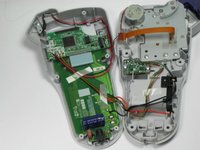
  4. Brother PT-1010 Keyboard Replacement, Separate Device: шаг 4, изображение 1 из 1
    • Separate the top of the device from the bottom. Be very cautious when you separate the device, there is a ribbon attaching the top to the bottom.

    Спросите у FixBot
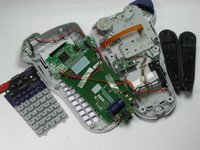
  5. Brother PT-1010 Keyboard Replacement, Remove side panels: шаг 5, изображение 1 из 1
    • Remove the two black side panels. They will easily fall out so just move them to the side until you are putting your device back together.

    Спросите у FixBot
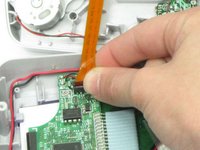
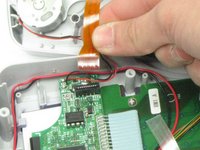
  6. Brother PT-1010 Keyboard Replacement, Pull Ribbon Out: шаг 6, изображение 1 из 3 Brother PT-1010 Keyboard Replacement, Pull Ribbon Out: шаг 6, изображение 2 из 3 Brother PT-1010 Keyboard Replacement, Pull Ribbon Out: шаг 6, изображение 3 из 3
    • Using your index finger and thumb, pull out the golden ribbon from the green circuit board.

    Спросите у FixBot
  7. Brother PT-1010 Keyboard Replacement, Remove Screws from Circuit Board: шаг 7, изображение 1 из 1
    • Use a phillips size #00 screwdriver to remove the two screws, circled in red, from the green circuit board.

    Спросите у FixBot
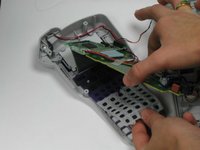
  8. Brother PT-1010 Keyboard Replacement, Remove Circuit Board: шаг 8, изображение 1 из 1
    • Carefully remove the green circuit board by pulling it straight up. Be careful not to break the LCD cable ribbon that connects the circuit board to the device.

    • The ribbon is very fragile so be careful to break it when pulling up on the circuit board.

    Спросите у FixBot
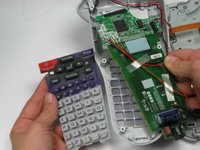
  9. Brother PT-1010 Keyboard Replacement, Peel Off Rubber Keyboard: шаг 9, изображение 1 из 3 Brother PT-1010 Keyboard Replacement, Peel Off Rubber Keyboard: шаг 9, изображение 2 из 3 Brother PT-1010 Keyboard Replacement, Peel Off Rubber Keyboard: шаг 9, изображение 3 из 3
    • Underneath the circuit board you will find the rubber keyboard. Peel this off and remove it from the device.

    Спросите у FixBot
Заключение

To reassemble your device, follow these instructions in reverse order.

Haley Sweet

Участник с: 10/30/14

460 Репутация

Автор 4 руководств

Команда

Baylor, Team 4-4, Williams Fall 2014 Участник Baylor, Team 4-4, Williams Fall 2014

BU-WILLIAMS-F14S4G4

4 членов

Автор 4 руководств

3 Комментарии к руководству

Hi!

Thanks for this very helpful and detailed set of instructions. One small suggestion - assuming that replacing the keyboard means you need a working one to replace the old one with, you might want to consider adding “Parts: replacement keyboard” instead of “No parts required.”

Cheers,

Maria B

Maria Bitterli - Ответить Поделиться

Please specify what is being replaced. Is the rubber keyboard the part that needs to be replaced?

Sincere Cavalier - Ответить Поделиться

Screen is dull, what to do

Judy Baranczyk - Ответить Поделиться

Добавить комментарий

Статистика просмотров:

За последние 24 часов: 1

За последние 7 дней: 9

За последние 30 дней: 54

За всё время: 3,562