Перейти к основному содержанию
Присоединяйся к сообществу ремонтников - Создай аккаунт

Canon PowerShot A460 Back Casing Replacement

Выберете то, что вам нужно

    1. Canon PowerShot A460 Back Casing Replacement, Battery: шаг 1, изображение 1 из 1
      • Slide the switch on the battery cover labeled "CARD/BATT. OPEN." to the right.

      • While still holding the switch, pull the cover down, allowing it to release and open.

      Спросите у FixBot

      Добавить комментарий

    2. Canon PowerShot A460 Back Casing Replacement: шаг 2, изображение 1 из 1
      • Tilt the camera slightly to allow the batteries to fall out.

      Спросите у FixBot

      Добавить комментарий

    3. Canon PowerShot A460 Back Casing Replacement: шаг 3, изображение 1 из 1
      • Press on and release the memory card to eject it.

      Спросите у FixBot

      Добавить комментарий

    1. Canon PowerShot A460 Back Casing Replacement, Front Casing: шаг 4, изображение 1 из 1
      • Unscrew the 5mm Phillips #00 screw from the bottom of the camera.

      • Make sure to keep the different size screws organized to make reassembling the camera simpler.

      Спросите у FixBot

      Добавить комментарий

    2. Canon PowerShot A460 Back Casing Replacement: шаг 5, изображение 1 из 1
      • Unscrew the three 2mm Phillips #00 screws that are located on the bottom of the camera.

      Спросите у FixBot

      Добавить комментарий

    3. Canon PowerShot A460 Back Casing Replacement: шаг 6, изображение 1 из 1
      • Remove the 4mm Phillips #00 screw that is located on the left side of the camera, if the display screen is facing you.

      Спросите у FixBot

      Добавить комментарий

    4. Canon PowerShot A460 Back Casing Replacement: шаг 7, изображение 1 из 1
      • Take out the 4mm Phillips #00 screw under the rubber flap on the right end of the camera.

      Спросите у FixBot

      Добавить комментарий

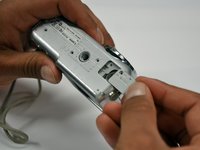
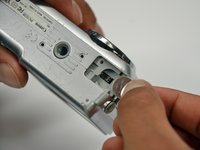
    5. Canon PowerShot A460 Back Casing Replacement: шаг 8, изображение 1 из 2 Canon PowerShot A460 Back Casing Replacement: шаг 8, изображение 2 из 2
      • Remove the second battery cover on the bottom of camera.

      • Take the silver battery out of the camera.

      Спросите у FixBot

      Добавить комментарий

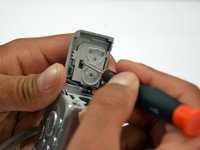
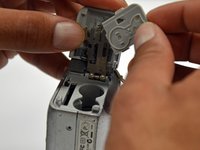
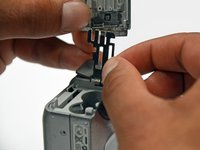
    6. Canon PowerShot A460 Back Casing Replacement: шаг 9, изображение 1 из 3 Canon PowerShot A460 Back Casing Replacement: шаг 9, изображение 2 из 3 Canon PowerShot A460 Back Casing Replacement: шаг 9, изображение 3 из 3
      • Remove the 4mm Phillips #00 screw on the inside of the flap that hides the battery and memory card slots.

      • Remove the light grey, plastic piece.

      • Remove the plastic portion of the battery flap cover. The metal piece will remain attached.

      Спросите у FixBot

      Добавить комментарий

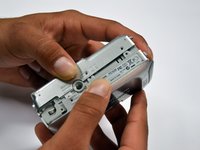
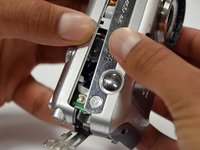
    7. Canon PowerShot A460 Back Casing Replacement: шаг 10, изображение 1 из 3 Canon PowerShot A460 Back Casing Replacement: шаг 10, изображение 2 из 3 Canon PowerShot A460 Back Casing Replacement: шаг 10, изображение 3 из 3
      • Slightly pull on each side of the camera. It should loosen up and come apart.

      • If it does not pull apart right away, use a little more force.

      • Do not give up!

      Спросите у FixBot

      Добавить комментарий

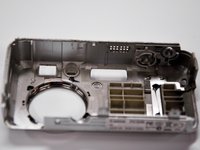
    1. Canon PowerShot A460 Back Casing Replacement, Back Casing: шаг 11, изображение 1 из 1
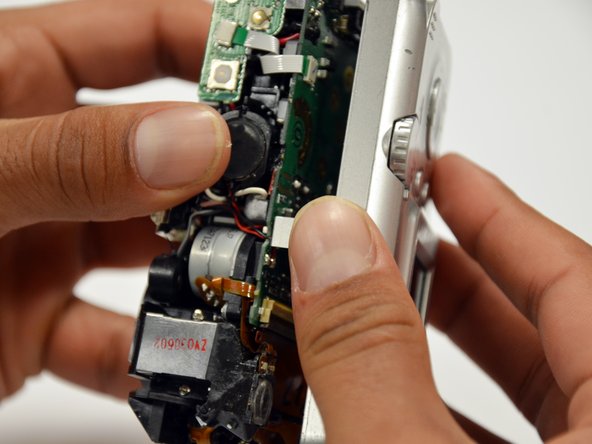
      • Remove the back case of the camera by pulling from the top.

      • Be careful when pulling off the case. There is a delicate gold ribbon connecting the bottom of the camera to the back case.

      Спросите у FixBot

      Добавить комментарий

Заключение

To reassemble your device, follow these instructions in reverse order.

Отменить: Я не выполнил это руководство.

Stephanie Friend

Участник с: 01/18/13

132 Репутация

Автор 2 руководств

Команда

Cal Poly, Team 19-42, Regan Winter 2013 Участник Cal Poly, Team 19-42, Regan Winter 2013

CPSU-REGAN-W13S19G42

4 членов

Автор 12 руководств

0 Комментарии к руководству

Добавить комментарий

Статистика просмотров:

За последние 24 часов: 0

За последние 7 дней: 20

За последние 30 дней: 78

За всё время: 4,111