Перейти к основному содержанию
Присоединяйся к сообществу ремонтников - Создай аккаунт

Canon Powershot A720 IS Shutter Button Replacement

Выберете то, что вам нужно

  1. Canon Powershot A720 IS Shutter Button Replacement, Shutter Button: шаг 1, изображение 1 из 1
    Инструмент, используемый на этом этапе:
    Tweezers
    $4.99
    • Carefully insert the tip of the tweezers in the space between the shutter button and the zoom dial. Gently insert the tip under the button and slowly lift.

    • If this step does not dislodge the shutter button, move on to step 2.

    • Do not force the tip of the tweezer or insert the tweezer too deep in between the shutter button and zoom dial. It will cause permanent cosmetic and button damage to the camera.

    Спросите у FixBot

    Добавить комментарий

  2. Canon Powershot A720 IS Shutter Button Replacement: шаг 2, изображение 1 из 2 Canon Powershot A720 IS Shutter Button Replacement: шаг 2, изображение 2 из 2
    • On the bottom of the camera, open the battery compartment by pushing the lock up. The door will then spring open allowing you to slide the batteries out.

    • If an SD card is also inserted, push on it to easily remove it from the camera.

    Спросите у FixBot

    Добавить комментарий

  3. Canon Powershot A720 IS Shutter Button Replacement: шаг 3, изображение 1 из 3 Canon Powershot A720 IS Shutter Button Replacement: шаг 3, изображение 2 из 3 Canon Powershot A720 IS Shutter Button Replacement: шаг 3, изображение 3 из 3
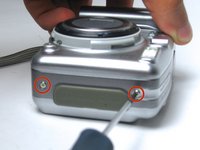
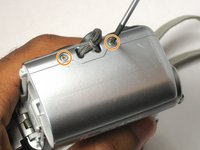
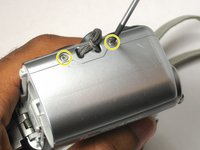
    • On the left side of the camera remove the two visible 4mm Phillips head screws.

    • On the right side of the camera remove the two visible 4mm Phillips head screws.

    • On the bottom of the camera remove the two visible 4mm Phillips head screws.

    Спросите у FixBot

    Добавить комментарий

  4. Canon Powershot A720 IS Shutter Button Replacement: шаг 4, изображение 1 из 3 Canon Powershot A720 IS Shutter Button Replacement: шаг 4, изображение 2 из 3 Canon Powershot A720 IS Shutter Button Replacement: шаг 4, изображение 3 из 3
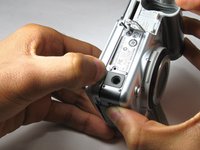
    • Slowly and gently pry open the back case panel from the rest of the camera.

    • The gray rubber cover labeled DC IN DIGITAL A/V OUT may fall out.

    Спросите у FixBot

    Добавить комментарий

  5. Canon Powershot A720 IS Shutter Button Replacement: шаг 5, изображение 1 из 1
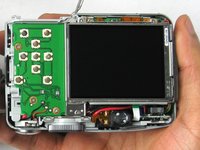
    • Remove the two 3 mm screws below the LCD screen using a Phillips #00 screwdriver.

    • Unscrew the top 4 mm Phillips head screw.

    Спросите у FixBot

    Добавить комментарий

  6. Canon Powershot A720 IS Shutter Button Replacement: шаг 6, изображение 1 из 2 Canon Powershot A720 IS Shutter Button Replacement: шаг 6, изображение 2 из 2
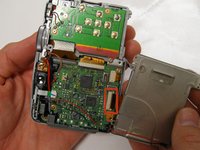
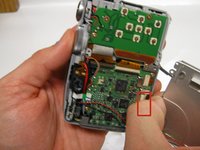
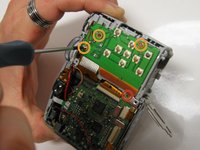
    • Gently turnover the LCD screen so that the motherboard is exposed.

    • Carefully pull the ribbon cable straight out using your thumb and index finger.

    • The ribbon cable is fragile and will break if bent too much.

    Спросите у FixBot

    Добавить комментарий

  7. Canon Powershot A720 IS Shutter Button Replacement: шаг 7, изображение 1 из 2 Canon Powershot A720 IS Shutter Button Replacement: шаг 7, изображение 2 из 2
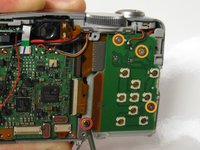
    • Remove the 3mm Phillips head screw between the circuit boards.

    • Remove the three 3.5mm Phillips head screws on the circuit board.

    Спросите у FixBot

    Добавить комментарий

  8. Canon Powershot A720 IS Shutter Button Replacement: шаг 8, изображение 1 из 3 Canon Powershot A720 IS Shutter Button Replacement: шаг 8, изображение 2 из 3 Canon Powershot A720 IS Shutter Button Replacement: шаг 8, изображение 3 из 3
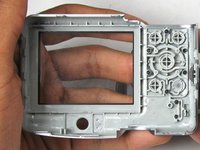
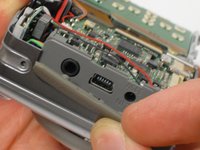
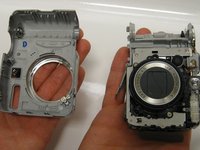
    • Remove the gray rubber cover labeled DC IN DIGITAL A/V OUT if it hasn't fallen out yet on its own.

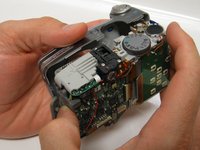
    • Carefully pull the front panel away from the rest of the camera.

    Спросите у FixBot

    Добавить комментарий

  9. Canon Powershot A720 IS Shutter Button Replacement: шаг 9, изображение 1 из 2 Canon Powershot A720 IS Shutter Button Replacement: шаг 9, изображение 2 из 2
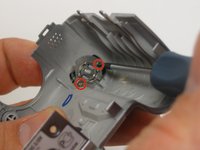
    • In the front panel remove the two 2.5mm Phillips head screws attached to the shutter button.

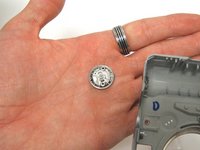
    • The shutter button and other components will fall out.

    Спросите у FixBot

    Добавить комментарий

Заключение

To reassemble your device, follow these instructions in reverse order.

Отменить: Я не выполнил это руководство.

Ismael R

Участник с: 01/19/15

251 Репутация

Автор 2 руководств

Команда

USF Tampa, Team 17-4, Watkins Winter 2015 Участник USF Tampa, Team 17-4, Watkins Winter 2015

USFT-WATKINS-W15S17G4

3 членов

Автор 8 руководств

0 Комментарии к руководству

Добавить комментарий

Статистика просмотров:

За последние 24 часов: 1

За последние 7 дней: 8

За последние 30 дней: 36

За всё время: 1,434