
Computer RAM Replacement

Eden rodriguez и 3 другие участники
Последнее обновление 24 авг 2021 г.
Просмотров: 5,4 тыс.
Просмотр статистики:
- За последние 24 часа:
- 6
- За последние 7 дней:
- 31
- За последние 30 дней:
- 152
- За все время:
- 5 444
Комментарии: 3
3 комментариев к шагам.
Завершено: 3 4
3 пользователей отметили эту инстркукцию как "завершенное". Вы будете следующим?
4 пользователей отметили эту инструкцию как "завершенное". В том числе и Вы — отличная работа!
Избранные: 0 1
Никто не добавил эту инструкцию в избранное (и не подписался на нее). Будете ли Вы первым?
1 человек поставил лайк на эту инструкцию (и подписался на нее) — и это Вы!
Введение
Перейти к шагу 1 ↓This repair guide will help guide you through the process to replace or upgrade your T-Force Delta RGB RAM in your PC. Depending on the computer case tower you have, you may need a Phillips head screw driver to remove the side panel. You will also of course need new RAM. This repair may be needed if you have troubleshooted your computer and have found your RAM is a problem. You may also be wanting to upgrade your RAM for better, newer, and faster RAM. Upgrading and replacing your current existing RAM is the same process.
-
-
-
Press the power button on the case of your PC to turn it off.
 Спросите у FixBot
-
-
-
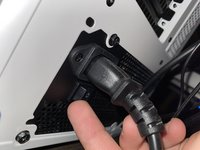
Turn off the computer from the power supply in the back, and unplug the cable from the PSU.
-
-
-
Lay the case on its side.
-
For this case model (Cooler Master TD 500 Mesh) it has two thumb screws on the top corners which can be removed with your fingers.
-
Remove the side panel.
-
-
-
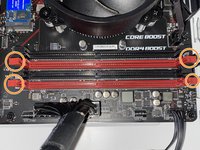
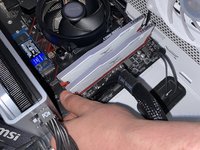
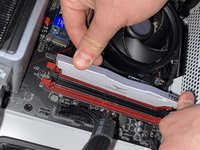
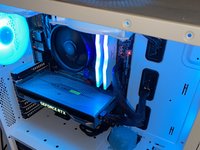
Each motherboard is different. This motherboard (MSI B450 Gaming Plus Max) has two pull tabs on each side. Push down on them to release each card.
-
-
-
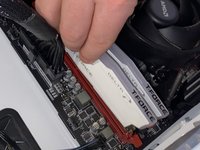
Once the pull tabs are released, remove the RAM from the RAM slots and set to the side.
-
-
-
Repeat Steps 5 & 6 to remove the second RAM card from the RAM slot.
-
-
-
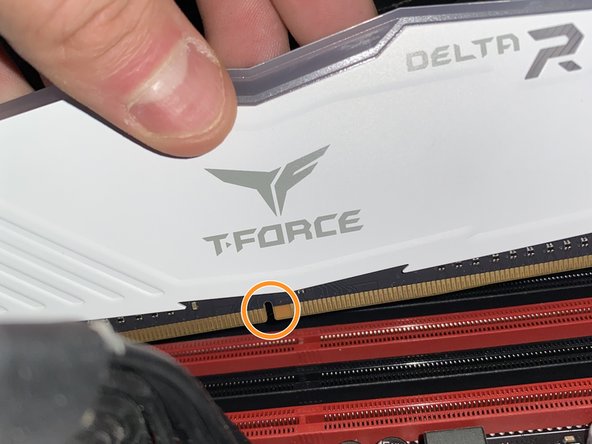
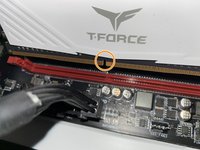
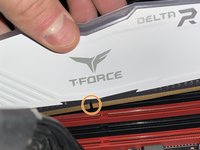
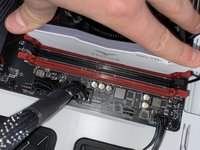
To install new RAM, line up the notch of the RAM slot with the notch of the RAM slot on the motherboard.
-
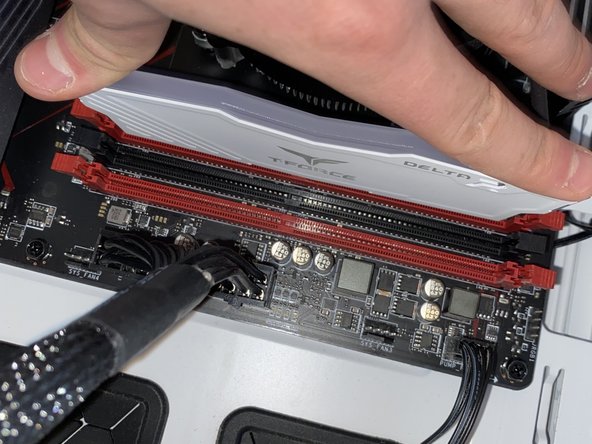
For this motherboard, insert the RAM in the 2nd slot from left to right and the furthest one to the right.
-
-
-
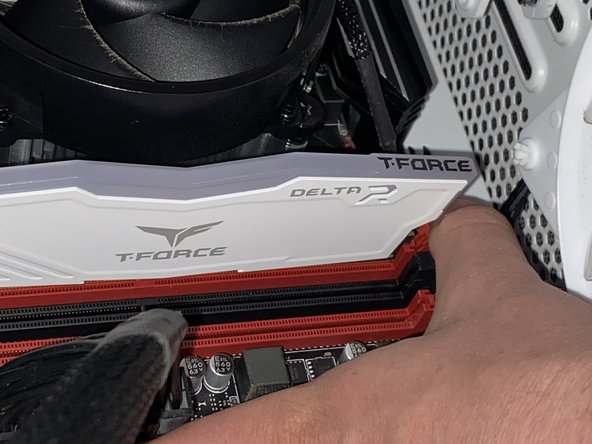
Push down with even pressure on both sides until you hear two clicks since on this motherboard there are two tabs, one on each side.
-
-
-
-
Power your PC by turning on the power switch on the back.
-
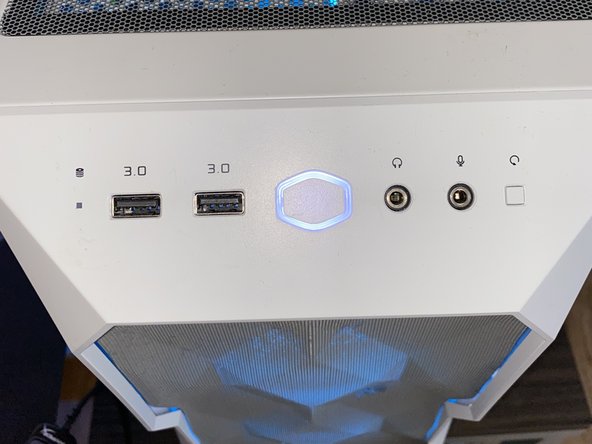
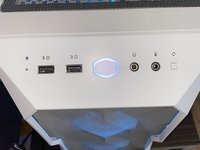
Press the power button on the top of the case.
-
-
-
Stand your computer back up.
-
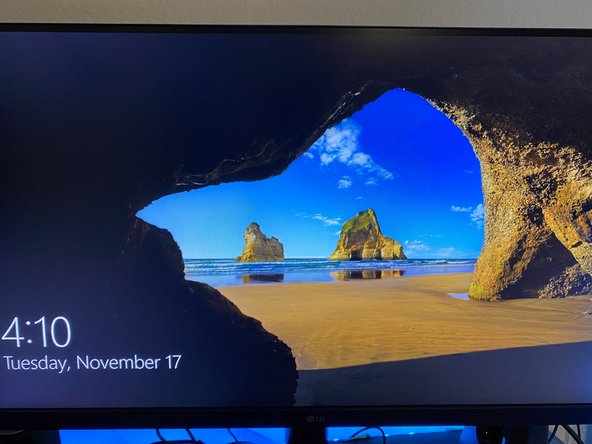
See if the computer powers up and into windows and shows up on your display. If it does, put the side panel back on.
-
-
-
Check to see if your RAM is running at its rated speed.
-
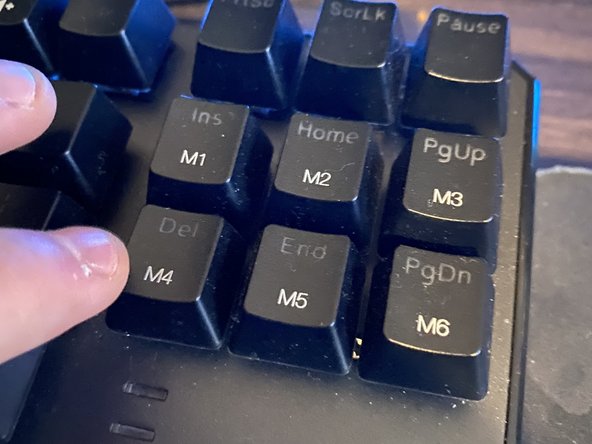
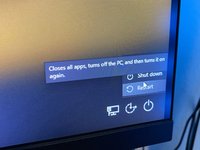
Restart your PC and spam click your delete key on your keyboard until you get into the MSI BIOS.
-
-
-
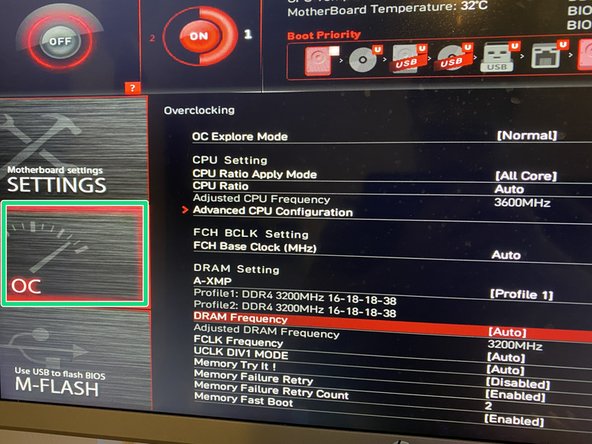
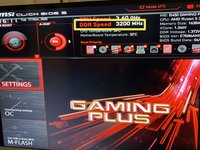
You will know you got into your BIOS if see a screen like this. On the top section, for this RAM, it should say the DDR speed is 3200 Mhz. If you do see this, skip to the final step.
-
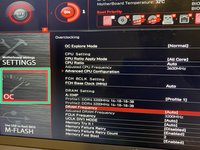
If you do not, with your arrow keys go to the OC section, scroll to DRAM frequency and instead of auto, select the rated speed of your RAM. (Don't forget to save this setting.)
-
-
-
Press your Esc key until the message in the picture pops out. Navigate to exit and your PC should restart and you are good to go. You have successfully remove and replaced or upgraded your RAM!
-
Navigate to "Exit," and your PC will restart. You are good to go!
-
-




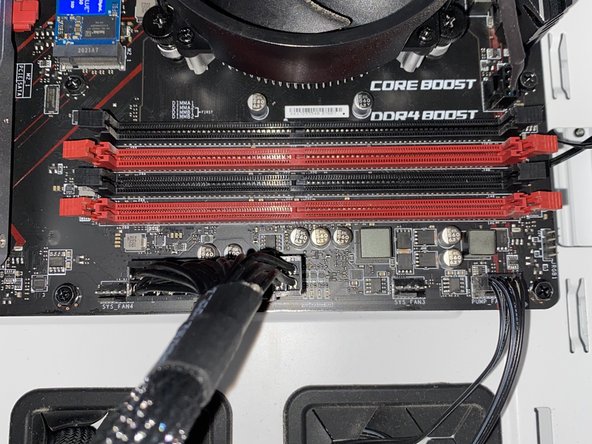
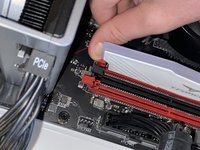
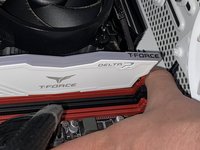
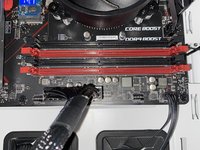








This is how you replace/repair your RAM, and how to check it is running at the rated speed.
Отменить: Я не выполнил это руководство.
3 человек успешно провели ремонт по этому руководству.

Команду

Texas Tech, Team S14-G8, Cowan Fall 2020 Участник Texas Tech, Team S14-G8, Cowan Fall 2020
TTU-COWAN-F20S14G8
2 членов
Автор 12 руководств
