Перейти к основному содержанию
Присоединяйся к сообществу ремонтников - Создай аккаунт

Dell Inspiron n5050 Keyboard Replacement

Выберете то, что вам нужно

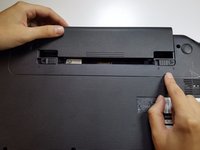
    1. Dell Inspiron n5050 Keyboard Replacement, Battery: шаг 1, изображение 1 из 1
      • Flip your laptop over to view the bottom and locate the two locks.

      Спросите у FixBot

      Добавить комментарий

    2. Dell Inspiron n5050 Keyboard Replacement: шаг 2, изображение 1 из 1
      • Slide the two locks away from each other.

      • Sliding these locks will loosen the battery to allow removal.

      Спросите у FixBot

      Добавить комментарий

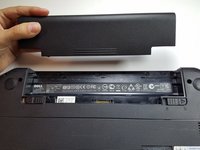
    3. Dell Inspiron n5050 Keyboard Replacement: шаг 3, изображение 1 из 2 Dell Inspiron n5050 Keyboard Replacement: шаг 3, изображение 2 из 2
      • Pull battery out of the laptop.

      • Your laptop's battery should be completely removed.

      Спросите у FixBot

      Добавить комментарий

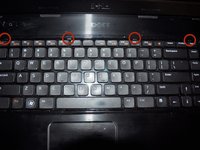
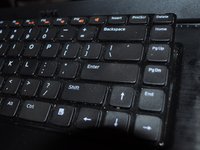
    1. Dell Inspiron n5050 Keyboard Replacement, Keyboard: шаг 4, изображение 1 из 2 Dell Inspiron n5050 Keyboard Replacement, Keyboard: шаг 4, изображение 2 из 2
      • Flip the laptop right side up. Open the laptop.

      • Gently press in the four retaining tabs along the top of the keyboard with a spudger, one at a time.

      • After the first tab is released, gently lift up on the keyboard so it doesn't lock again. Finish the other three tabs while gently lifting up on the keyboard. The keyboard will hinge up along the bottom.

      Спросите у FixBot

      Добавить комментарий

    2. Dell Inspiron n5050 Keyboard Replacement: шаг 5, изображение 1 из 3 Dell Inspiron n5050 Keyboard Replacement: шаг 5, изображение 2 из 3 Dell Inspiron n5050 Keyboard Replacement: шаг 5, изображение 3 из 3
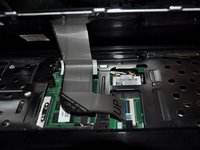
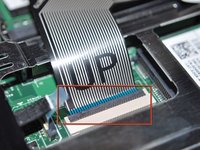
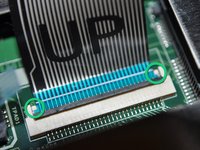
      • Gently flip the data cable latch away from the data cable with flat side of spudger.

      • Lift the cable up and out.

      • When reinstalling cable, there are two retainer wings on the sides of the cable that the cable that lock onto the bottom of the cable latch area. When these are in place the cable is properly inserted.

      • For removing the optical drive you don't need to disconnect the keyboard ribbon cable.

      Спросите у FixBot

      Добавить комментарий

Заключение

To reassemble your device, follow these instructions in reverse order.

Отменить: Я не выполнил это руководство.

6 человек успешно провели ремонт по этому руководству.

Tyler

Участник с: 06/19/12

5 088 Репутация

Автор 16 руководств

Команда

TechForce Участник TechForce

Business

2 членов

Автор 89 руководств

4 Комментарии к руководству

dis has realy helped me sir... love you!

jovialcom - Ответить Поделиться

Dell Inspiron 15 - M5040 N5040 N5050 disassembly

https://youtu.be/3c5P0pJgckg

mohamed - Ответить Поделиться

Here’s a video guide to replacing the keyboard on this (or similar) laptop: https://www.youtube.com/watch?v=6T3xgkC-...

Paul Freeman-Powell - Ответить Поделиться

My keyboard is not have a clips what i do?

BurIsm - Ответить Поделиться

Добавить комментарий

Статистика просмотров:

За последние 24 часов: 2

За последние 7 дней: 14

За последние 30 дней: 51

За всё время: 10,785