Перейти к основному содержанию
Присоединяйся к сообществу ремонтников - Создай аккаунт

Dell VRC100-R Daughterboard Replacement

Выберете то, что вам нужно

  1. Dell VRC100-R Daughterboard Replacement, Battery: шаг 1, изображение 1 из 3 Dell VRC100-R Daughterboard Replacement, Battery: шаг 1, изображение 2 из 3 Dell VRC100-R Daughterboard Replacement, Battery: шаг 1, изображение 3 из 3
    • Orient your controller so that the black ring is on the bottom and the buttons are facing away from yourself.

    • Place your thumb on the small arrow that is on the controller's battery cover and firmly push upwards.

    • Slide the cover off and separate it from the controller.

    Спросите у FixBot

    Добавить комментарий

  2. Dell VRC100-R Daughterboard Replacement: шаг 2, изображение 1 из 2 Dell VRC100-R Daughterboard Replacement: шаг 2, изображение 2 из 2
    • Remove the right battery by pushing the positive end down and pulling the battery out toward yourself.

    • Repeat the procedure for the left battery.

    Спросите у FixBot

    Добавить комментарий

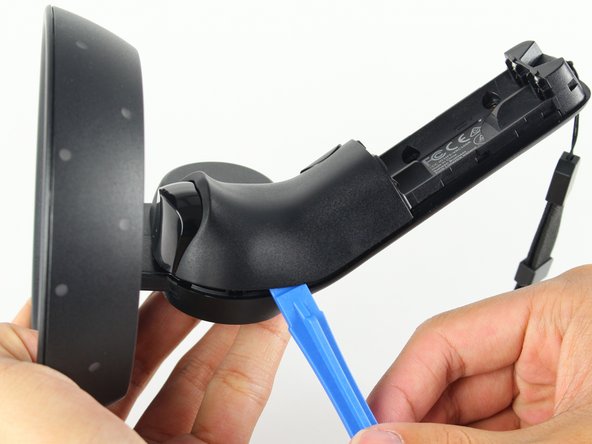
  3. Dell VRC100-R Daughterboard Replacement, Joystick: шаг 3, изображение 1 из 3 Dell VRC100-R Daughterboard Replacement, Joystick: шаг 3, изображение 2 из 3 Dell VRC100-R Daughterboard Replacement, Joystick: шаг 3, изображение 3 из 3
    • Hold the joystick down with your left thumb to make space for the plastic opening tool.

    • Insert the plastic opening tool into the circle above the joystick and pry upwards to lift the front panel.

    • Slide the plastic opening tool around the perimeter until you can lift the front panel.

    • You may hear a popping noise when you pry off the front panel.

    Спросите у FixBot

    Добавить комментарий

  4. Dell VRC100-R Daughterboard Replacement: шаг 4, изображение 1 из 2 Dell VRC100-R Daughterboard Replacement: шаг 4, изображение 2 из 2
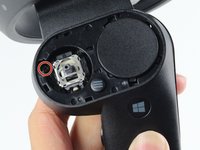
    • Grab the joystick and pull away from the controller to remove it.

    Спросите у FixBot

    Добавить комментарий

  5. Dell VRC100-R Daughterboard Replacement, Daughterboard: шаг 5, изображение 1 из 2 Dell VRC100-R Daughterboard Replacement, Daughterboard: шаг 5, изображение 2 из 2
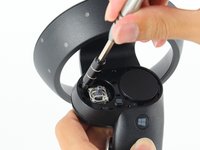
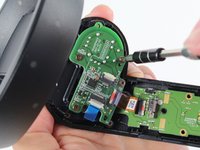
    • Remove one 6mm Phillips #0 screw.

    Спросите у FixBot

    Добавить комментарий

  6. Dell VRC100-R Daughterboard Replacement: шаг 6, изображение 1 из 2 Dell VRC100-R Daughterboard Replacement: шаг 6, изображение 2 из 2
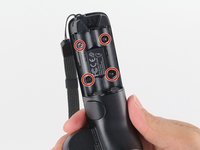
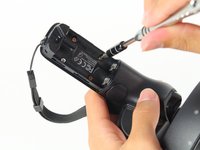
    • Turn your controller over and orient it so that the thin side is on the top.

    • Remove four 4mm Phillips #0 screws.

    Спросите у FixBot

    Добавить комментарий

  7. Dell VRC100-R Daughterboard Replacement: шаг 7, изображение 1 из 2 Dell VRC100-R Daughterboard Replacement: шаг 7, изображение 2 из 2
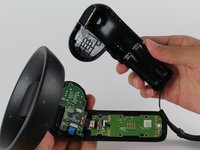
    • Turn your controller 90 degrees clockwise and insert a blue plastic opening tool into the crease of the back panel.

    • Push down on the end of the plastic opening tool closest to you to lift the panel up.

    • Slide the plastic opening tool around the perimeter of the back panel until you can remove it.

    • You may hear loud popping noises as the back panel separates from the controller.

    Спросите у FixBot

    Добавить комментарий

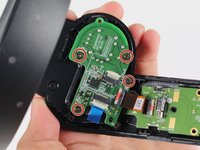
  8. Dell VRC100-R Daughterboard Replacement: шаг 8, изображение 1 из 2 Dell VRC100-R Daughterboard Replacement: шаг 8, изображение 2 из 2
    • Remove four 4mm Phillips #0 screws.

    Спросите у FixBot

    Добавить комментарий

  9. Dell VRC100-R Daughterboard Replacement: шаг 9, изображение 1 из 3 Dell VRC100-R Daughterboard Replacement: шаг 9, изображение 2 из 3 Dell VRC100-R Daughterboard Replacement: шаг 9, изображение 3 из 3
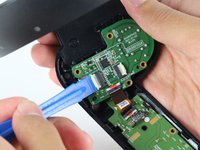
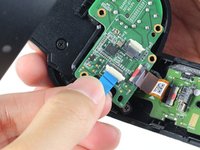
    • Use the tip of the blue plastic opening tool or your fingernail to gently flip-up the white locking flap.

    • Make sure to only lift the flap and not the connector socket because the socket easily breaks off.

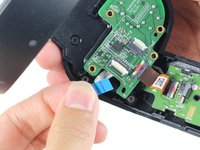
    • Grab the blue cable and pull away from the socket.

    • To reinstall, insert the blue cable into the connector and close the flap on the black line.

    Спросите у FixBot

    Добавить комментарий

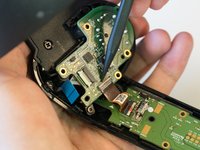
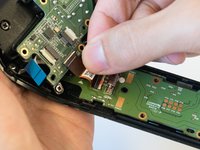
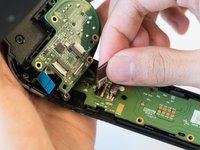
  10. Dell VRC100-R Daughterboard Replacement: шаг 10, изображение 1 из 3 Dell VRC100-R Daughterboard Replacement: шаг 10, изображение 2 из 3 Dell VRC100-R Daughterboard Replacement: шаг 10, изображение 3 из 3
    • Use the tip of a spudger or your fingernail to gently flip-up the small white flap holding the orange ribbon cable.

    • Make sure to only lift the flap and not the connector socket because the socket easily breaks off.

    • Grab the orange cable and pull away from the socket.

    • To reinstall, insert the orange cable into the connector and close the flap on the white line.

    Спросите у FixBot

    Добавить комментарий

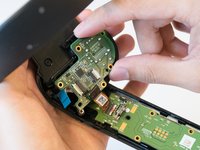
  11. Dell VRC100-R Daughterboard Replacement: шаг 11, изображение 1 из 2 Dell VRC100-R Daughterboard Replacement: шаг 11, изображение 2 из 2
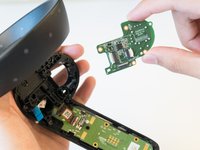
    • Place two fingers on the perimeter of the daughterboard and lift it away from the controller.

    Спросите у FixBot

    Добавить комментарий

Заключение

To reassemble your device, follow these instructions in reverse order.

Отменить: Я не выполнил это руководство.

22 человек успешно провели ремонт по этому руководству.

Steven Pineda

Участник с: 04/16/18

1 049 Репутация

Автор 3 руководств

Команда

Cal Poly, Team S18-G3, Livingston Spring 2018 Участник Cal Poly, Team S18-G3, Livingston Spring 2018

CPSU-LIVINGSTON-S18S18G3

4 членов

Автор 5 руководств

1 Комментарий к руководству

Really instructive & easy to follow!

Daisy Chavez - Ответить Поделиться

Добавить комментарий

Статистика просмотров:

За последние 24 часов: 3

За последние 7 дней: 7

За последние 30 дней: 49

За всё время: 7,188