Перейти к основному содержанию
Присоединяйся к сообществу ремонтников - Создай аккаунт

Dell XPS M1530 Wireless Card Replacement

Выберете то, что вам нужно

    1. Dell XPS M1530 Wireless Card Replacement, Battery: шаг 1, изображение 1 из 1
      • Turn the computer upside down with the battery facing you.

      • Turn the computer off and disconnect the charging cable from the computer.

      • Failure to unplug the charging cable may result in electric shock.

      Спросите у FixBot

      Добавить комментарий

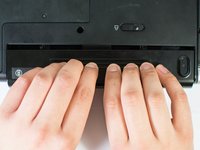
    2. Dell XPS M1530 Wireless Card Replacement: шаг 2, изображение 1 из 1
      • Push the switch as far to the right as possible to unlock the battery.

      Спросите у FixBot

      Добавить комментарий

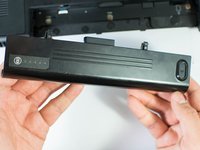
    3. Dell XPS M1530 Wireless Card Replacement: шаг 3, изображение 1 из 2 Dell XPS M1530 Wireless Card Replacement: шаг 3, изображение 2 из 2
      • Remove the battery using two hands and pull it away from the computer.

      Спросите у FixBot

      Добавить комментарий

    1. Dell XPS M1530 Wireless Card Replacement, Wireless Card: шаг 4, изображение 1 из 1
      • Unscrew the two 4.7mm Phillips #1 screws on the bottom panel of the laptop.

      • Two 4.7mm Philips #1 screws

      Спросите у FixBot

      Добавить комментарий

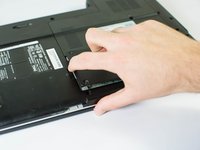
    2. Dell XPS M1530 Wireless Card Replacement: шаг 5, изображение 1 из 2 Dell XPS M1530 Wireless Card Replacement: шаг 5, изображение 2 из 2
      • Lift the panel up from the indented area.

      • This indent should provide enough grip to remove the panel with ease.

      Спросите у FixBot

      Добавить комментарий

    3. Dell XPS M1530 Wireless Card Replacement: шаг 6, изображение 1 из 1
      • Remove the single 3.9mm Phillips #1 screw in the upper right corner of the wireless card.

      • One 3.9mm Phillips #1 screw

      Спросите у FixBot

      Добавить комментарий

    4. Dell XPS M1530 Wireless Card Replacement: шаг 7, изображение 1 из 1
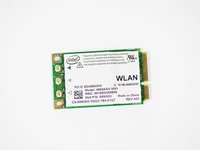
      • Lift the card out at an angle and carefully remove it.

      Спросите у FixBot

      Добавить комментарий

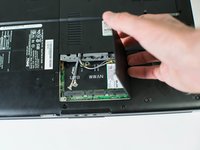
    5. Dell XPS M1530 Wireless Card Replacement: шаг 8, изображение 1 из 2 Dell XPS M1530 Wireless Card Replacement: шаг 8, изображение 2 из 2
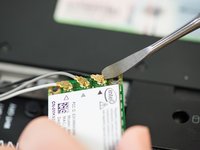
      • Use a spudger to carefully disconnect the antenna cables from the card by prying them straight up off the board.

      • It's best to use an ESD-safe tool, such as a nylon spudger, rather than the metal spudger shown in the photo.

      • Note the order of colors for the antenna cables indicated on the card.

      Спросите у FixBot

      Добавить комментарий

Заключение

To reassemble your device, follow these instructions in reverse order.

Отменить: Я не выполнил это руководство.

Еще один человек закончил это руководство.

Jase Sasaki

Участник с: 01/22/15

721 Репутация

Автор 5 руководств

Команда

Cal Poly, Team 18-4, Maness Winter 2015 Участник Cal Poly, Team 18-4, Maness Winter 2015

CPSU-MANESS-W15S18G4

4 членов

Автор 32 руководств

0 Комментарии к руководству

Добавить комментарий

Статистика просмотров:

За последние 24 часов: 0

За последние 7 дней: 5

За последние 30 дней: 28

За всё время: 2,155