Перейти к основному содержанию
Присоединяйся к сообществу ремонтников - Создай аккаунт

Fujtsu Lifebook Model A6110 Keyboard Replacement

Выберете то, что вам нужно

  1. Fujtsu Lifebook Model A6110 Keyboard Replacement, Battery: шаг 1, изображение 1 из 2 Fujtsu Lifebook Model A6110 Keyboard Replacement, Battery: шаг 1, изображение 2 из 2
    • The computer should be fully turned off and disconnected from the power source.

    • Before handling electronic components, you should ground yourself. This will prevent damage to the components from a static charge. You can do this by touching any metal object.

    • Flip your laptop so that the bottom of the laptop is facing up and the hinges of the screen are closest to you.

    Спросите у FixBot

    Добавить комментарий

  2. Fujtsu Lifebook Model A6110 Keyboard Replacement: шаг 2, изображение 1 из 1
    • To remove the battery, place your fingers underneath the two clips and simultaneously lift them up while pulling the cover towards you.

    Спросите у FixBot

    Добавить комментарий

  3. Fujtsu Lifebook Model A6110 Keyboard Replacement, Keyboard: шаг 3, изображение 1 из 3 Fujtsu Lifebook Model A6110 Keyboard Replacement, Keyboard: шаг 3, изображение 2 из 3 Fujtsu Lifebook Model A6110 Keyboard Replacement, Keyboard: шаг 3, изображение 3 из 3
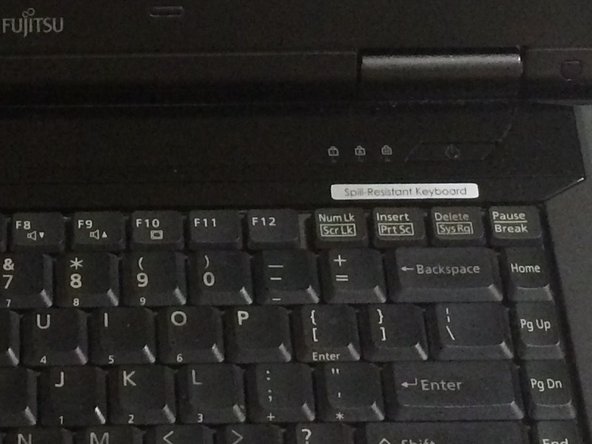
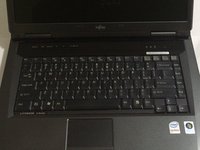
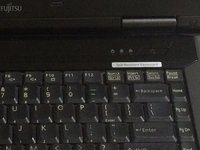
    • Position the laptop like you would if you were to use it. Open the screen to a 180 degrees angle. The screen and the keyboard needs to face up before proceeding.

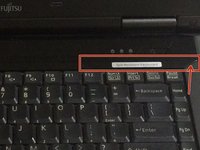
    • Using a flat edge of the plastic spudger, gently lift the piece of plastic located in the red square. Carefully insert the spudger between the inner edge marked by the arrow.

    Спросите у FixBot

    Добавить комментарий

  4. Fujtsu Lifebook Model A6110 Keyboard Replacement: шаг 4, изображение 1 из 3 Fujtsu Lifebook Model A6110 Keyboard Replacement: шаг 4, изображение 2 из 3 Fujtsu Lifebook Model A6110 Keyboard Replacement: шаг 4, изображение 3 из 3
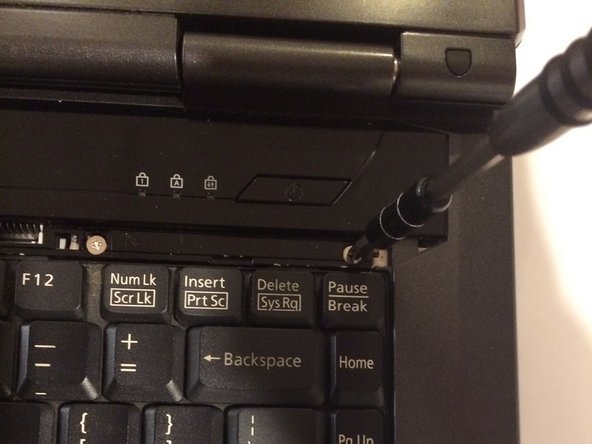
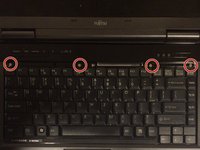
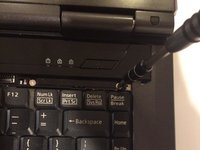
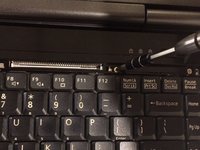
    • With a Phillips #1 screwdriver, unscrew the four-six mm screws that were hidden under the plastic piece you removed.

    Спросите у FixBot

    Добавить комментарий

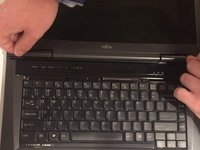
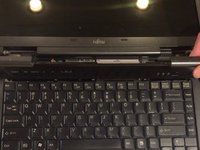
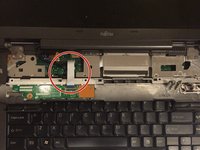
  5. Fujtsu Lifebook Model A6110 Keyboard Replacement: шаг 5, изображение 1 из 3 Fujtsu Lifebook Model A6110 Keyboard Replacement: шаг 5, изображение 2 из 3 Fujtsu Lifebook Model A6110 Keyboard Replacement: шаг 5, изображение 3 из 3
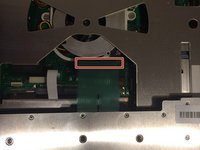
    • Lift up on the inner edges of the hinges for the screen. This will detach the face-plate from the computer. Use a spudger to make this process easier.

    • There is a ribbon underneath this panel that attaches to the motherboard. Be careful to not rip this ribbon.

    • The ribbon is located in the top left-hand corner and needs to carefully disconnected from the motherboard, as shown in the next step.

    Спросите у FixBot

    Добавить комментарий

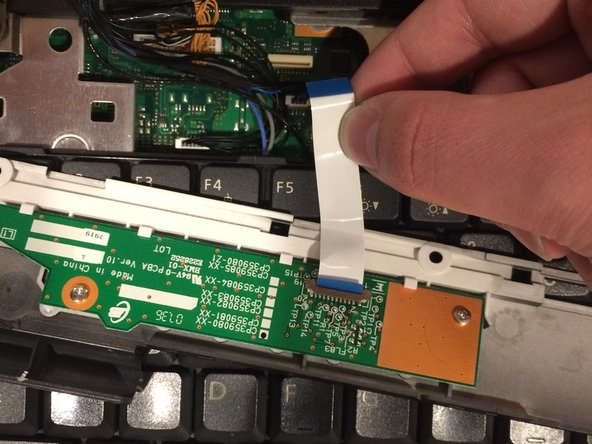
  6. Fujtsu Lifebook Model A6110 Keyboard Replacement: шаг 6, изображение 1 из 2 Fujtsu Lifebook Model A6110 Keyboard Replacement: шаг 6, изображение 2 из 2
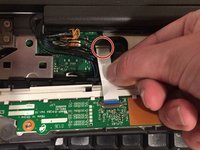
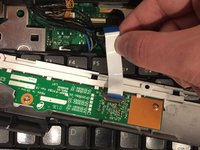
    • Detach the ribbon from the motherboard, which will allow you to finish removing the face-plate from the computer.

    • To detach the ribbon, grip the ribbon at the base that is attached to the motherboard, which is the large green circuit-board in the body of the computer.

    • When reassembling the computer, make sure to reconnect the ribbons.

    Спросите у FixBot

    Добавить комментарий

  7. Fujtsu Lifebook Model A6110 Keyboard Replacement: шаг 7, изображение 1 из 2 Fujtsu Lifebook Model A6110 Keyboard Replacement: шаг 7, изображение 2 из 2
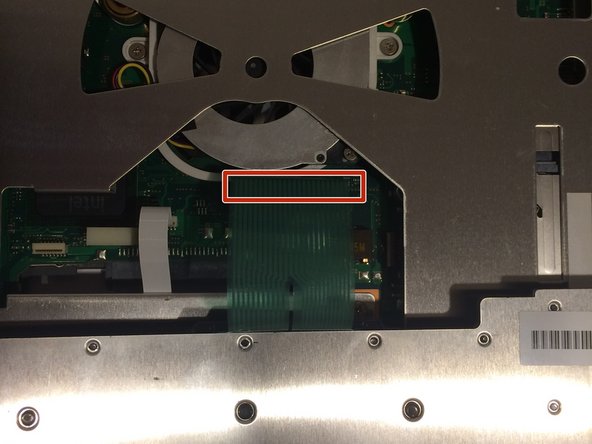
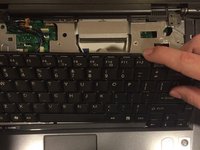
    • There is another ribbon connecting the keyboard to the motherboard. Be careful not to rip it

    • The keyboard is now free. Lift up on the keyboard.

    Спросите у FixBot

    Добавить комментарий

  8. Fujtsu Lifebook Model A6110 Keyboard Replacement: шаг 8, изображение 1 из 1
    • This ribbon may be difficult to remove, so be careful in pulling it. You could accidentally break it.

    • Detatch the ribbon from the motherboard

    • To detach the ribbon, grip the ribbon at the base that is attached to the motherboard, which is the large green circuit-board in the body of the computer.

    • When reassembling the computer, make sure to reconnect this ribbon.

    Спросите у FixBot

    Добавить комментарий

Заключение

To reassemble your device, follow these instructions in reverse order.

Отменить: Я не выполнил это руководство.

Еще один человек закончил это руководство.

Cody Moniz

Участник с: 10/19/16

422 Репутация

Автор 4 руководств

Команда

UMass Dartmouth, Team 3-2, Isaacson Fall 2016 Участник UMass Dartmouth, Team 3-2, Isaacson Fall 2016

UMASSD-ISAACSON-F16S3G2

3 членов

Автор 10 руководств

0 Комментарии к руководству

Добавить комментарий

Статистика просмотров:

За последние 24 часов: 1

За последние 7 дней: 6

За последние 30 дней: 29

За всё время: 1,041