Перейти к основному содержанию
Присоединяйся к сообществу ремонтников - Создай аккаунт

Gateway MA6 Laptop RAM Replacement

Выберете то, что вам нужно

    1. Gateway MA6 Laptop RAM Replacement, Battery: шаг 1, изображение 1 из 1
      • To prevent injury, make sure the laptop is unplugged before removing the battery.

      • Make sure the switch in the upper right corner of the laptop is switched to the "unlock" position (toward the unlocked padlock icon).

      Спросите у FixBot

      Добавить комментарий

    2. Gateway MA6 Laptop RAM Replacement: шаг 2, изображение 1 из 3 Gateway MA6 Laptop RAM Replacement: шаг 2, изображение 2 из 3 Gateway MA6 Laptop RAM Replacement: шаг 2, изображение 3 из 3
      • Pull the switch on the upper lefthand corner of the laptop towards the unlocked padlock icon.

      • Firmly pull the battery outwards and away from the laptop.

      Спросите у FixBot

      Добавить комментарий

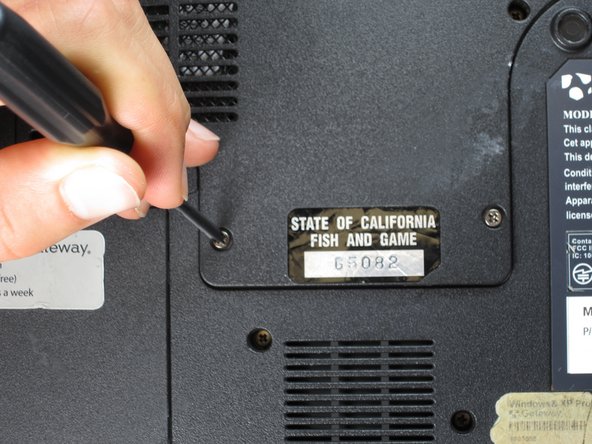
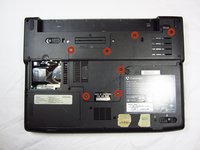
    1. Gateway MA6 Laptop RAM Replacement, RAM: шаг 3, изображение 1 из 2 Gateway MA6 Laptop RAM Replacement, RAM: шаг 3, изображение 2 из 2
      • Remove the seven 6 mm Phillips #0 screws from the back of the case.

      • Leave all the screws in the back plate and so you don't lose them.

      Спросите у FixBot

      Добавить комментарий

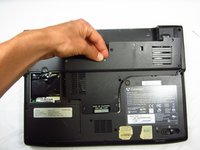
    2. Gateway MA6 Laptop RAM Replacement: шаг 4, изображение 1 из 2 Gateway MA6 Laptop RAM Replacement: шаг 4, изображение 2 из 2
      • Pull upwards on the top of the back cover to remove it.

      Спросите у FixBot

      Добавить комментарий

    3. Gateway MA6 Laptop RAM Replacement: шаг 5, изображение 1 из 3 Gateway MA6 Laptop RAM Replacement: шаг 5, изображение 2 из 3 Gateway MA6 Laptop RAM Replacement: шаг 5, изображение 3 из 3
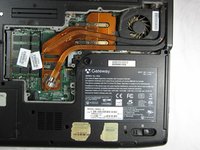
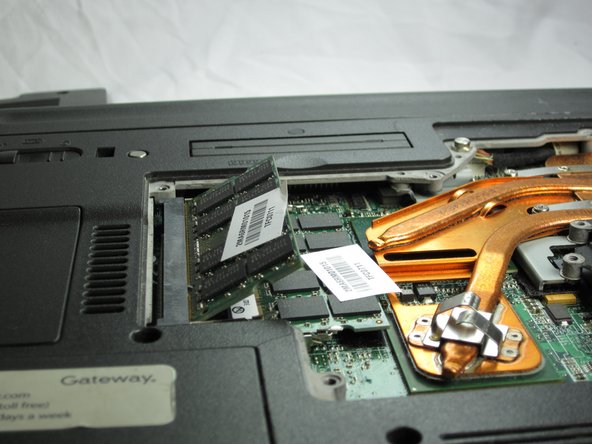
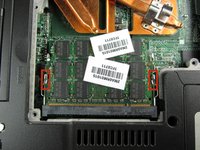
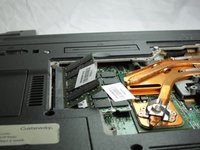
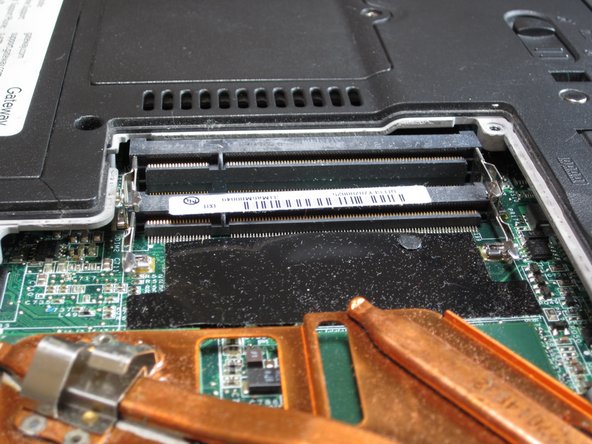
      • Pull outwards on the silver metal pins to release the upper RAM module.

      • The module will automatically lift up 30° after it has been released.

      Спросите у FixBot

      Добавить комментарий

    4. Gateway MA6 Laptop RAM Replacement: шаг 6, изображение 1 из 2 Gateway MA6 Laptop RAM Replacement: шаг 6, изображение 2 из 2
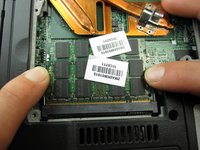
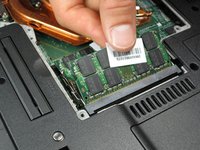
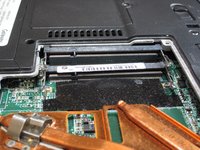
      • Firmly grasp the outer portion of the RAM module, and pull it outward to remove it from the port.

      • Repeat the same process for the lower RAM module.

      Спросите у FixBot

      Добавить комментарий

Заключение

To reassemble your device, follow these instructions in reverse order.

Отменить: Я не выполнил это руководство.

Chris Naughton

Участник с: 04/07/14

727 Репутация

Автор 5 руководств

Команда

Cal Poly, Team 6-2, Forte Spring 2014 Участник Cal Poly, Team 6-2, Forte Spring 2014

CPSU-FORTE-S14S6G2

5 членов

Автор 66 руководств

0 Комментарии к руководству

Добавить комментарий

Статистика просмотров:

За последние 24 часов: 0

За последние 7 дней: 11

За последние 30 дней: 36

За всё время: 1,581