Введение
Before starting this replacement, make sure you've read the troubleshooting guide to verify that the touchpad needs to be replaced. There are fragile ribbon connectors being removed in this guide, so proceed with caution!
Выберете то, что вам нужно
-
-
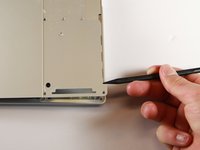
Use the iFixit opening tools or a metal spudger to pry the rubber covers off the back of your Pixelbook.
-
Peel the linings off completely until the back of the Pixelbook looks bare.
 Спросите у FixBot
-
-
-
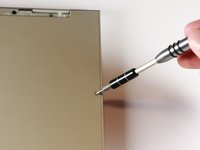
Remove the two yellow 2.0mm screws by using a T3 Torx screwdriver.
-
-
-
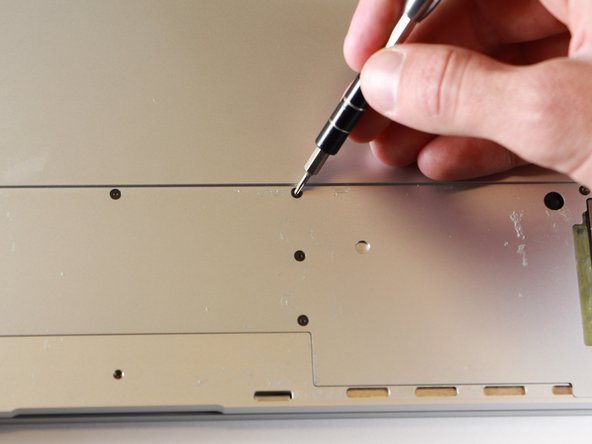
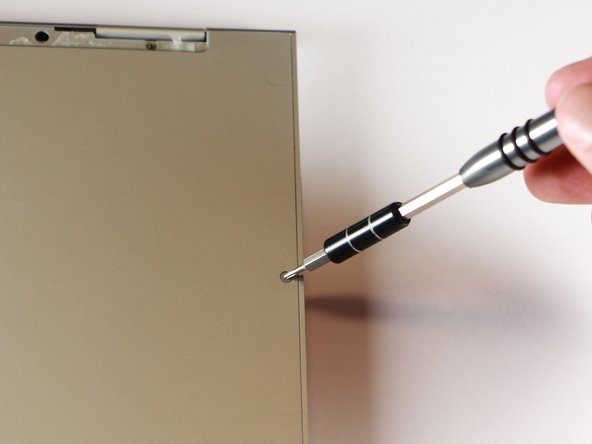
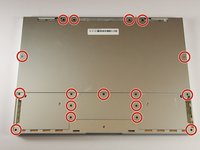
Remove the seventeen 3.0mm T5 Torx screws from the bottom panel.
-
-
-
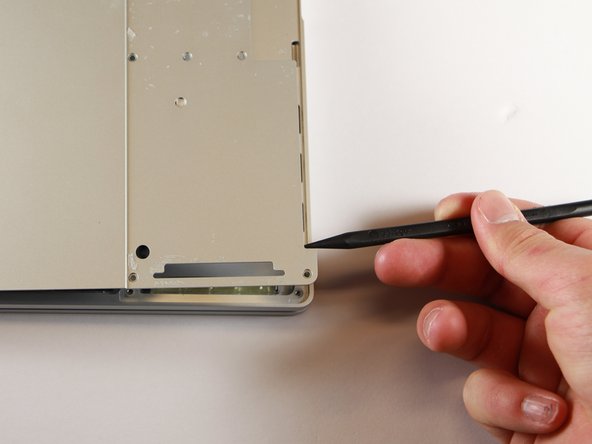
Use the nylon spudger to pry the edge of the Pixelbook up until you can grab the edge with your fingers.
-
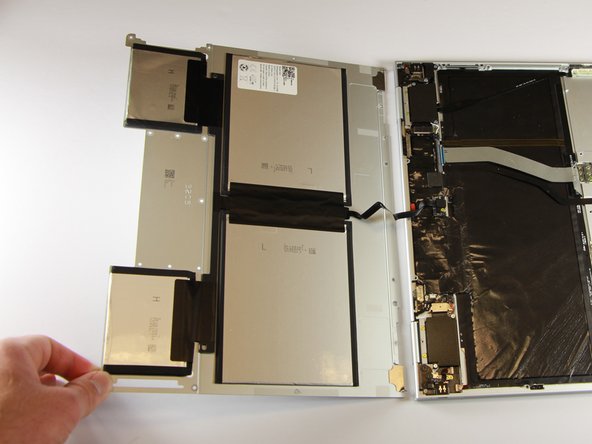
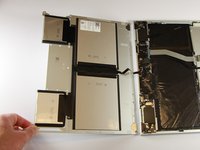
Open the back panel completely and lay it flat so you see the whole inside of the computer.
-
-
-
-
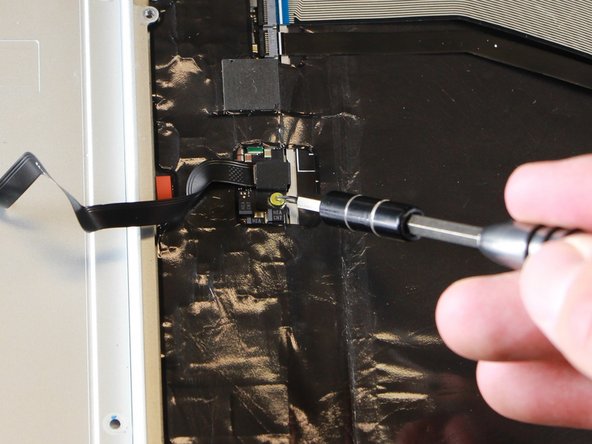
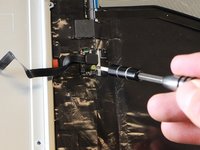
Remove the yellow 2.0mm screw from the middle of the panel by using the T3 Torx screwdriver to turn the screw counterclockwise.
-
-
-
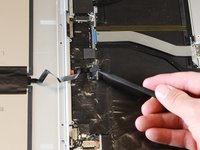
Remove the small, black casing by using the spudger to lift it up from its place.
-
-
-
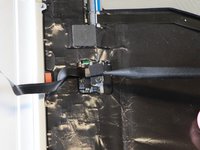
Disconnect the flat, black cord from the main component by using a spudger to push it out of the slot, or by using your hand to carefully pull it out.
-
Your back panel is now free from the main component.
-
-
-
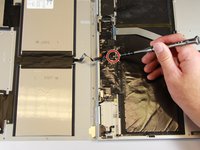
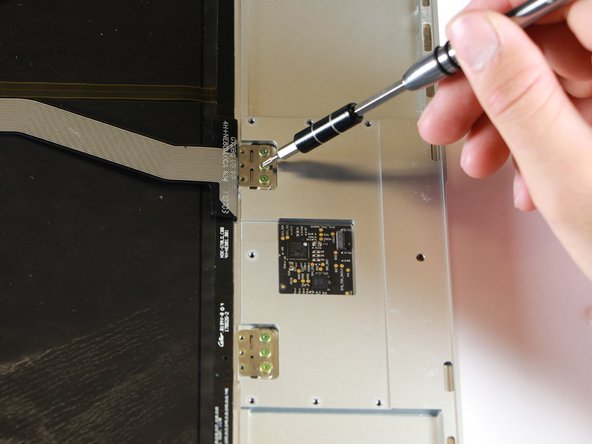
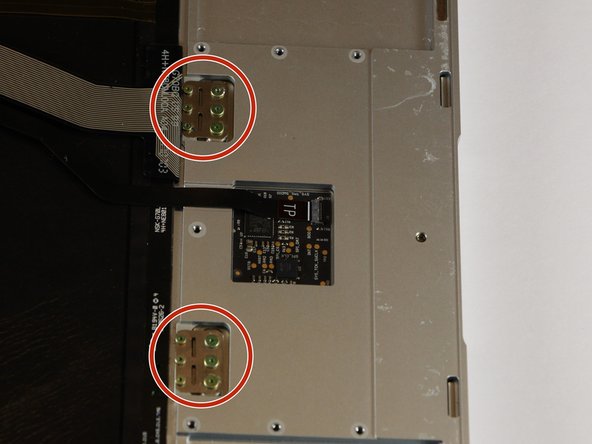
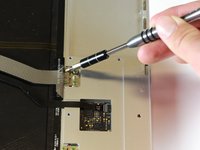
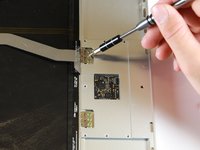
Once the back panel is out of the way, use the T3 Torx screwdriver to turn both the 2.0mm and large 3.0mm gold screws from the touchpad.
-
-
Инструмент, используемый на этом этапе:Tweezers$4.99
-
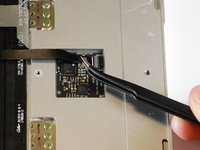
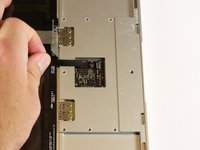
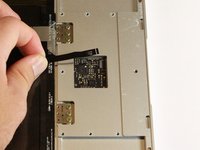
Gently pull out the ribbon connector either by using tweezers or your fingers to pull the cord out and up.
-
-
-
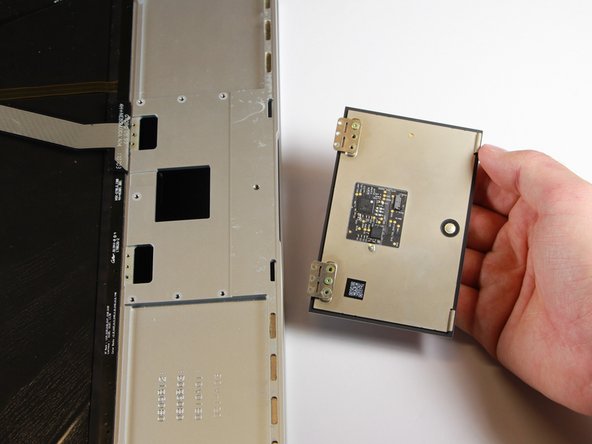
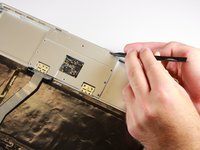
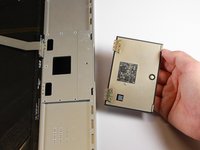
Use the nylon spudger to push the touchpad out of the laptop by inserting the point into the hole near the edge of the laptop.
-
As the metal plates with the screws tilt upwards, use your hand to catch the falling touchpad and remove it.
-











To reassemble your device, follow these instructions in reverse order.
Отменить: Я не выполнил это руководство.
3 человек успешно провели ремонт по этому руководству.

Команда

Cal Poly, Team S18-G1, Livingston Winter 2018 Участник Cal Poly, Team S18-G1, Livingston Winter 2018
CPSU-LIVINGSTON-W18S18G1
4 членов
Автор 9 руководств
6 Комментарии к руководству
Hello, I followed this guide and no the pixelbook will no longer power on. I reassembled exactly as described here. No light is coming on when I plu in the official charger, have tried other chargers as well. Any suggestions? I’ve been holding refresh + power and ESC but no change. Thanks…
lol $@$*…that’s reassuring ^^^ I was just about to order a replacement. Did you ever get it to turn back on? Or figure out what you did wrong lol?
What I read after the fact is that if you don’t do a full power off (hold refresh and power for 5 seconds until it is completely off) then the process here could short the motherboard. Which in my case it did. And I really wish these instructions had included something about that.
Ah I see! I just performed it last night actually, I did a regular shutdown via the “shutdown” button in the settings, everything went just fine luckily. Check out the corrosion that was causing my issue! http://imgur.com/gallery/cCfuGh2
In my settings under "devices" I didn't even have an option named “trackpad" - and that would be why,
Can anyone direct me to a source for a replacement touchpad? Thanks.
