Введение
These are the required steps for disassembly in order to access internal components that may need replacement.
Выберете то, что вам нужно
-
-
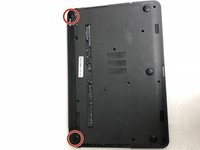
Eject the battery from the computer by sliding the two clips on the bottom of the computer toward the center of the computer.
-
Slide the battery out as shown in the picture.
 Спросите у FixBot
-
-
-
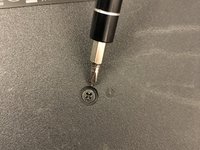
Using a Phillips #1 screwdriver, remove the small screw next to the disc engraving shown in the picture.
-
-
-
Gently slide the optical drive out of the side of the computer.
-
-
-
-
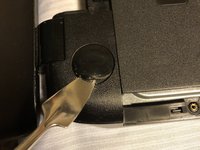
Locate the two corner grips on the hinge side of the computer.
-
Using a metal spudger, remove the two corner grips to reveal the screws.
-
-
-
Remove the 11 small screws on the bottom of the computer that are shown in the picture.
-
-
-
Remove the 2 small screws that are on the bottom side of the disc tray slot.
-
-
-
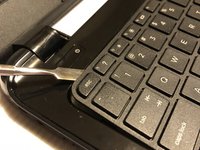
Using a spudger, pry around the edges of the keyboard until all clips are disengaged and the keyboard is loose from the computer.
-
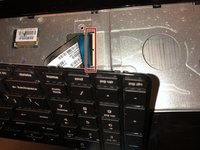
To disconnect the ribbon connector, flip up the black clip shown in the picture.
-
Gently pull the ribbon until disconnected.
-
-
-
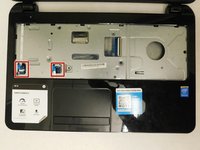
Disconnect the other two ribbon connectors underneath the keyboard by fliping up the black clips.
-
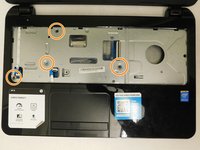
Remove the 4 small screws shown in the picture.
-
-
-
Disengage the face plate clips by prying the case away from around the outer edge of the face plate with a metal wedge.
-
The face plate can then be lifted away from the computer.
-










To reassemble your device, follow these instructions in reverse order.
Отменить: Я не выполнил это руководство.
10 человек успешно провели ремонт по этому руководству.

Команда

Washington State, Team S2-G3, Lobnitz Spring 2018 Участник Washington State, Team S2-G3, Lobnitz Spring 2018
WSU-LOBNITZ-S18S2G3
8 членов
Автор 7 руководств
