Этот перевод был сделан машиной и пока не проверен человеком. Говорите на этом языке? Просмотрите его.
Введение
Название проекта: Как заменить клавиатуру на ноутбуке серии HP Pavilion
Включено:
- Набор контрольных фотографий (PDF, шаги 1–8): 4 готовых практических фотографии (мой HP Pavilion и моя рука в кадре) и размеченные места для последних четырех снимков, которые я добавлю после утверждения.
iFixit_Checkpoint_Photo_Set_Nancy_Forvilus-Corvil.pdf - (Дополнительные вспомогательные документы для ваших записей)
• Fast Fix Project Proposal
• Full iFixit Project – HP Pavilion Keyboard
Что показано на приложенных фотографиях (шаги 1–4 выполнены):
- Выключение и отсоединение от сети ноутбука HP Pavilion
- Переворачивание ноутбука для доступа к нижней панели/отсеку аккумулятора
- Определение винтов нижней панели и фиксатора аккумулятора
- Подготовка рабочего места и лотка для деталей
Я планирую добавить оставшиеся снимки (снятая панель, разблокировка/блокировка шлейфа и финальное тестирование клавиш) сразу после утверждения контрольной точки. Пожалуйста, сообщите, соответствуют ли они требованиям EDU или вы хотели бы внести какие-либо коррективы, прежде чем я продолжу.
Благодарю за уделенное время!
Выберете то, что вам нужно
-
-
-
Отсоедините все внешние устройства от компьютера.
-
Отсоедините кабель зарядки от компьютера.
 Спросите у FixBot
-
-
-
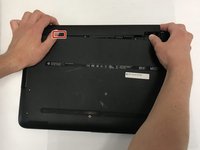
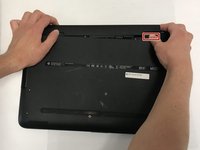
Чтобы извлечь аккумулятор, сдвиньте левый ползунок на задней стороне в положение «разблокировано».
-
-
-
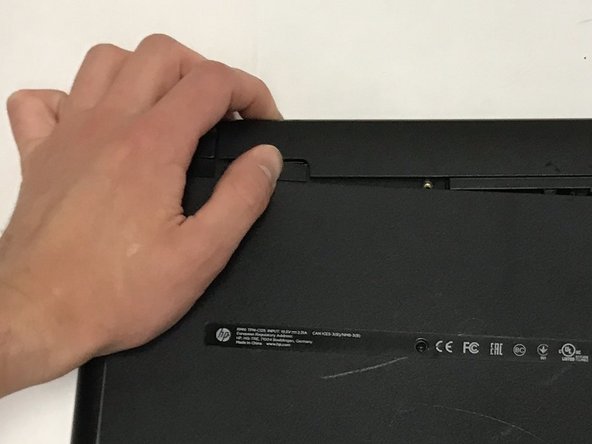
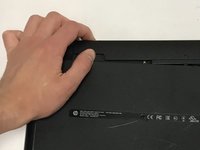
Нажмите на правый фиксатор внутрь.
-
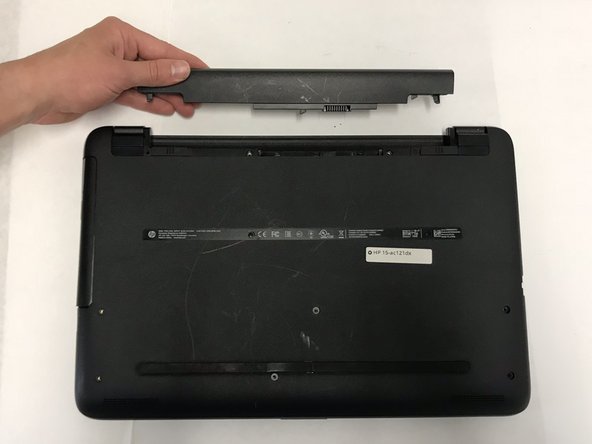
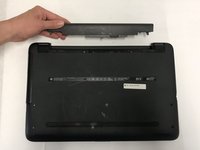
Извлеките аккумулятор, потянув его прямо на себя и вправо.
-
-
-
-
-
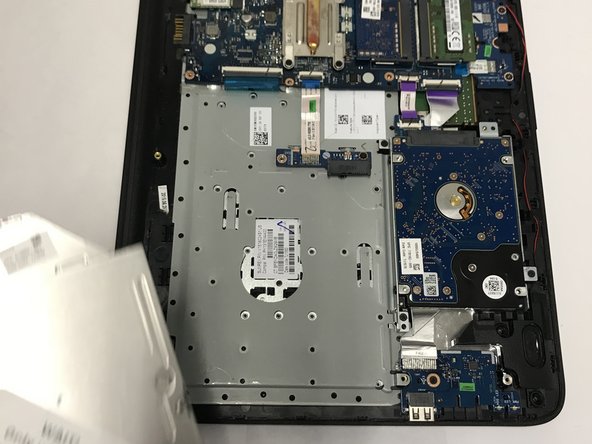
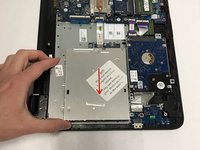
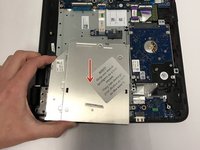
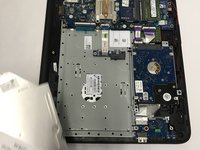
Найдите панель отсека для компакт-дисков и аккуратно выдвиньте её.
-
-
-
Снимите заднюю крышку ноутбука, открутив указанные винты.
-
Также открутите остальные 5 винтов Phillips, расположенных по периметру задней крышки.
-
-
-
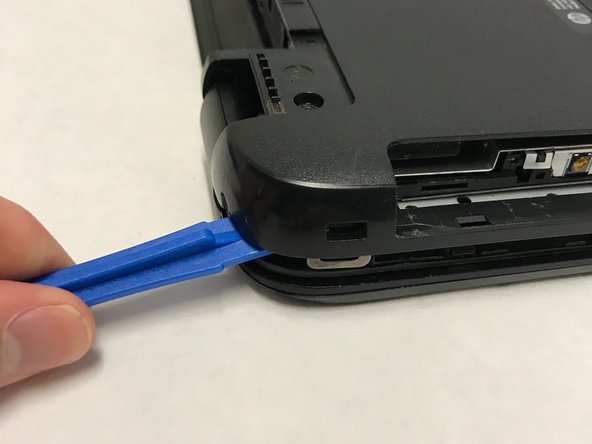
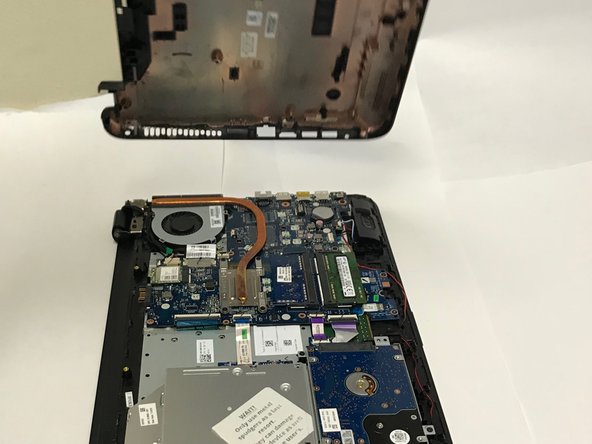
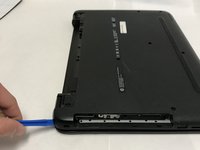
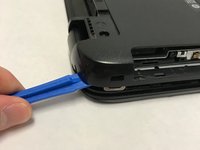
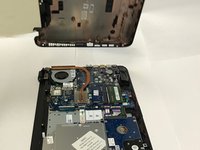
С помощью инструмента для открывания подденьте заднюю крышку ноутбука и аккуратно пройдитесь по всему периметру, пока крышка не отсоединится.
-
Не забудьте выкрутить 2 винта под 2 пластиковыми заглушками (по одной на каждой петле). Крышка не снимется, пока они не будут удалены!
-
-
-
-
-
-
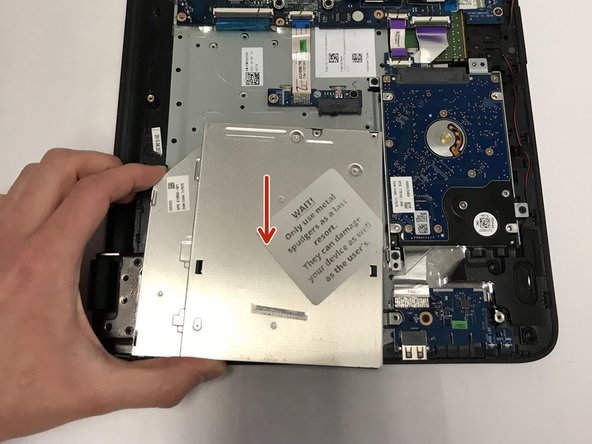
Найдите отсек для CD, как показано на изображении, и аккуратно выдвиньте его.
-
-
-
-
-
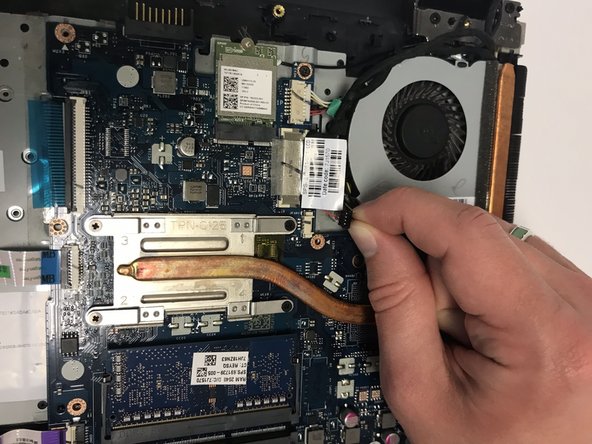
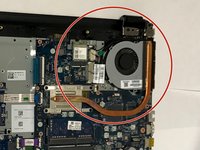
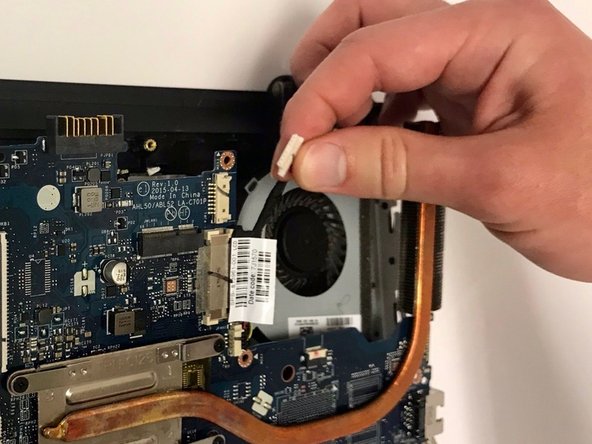
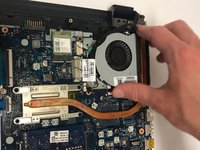
Найдите вентилятор, как показано на рисунке.
-
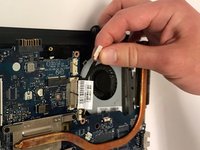
Вытяните черный кабель с четырьмя подключенными проводами из разъема.
-
-
-
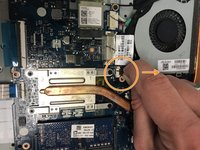
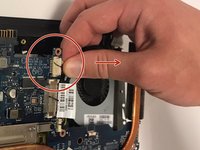
Извлеките белый кабель из разъема.
-
Открутите два черных винта Phillips, удерживающих вентилятор.
-
-
-
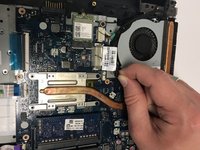
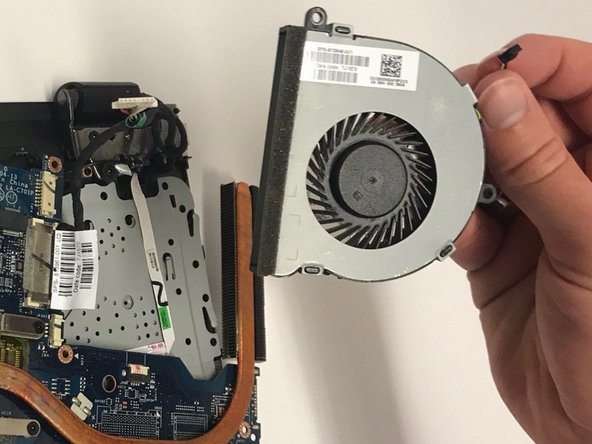
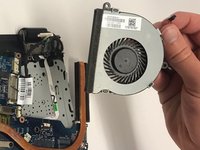
Снимите вентилятор.
-
Открутите два винта, удерживающие вентилятор.
-
-
-
-
-
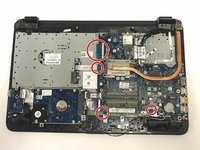
Открутите 10 винтов длиной 3 мм.
-
Открутите 1 винт длиной 9 мм.
-
-
-
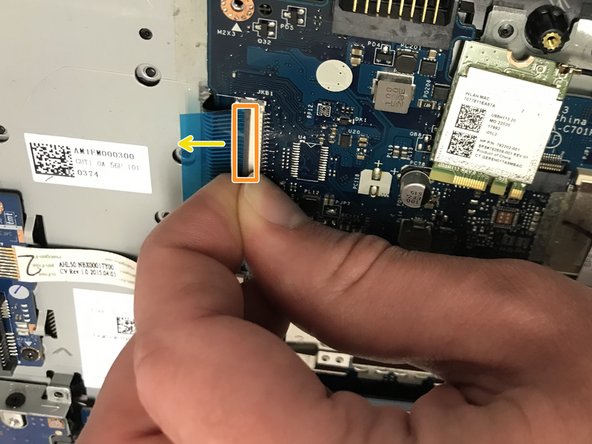
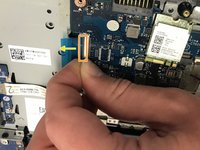
Найдите четыре зажима шлейфов.
-
Поднимите серую часть зажимов шлейфов.
-
Вытяните шлейф и повторите это действие для всех четырех шлейфов.
-
Также используйте пластиковую лопатку (spudger), чтобы отсоединить ДВА кабеля, соединяющих жесткий диск с материнской платой. Еще один шлейф находится там, где был установлен вентилятор.
-
-
-
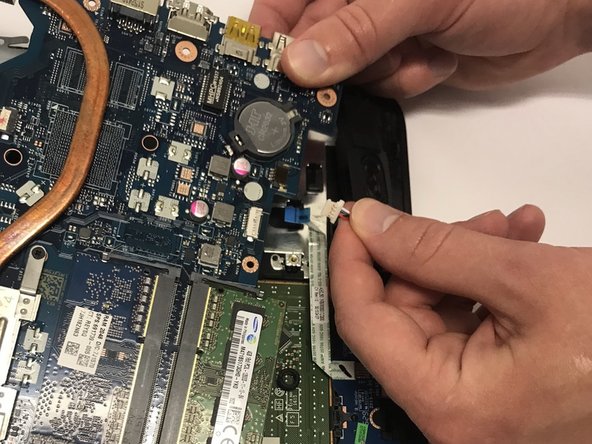
Извлеките белый кабель (содержит красный и белый провода, прикрепленные к черному держателю) из разъема.
-
-
-
-
-
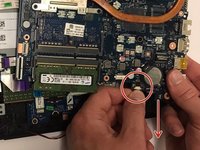
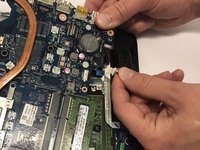
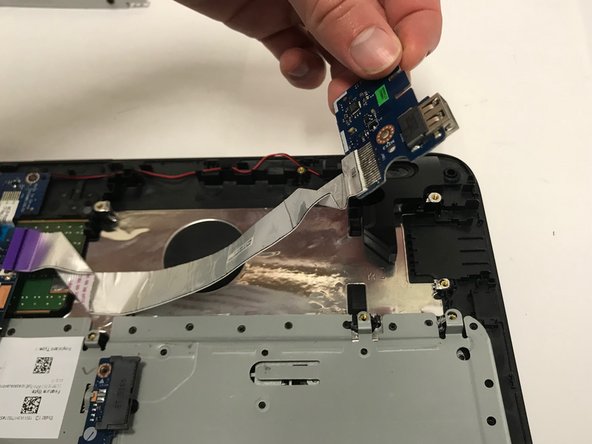
Приподнимите разъем шлейфа и отведите его в сторону, но не снимайте полностью с ноутбука.
-
Сначала выкрутите один винт Phillips, который его удерживает.
-
-
-
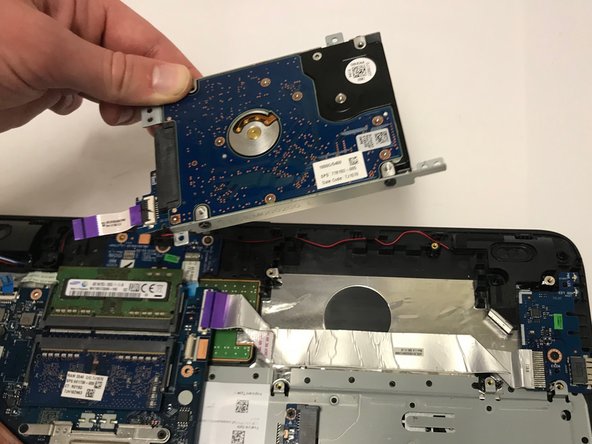
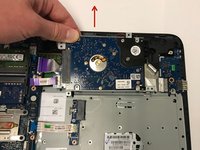
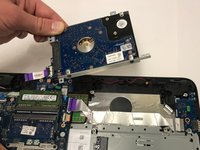
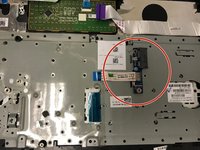
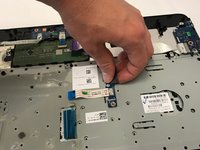
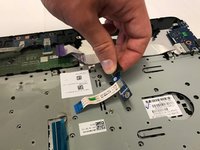
Снимите компонент VENDOR.
-
Сначала открутите единственный винт Phillips, удерживающий его на рамке.
-
-
-
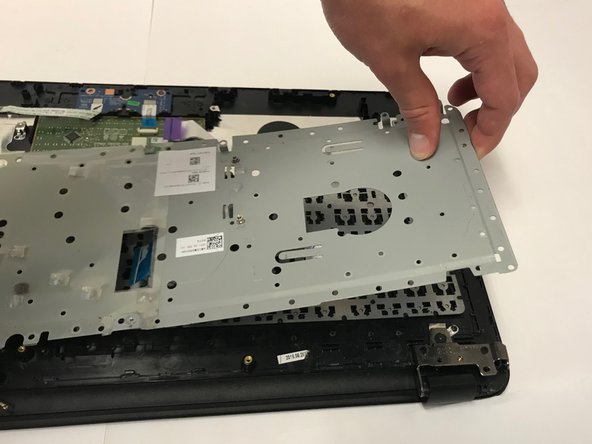
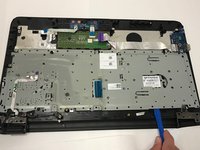
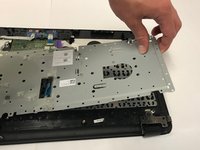
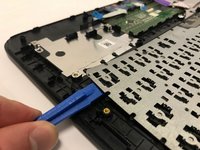
С помощью пластикового инструмента для открывания снимите серую металлическую пластину.
-
Она не снимется легко, но не применяйте силу.
-
-
-
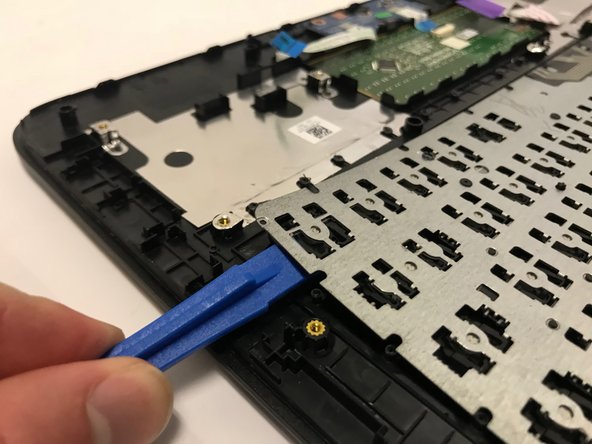
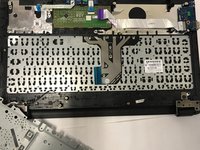
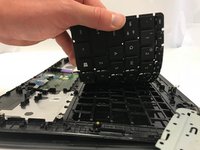
Найдите поврежденную клавиатуру и подденьте ее инструментом для открывания, чтобы снять.
-
-
-
Чтобы собрать всё обратно и начать пользоваться ноутбуком с новой клавиатурой, выполните эти шаги в ОБРАТНОМ порядке.
-
ПРИЯТНОГО ИСПОЛЬЗОВАНИЯ :)
-
















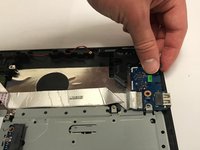
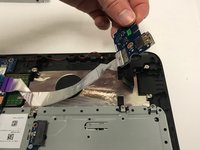

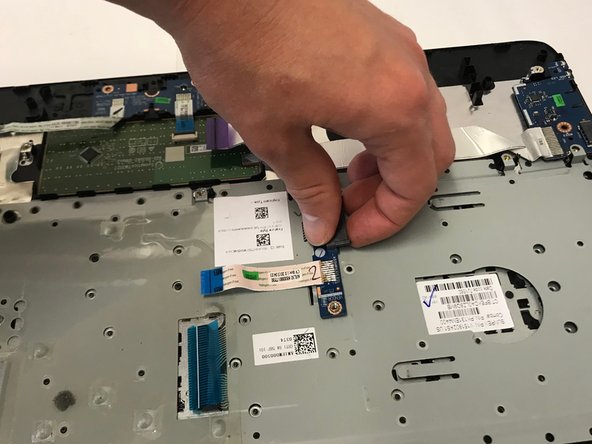
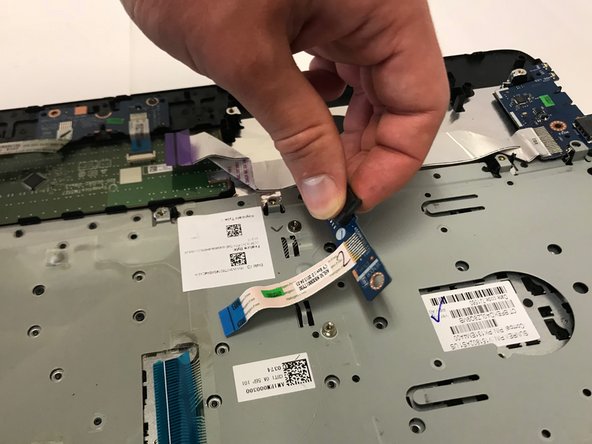



Для сборки вашего устройства выполните эти инструкции в обратном порядке.
Отменить: Я не выполнил это руководство.
7 человек успешно провели ремонт по этому руководству.

Команда

Baylor, Team S1-G2, Johnson Spring 2018 Участник Baylor, Team S1-G2, Johnson Spring 2018
BU-JOHNSON-S18S1G2
3 членов
Автор 72 руководств
3 Комментарии к руководству
Did you have to use soldering iron to melt the plastic rivets when putting back the keyboard?
Cheers.
I have done these before and yes, using a soldering iron to melt the plastic rivets is a good method.
Helpful. Too good!
