Перейти к основному содержанию
Присоединяйся к сообществу ремонтников - Создай аккаунт

HP 15-dy2702dx Keyboard Replacement

Выберете то, что вам нужно

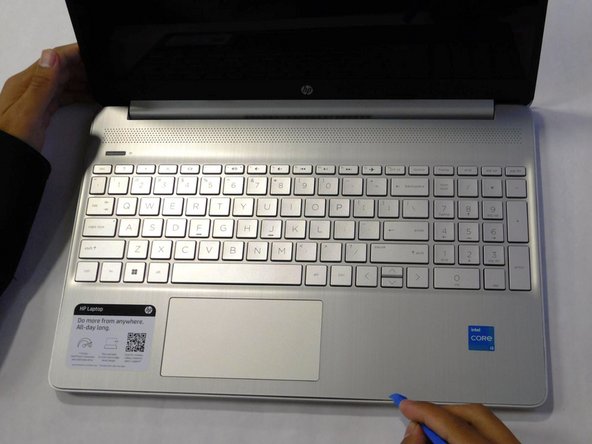
  1. HP 15-dy2702dx Keyboard Replacement, Lower Case: шаг 1, изображение 1 из 1
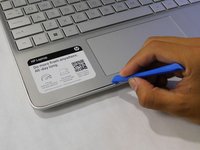
    • Remove both of the rubber strips to uncover the hidden screws.

    • You can use a prying tool to help lift an end.

    Спросите у FixBot
  2. HP 15-dy2702dx Keyboard Replacement: шаг 2, изображение 1 из 1
    • Unscrew all 8 Phillips #1 screws on the bottom panel:

    • Two M2.5x6

    • Six M2x6

    Спросите у FixBot
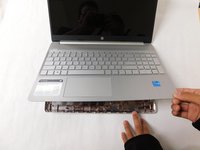
  3. HP 15-dy2702dx Keyboard Replacement: шаг 3, изображение 1 из 2 HP 15-dy2702dx Keyboard Replacement: шаг 3, изображение 2 из 2
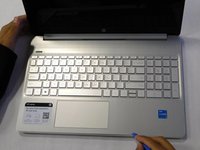
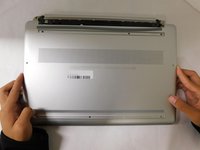
    • Flip the laptop over and open the lid.

    • Separate the bottom panel from the main body by using the iFixit opening tool.

    • Ensure that the bottom panel is completely separated along the edges.

    Спросите у FixBot
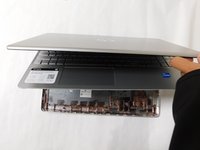
  4. HP 15-dy2702dx Keyboard Replacement: шаг 4, изображение 1 из 2 HP 15-dy2702dx Keyboard Replacement: шаг 4, изображение 2 из 2
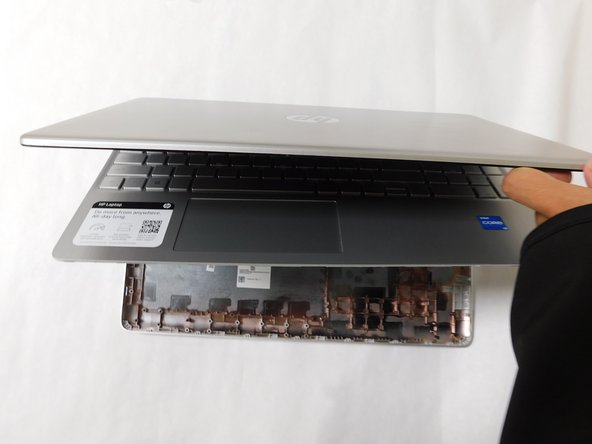
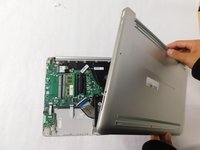
    • If you can lift the laptop like shown in the first picture, the bottom panel is nearly separated.

    • Close the laptop to allow the back edges to fully separate

    Спросите у FixBot
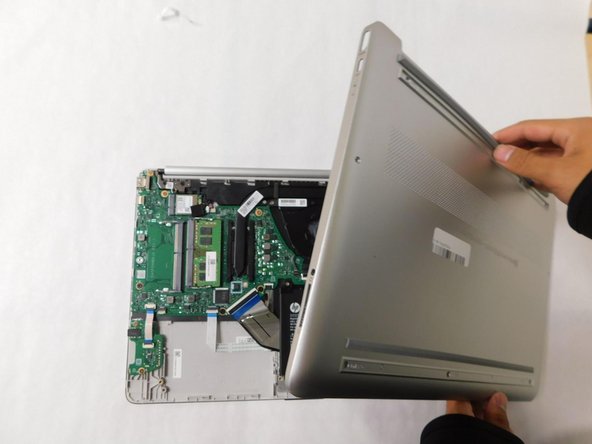
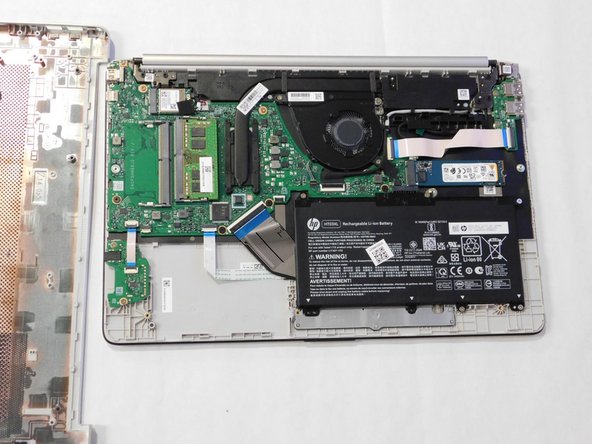
  5. HP 15-dy2702dx Keyboard Replacement: шаг 5, изображение 1 из 3 HP 15-dy2702dx Keyboard Replacement: шаг 5, изображение 2 из 3 HP 15-dy2702dx Keyboard Replacement: шаг 5, изображение 3 из 3
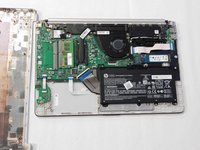
    • Flip the laptop over and carefully remove the lower case.

    Спросите у FixBot
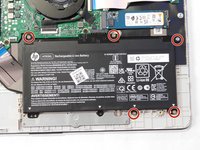
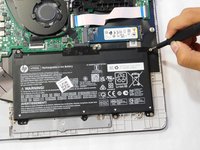
  6. HP 15-dy2702dx Keyboard Replacement, Battery: шаг 6, изображение 1 из 2 HP 15-dy2702dx Keyboard Replacement, Battery: шаг 6, изображение 2 из 2
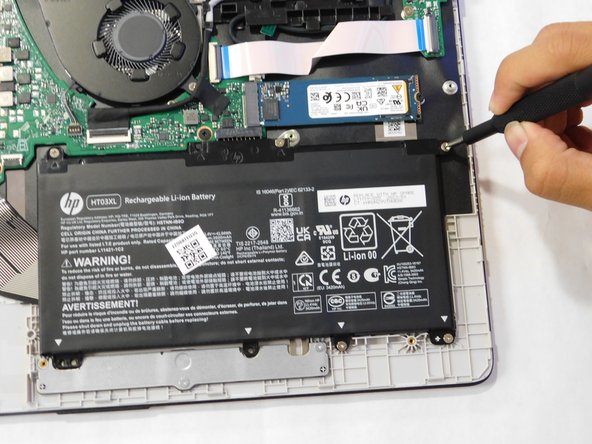
    • Remove the five M2x6 screws that secure the battery with a Phillips #1 screwdriver.

    Спросите у FixBot
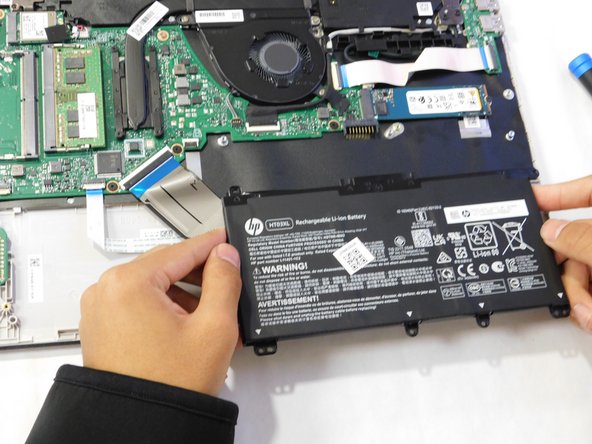
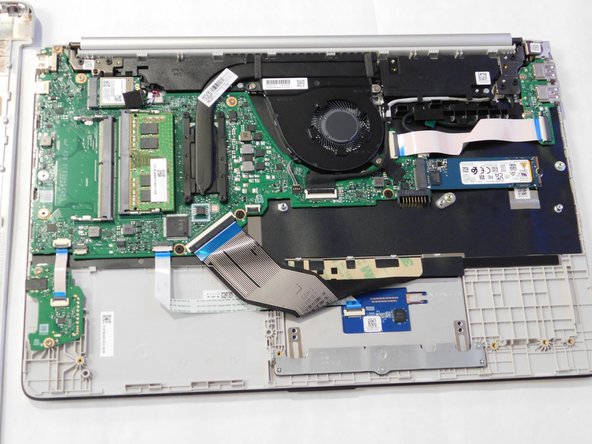
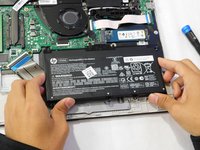
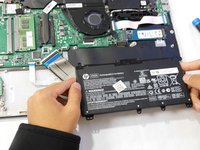
  7. HP 15-dy2702dx Keyboard Replacement: шаг 7, изображение 1 из 3 HP 15-dy2702dx Keyboard Replacement: шаг 7, изображение 2 из 3 HP 15-dy2702dx Keyboard Replacement: шаг 7, изображение 3 из 3
    • Grab the sides of the battery and gently pull the battery until it disconnects from the connector on motherboard.

    • Lift the battery up and out.

    Спросите у FixBot
  8. HP 15-dy2702dx Keyboard Replacement, Trackpad: шаг 8, изображение 1 из 1
    • Find the trackpad.

    Спросите у FixBot
  9. HP 15-dy2702dx Keyboard Replacement: шаг 9, изображение 1 из 3 HP 15-dy2702dx Keyboard Replacement: шаг 9, изображение 2 из 3 HP 15-dy2702dx Keyboard Replacement: шаг 9, изображение 3 из 3
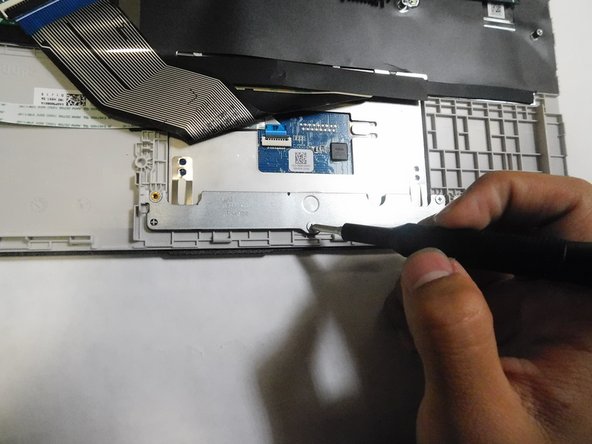
    • Unscrew the two M2x6 Phillips #1 screws securing the trackpad.

    Спросите у FixBot
  10. HP 15-dy2702dx Keyboard Replacement: шаг 10, изображение 1 из 2 HP 15-dy2702dx Keyboard Replacement: шаг 10, изображение 2 из 2
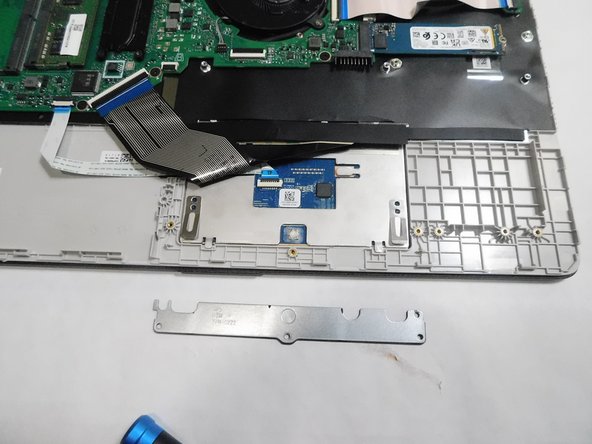
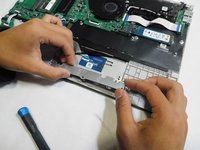
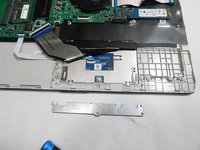
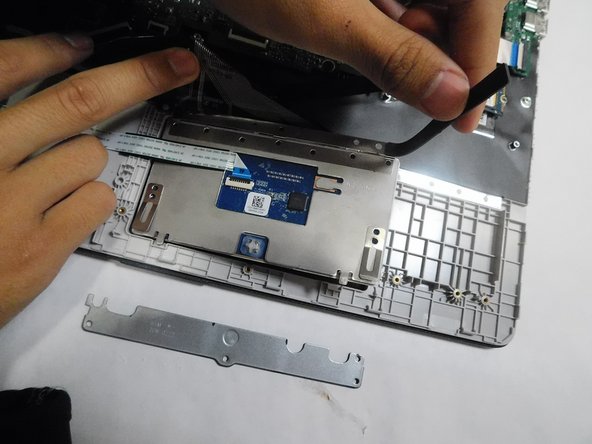
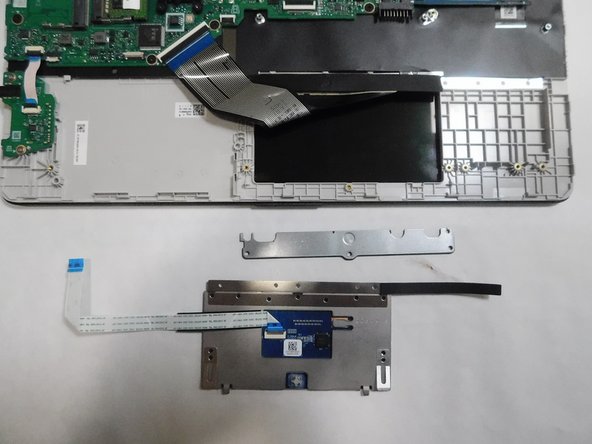
    • Remove the metal bracket.

    Спросите у FixBot
  11. HP 15-dy2702dx Keyboard Replacement: шаг 11, изображение 1 из 3 HP 15-dy2702dx Keyboard Replacement: шаг 11, изображение 2 из 3 HP 15-dy2702dx Keyboard Replacement: шаг 11, изображение 3 из 3
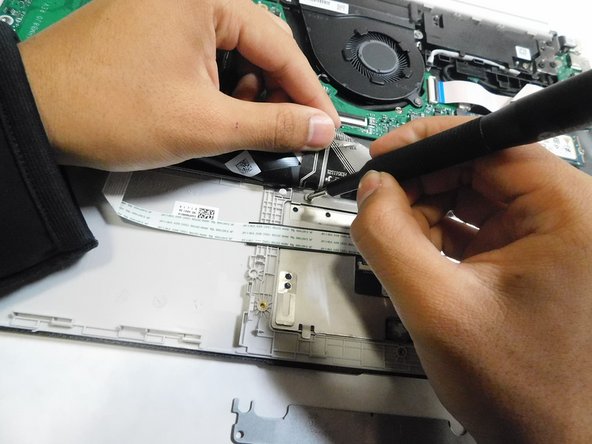
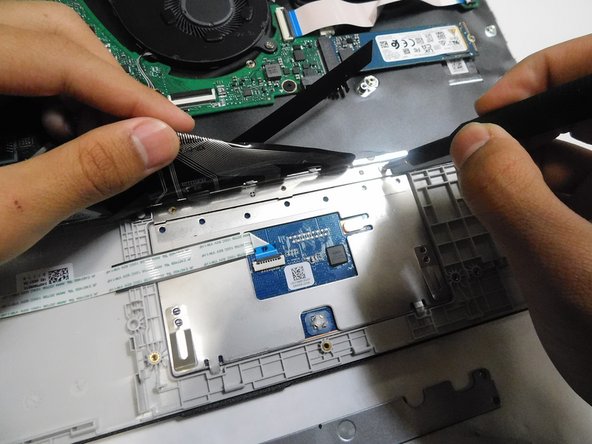
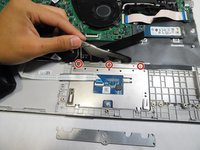
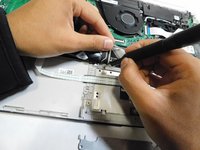
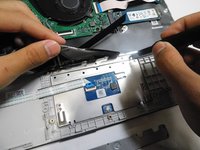
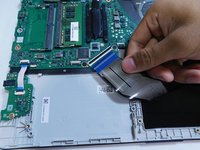
    • Lift the black ribbon covering the screws.

    • Unscrew the top three M2x3 Phillips #0 screws.

    Спросите у FixBot
  12. HP 15-dy2702dx Keyboard Replacement: шаг 12, изображение 1 из 3 HP 15-dy2702dx Keyboard Replacement: шаг 12, изображение 2 из 3 HP 15-dy2702dx Keyboard Replacement: шаг 12, изображение 3 из 3
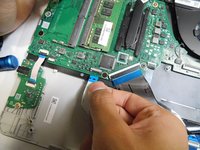
    • Flip up the locking flap holding the trackpad ribbon in place.

    • Pull the ribbon straight out of its socket.

    Спросите у FixBot
  13. HP 15-dy2702dx Keyboard Replacement: шаг 13, изображение 1 из 2 HP 15-dy2702dx Keyboard Replacement: шаг 13, изображение 2 из 2
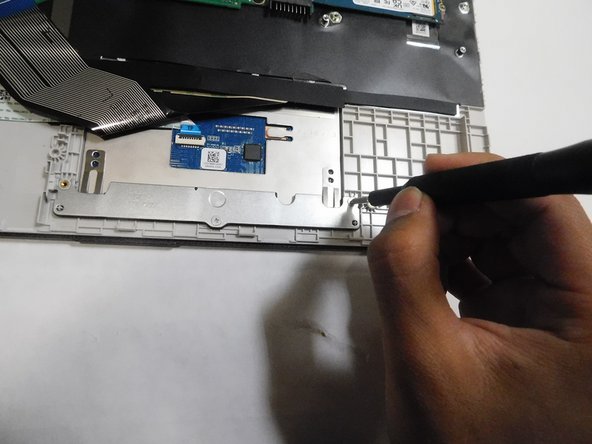
    • Peel back the sticky black strip holding the trackpad in place.

    Спросите у FixBot
  14. HP 15-dy2702dx Keyboard Replacement: шаг 14, изображение 1 из 2 HP 15-dy2702dx Keyboard Replacement: шаг 14, изображение 2 из 2
    • Remove the trackpad from the laptop.

    Спросите у FixBot
  15. HP 15-dy2702dx Keyboard Replacement, SSD: шаг 15, изображение 1 из 3 HP 15-dy2702dx Keyboard Replacement, SSD: шаг 15, изображение 2 из 3 HP 15-dy2702dx Keyboard Replacement, SSD: шаг 15, изображение 3 из 3
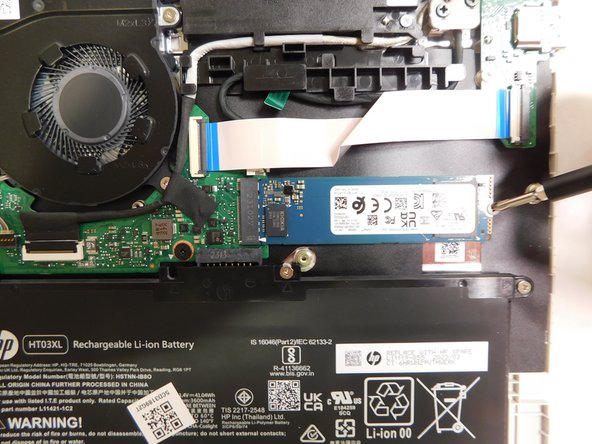
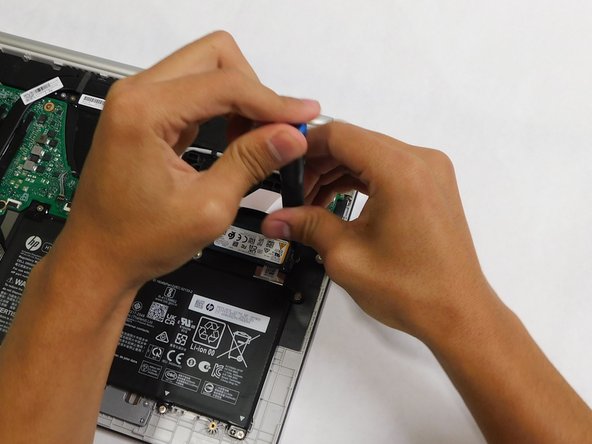
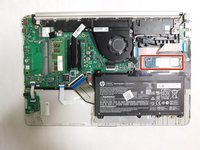
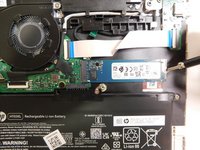
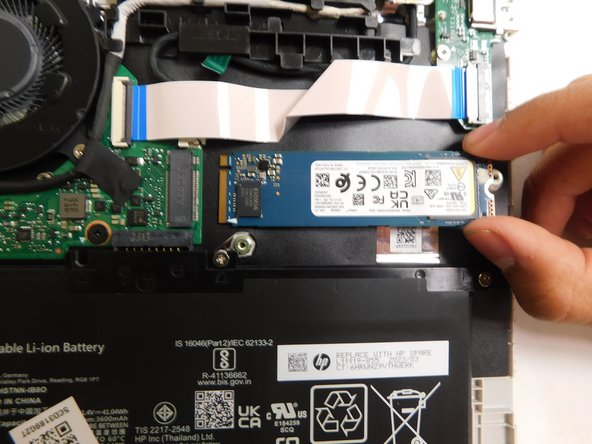
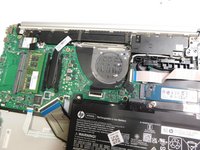
    • Locate the storage drive.

    • Unscrew the single screw holding the drive in place.

    • The screw is a M2x3 mm Phillips #1 head screw.

    Спросите у FixBot
  16. HP 15-dy2702dx Keyboard Replacement: шаг 16, изображение 1 из 3 HP 15-dy2702dx Keyboard Replacement: шаг 16, изображение 2 из 3 HP 15-dy2702dx Keyboard Replacement: шаг 16, изображение 3 из 3
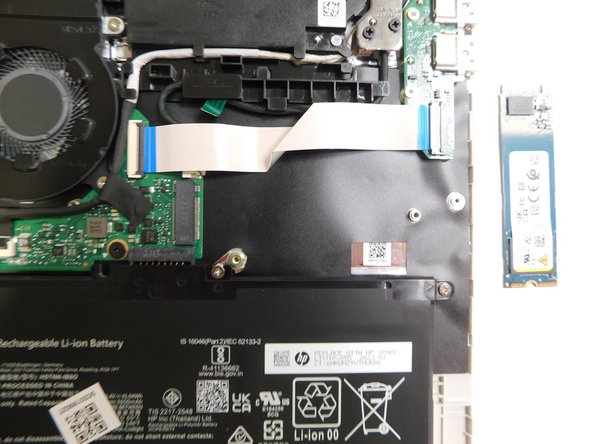
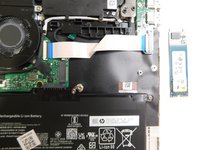
    • Grab the drive by its side and gently pull it out.

    Спросите у FixBot
  17. HP 15-dy2702dx Keyboard Replacement, Fan: шаг 17, изображение 1 из 3 HP 15-dy2702dx Keyboard Replacement, Fan: шаг 17, изображение 2 из 3 HP 15-dy2702dx Keyboard Replacement, Fan: шаг 17, изображение 3 из 3
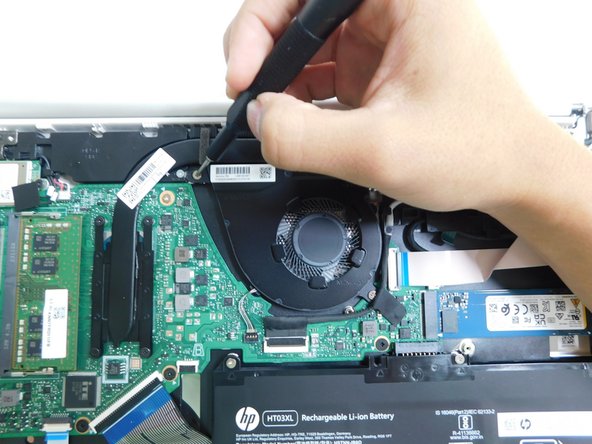
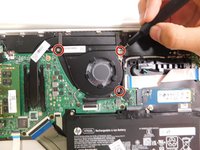
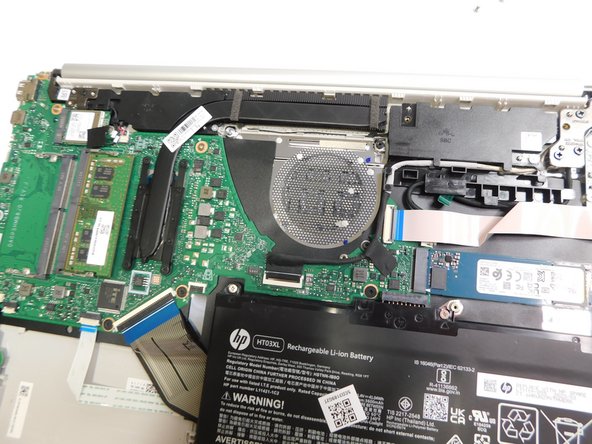
    • Use a Phillips #1 screwdriver to unscrew the three screws that secure the fan.

    • These screws sizes are M2x6.

    Спросите у FixBot
  18. HP 15-dy2702dx Keyboard Replacement: шаг 18, изображение 1 из 1
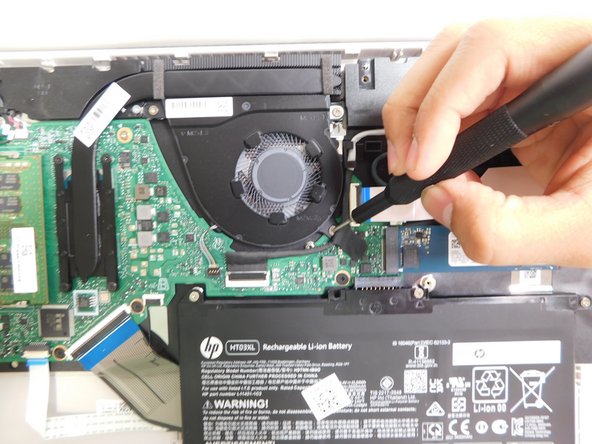
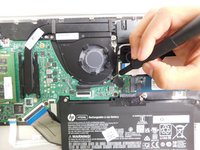
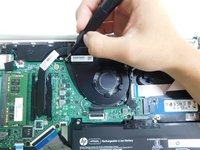
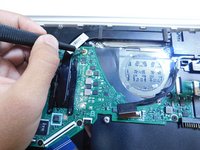
    • Grip the cord that connects the fan to the motherboard and gently pull out to disconnect the cable from the connector.

    • Alternatively, we recommend using a tool to push the connector out of its socket to avoid damaging the wires.

    Спросите у FixBot
  19. HP 15-dy2702dx Keyboard Replacement: шаг 19, изображение 1 из 2 HP 15-dy2702dx Keyboard Replacement: шаг 19, изображение 2 из 2
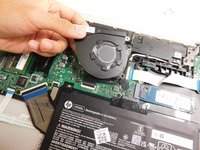
    • Gently lift the fan to remove it from the case.

    Спросите у FixBot
  20. HP 15-dy2702dx Keyboard Replacement, Keyboard Assembly: шаг 20, изображение 1 из 3 HP 15-dy2702dx Keyboard Replacement, Keyboard Assembly: шаг 20, изображение 2 из 3 HP 15-dy2702dx Keyboard Replacement, Keyboard Assembly: шаг 20, изображение 3 из 3
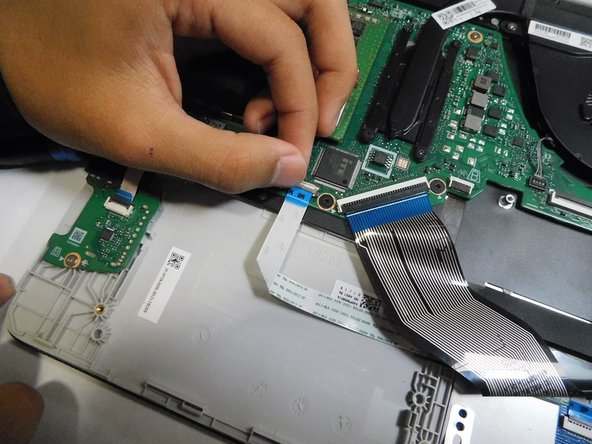
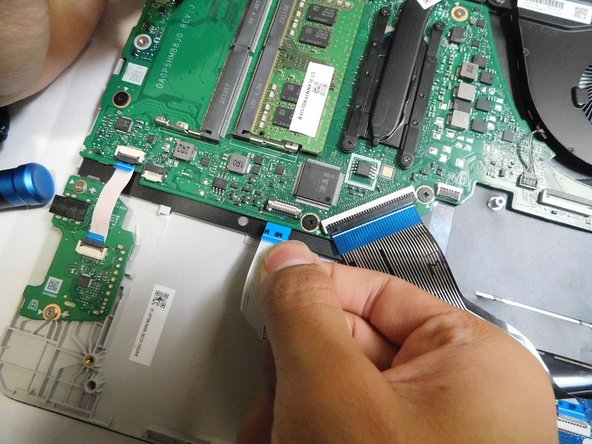
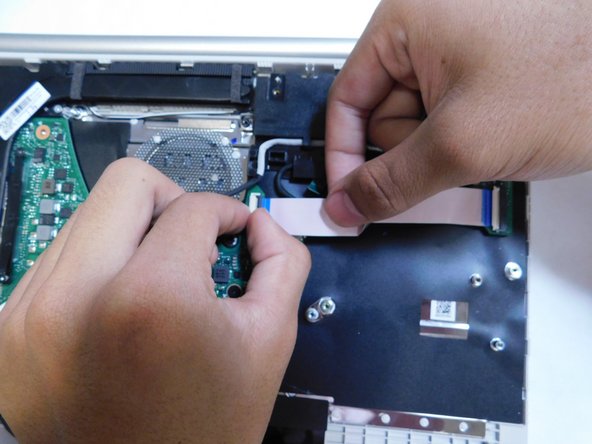
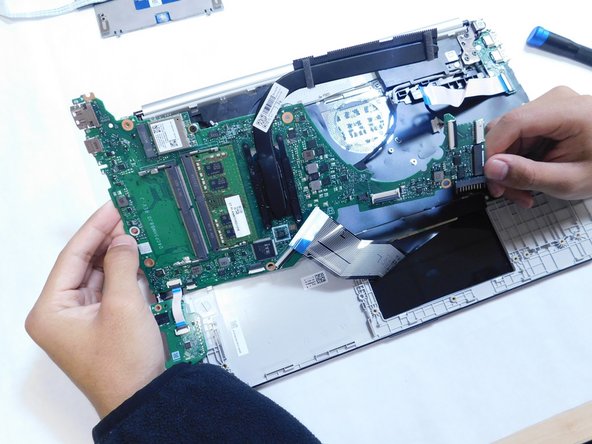
    • Disconnect all the ribbon cables from the motherboard.

    • Ensure to flip up the locking flaps before attempting to pull the ribbon out.

    Спросите у FixBot
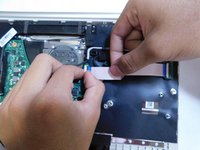
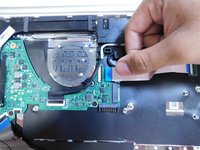
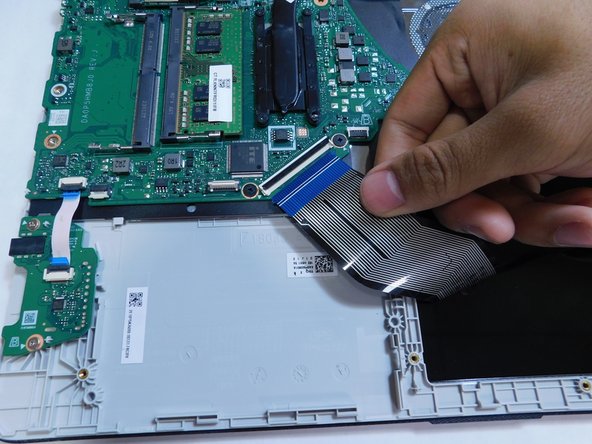
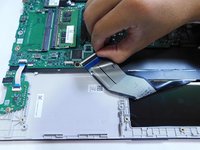
  21. HP 15-dy2702dx Keyboard Replacement: шаг 21, изображение 1 из 2 HP 15-dy2702dx Keyboard Replacement: шаг 21, изображение 2 из 2
    • Continue disconnecting the ribbon cables.

    Спросите у FixBot
  22. HP 15-dy2702dx Keyboard Replacement: шаг 22, изображение 1 из 2 HP 15-dy2702dx Keyboard Replacement: шаг 22, изображение 2 из 2
    • Continue disconnecting the remaining ribbons.

    Спросите у FixBot
  23. HP 15-dy2702dx Keyboard Replacement: шаг 23, изображение 1 из 2 HP 15-dy2702dx Keyboard Replacement: шаг 23, изображение 2 из 2
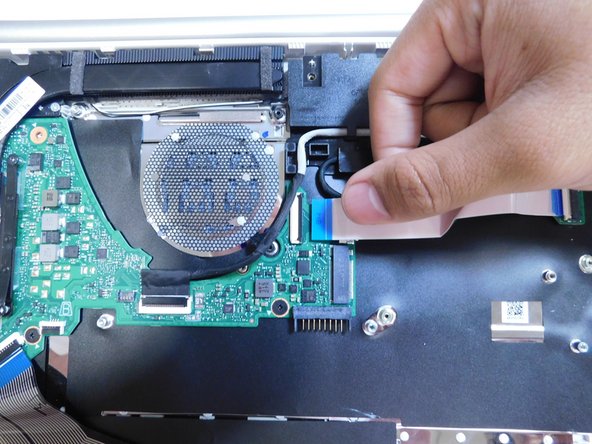
    • Disconnect the connector.

    Спросите у FixBot
  24. HP 15-dy2702dx Keyboard Replacement: шаг 24, изображение 1 из 3 HP 15-dy2702dx Keyboard Replacement: шаг 24, изображение 2 из 3 HP 15-dy2702dx Keyboard Replacement: шаг 24, изображение 3 из 3
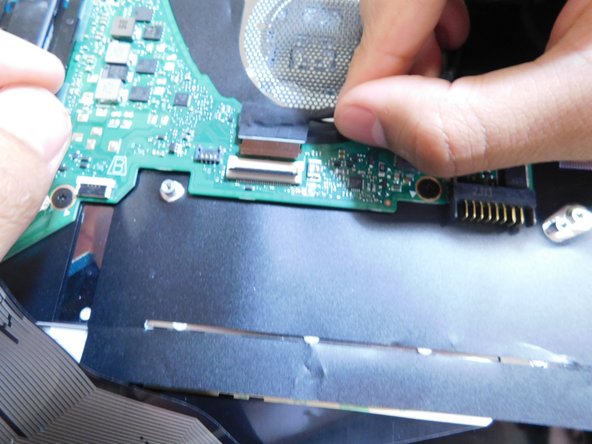
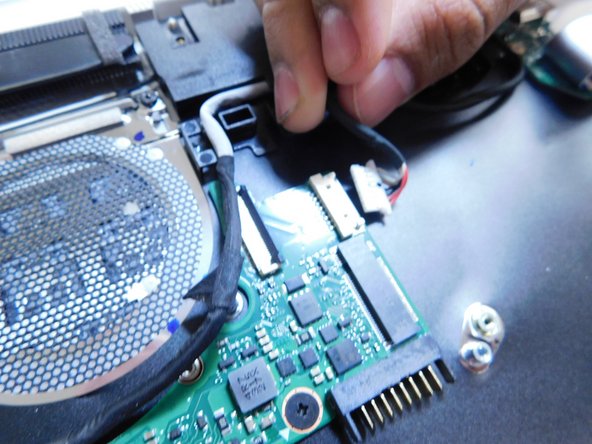
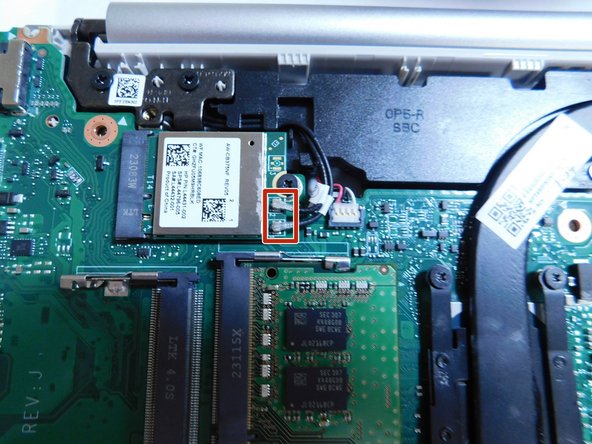
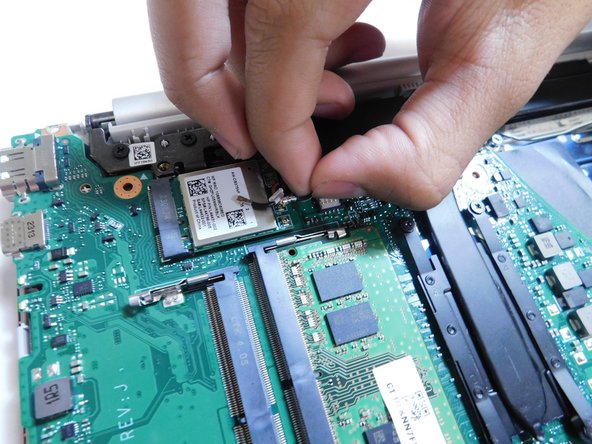
    • Peel off the black sticker covering the silver connectors near the top of the motherboard.

    • Remove the two silver colored round connector from the motherboard by pulling them up.

    • The connector should have a tag on them with number 1 and 2 on them.

    Спросите у FixBot
  25. HP 15-dy2702dx Keyboard Replacement: шаг 25, изображение 1 из 2 HP 15-dy2702dx Keyboard Replacement: шаг 25, изображение 2 из 2
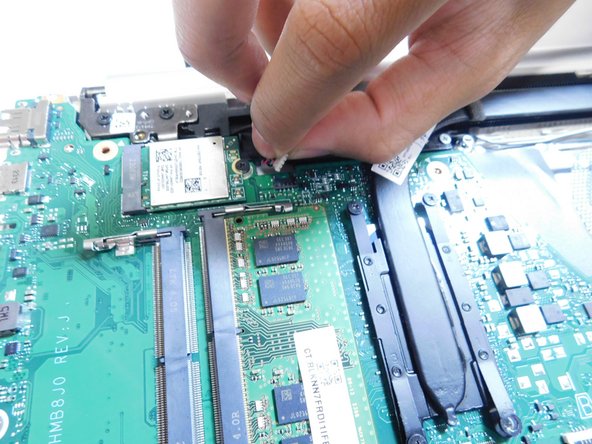
    • Pull up on the last connector on the motherboard next to the connectors removed in the previous step.

    Спросите у FixBot
  26. HP 15-dy2702dx Keyboard Replacement: шаг 26, изображение 1 из 3 HP 15-dy2702dx Keyboard Replacement: шаг 26, изображение 2 из 3 HP 15-dy2702dx Keyboard Replacement: шаг 26, изображение 3 из 3
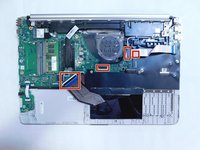
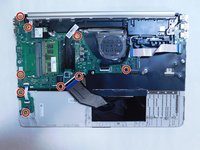
    • Unscrew all M2x3 Phillips #1 screws holding the motherboard in place.

    Спросите у FixBot
  27. HP 15-dy2702dx Keyboard Replacement: шаг 27, изображение 1 из 2 HP 15-dy2702dx Keyboard Replacement: шаг 27, изображение 2 из 2
    • Remove the motherboard from the case.

    Спросите у FixBot
  28. HP 15-dy2702dx Keyboard Replacement: шаг 28, изображение 1 из 2 HP 15-dy2702dx Keyboard Replacement: шаг 28, изображение 2 из 2
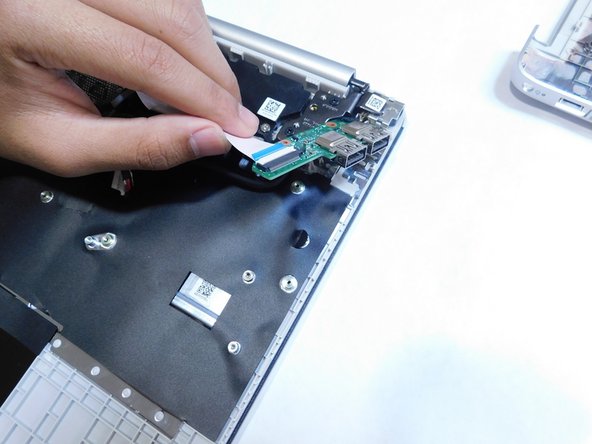
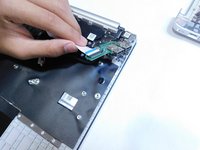
    • Unscrew the two M2x3 Phillips #1 screws.

    • Remove the I/O board from the case.

    Спросите у FixBot
  29. HP 15-dy2702dx Keyboard Replacement: шаг 29, изображение 1 из 3 HP 15-dy2702dx Keyboard Replacement: шаг 29, изображение 2 из 3 HP 15-dy2702dx Keyboard Replacement: шаг 29, изображение 3 из 3
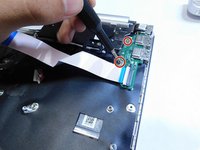
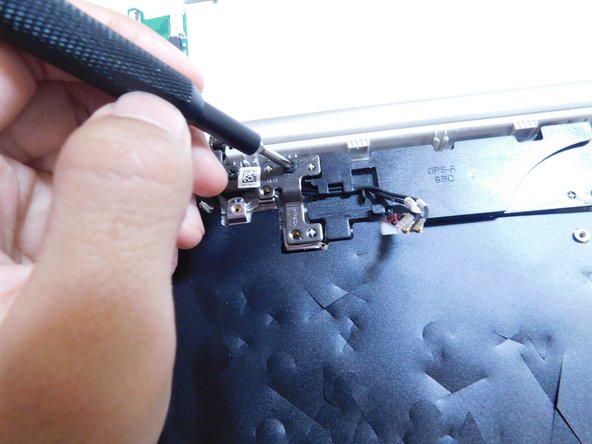
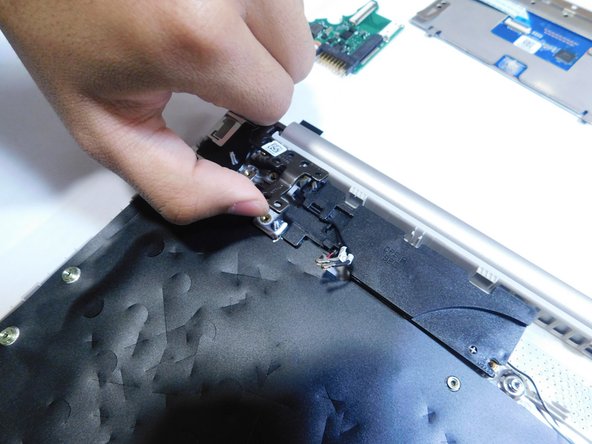
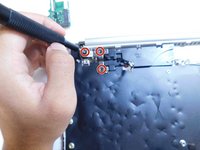
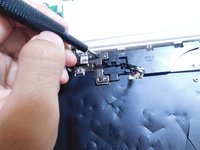
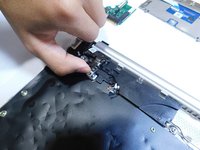
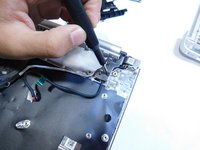
    • Unscrew the three M2x6 Phillips #1 screws from the left metal hinge.

    • Lift the hinge.

    Спросите у FixBot
  30. HP 15-dy2702dx Keyboard Replacement: шаг 30, изображение 1 из 2 HP 15-dy2702dx Keyboard Replacement: шаг 30, изображение 2 из 2
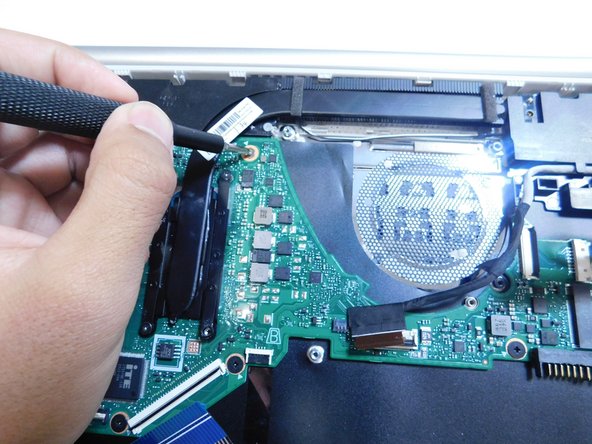
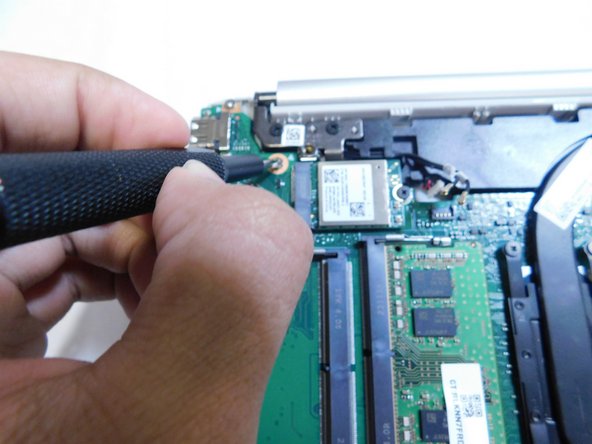
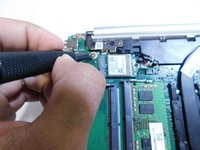
    • Unscrew the two Phillips #1 screws.

    • One is on the left side near where the fan was removed.

    • The other is near the right laptop metal hinge.

    Спросите у FixBot
  31. HP 15-dy2702dx Keyboard Replacement: шаг 31, изображение 1 из 2 HP 15-dy2702dx Keyboard Replacement: шаг 31, изображение 2 из 2
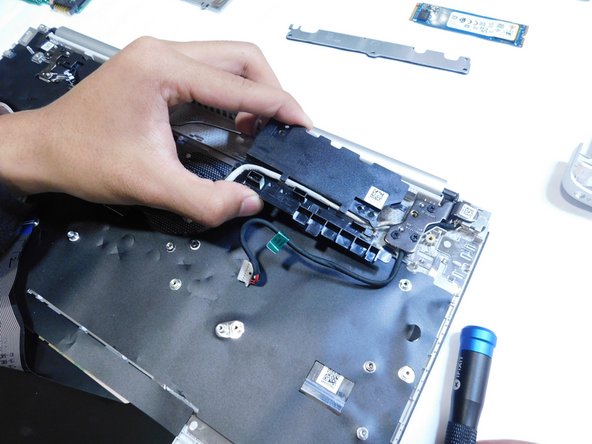
    • Remove the black boxes from the case.

    • Disconnect the power cable (white cable with a black flag at the end).

    • The black boxes is still connected to the case through a black wire, do not attempt to remove the wire.

    Спросите у FixBot
  32. HP 15-dy2702dx Keyboard Replacement: шаг 32, изображение 1 из 3 HP 15-dy2702dx Keyboard Replacement: шаг 32, изображение 2 из 3 HP 15-dy2702dx Keyboard Replacement: шаг 32, изображение 3 из 3
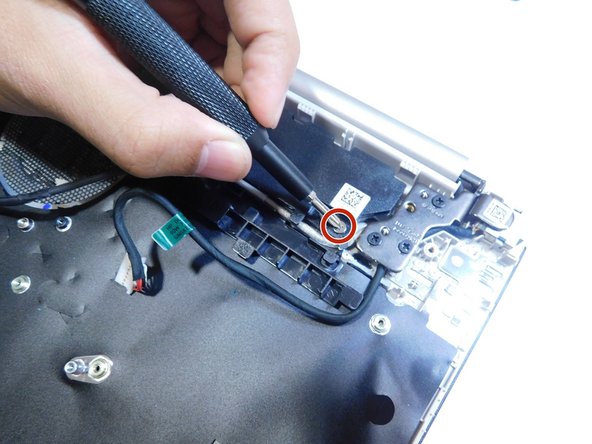
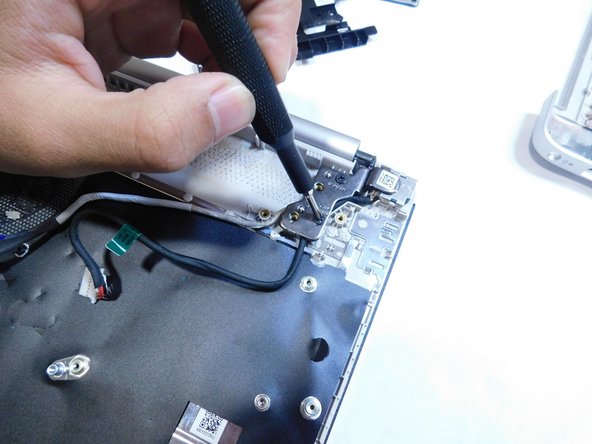
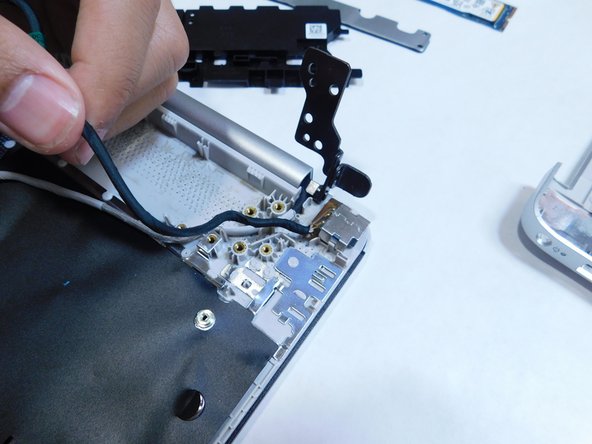
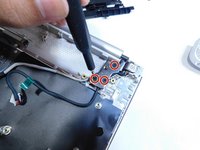
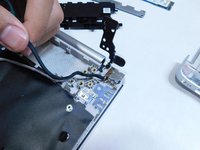
    • Unscrew the three Philips head #1 screws on the right-side metal hinge.

    • Lift the hinge.

    Спросите у FixBot
  33. HP 15-dy2702dx Keyboard Replacement: шаг 33, изображение 1 из 1
    • Remove the DC in jack from the case by pulling it straight up.

    Спросите у FixBot
  34. HP 15-dy2702dx Keyboard Replacement: шаг 34, изображение 1 из 3 HP 15-dy2702dx Keyboard Replacement: шаг 34, изображение 2 из 3 HP 15-dy2702dx Keyboard Replacement: шаг 34, изображение 3 из 3
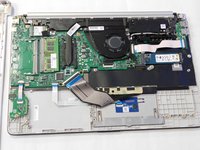
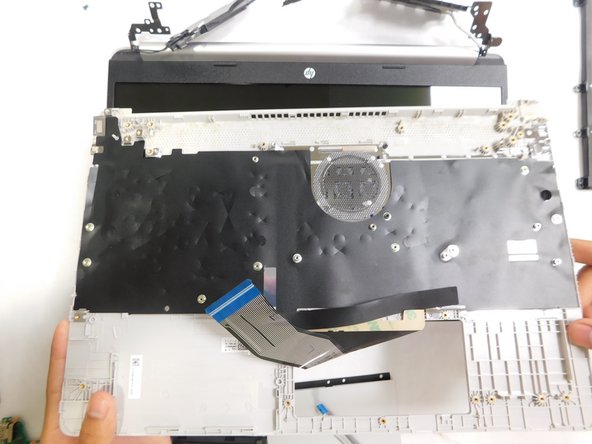
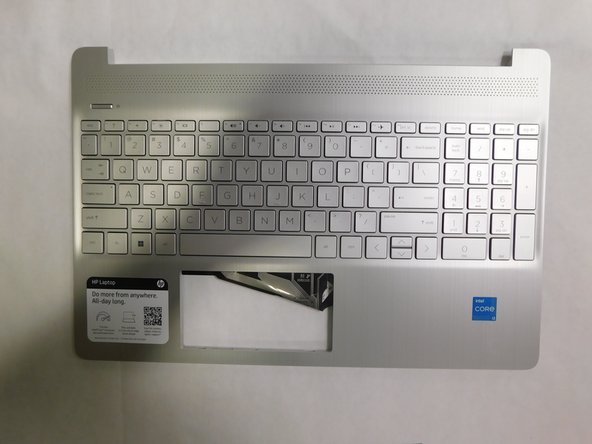
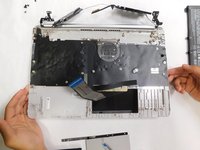
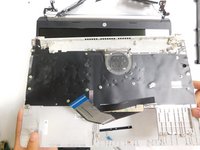
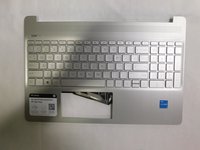
    • Remove the keyboard from the laptop.

    • The keyboard is a type where it is directly integrated into the frame so you will need to replace the whole frame.

    Спросите у FixBot
Заключение

To reassemble your device, follow these instructions in reverse order.

Еще один человек закончил это руководство.

Zander Herbold

Участник с: 09/05/23

694 Репутация

Автор 4 руководств

Команда

Gateway, Team 1-4, Pee Fall 2023 Участник Gateway, Team 1-4, Pee Fall 2023

GCC-PEE-F23S1G4

4 членов

Автор 8 руководств

0 Комментарии к руководству

Добавить комментарий

Статистика просмотров:

За последние 24 часов: 4

За последние 7 дней: 21

За последние 30 дней: 101

За всё время: 1,498