Перейти к основному содержанию
Присоединяйся к сообществу ремонтников - Создай аккаунт

HP Chromebook 11 G3 Keyboard Replacement

Выберете то, что вам нужно

    1. HP Chromebook 11 G3 Keyboard Replacement, Keyboard Mount: шаг 1, изображение 1 из 2 HP Chromebook 11 G3 Keyboard Replacement, Keyboard Mount: шаг 1, изображение 2 из 2
      • Flip the laptop upside down so that the lid lies flat on the table.

      • Remove the nine 6mm Phillips #00 screws that line the border.

      Спросите у FixBot

      Добавить комментарий

    2. HP Chromebook 11 G3 Keyboard Replacement: шаг 2, изображение 1 из 2 HP Chromebook 11 G3 Keyboard Replacement: шаг 2, изображение 2 из 2
      Инструмент, используемый на этом этапе:
      Tweezers
      $4.99
      • Remove the two rubber feet closest to the hinge using tweezers.

      • Remove the two 6mm Phillips #00 screws revealed under these rubber feet.

      • The rubber feet may tear while removal; preventing this can be difficult, but it won’t harm the laptop. If desired, replace these rubber feet during reassembly.

      Спросите у FixBot

      Добавить комментарий

    3. HP Chromebook 11 G3 Keyboard Replacement: шаг 3, изображение 1 из 1
      • Flip the laptop so it is in the upright position.

      • Open the lid.

      • Unsnap the keyboard mount along the border of the laptop using a plastic opening tool.

      • This may require more force than expected. Hearing loud clicks as the plastic opening tool slides along the seam is normal.

      Спросите у FixBot

      Добавить комментарий

    4. HP Chromebook 11 G3 Keyboard Replacement: шаг 4, изображение 1 из 3 HP Chromebook 11 G3 Keyboard Replacement: шаг 4, изображение 2 из 3 HP Chromebook 11 G3 Keyboard Replacement: шаг 4, изображение 3 из 3
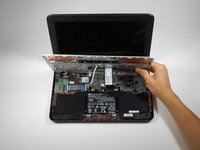
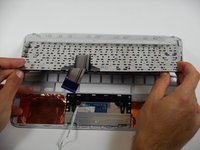
      • Tilt the keyboard mount up.

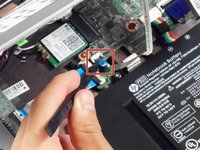
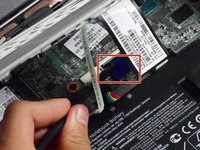
      • Use a spudger to flip up the two ZIF connector retaining flaps for the ribbon cables that connect the keyboard mount to the motherboard.

      • Gently remove both ribbon cables.

      Спросите у FixBot

      Добавить комментарий

    5. HP Chromebook 11 G3 Keyboard Replacement: шаг 5, изображение 1 из 1
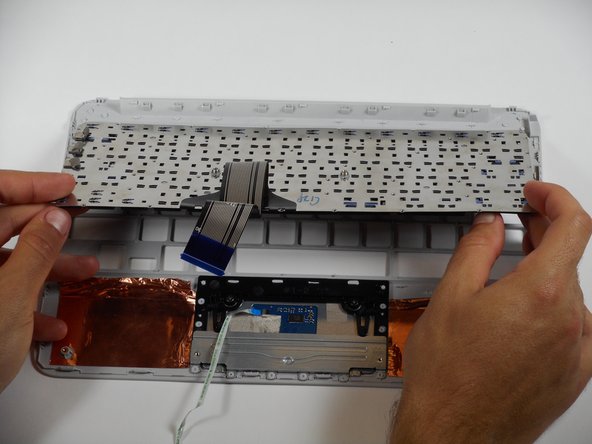
      • Lift the keyboard mount out of the laptop.

      Спросите у FixBot

      Добавить комментарий

    1. HP Chromebook 11 G3 Keyboard Replacement, Keyboard: шаг 6, изображение 1 из 2 HP Chromebook 11 G3 Keyboard Replacement, Keyboard: шаг 6, изображение 2 из 2
      Инструмент, используемый на этом этапе:
      Tweezers
      $4.99
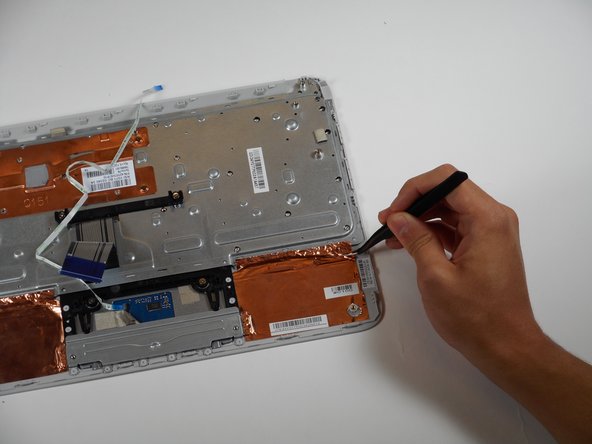
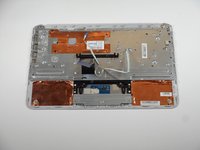
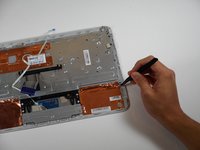
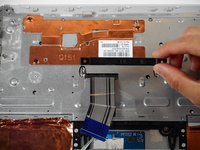
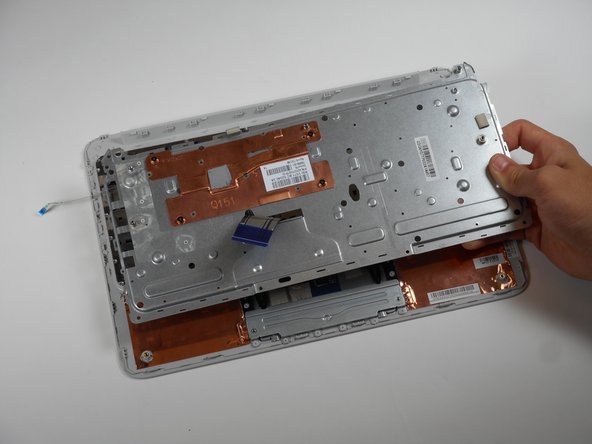
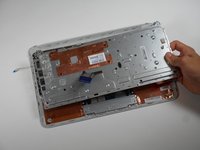
      • Flip the keyboard mount upside-down.

      • Using tweezers, peel off the two pieces of copper tape that keep the keyboard’s metal cover attached to the keyboard mount.

      Спросите у FixBot

      Добавить комментарий

    2. HP Chromebook 11 G3 Keyboard Replacement: шаг 7, изображение 1 из 1
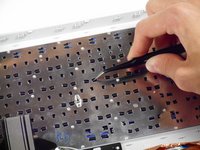
      • Using tweezers, pull back the three metallic-colored pieces of tape near the top left corner of the keyboard mount.

      Спросите у FixBot

      Добавить комментарий

    3. HP Chromebook 11 G3 Keyboard Replacement: шаг 8, изображение 1 из 2 HP Chromebook 11 G3 Keyboard Replacement: шаг 8, изображение 2 из 2
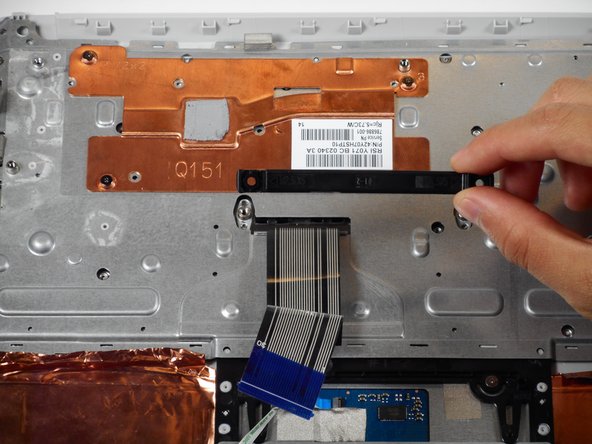
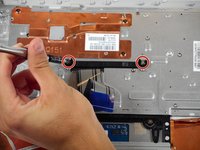
      • Remove the two 4 mm Phillips #00 screws located on either side of the horizontal black fastener located directly above the touchpad.

      • Lift the horizontal black fastener.

      Спросите у FixBot

      Добавить комментарий

    4. HP Chromebook 11 G3 Keyboard Replacement: шаг 9, изображение 1 из 3 HP Chromebook 11 G3 Keyboard Replacement: шаг 9, изображение 2 из 3 HP Chromebook 11 G3 Keyboard Replacement: шаг 9, изображение 3 из 3
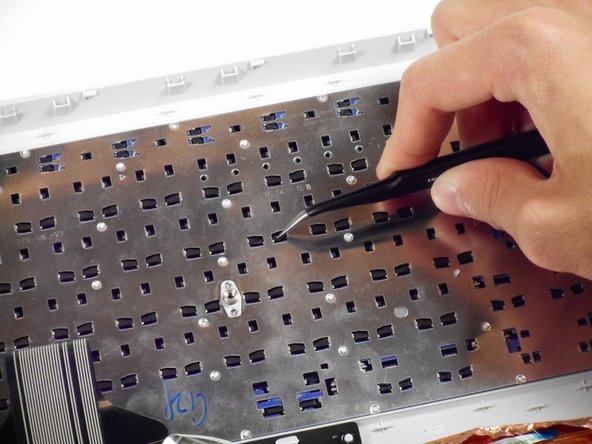
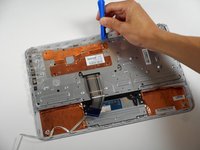
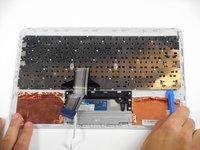
      • Use a plastic opening tool to pry the edges of the metal cover.

      • Loosen the adhesive around the perimeter of the metal cover.

      • The adhesive can be difficult to remove. Use tweezers on any troubling sections. After removing the adhesive, take off the keyboard’s metal cover.

      • If the cover doesn’t come off, repeat prying around the edges with a plastic opening tool.

      • Lift the metal cover.

      • Apply adhesive during reassembly to fasten the metal cover onto the keyboard mount.

      • If only certain keys need replacement, stop here. Instead, use tweezers to remove individual keys by loosening their four snap-on clips from the metal backing.

      Спросите у FixBot

      Добавить комментарий

    5. HP Chromebook 11 G3 Keyboard Replacement: шаг 10, изображение 1 из 2 HP Chromebook 11 G3 Keyboard Replacement: шаг 10, изображение 2 из 2
      • Use a plastic opening tool to disconnect the keyboard from the keyboard mount by prying along the keyboard’s perimeter.

      • Lots of adhesive attaches the keyboard to the keyboard mount. Loud snapping noises and gray, circular plastic debris are common during adhesive removal.

      • After removing enough adhesive, remove the keyboard’s backing.

      • Apply adhesive during reassembly to fasten the keyboard and its metal backing onto the keyboard mount.

      Спросите у FixBot

      Добавить комментарий

Заключение

To reassemble your device, follow these instructions in reverse order.

Отменить: Я не выполнил это руководство.

2 человек успешно провели ремонт по этому руководству.

Rahul Goyal

Участник с: 04/26/17

1 401 Репутация

Автор 10 руководств

Команда

Cal Poly, Team S23-G3, Livingston Spring 2017 Участник Cal Poly, Team S23-G3, Livingston Spring 2017

CPSU-LIVINGSTON-S17S23G3

4 членов

Автор 92 руководств

1 Комментарий к руководству

Is it possible to get a keyboard that lights up for the HP Chromebook 11 G3? If so then how?

Vanessa Nations - Ответить Поделиться

Добавить комментарий

Статистика просмотров:

За последние 24 часов: 0

За последние 7 дней: 7

За последние 30 дней: 38

За всё время: 2,646