Перейти к основному содержанию
Присоединяйся к сообществу ремонтников - Создай аккаунт

HP Chromebook 14-Q010DX Hard drive Replacement

Выберете то, что вам нужно

  1. HP Chromebook 14-Q010DX Hard drive Replacement, Keyboard and Touchpad: шаг 1, изображение 1 из 2 HP Chromebook 14-Q010DX Hard drive Replacement, Keyboard and Touchpad: шаг 1, изображение 2 из 2
    • Flip the laptop so the base of the laptop is facing you.

    • Using the #00 screwdriver, unscrew the 13 screws.

    Спросите у FixBot
  2. HP Chromebook 14-Q010DX Hard drive Replacement: шаг 2, изображение 1 из 3 HP Chromebook 14-Q010DX Hard drive Replacement: шаг 2, изображение 2 из 3 HP Chromebook 14-Q010DX Hard drive Replacement: шаг 2, изображение 3 из 3
    • Warning! When prying open a laptop it could require some force, but it also has fragile connectors underneath. Use caution so as to avoid breaking these connectors.

    • Start from the top right corner of the laptop and work clockwise with an iFixit opening tool or spudger to pry the keyboard from the frame of the laptop.

    Спросите у FixBot
  3. HP Chromebook 14-Q010DX Hard drive Replacement: шаг 3, изображение 1 из 3 HP Chromebook 14-Q010DX Hard drive Replacement: шаг 3, изображение 2 из 3 HP Chromebook 14-Q010DX Hard drive Replacement: шаг 3, изображение 3 из 3
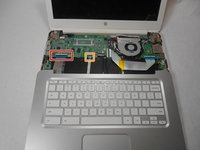
    • Warning! Handle the flaps and ribbon cables with care to prevent damage.

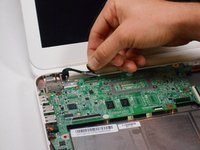
    • Gently pull the keyboard in the opposite direction of the screen, so the wires beneath are exposed.

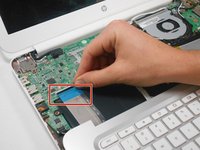
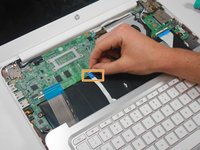
    • Lift the black flap and pull the blue ribbon gently towards you until it is disconnected.

    • Lift the white flap and pull the blue ribbon towards you until it is disconnected.

    Спросите у FixBot
  4. HP Chromebook 14-Q010DX Hard drive Replacement: шаг 4, изображение 1 из 1
    • Lift keyboard slightly and remove the strip gently to prevent damaging any parts.

    • The tape has no function other than to keep the wire tucked away.

    Спросите у FixBot
  5. HP Chromebook 14-Q010DX Hard drive Replacement: шаг 5, изображение 1 из 1
    • Set aside the detached keyboard.

    Спросите у FixBot
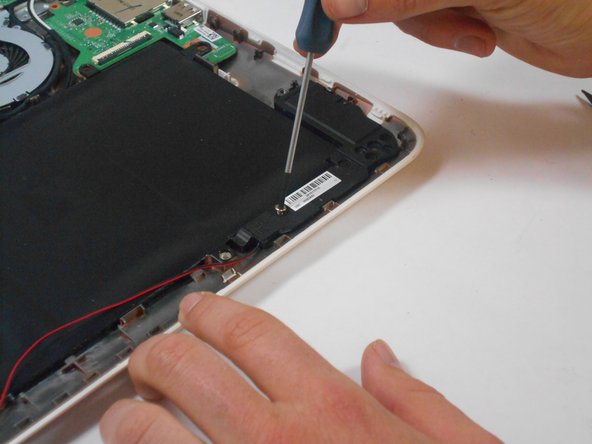
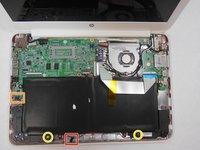
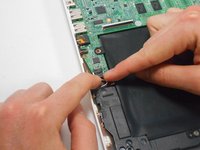
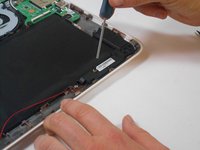
  6. HP Chromebook 14-Q010DX Hard drive Replacement, Speaker: шаг 6, изображение 1 из 3 HP Chromebook 14-Q010DX Hard drive Replacement, Speaker: шаг 6, изображение 2 из 3 HP Chromebook 14-Q010DX Hard drive Replacement, Speaker: шаг 6, изображение 3 из 3
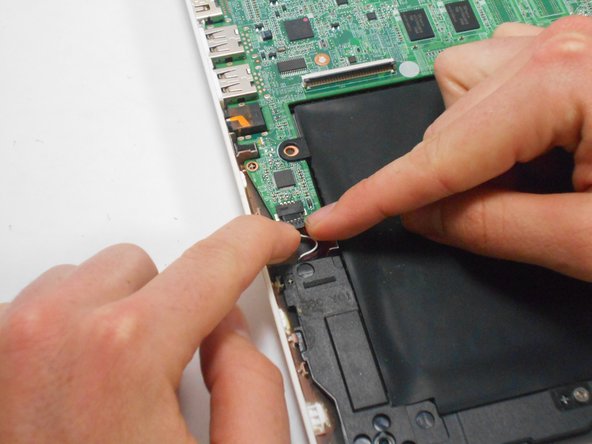
    • Undo the black tape located on the bottom from the frame of the laptop.

    • The tape has no function other than to keep the wire tucked away.

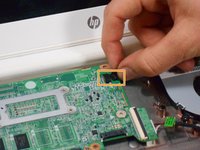
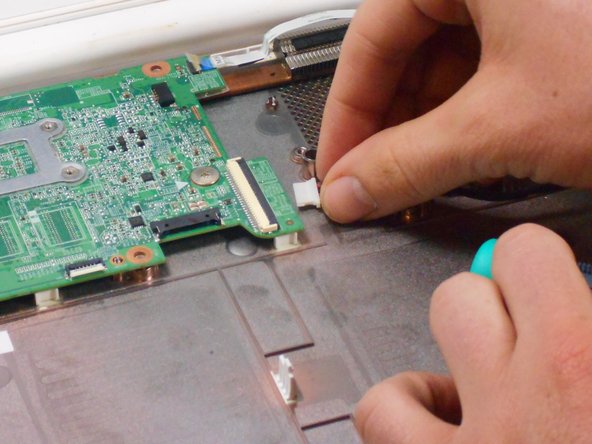
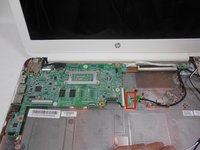
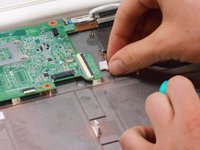
    • Using fingers or the spudger, slide out the black connector indicated on the left.

    • Use a #00 screwdriver to remove the two screws.

    Спросите у FixBot
  7. HP Chromebook 14-Q010DX Hard drive Replacement: шаг 7, изображение 1 из 2 HP Chromebook 14-Q010DX Hard drive Replacement: шаг 7, изображение 2 из 2
    • Gently remove the speakers.

    Спросите у FixBot
  8. HP Chromebook 14-Q010DX Hard drive Replacement, Battery: шаг 8, изображение 1 из 2 HP Chromebook 14-Q010DX Hard drive Replacement, Battery: шаг 8, изображение 2 из 2
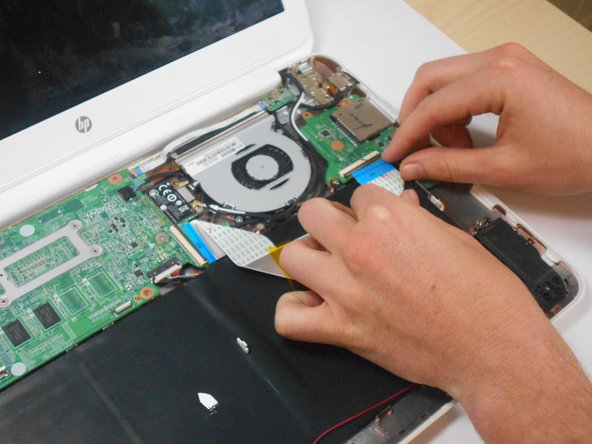
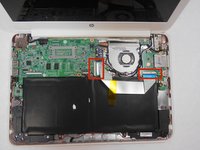
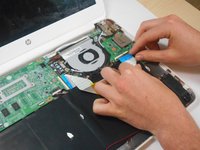
    • Note the shape that this wire strip is resting at and that the blue tip of the strip goes into the right connector for reassembly.

    • Lift the black flaps and gently pull the strip out.

    • Set the strip aside.

    Спросите у FixBot
  9. HP Chromebook 14-Q010DX Hard drive Replacement: шаг 9, изображение 1 из 3 HP Chromebook 14-Q010DX Hard drive Replacement: шаг 9, изображение 2 из 3 HP Chromebook 14-Q010DX Hard drive Replacement: шаг 9, изображение 3 из 3
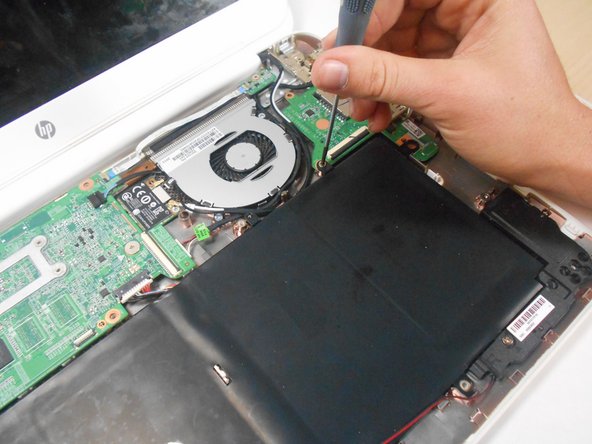
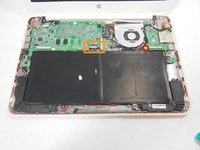
    • Remove the screw.

    • Use your fingers to pull the white tab out of the black slot above the battery.

    Спросите у FixBot
  10. HP Chromebook 14-Q010DX Hard drive Replacement: шаг 10, изображение 1 из 1
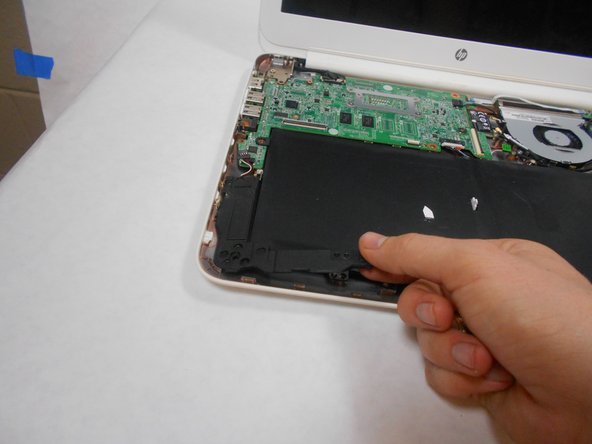
    • Gently remove battery.

    Спросите у FixBot
  11. HP Chromebook 14-Q010DX Hard drive Replacement, Bluetooth and Wireless Card: шаг 11, изображение 1 из 2 HP Chromebook 14-Q010DX Hard drive Replacement, Bluetooth and Wireless Card: шаг 11, изображение 2 из 2
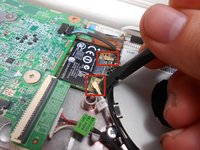
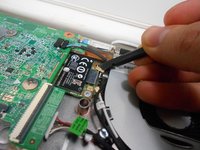
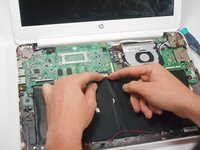
    • Using a spudger, remove the white and black cables from the card.

    Спросите у FixBot
  12. HP Chromebook 14-Q010DX Hard drive Replacement: шаг 12, изображение 1 из 2 HP Chromebook 14-Q010DX Hard drive Replacement: шаг 12, изображение 2 из 2
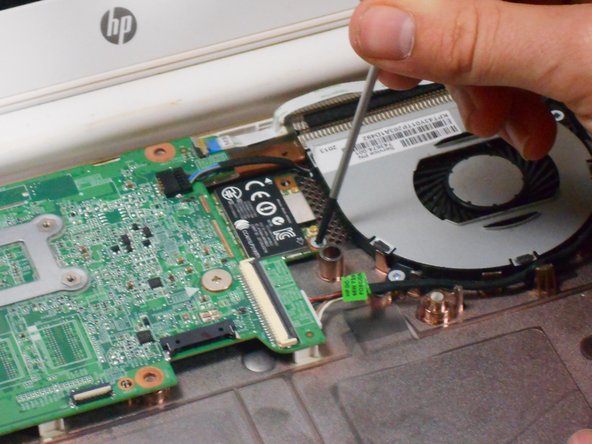
    • Remove screw from card.

    Спросите у FixBot
  13. HP Chromebook 14-Q010DX Hard drive Replacement: шаг 13, изображение 1 из 1
    • Gently pull card at a 45° angle to remove it.

    Спросите у FixBot
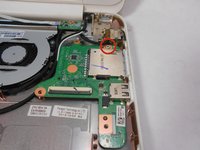
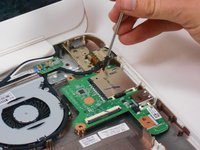
  14. HP Chromebook 14-Q010DX Hard drive Replacement, USB/SD card: шаг 14, изображение 1 из 2 HP Chromebook 14-Q010DX Hard drive Replacement, USB/SD card: шаг 14, изображение 2 из 2
    • Remove screw indicated by the red circle at the top of the card port.

    Спросите у FixBot
  15. HP Chromebook 14-Q010DX Hard drive Replacement: шаг 15, изображение 1 из 1
    • Gently remove the USB/SD card port.

    Спросите у FixBot
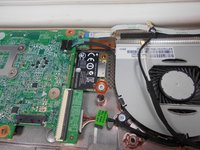
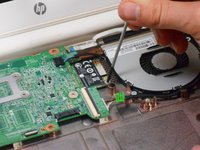
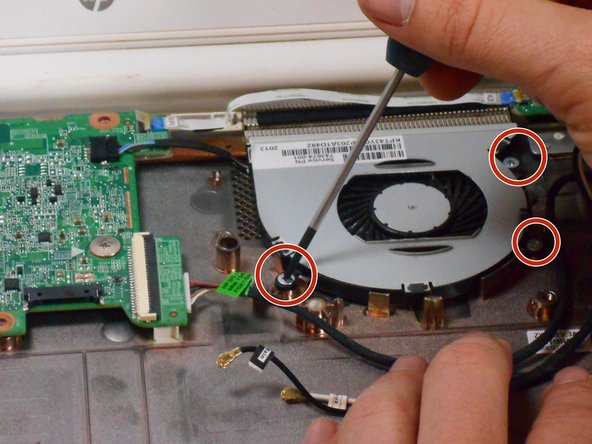
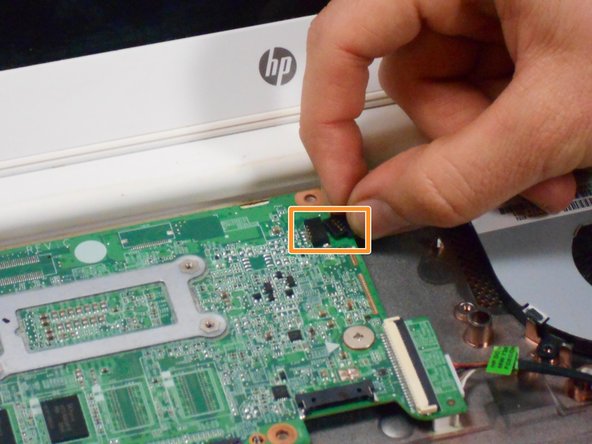
  16. HP Chromebook 14-Q010DX Hard drive Replacement, Fan replacement for a HP Chromebook: шаг 16, изображение 1 из 3 HP Chromebook 14-Q010DX Hard drive Replacement, Fan replacement for a HP Chromebook: шаг 16, изображение 2 из 3 HP Chromebook 14-Q010DX Hard drive Replacement, Fan replacement for a HP Chromebook: шаг 16, изображение 3 из 3
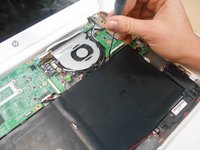
    • Remove the 3 screws around the fan.

    • Using your fingers or the spudger, disconnect the cable connecting the fan to the motherboard.

    Спросите у FixBot
  17. HP Chromebook 14-Q010DX Hard drive Replacement: шаг 17, изображение 1 из 1
    • Once the cable connecting the fan to the motherboard is revomed gently remove fan with hands.

    Спросите у FixBot
  18. HP Chromebook 14-Q010DX Hard drive Replacement, Motherboard: шаг 18, изображение 1 из 2 HP Chromebook 14-Q010DX Hard drive Replacement, Motherboard: шаг 18, изображение 2 из 2
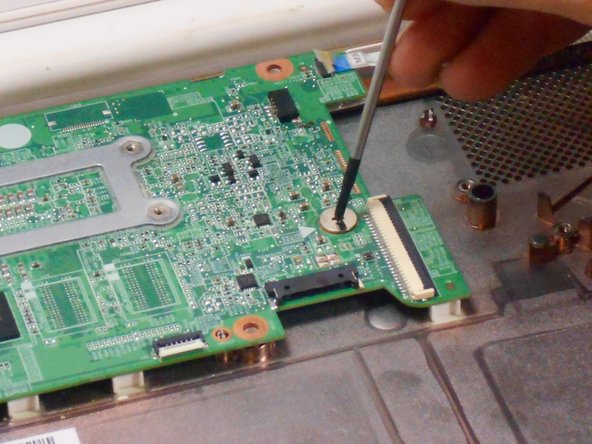
    • Using your fingers or spudger, pull out the connector.

    Спросите у FixBot
  19. HP Chromebook 14-Q010DX Hard drive Replacement: шаг 19, изображение 1 из 3 HP Chromebook 14-Q010DX Hard drive Replacement: шаг 19, изображение 2 из 3 HP Chromebook 14-Q010DX Hard drive Replacement: шаг 19, изображение 3 из 3
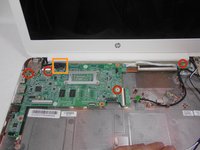
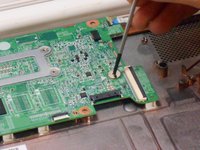
    • Remove all of the indicated screws.

    • Pull up on black strip to remove the monitor cord.

    Спросите у FixBot
  20. HP Chromebook 14-Q010DX Hard drive Replacement: шаг 20, изображение 1 из 1
    • Gently remove motherboard.

    Спросите у FixBot
  21. HP Chromebook 14-Q010DX Hard drive Replacement, Hard drive: шаг 21, изображение 1 из 1
    • Flip motherboard over.

    Спросите у FixBot
  22. HP Chromebook 14-Q010DX Hard drive Replacement: шаг 22, изображение 1 из 1
    • Remove the screw indicated by the red circle.

    Спросите у FixBot
  23. HP Chromebook 14-Q010DX Hard drive Replacement: шаг 23, изображение 1 из 1
    • Remove the hard drive by pulling the device from the black slot.

    Спросите у FixBot
Заключение

To reassemble your device, follow these instructions in reverse order.

14 человек успешно провели ремонт по этому руководству.

Kevin Piper

Участник с: 01/16/15

1 602 Репутация

Автор 6 руководств

Команда

USF Tampa, Team 17-2, Watkins Winter 2015 Участник USF Tampa, Team 17-2, Watkins Winter 2015

USFT-WATKINS-W15S17G2

4 членов

Автор 8 руководств

5 Комментарии к руководству

Thanks so much for your clearly , detailed and easy to follow guide, nice job!

pedro munoz - Ответить Поделиться
Buenas tarde y despuesnde quitar el disco duro que se hace se cambia por otro igual o que modelo

chaffa_45 - Ответить Поделиться

Can you add more storage on the HP Chromebook 14 SMB about 500GB. I also want to know if the Chromebook can run Windows 10 without any problems.

Fire Alarm Collector - Ответить Поделиться

Useful. Wish I would have read it B4 I started this project.

Maria Jones - Ответить Поделиться

how do i upgrde my chrom browser?

Danielle Curtis - Ответить Поделиться

Добавить комментарий

Статистика просмотров:

За последние 24 часов: 5

За последние 7 дней: 18

За последние 30 дней: 108

За всё время: 22,322