Перейти к основному содержанию
Присоединяйся к сообществу ремонтников - Создай аккаунт

HP Compaq 6710b Screen Replacement

Выберете то, что вам нужно

    1. HP Compaq 6710b Screen Replacement, Battery: шаг 1, изображение 1 из 1
      • Turn off your computer! Taking out the battery while it's still on is dangerous!

      • Flip the laptop over to the back.

      • Using two hands, push on the tabs while gently taking out the battery.

      Спросите у FixBot

      Добавить комментарий

    1. HP Compaq 6710b Screen Replacement, Keyboard: шаг 2, изображение 1 из 3 HP Compaq 6710b Screen Replacement, Keyboard: шаг 2, изображение 2 из 3 HP Compaq 6710b Screen Replacement, Keyboard: шаг 2, изображение 3 из 3
      • Turn off computer before starting.

      • Flip to the backside of the laptop.

      • Using a Phillips #1 screwdriver, unscrew the 5mm screw and take off the shown cover.

      • Using the same screwdriver, unscrew the 8mm screws.

      • The screws may not completely fall out of the laptop, just ensure they are unscrewed as far as they will go.

      Спросите у FixBot

      Добавить комментарий

    2. HP Compaq 6710b Screen Replacement: шаг 3, изображение 1 из 1
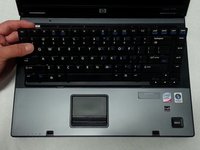
      • Flip over the laptop to the top side, and open the laptop.

      • Slide the locking tabs down using a blue plastic opening tool or your fingernail.

      Спросите у FixBot

      Добавить комментарий

    3. HP Compaq 6710b Screen Replacement: шаг 4, изображение 1 из 2 HP Compaq 6710b Screen Replacement: шаг 4, изображение 2 из 2
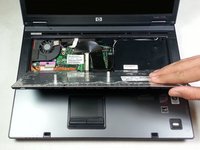
      • Using the plastic prying tool, lift the keyboard gently towards you.

      • Don't take the keyboard completely off because it is still attached with a ribbon cable to the computer.

      Спросите у FixBot

      Добавить комментарий

    4. HP Compaq 6710b Screen Replacement: шаг 5, изображение 1 из 1
      • Pull up on both sides of the black locking tab of the connector.

      • The keyboard should now be free of the computer.

      Спросите у FixBot

      Добавить комментарий

    1. HP Compaq 6710b Screen Replacement, Power Button Panel: шаг 6, изображение 1 из 1
      • Put a finger under each side of the plastic lock on the ribbon cable and pull up.

      Спросите у FixBot

      Добавить комментарий

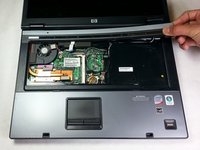
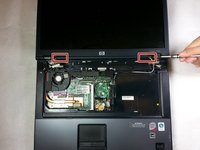
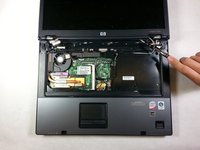
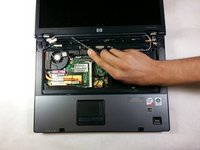
    2. HP Compaq 6710b Screen Replacement: шаг 7, изображение 1 из 3 HP Compaq 6710b Screen Replacement: шаг 7, изображение 2 из 3 HP Compaq 6710b Screen Replacement: шаг 7, изображение 3 из 3
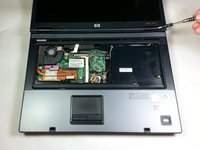
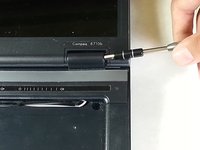
      • Using a flathead screwdriver, get under each plastic hinge cover until they pop.

      • Lift the right edge of plastic strip covering the power button and gently pull it up until the whole strip comes free.

      Спросите у FixBot

      Добавить комментарий

    1. HP Compaq 6710b Screen Replacement, Screen: шаг 8, изображение 1 из 1
      • Using a flathead screwdriver, work both sides of the connector next to the fan and take it out.

      Спросите у FixBot

      Добавить комментарий

    2. HP Compaq 6710b Screen Replacement: шаг 9, изображение 1 из 1
      • Using the T9 Torx screwdriver, remove one 7mm screw on the left hinge.

      • We recommend replacing this screw shortly after removing the cable as it helps hold the hinge to the lower half of the laptop.

      Спросите у FixBot

      Добавить комментарий

    3. HP Compaq 6710b Screen Replacement: шаг 10, изображение 1 из 1
      • Using the blue plastic opening tool, pull the rubber covers off the screen screws.

      Спросите у FixBot

      Добавить комментарий

    4. HP Compaq 6710b Screen Replacement: шаг 11, изображение 1 из 1
      • Using a T9 Torx screwdriver, remove the top four 5 mm screws.

      • Remove the bottom two 6 mm screws with the same screwdriver.

      Спросите у FixBot

      Добавить комментарий

    5. HP Compaq 6710b Screen Replacement: шаг 12, изображение 1 из 3 HP Compaq 6710b Screen Replacement: шаг 12, изображение 2 из 3 HP Compaq 6710b Screen Replacement: шаг 12, изображение 3 из 3
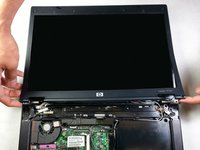
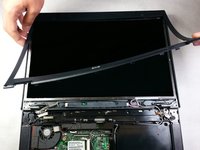
      • Using a flat head screwdriver, pry the plastic panel over the screen up starting at one of the hinges.

      • Using the flathead, continue running the it under the the plastic screen edge and gently pry it off.

      • If you press the screwdriver tip down (by lifting the handle), the screen panel pops off easier.

      Спросите у FixBot

      Добавить комментарий

    6. HP Compaq 6710b Screen Replacement: шаг 13, изображение 1 из 3 HP Compaq 6710b Screen Replacement: шаг 13, изображение 2 из 3 HP Compaq 6710b Screen Replacement: шаг 13, изображение 3 из 3
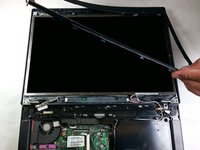
      • Slowly pry back the of the screen.

      • It is easiest to work both sides free at the same time.

      Спросите у FixBot

      Добавить комментарий

    7. HP Compaq 6710b Screen Replacement: шаг 14, изображение 1 из 1
      • Using your fingers, take out the two connections near the hinges.

      Спросите у FixBot

      Добавить комментарий

    8. HP Compaq 6710b Screen Replacement: шаг 15, изображение 1 из 1
      • Using the T9 Torx screwdriver, unscrew the four 4mm screws.

      Спросите у FixBot

      Добавить комментарий

    9. HP Compaq 6710b Screen Replacement: шаг 16, изображение 1 из 2 HP Compaq 6710b Screen Replacement: шаг 16, изображение 2 из 2
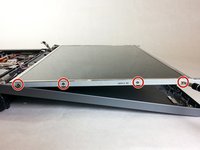
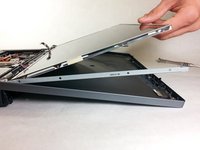
      • Tilt the screen up from the top to gain access to the screws on the side.

      • Go just far enough to get to the bottom screws to avoid damaging the bracket.

      • Using the PH00 screwdriver, unscrew the 2.5mm screws on the side of the screen. There should be 4 on each side.

      • You can now take out the screen.

      Спросите у FixBot

      Добавить комментарий

Заключение

To reassemble your device, follow these instructions in reverse order.

Отменить: Я не выполнил это руководство.

8 человек успешно провели ремонт по этому руководству.

Khulan Orgil

Участник с: 04/14/15

1 186 Репутация

Автор 6 руководств

Команда

Cal Poly, Team 4-2, Maness Spring 2015 Участник Cal Poly, Team 4-2, Maness Spring 2015

CPSU-MANESS-S15S4G2

4 членов

Автор 24 руководств

1 Комментарий к руководству

thank you I found it very interesting

Hassan - Ответить Поделиться

Добавить комментарий

Статистика просмотров:

За последние 24 часов: 2

За последние 7 дней: 13

За последние 30 дней: 47

За всё время: 6,239