Перейти к основному содержанию
Присоединяйся к сообществу ремонтников - Создай аккаунт

HP Compaq C700 Fan Replacement

Выберете то, что вам нужно

    1. HP Compaq C700 Fan Replacement, Keyboard: шаг 1, изображение 1 из 1
      • It is advised to work on the device only when it is powered off so as to avoid electrocution risks.

      • Turn off computer by pressing and holding the power button.

      Спросите у FixBot

      Добавить комментарий

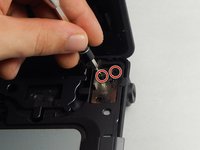
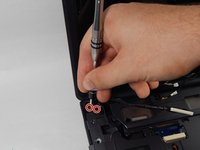
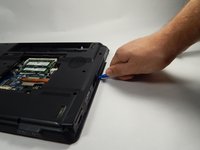
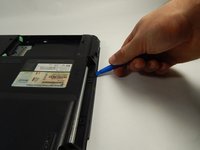
    2. HP Compaq C700 Fan Replacement: шаг 2, изображение 1 из 3 HP Compaq C700 Fan Replacement: шаг 2, изображение 2 из 3 HP Compaq C700 Fan Replacement: шаг 2, изображение 3 из 3
      • Locate and unscrew the two screws on the back marked with a small keyboard. These screws hold the keyboard in place.

      • Locate the metal hooks where the keyboard connects to the laptop and use a metal spudger to gently pry up the keyboard.

      Спросите у FixBot

      Добавить комментарий

    3. HP Compaq C700 Fan Replacement: шаг 3, изображение 1 из 1
      • Gently lift up and remove the keyboard.

      Спросите у FixBot

      Добавить комментарий

    1. HP Compaq C700 Fan Replacement, Fan: шаг 4, изображение 1 из 1
      • Turn the laptop over so that you see the bottom.

      • Locate the twenty 3 mm Phillips head screws.

      • Unscrew them using the PH0 screwdriver

      Спросите у FixBot

      Добавить комментарий

    2. HP Compaq C700 Fan Replacement: шаг 5, изображение 1 из 1
      • After unscrewing the 3 mm screws, remove the hard drive covering by lifting upward.

      Спросите у FixBot

      Добавить комментарий

    3. HP Compaq C700 Fan Replacement: шаг 6, изображение 1 из 1
      • Remove the hard drive by pulling on the plastic tab and lifting upward.

      Спросите у FixBot

      Добавить комментарий

    4. HP Compaq C700 Fan Replacement: шаг 7, изображение 1 из 1
      • Remove the covering that houses the RAM modules.

      Спросите у FixBot

      Добавить комментарий

    5. HP Compaq C700 Fan Replacement: шаг 8, изображение 1 из 1
      • Locate and unscrew the two Phillips head 3 mm screws on the wireless card.

      Спросите у FixBot

      Добавить комментарий

    6. HP Compaq C700 Fan Replacement: шаг 9, изображение 1 из 1
      • Unhook the two wires connecting to the wireless card by gently pulling them out.

      Спросите у FixBot

      Добавить комментарий

    7. HP Compaq C700 Fan Replacement: шаг 10, изображение 1 из 1
      • Gently lift and pull out the card.

      Спросите у FixBot

      Добавить комментарий

    8. HP Compaq C700 Fan Replacement: шаг 11, изображение 1 из 1
      Инструмент, используемый на этом этапе:
      Tweezers
      $4.99
      • Locate the power button connector wire. (This can be found where the keyboard sits.)

      • Using the tweezers, unhook the wire.

      Спросите у FixBot

      Добавить комментарий

    9. HP Compaq C700 Fan Replacement: шаг 12, изображение 1 из 2 HP Compaq C700 Fan Replacement: шаг 12, изображение 2 из 2
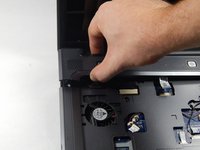
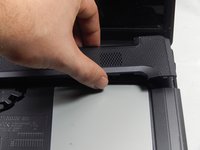
      • Press and hold the lock to pop the panel piece above the keyboard and pull up to remove it.

      Спросите у FixBot

      Добавить комментарий

    10. HP Compaq C700 Fan Replacement: шаг 13, изображение 1 из 2 HP Compaq C700 Fan Replacement: шаг 13, изображение 2 из 2
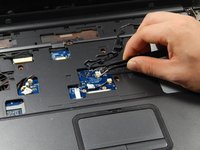
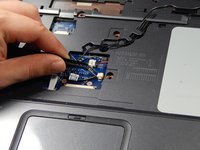
      • Unplug the remaining wires using the tweezers.

      Спросите у FixBot

      Добавить комментарий

    11. HP Compaq C700 Fan Replacement: шаг 14, изображение 1 из 1
      • Gently pull out the three wires.

      Спросите у FixBot

      Добавить комментарий

    12. HP Compaq C700 Fan Replacement: шаг 15, изображение 1 из 2 HP Compaq C700 Fan Replacement: шаг 15, изображение 2 из 2
      • Locate the four 3 mm Phillips head screws.

      • Unscrew them using the PH0 screwdriver.

      Спросите у FixBot

      Добавить комментарий

    13. HP Compaq C700 Fan Replacement: шаг 16, изображение 1 из 1
      • Unhook the display connector wire.

      Спросите у FixBot

      Добавить комментарий

    14. HP Compaq C700 Fan Replacement: шаг 17, изображение 1 из 1
      • Gently disconnect the display by pulling it upwards.

      Спросите у FixBot

      Добавить комментарий

    15. HP Compaq C700 Fan Replacement: шаг 18, изображение 1 из 1
      • Locate the disk drive on the side of the device.

      • Remove it by pulling it all the way out.

      Спросите у FixBot

      Добавить комментарий

    16. HP Compaq C700 Fan Replacement: шаг 19, изображение 1 из 1
      • Use the PH0 screwdriver to remove the two 3 mm Phillips head screws in the disk drive port.

      Спросите у FixBot

      Добавить комментарий

    17. HP Compaq C700 Fan Replacement: шаг 20, изображение 1 из 1
      • Locate and unplug the touchpad connection using the tweezers.

      Спросите у FixBot

      Добавить комментарий

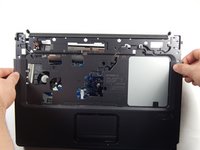
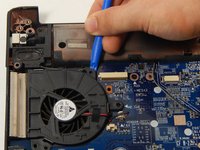
    18. HP Compaq C700 Fan Replacement: шаг 21, изображение 1 из 3 HP Compaq C700 Fan Replacement: шаг 21, изображение 2 из 3 HP Compaq C700 Fan Replacement: шаг 21, изображение 3 из 3
      • Using the Opening tool, gently pry up the cover and remove it.

      Спросите у FixBot

      Добавить комментарий

    19. HP Compaq C700 Fan Replacement: шаг 22, изображение 1 из 1
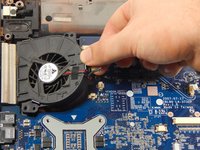
      • Unplug the fan wire connection using the tweezers.

      Спросите у FixBot

      Добавить комментарий

    20. HP Compaq C700 Fan Replacement: шаг 23, изображение 1 из 1
      • Locate the 3 mm Phillips head screw.

      • Unscrew it using the PH0 screwdriver.

      Спросите у FixBot

      Добавить комментарий

    21. HP Compaq C700 Fan Replacement: шаг 24, изображение 1 из 2 HP Compaq C700 Fan Replacement: шаг 24, изображение 2 из 2
      • Using the opening tool, gently pry up and remove the fan.

      Спросите у FixBot

      Добавить комментарий

Заключение

To reassemble your device, follow these instructions in reverse order.

Отменить: Я не выполнил это руководство.

Еще один человек закончил это руководство.

Taylor Johansen

Участник с: 10/20/16

711 Репутация

Автор 5 руководств

Команда

UMass Dartmouth, Team 5-6, Martin Fall 2016 Участник UMass Dartmouth, Team 5-6, Martin Fall 2016

UMASSD-MARTIN-F16S5G6

3 членов

Автор 6 руководств

0 Комментарии к руководству

Добавить комментарий

Статистика просмотров:

За последние 24 часов: 1

За последние 7 дней: 8

За последние 30 дней: 24

За всё время: 1,734