Перейти к основному содержанию
Присоединяйся к сообществу ремонтников - Создай аккаунт

HP Mini 110-3735dx Screen Replacement

Выберете то, что вам нужно

  1. HP Mini 110-3735dx Screen Replacement, Battery: шаг 1, изображение 1 из 3 HP Mini 110-3735dx Screen Replacement, Battery: шаг 1, изображение 2 из 3 HP Mini 110-3735dx Screen Replacement, Battery: шаг 1, изображение 3 из 3
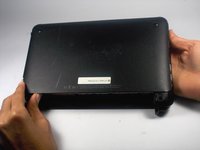
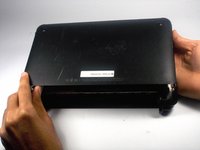
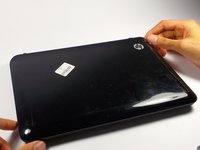
    • With the bottom of the HP Mini facing up, slide both switches inward towards each other.

    Спросите у FixBot
  2. HP Mini 110-3735dx Screen Replacement: шаг 2, изображение 1 из 2 HP Mini 110-3735dx Screen Replacement: шаг 2, изображение 2 из 2
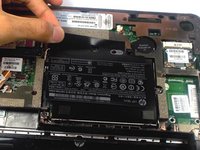
    • With the left switch still pushed inward, pull the battery towards you to remove it from the computer.

    Спросите у FixBot
  3. HP Mini 110-3735dx Screen Replacement, Backcover: шаг 3, изображение 1 из 3 HP Mini 110-3735dx Screen Replacement, Backcover: шаг 3, изображение 2 из 3 HP Mini 110-3735dx Screen Replacement, Backcover: шаг 3, изображение 3 из 3
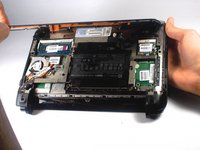
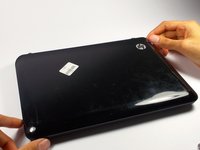
    • Pull upward from under the back cover via the missing battery area.

    • Best to start from one of the corners.

    Спросите у FixBot
  4. HP Mini 110-3735dx Screen Replacement, Keyboard: шаг 4, изображение 1 из 2 HP Mini 110-3735dx Screen Replacement, Keyboard: шаг 4, изображение 2 из 2
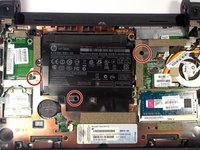
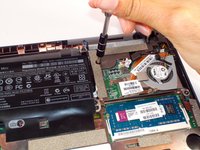
    • Remove the three 4.0 mm screws with the keyboard indicator next to them using a Phillips #1 screw driver.

    Спросите у FixBot
  5. HP Mini 110-3735dx Screen Replacement: шаг 5, изображение 1 из 2 HP Mini 110-3735dx Screen Replacement: шаг 5, изображение 2 из 2
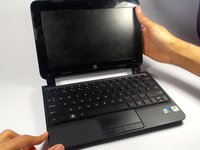
    • Flip the laptop over, and open it up.

    • Don't worry! No pieces will fall out.

    Спросите у FixBot
  6. HP Mini 110-3735dx Screen Replacement: шаг 6, изображение 1 из 2 HP Mini 110-3735dx Screen Replacement: шаг 6, изображение 2 из 2
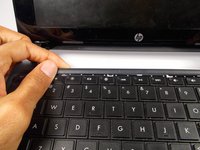
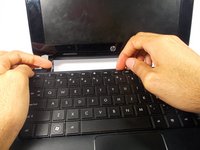
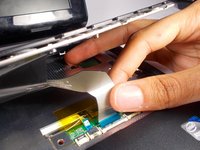
    • With the keyboard facing you, pull the black bezel upward until its loose.

    • You should hear three clicks.

    Спросите у FixBot
  7. HP Mini 110-3735dx Screen Replacement: шаг 7, изображение 1 из 2 HP Mini 110-3735dx Screen Replacement: шаг 7, изображение 2 из 2
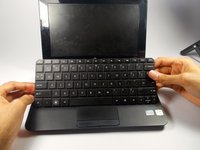
    • Move and hold the bezel slightly towards the screen while lifting the keyboard from the top.

    Спросите у FixBot
  8. HP Mini 110-3735dx Screen Replacement: шаг 8, изображение 1 из 1
    • Pull up the keyboard from the bottom corners exposing the keyboard cable.

    Спросите у FixBot
  9. HP Mini 110-3735dx Screen Replacement: шаг 9, изображение 1 из 2 HP Mini 110-3735dx Screen Replacement: шаг 9, изображение 2 из 2
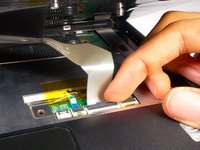
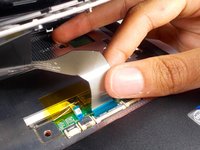
    • Lift the black holder connected to the keyboard cable until it points up.

    Спросите у FixBot
  10. HP Mini 110-3735dx Screen Replacement: шаг 10, изображение 1 из 2 HP Mini 110-3735dx Screen Replacement: шаг 10, изображение 2 из 2
    • Gently pull the keyboard cable from the socket.

    Спросите у FixBot
  11. HP Mini 110-3735dx Screen Replacement, Hard Drive Cage: шаг 11, изображение 1 из 1
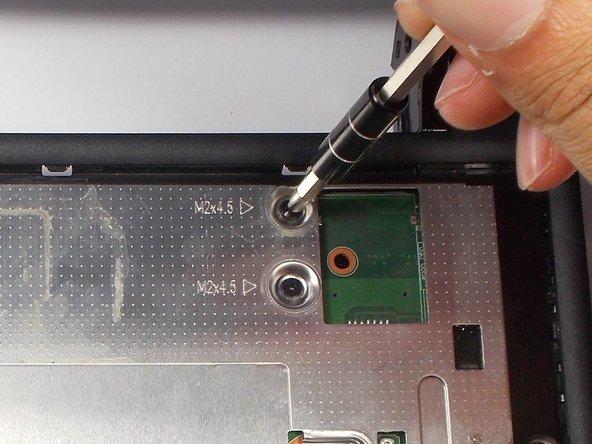
    • Remove the three 5.0 mm screws holding the hard drive cage in place using a Phillips #1 screw driver.

    Спросите у FixBot
  12. HP Mini 110-3735dx Screen Replacement: шаг 12, изображение 1 из 3 HP Mini 110-3735dx Screen Replacement: шаг 12, изображение 2 из 3 HP Mini 110-3735dx Screen Replacement: шаг 12, изображение 3 из 3
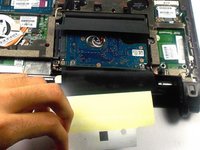
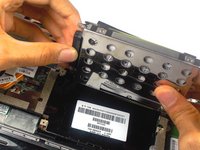
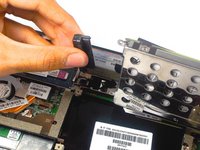
    • Lift the hard drive cage by pulling the tape upward.

    • Start by pulling the tape from the side with the keyboard symbol.

    Спросите у FixBot
  13. HP Mini 110-3735dx Screen Replacement: шаг 13, изображение 1 из 2 HP Mini 110-3735dx Screen Replacement: шаг 13, изображение 2 из 2
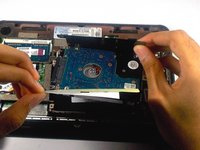
    • Unplug the cable connecting to the hard drive.

    Спросите у FixBot
  14. HP Mini 110-3735dx Screen Replacement, Screen: шаг 14, изображение 1 из 2 HP Mini 110-3735dx Screen Replacement, Screen: шаг 14, изображение 2 из 2
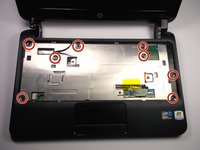
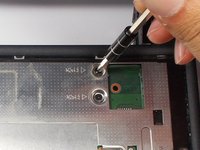
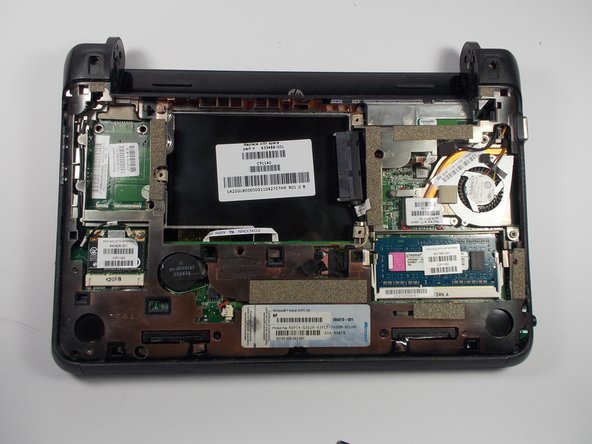
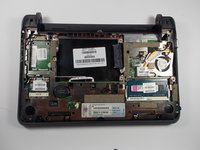
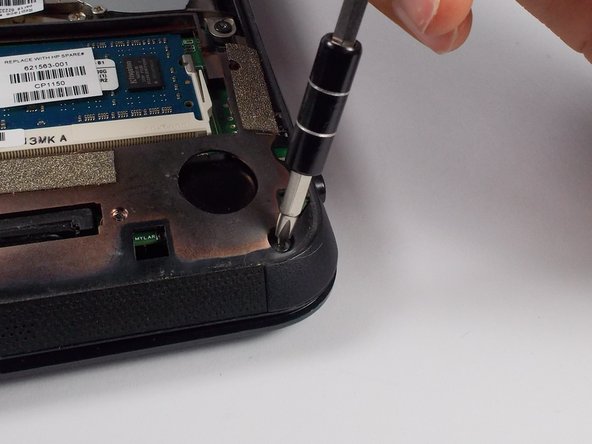
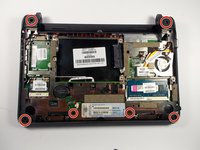
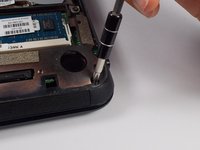
    • Remove the 8 5.0 mm screws under the keyboard using a Phillips #1 screw driver.

    Спросите у FixBot
  15. HP Mini 110-3735dx Screen Replacement: шаг 15, изображение 1 из 3 HP Mini 110-3735dx Screen Replacement: шаг 15, изображение 2 из 3 HP Mini 110-3735dx Screen Replacement: шаг 15, изображение 3 из 3
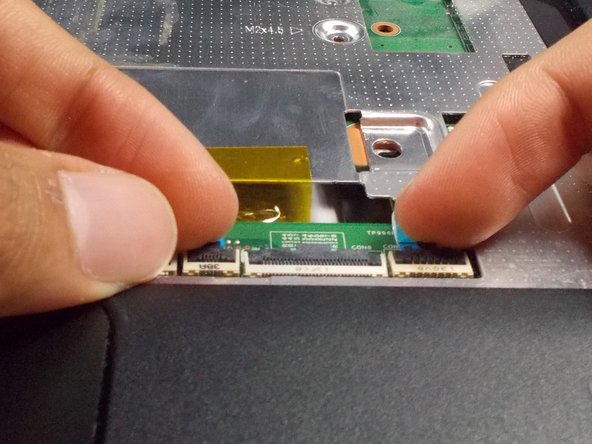
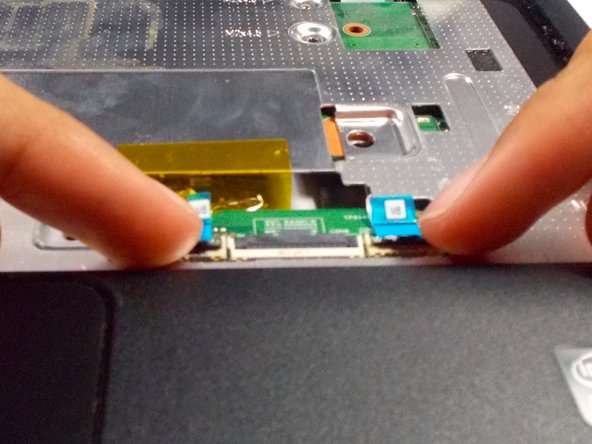
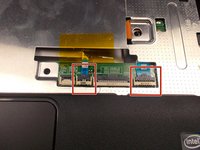
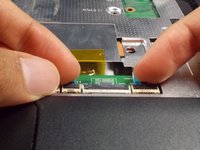
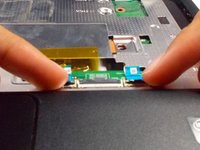
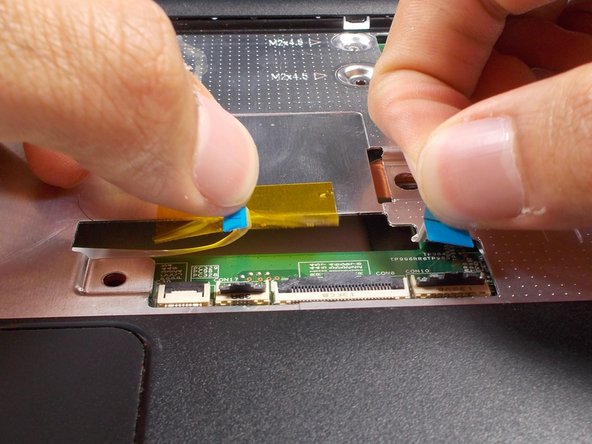
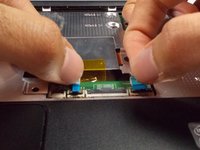
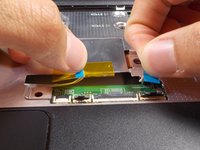
    • Lift the two black holders upward located next to the socket for the keyboard close to the tracked pad.

    Спросите у FixBot
  16. HP Mini 110-3735dx Screen Replacement: шаг 16, изображение 1 из 2 HP Mini 110-3735dx Screen Replacement: шаг 16, изображение 2 из 2
    • Remove the two connectors for the motherboard from their sockets.

    Спросите у FixBot
  17. HP Mini 110-3735dx Screen Replacement: шаг 17, изображение 1 из 2 HP Mini 110-3735dx Screen Replacement: шаг 17, изображение 2 из 2
    • Close the laptop by bringing the screen down.

    • Flip the laptop over to the other side.

    Спросите у FixBot
  18. HP Mini 110-3735dx Screen Replacement: шаг 18, изображение 1 из 2 HP Mini 110-3735dx Screen Replacement: шаг 18, изображение 2 из 2
    • Remove the 6 5.0 mm screws holding the back plate together using a Phillips #1 screw driver.

    Спросите у FixBot
  19. HP Mini 110-3735dx Screen Replacement: шаг 19, изображение 1 из 2 HP Mini 110-3735dx Screen Replacement: шаг 19, изображение 2 из 2
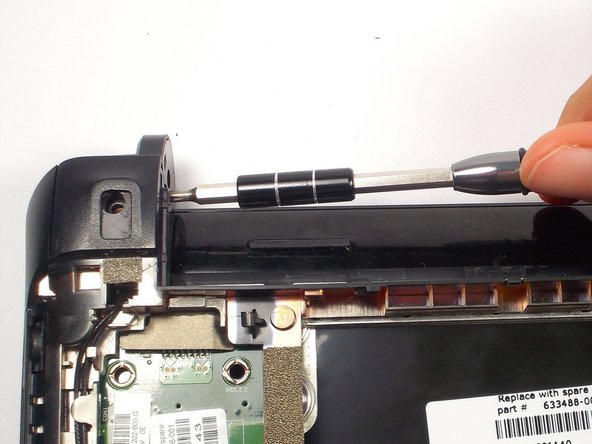
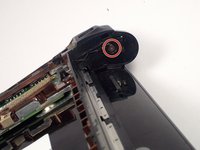
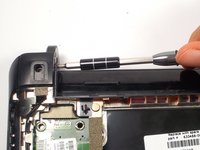
    • Remove the 2 3.0 mm screw head holding the plastic piece in place using a Phillips #1 screw driver.

    • Located on the left and right side where the battery was removed.

    Спросите у FixBot
  20. HP Mini 110-3735dx Screen Replacement: шаг 20, изображение 1 из 3 HP Mini 110-3735dx Screen Replacement: шаг 20, изображение 2 из 3 HP Mini 110-3735dx Screen Replacement: шаг 20, изображение 3 из 3
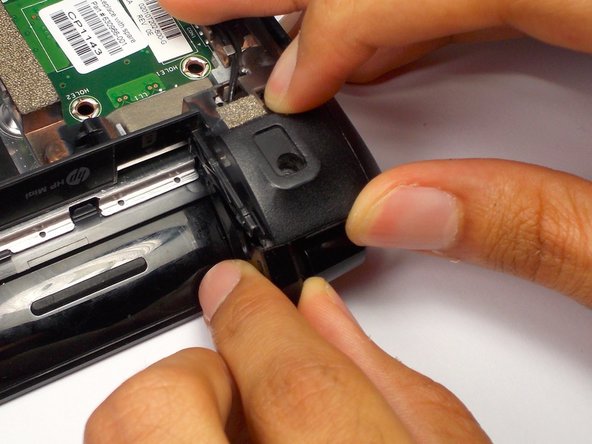
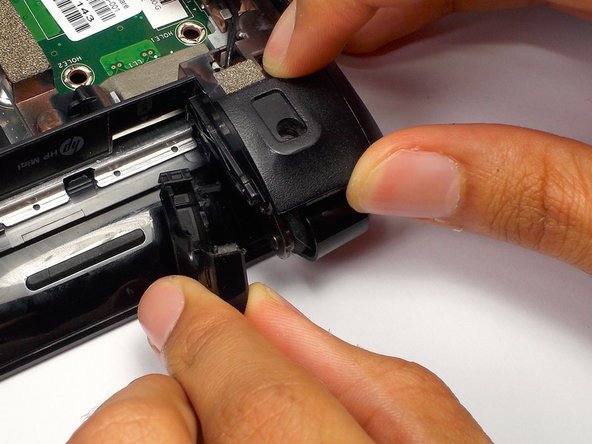
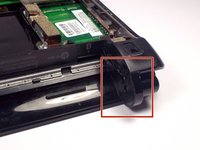
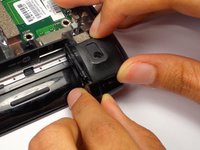
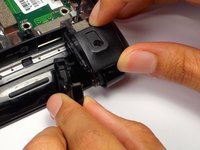
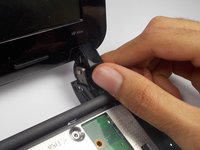
    • Pull the black plastic pieces that the screws was holding inward.

    • The pieces are located on the left and right corners connecting the bottom and top of the HP Mini.

    Спросите у FixBot
  21. HP Mini 110-3735dx Screen Replacement: шаг 21, изображение 1 из 2 HP Mini 110-3735dx Screen Replacement: шаг 21, изображение 2 из 2
    • Flip the laptop back over.

    • Open it by lifting the screeen.

    Спросите у FixBot
  22. HP Mini 110-3735dx Screen Replacement: шаг 22, изображение 1 из 3 HP Mini 110-3735dx Screen Replacement: шаг 22, изображение 2 из 3 HP Mini 110-3735dx Screen Replacement: шаг 22, изображение 3 из 3
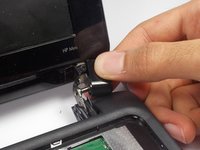
    • Right next to the previous plastic piece, remove the other two plastic pieces.

    • This may be difficult to come off. Tilt the screen back and forth to help loosen the piece.

    Спросите у FixBot
  23. HP Mini 110-3735dx Screen Replacement: шаг 23, изображение 1 из 1
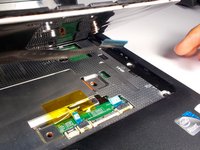
    • Using the plastic prying tool, pry the front plate of the bottom part of your HP Mini.

    • Start along the speaker grill near the touch pad, and move along the sides.

    Спросите у FixBot
  24. HP Mini 110-3735dx Screen Replacement: шаг 24, изображение 1 из 2 HP Mini 110-3735dx Screen Replacement: шаг 24, изображение 2 из 2
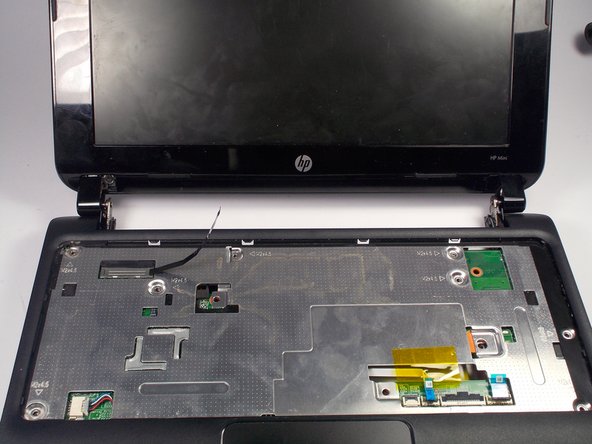
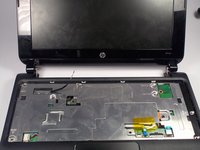
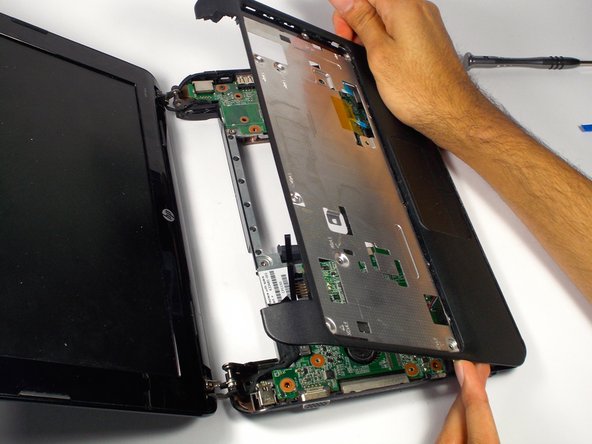
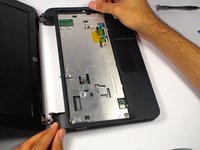
    • Lift up the front plate where the keyboard was.

    Спросите у FixBot
  25. HP Mini 110-3735dx Screen Replacement: шаг 25, изображение 1 из 3 HP Mini 110-3735dx Screen Replacement: шаг 25, изображение 2 из 3 HP Mini 110-3735dx Screen Replacement: шаг 25, изображение 3 из 3
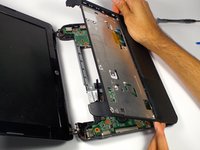
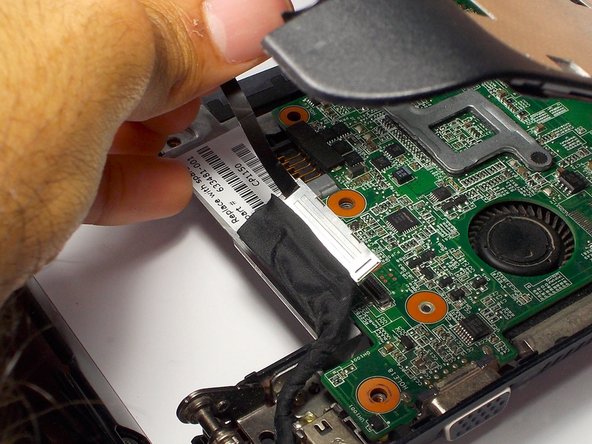
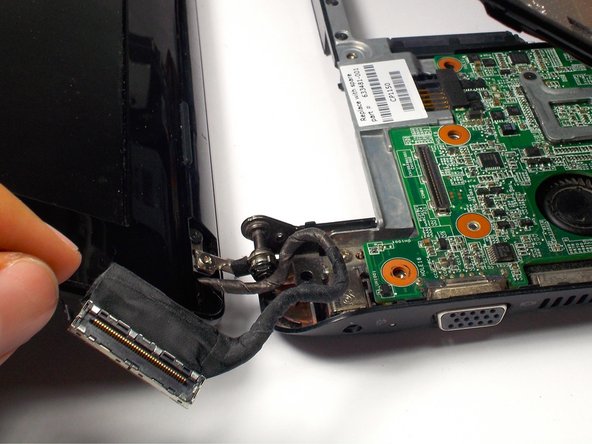
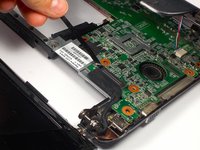
    • Remove the display cable from the motherboard located on the top left corner under where the keyboard was by pulling on the black tab.

    • Move the cable.

    Спросите у FixBot
  26. HP Mini 110-3735dx Screen Replacement: шаг 26, изображение 1 из 3 HP Mini 110-3735dx Screen Replacement: шаг 26, изображение 2 из 3 HP Mini 110-3735dx Screen Replacement: шаг 26, изображение 3 из 3
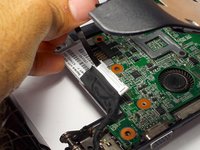
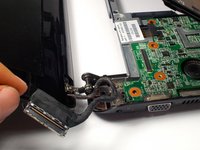
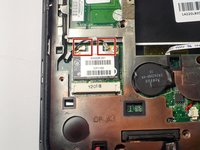
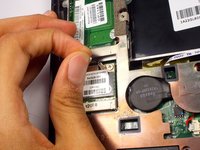
    • Remove the webcam cables from the motherboard.

    • Located on the back side of the laptop in the bottom left corner.

    Спросите у FixBot
  27. HP Mini 110-3735dx Screen Replacement: шаг 27, изображение 1 из 1
    • Flip over the computer, and open the laptop.

    • Lift up the front plate on the top right corner.

    Спросите у FixBot
  28. HP Mini 110-3735dx Screen Replacement: шаг 28, изображение 1 из 3 HP Mini 110-3735dx Screen Replacement: шаг 28, изображение 2 из 3 HP Mini 110-3735dx Screen Replacement: шаг 28, изображение 3 из 3
    Инструмент, используемый на этом этапе:
    Tweezers
    $4.99
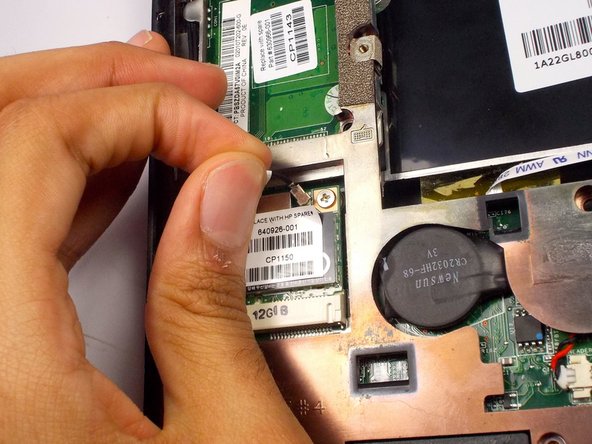
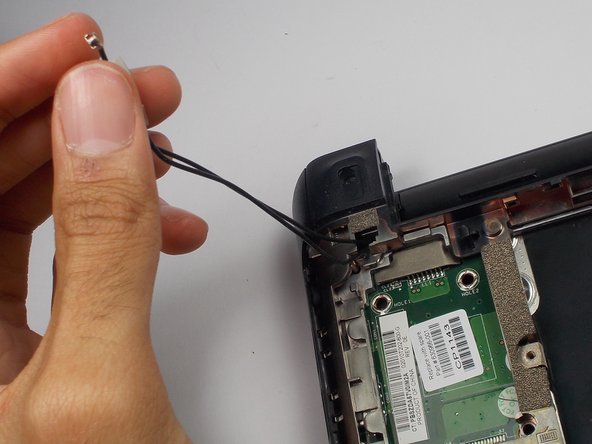
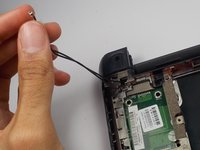
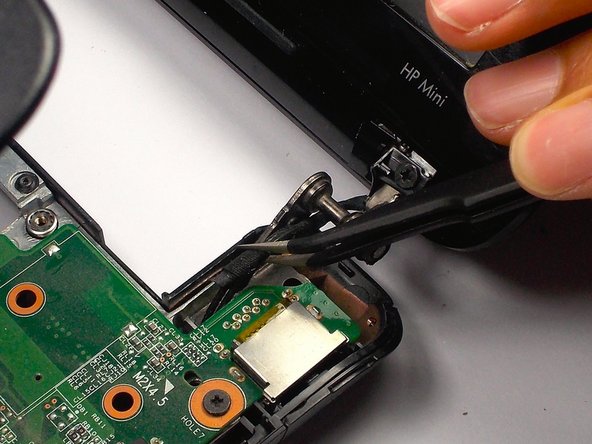
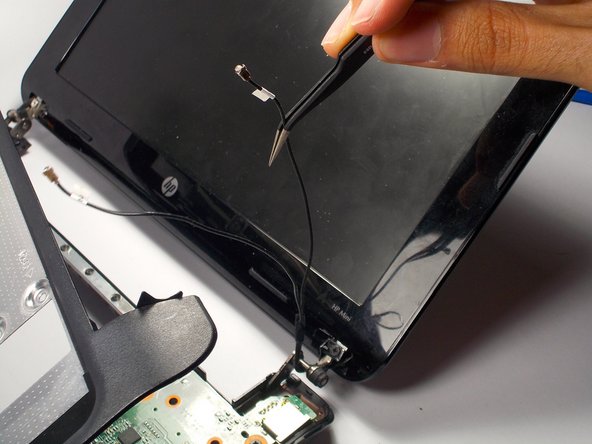
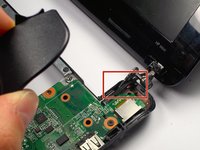
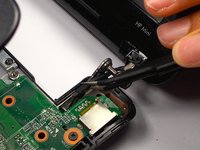
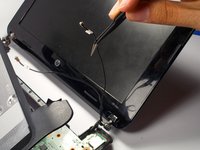
    • Pull the cables for the web cam out using tweezers.

    Спросите у FixBot
  29. HP Mini 110-3735dx Screen Replacement: шаг 29, изображение 1 из 2 HP Mini 110-3735dx Screen Replacement: шаг 29, изображение 2 из 2
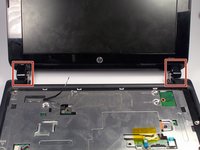
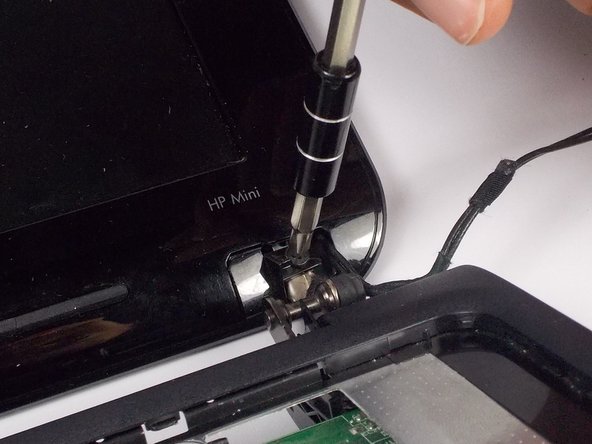
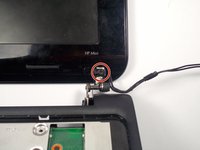
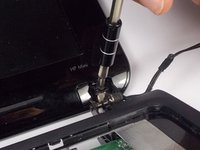
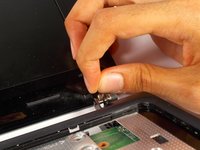
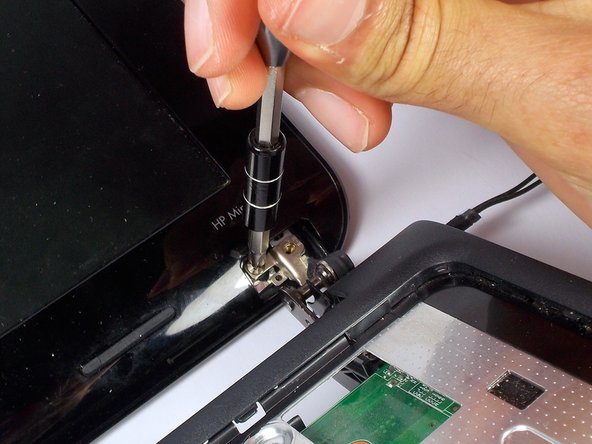
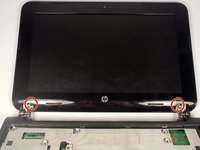
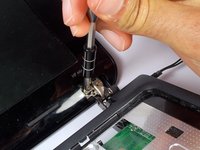
    • Remove the 2 3.0 mm screws on both sides of the bottom of the display using a Phillips #1 screwdriver.

    Спросите у FixBot
  30. HP Mini 110-3735dx Screen Replacement: шаг 30, изображение 1 из 2 HP Mini 110-3735dx Screen Replacement: шаг 30, изображение 2 из 2
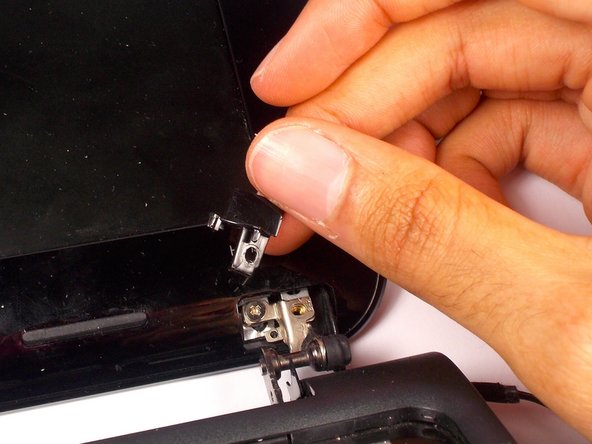
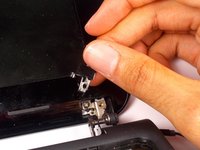
    • Remove the black plastic piece that the screw was holding on both sides.

    • This will reveal another screw.

    Спросите у FixBot
  31. HP Mini 110-3735dx Screen Replacement: шаг 31, изображение 1 из 2 HP Mini 110-3735dx Screen Replacement: шаг 31, изображение 2 из 2
    • Remove the 2 3.0 mm screws on both sides using a Phillips #1 screw driver.

    • When removing, keep hold of the screen to make sure it doesn't fall.

    Спросите у FixBot
  32. HP Mini 110-3735dx Screen Replacement: шаг 32, изображение 1 из 1
    • Pry the front plate using the plastic opening tool by pushing along the border of the front and back plate.

    • Make sure to pry from the sides, top and bottom as the corners will come undone themselves.

    Спросите у FixBot
  33. HP Mini 110-3735dx Screen Replacement: шаг 33, изображение 1 из 3 HP Mini 110-3735dx Screen Replacement: шаг 33, изображение 2 из 3 HP Mini 110-3735dx Screen Replacement: шаг 33, изображение 3 из 3
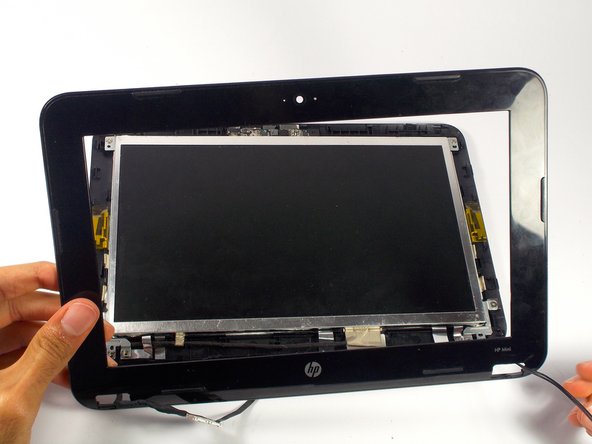
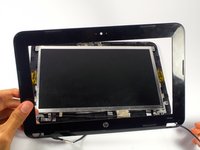
    • Remove the front plate.

    • Pull the cables through the holes.

    Спросите у FixBot
  34. HP Mini 110-3735dx Screen Replacement: шаг 34, изображение 1 из 2 HP Mini 110-3735dx Screen Replacement: шаг 34, изображение 2 из 2
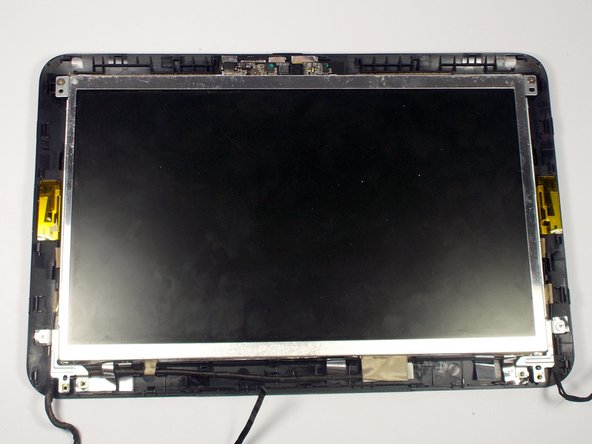
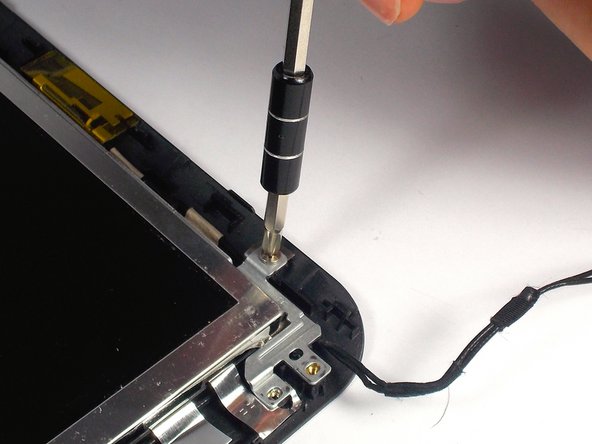
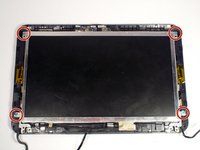
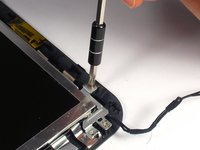
    • Remove the 4 4.0 mm screws holding the screen in place using a Phillips #1 screw driver.

    Спросите у FixBot
  35. HP Mini 110-3735dx Screen Replacement: шаг 35, изображение 1 из 2 HP Mini 110-3735dx Screen Replacement: шаг 35, изображение 2 из 2
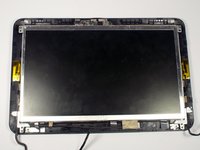
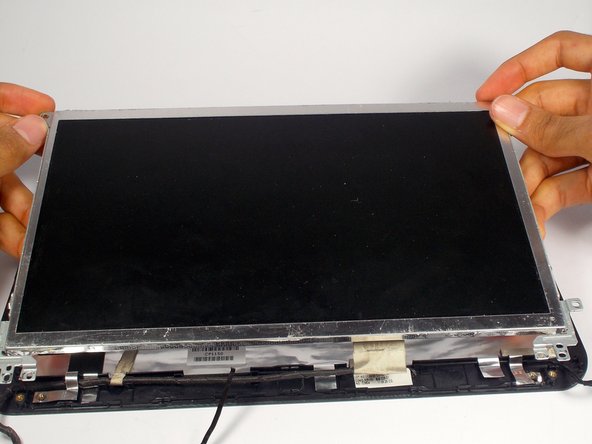
    • Lift the screen up.

    Спросите у FixBot
  36. HP Mini 110-3735dx Screen Replacement: шаг 36, изображение 1 из 2 HP Mini 110-3735dx Screen Replacement: шаг 36, изображение 2 из 2
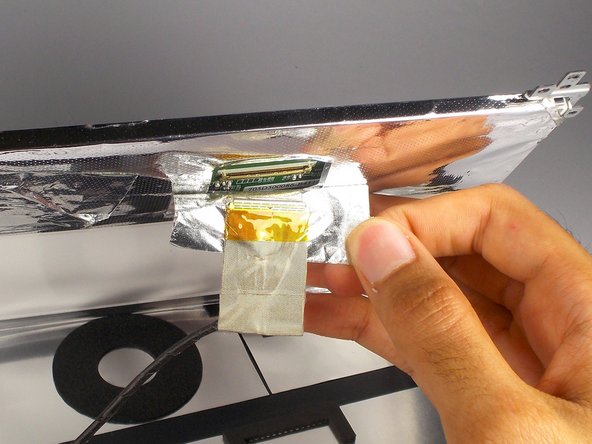
    • Under the screen, peel off the tape near the cable completely, so you can see the socket for the cable.

    Спросите у FixBot
Заключение

To reassemble your device, follow these instructions in reverse order.

Tyrone Williams

Участник с: 03/10/16

923 Репутация

Автор 7 руководств

Команда

UMass Dartmouth, Team 4-1, Catania Spring 2016 Участник UMass Dartmouth, Team 4-1, Catania Spring 2016

UMASSD-CATANIA-S16S4G1

4 членов

Автор 7 руководств

1 Комментарий к руководству

Tengo una pregunta en pantalla habrá alguna otra que sea compatible con esta hp sin ser el mismo modelo?

Icela Ross - Ответить Поделиться

Добавить комментарий

Статистика просмотров:

За последние 24 часов: 1

За последние 7 дней: 5

За последние 30 дней: 35

За всё время: 1,107