Перейти к основному содержанию
Присоединяйся к сообществу ремонтников - Создай аккаунт

HTC Touch Pro 2 Keyboard Replacement

Выберете то, что вам нужно

  1. HTC Touch Pro 2 Keyboard Replacement, Battery: шаг 1, изображение 1 из 3 HTC Touch Pro 2 Keyboard Replacement, Battery: шаг 1, изображение 2 из 3 HTC Touch Pro 2 Keyboard Replacement, Battery: шаг 1, изображение 3 из 3
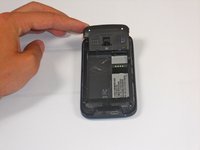
    • Apply pressure and slide upward to remove back cover.

    • Lift the back cover up away from the phone.

    Спросите у FixBot
  2. HTC Touch Pro 2 Keyboard Replacement: шаг 2, изображение 1 из 2 HTC Touch Pro 2 Keyboard Replacement: шаг 2, изображение 2 из 2
    • Lift battery upward on the upper right-hand side to remove it.

    • Check the battery to make sure there's no bent corners.

    Спросите у FixBot
  3. HTC Touch Pro 2 Keyboard Replacement, Housing: шаг 3, изображение 1 из 2 HTC Touch Pro 2 Keyboard Replacement, Housing: шаг 3, изображение 2 из 2
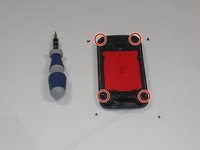
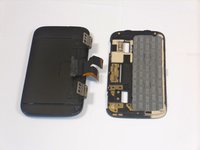
    • Using a T5 screwdriver, remove the four screws in corners as shown.

    • Lift the top portion of the rear case.

    • Potential for device damage: There is a ribbon attached on the back of this part that requires caution to remove.

    Спросите у FixBot
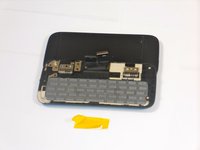
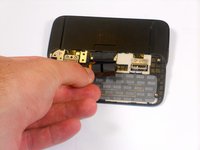
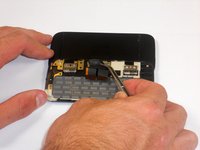
  4. HTC Touch Pro 2 Keyboard Replacement: шаг 4, изображение 1 из 3 HTC Touch Pro 2 Keyboard Replacement: шаг 4, изображение 2 из 3 HTC Touch Pro 2 Keyboard Replacement: шаг 4, изображение 3 из 3
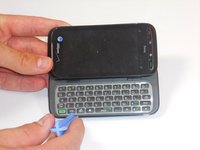
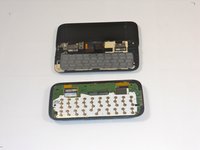
    • Using an IfixIt Plastic Tool, detach the plastic casing from the keyboard. This may require some force.

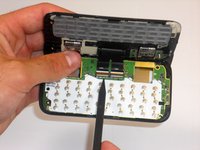
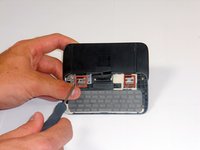
    • Using a spudger or other thin tool, carefully pry up ZIF connectors as shown. This will allow the black ribbons to detach from the keyboard.

    • Slide the two parts away from each other so that the black ribbons slide through the slots and you will now have housing into two parts.

    Спросите у FixBot
  5. HTC Touch Pro 2 Keyboard Replacement, Keyboard: шаг 5, изображение 1 из 3 HTC Touch Pro 2 Keyboard Replacement, Keyboard: шаг 5, изображение 2 из 3 HTC Touch Pro 2 Keyboard Replacement, Keyboard: шаг 5, изображение 3 из 3
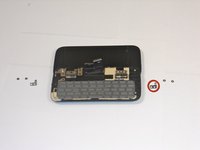
    • Peel off the yellow ribbon shown slowly.

    • Unscrew the fours screws shown in red squares (two in each square) using a 00 screwdriver.

    • After the screws are out, you will be able to easily take off the small metal pieces circled in red.

    Спросите у FixBot
  6. HTC Touch Pro 2 Keyboard Replacement: шаг 6, изображение 1 из 3 HTC Touch Pro 2 Keyboard Replacement: шаг 6, изображение 2 из 3 HTC Touch Pro 2 Keyboard Replacement: шаг 6, изображение 3 из 3
    Инструмент, используемый на этом этапе:
    Tweezers
    $4.99
    • Slowly pull dual black strip off using force.

    • Behind the dual black strip is very sticky piece of grey tape. Use tweezers (preferably ones with ridges) to peel off the tape. Be careful not to rip it.

    Спросите у FixBot
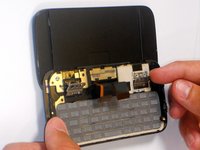
  7. HTC Touch Pro 2 Keyboard Replacement: шаг 7, изображение 1 из 2 HTC Touch Pro 2 Keyboard Replacement: шаг 7, изображение 2 из 2
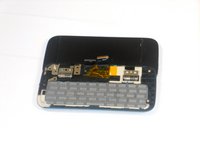
    • Lift ZIF connectors up.

    • Carefully lift keyboard frame away from display screen.

    • You now have the keyboard detached.

    Спросите у FixBot
Заключение

To reassemble your device, follow these instructions in reverse order.

Еще один человек закончил это руководство.

Melinda Phan

Участник с: 04/17/11

438 Репутация

Автор 9 руководств

Команда

Cal Poly, Team 9-64, Walters Spring 2011 Участник Cal Poly, Team 9-64, Walters Spring 2011

CPSU-WALTERS-S11S9G64

5 членов

Автор 18 руководств

0 Комментарии к руководству

Добавить комментарий

Статистика просмотров:

За последние 24 часов: 2

За последние 7 дней: 3

За последние 30 дней: 69

За всё время: 4,786