Перейти к основному содержанию

How to Apply Back Cover Adhesive in Your Google Pixel 8a

Выберете то, что вам нужно

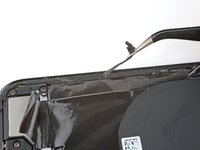
  1. How to Apply Back Cover Adhesive in Your Google Pixel 8a, Remove the old back cover adhesive: шаг 1, изображение 1 из 3 How to Apply Back Cover Adhesive in Your Google Pixel 8a, Remove the old back cover adhesive: шаг 1, изображение 2 из 3 How to Apply Back Cover Adhesive in Your Google Pixel 8a, Remove the old back cover adhesive: шаг 1, изображение 3 из 3
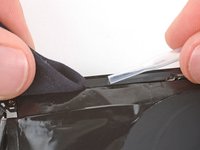
    • Use a spudger and tweezers to scrape up and remove all the old back cover adhesive from the entire perimeter of the frame.

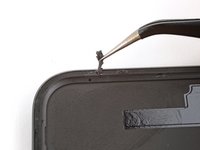
  2. How to Apply Back Cover Adhesive in Your Google Pixel 8a: шаг 2, изображение 1 из 3 How to Apply Back Cover Adhesive in Your Google Pixel 8a: шаг 2, изображение 2 из 3 How to Apply Back Cover Adhesive in Your Google Pixel 8a: шаг 2, изображение 3 из 3
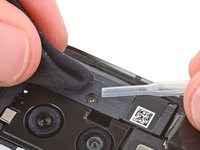
    • Use a spudger and tweezers to scrape up and remove any adhesive from above and below the rear cameras.

    • If necessary, soften the adhesive with a hair dryer or heated iOpener.

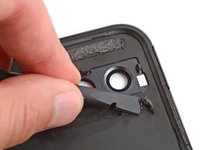
  3. How to Apply Back Cover Adhesive in Your Google Pixel 8a: шаг 3, изображение 1 из 3 How to Apply Back Cover Adhesive in Your Google Pixel 8a: шаг 3, изображение 2 из 3 How to Apply Back Cover Adhesive in Your Google Pixel 8a: шаг 3, изображение 3 из 3
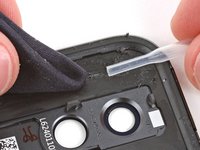
    • If you're reusing your back cover, repeat the previous two steps to remove all the old adhesive from the cover.

    • Be careful not to touch the lens covers on your back cover. If they're dirty, wipe them with a clean microfiber cloth.

  4. How to Apply Back Cover Adhesive in Your Google Pixel 8a: шаг 4, изображение 1 из 3 How to Apply Back Cover Adhesive in Your Google Pixel 8a: шаг 4, изображение 2 из 3 How to Apply Back Cover Adhesive in Your Google Pixel 8a: шаг 4, изображение 3 из 3
    • Use a pipette or syringe to apply a few drops of highly-concentrated isopropyl alcohol (over 90%) to the perimeter of the frame and the area where the two smaller adhesive strips were.

    • Wipe any adhesive residue away using a microfiber or lint-free cloth.

    • If you're reusing your back cover, use the same process to clean up any adhesive residue.

  5. How to Apply Back Cover Adhesive in Your Google Pixel 8a, Apply new adhesives: шаг 5, изображение 1 из 3 How to Apply Back Cover Adhesive in Your Google Pixel 8a, Apply new adhesives: шаг 5, изображение 2 из 3 How to Apply Back Cover Adhesive in Your Google Pixel 8a, Apply new adhesives: шаг 5, изображение 3 из 3
    • If you have a new back cover, your part may come with lower and top back cover adhesive pre-installed. If this is the case, you can skip down two steps to apply the perimeter adhesive.

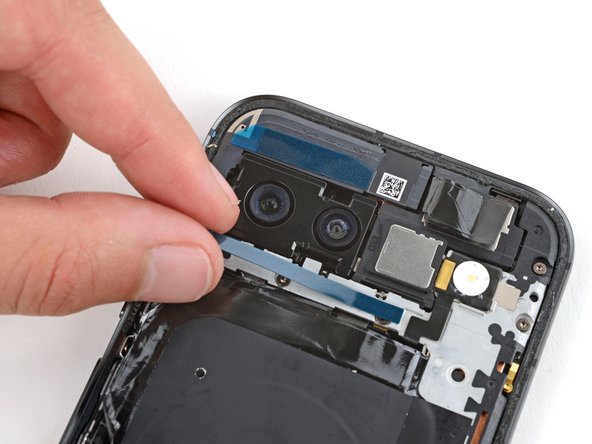
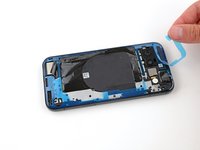
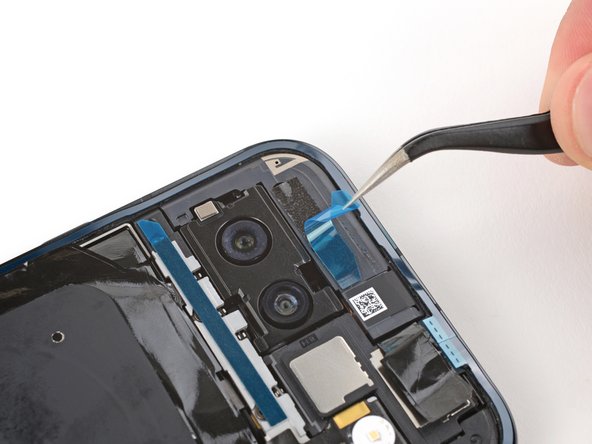
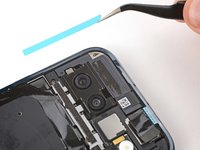
    • Remove the shorter, wider strip of back cover adhesive from its liner and place it on the plastic housing just above the rear cameras.

  6. How to Apply Back Cover Adhesive in Your Google Pixel 8a: шаг 6, изображение 1 из 3 How to Apply Back Cover Adhesive in Your Google Pixel 8a: шаг 6, изображение 2 из 3 How to Apply Back Cover Adhesive in Your Google Pixel 8a: шаг 6, изображение 3 из 3
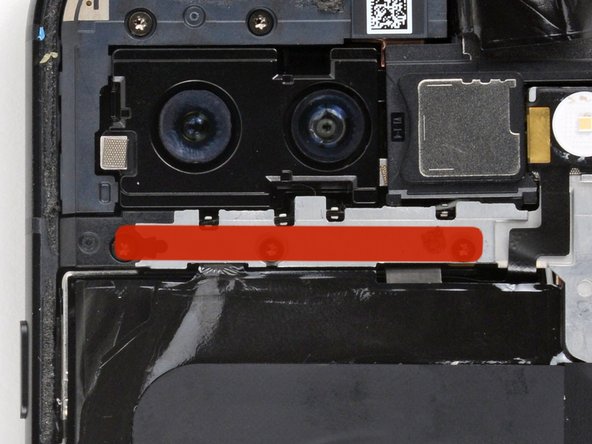
    • Remove the longer, thinner piece of back cover adhesive from its liner and place it on the logic board cover just below the rear cameras.

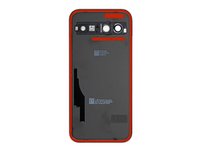
  7. How to Apply Back Cover Adhesive in Your Google Pixel 8a: шаг 7, изображение 1 из 2 How to Apply Back Cover Adhesive in Your Google Pixel 8a: шаг 7, изображение 2 из 2
    • Before removing any liners from the back cover adhesive, hold it over the frame and use the cutouts to make sure it's oriented correctly.

    • The blue liner should be facing up, with the larger, clear liner on the bottom.

  8. How to Apply Back Cover Adhesive in Your Google Pixel 8a: шаг 8, изображение 1 из 1
    • Peel down the top half of the larger liner to expose the adhesive—don't remove the whole liner yet.

  9. How to Apply Back Cover Adhesive in Your Google Pixel 8a: шаг 9, изображение 1 из 3 How to Apply Back Cover Adhesive in Your Google Pixel 8a: шаг 9, изображение 2 из 3 How to Apply Back Cover Adhesive in Your Google Pixel 8a: шаг 9, изображение 3 из 3
    • Take your time aligning the adhesive with the frame—it's very sticky and can't be moved after you apply it.

    • Keep the larger liner folded towards the bottom of the phone during this step.

    • Lay the exposed top edge of the adhesive onto the frame, using the frame's lip to help align it.

    • Once the top edge is properly aligned, gently press down with your fingers to secure it in place.

  10. How to Apply Back Cover Adhesive in Your Google Pixel 8a: шаг 10, изображение 1 из 3 How to Apply Back Cover Adhesive in Your Google Pixel 8a: шаг 10, изображение 2 из 3 How to Apply Back Cover Adhesive in Your Google Pixel 8a: шаг 10, изображение 3 из 3
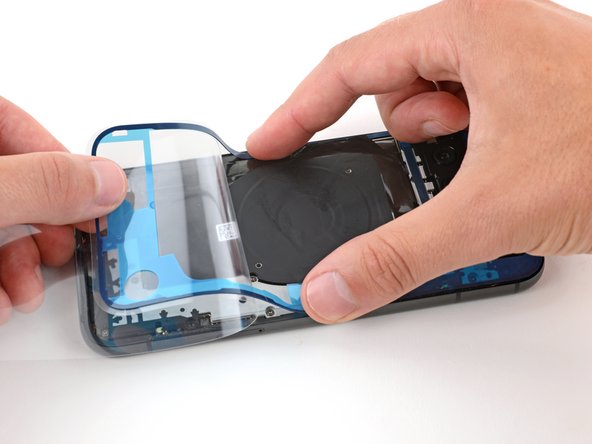
    • Slowly lay the rest of the adhesive onto the frame, peeling away the large liner as you go.

  11. How to Apply Back Cover Adhesive in Your Google Pixel 8a: шаг 11, изображение 1 из 3 How to Apply Back Cover Adhesive in Your Google Pixel 8a: шаг 11, изображение 2 из 3 How to Apply Back Cover Adhesive in Your Google Pixel 8a: шаг 11, изображение 3 из 3
    • Use the flat end of your spudger to press along the perimeter of the adhesive and secure it to the frame.

  12. How to Apply Back Cover Adhesive in Your Google Pixel 8a, Remove the liners: шаг 12, изображение 1 из 3 How to Apply Back Cover Adhesive in Your Google Pixel 8a, Remove the liners: шаг 12, изображение 2 из 3 How to Apply Back Cover Adhesive in Your Google Pixel 8a, Remove the liners: шаг 12, изображение 3 из 3
    • Slowly peel and remove the blue liner.

    • If the adhesive starts to peel up with the liner, check that you’ve pushed all of it into place with your spudger. If it continues to peel up, hold it down with the point of your spudger as you go.

  13. How to Apply Back Cover Adhesive in Your Google Pixel 8a: шаг 13, изображение 1 из 3 How to Apply Back Cover Adhesive in Your Google Pixel 8a: шаг 13, изображение 2 из 3 How to Apply Back Cover Adhesive in Your Google Pixel 8a: шаг 13, изображение 3 из 3
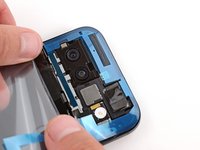
    • Peel and remove the liners from the two smaller strips of adhesive near the rear cameras.

  14. How to Apply Back Cover Adhesive in Your Google Pixel 8a: шаг 14, изображение 1 из 3 How to Apply Back Cover Adhesive in Your Google Pixel 8a: шаг 14, изображение 2 из 3 How to Apply Back Cover Adhesive in Your Google Pixel 8a: шаг 14, изображение 3 из 3
    • Grab the pull tab on the top edge and slowly peel and remove the remaining liner.

  15. How to Apply Back Cover Adhesive in Your Google Pixel 8a, Secure the back cover: шаг 15, изображение 1 из 3 How to Apply Back Cover Adhesive in Your Google Pixel 8a, Secure the back cover: шаг 15, изображение 2 из 3 How to Apply Back Cover Adhesive in Your Google Pixel 8a, Secure the back cover: шаг 15, изображение 3 из 3
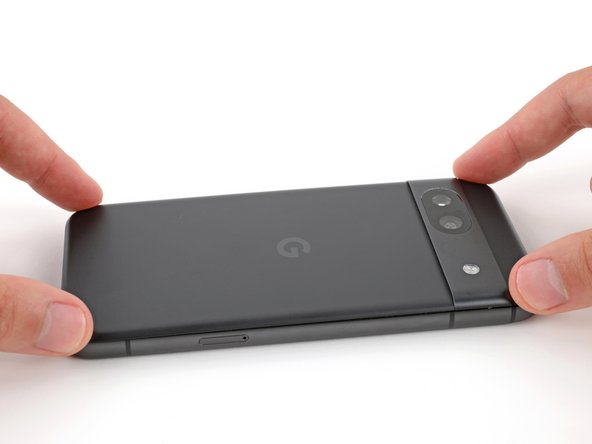
    • Align the back cover over the frame and press it into place.

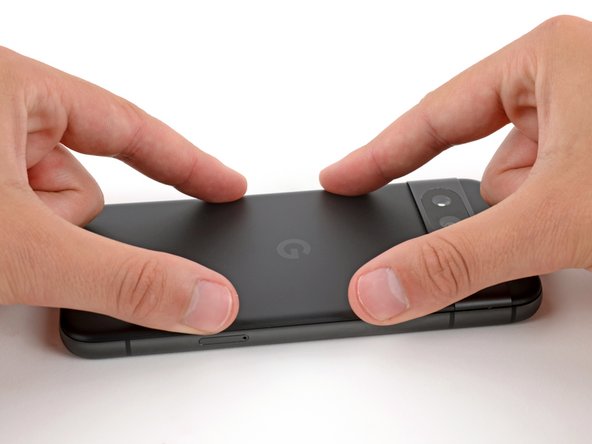
    • Firmly press around the perimeter of the back cover to secure it.

    • To further strengthen the adhesive bond, lightly heat the back cover's perimeter with a hair dryer or heated iOpener and continue pressing it into place.

  16. How to Apply Back Cover Adhesive in Your Google Pixel 8a: шаг 16, изображение 1 из 2 How to Apply Back Cover Adhesive in Your Google Pixel 8a: шаг 16, изображение 2 из 2
    • Firmly press down on the back cover above and below the camera bump to secure the cover with the two smaller strips of adhesive.

Заключение

Repair didn’t go as planned? Try some basic troubleshooting, or ask our Answers community for help.

4 человек успешно провели ремонт по этому руководству.

Spencer Day

Участник с: 09/14/22

149 568 Репутация

Автор 995 руководств

Команда

iFixit Участник iFixit

Staff

123 членов

Автор 23 623 руководств

0 Комментарии к руководству

Добавить комментарий

Статистика просмотров:

За последние 24 часов: 4

За последние 7 дней: 13

За последние 30 дней: 67

За всё время: 1,189